
Knowledge Base
Help Center articles
This is the whole Account Tracker user guide on one page. Each link below is a short guide to one feature, with pictures of the real dashboard and the exact buttons to click. New to the tracker? Follow the first five in order: about fifteen minutes later your MetaTrader accounts are on your dashboard.
Plan: every plan. Each guide says if a feature needs Pro or VIP.
1. Getting started
Create your login, attach the ATS Terminal EA to each MetaTrader account, and check that every terminal reports. The EA only reads the account; it never places trades.
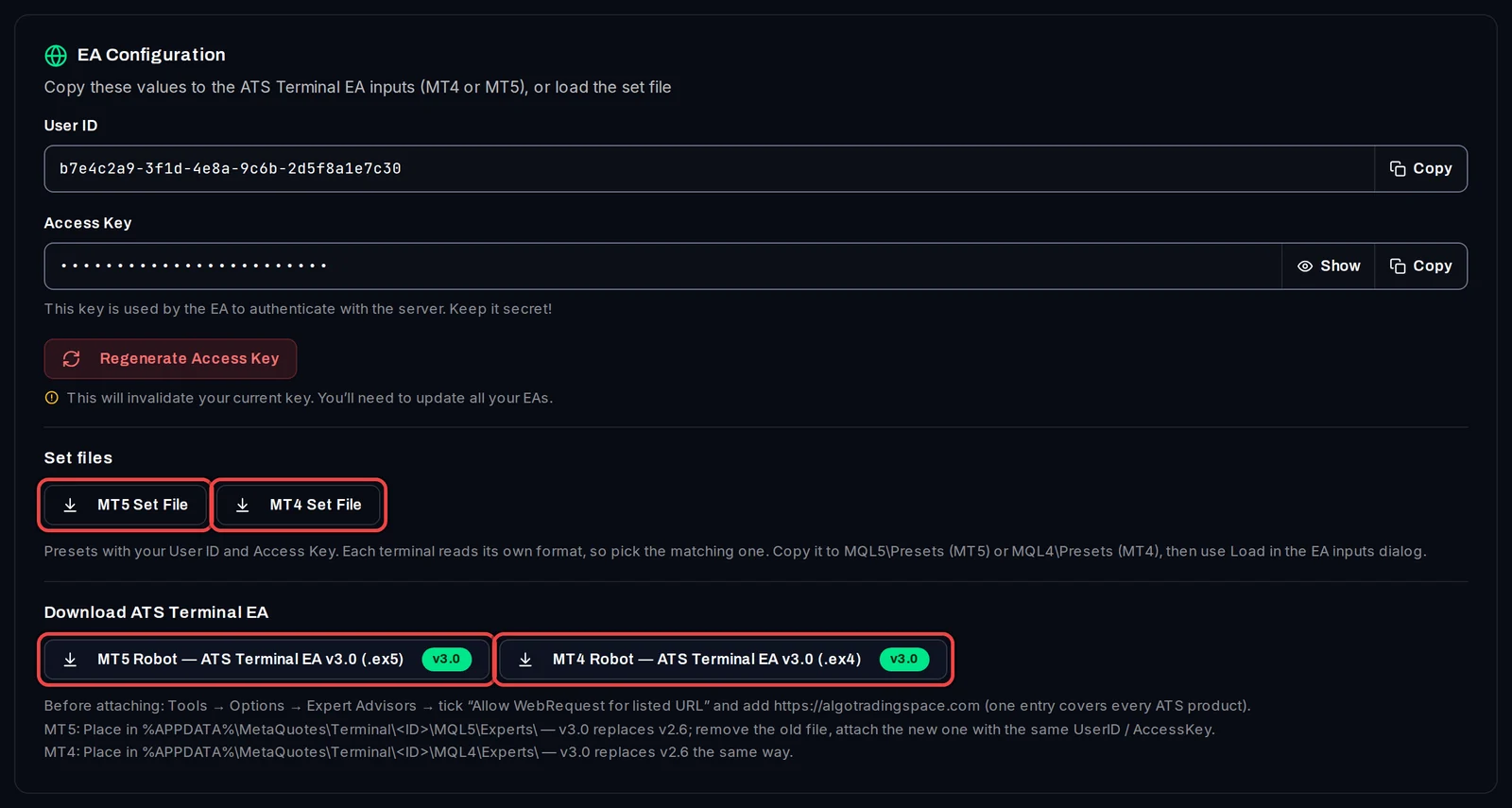
- Account Tracker: what you need before you start
- Connect a MetaTrader account with the ATS Terminal EA
- Connect every terminal on a VPS with one command
- Check that your terminals are reporting
- My account doesn't show up: what to check
2. Your accounts
The Overview shows every account at a glance. Sort, filter and group them, and hide account numbers when you share your screen.
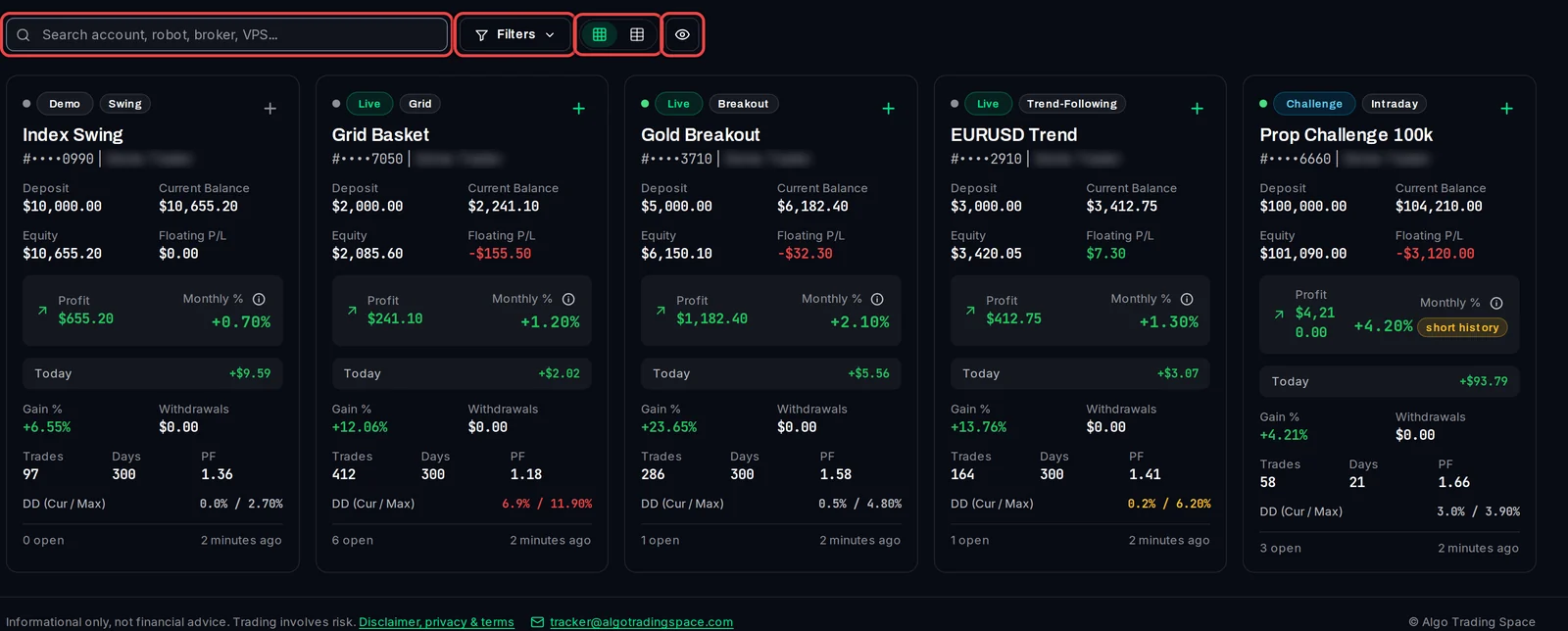
- Find your way around the dashboard
- Cards or table: switch views and sort your accounts
- Filter your accounts
- Hide account numbers when you share your screen
- Group accounts in your Watch List and your own lists
- At Risk, Warning and Healthy: what they mean
- Paused accounts, your account limit and removing an account
3. One account in detail
Click an account to open its page: the equity chart, each robot's results, your best hours and days, open trades and notes.
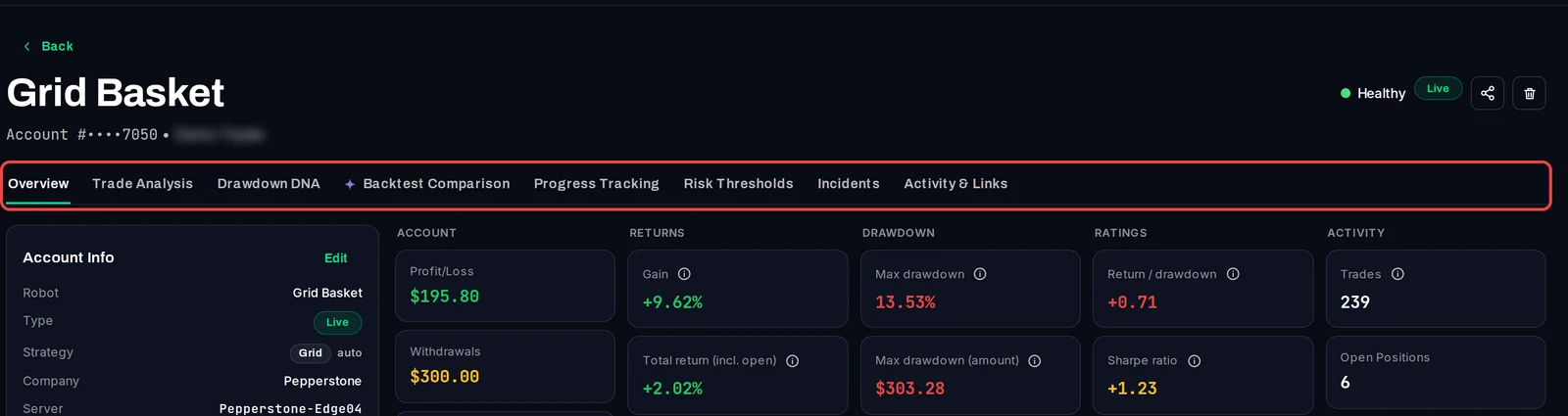
- Read an account page
- Filter an account by robot, symbol or dates
- See each robot's results with Trade Analysis
- Find your best hours and days (Breakdown and heatmap)
- Use the equity chart: views, ranges and CSV
- Open trades, trade history and the Event Log
- Name the robot, set the account type and strategy tags
- Strategy types: how accounts are tagged
- Start counting from a new date (Tracking Baseline)
- Keep notes on an account
- See an account's connection drops (Incidents)
4. Prop firms and risk
Follow a prop-firm challenge against its rules, and decide when an account counts as Healthy, Warning or Critical.
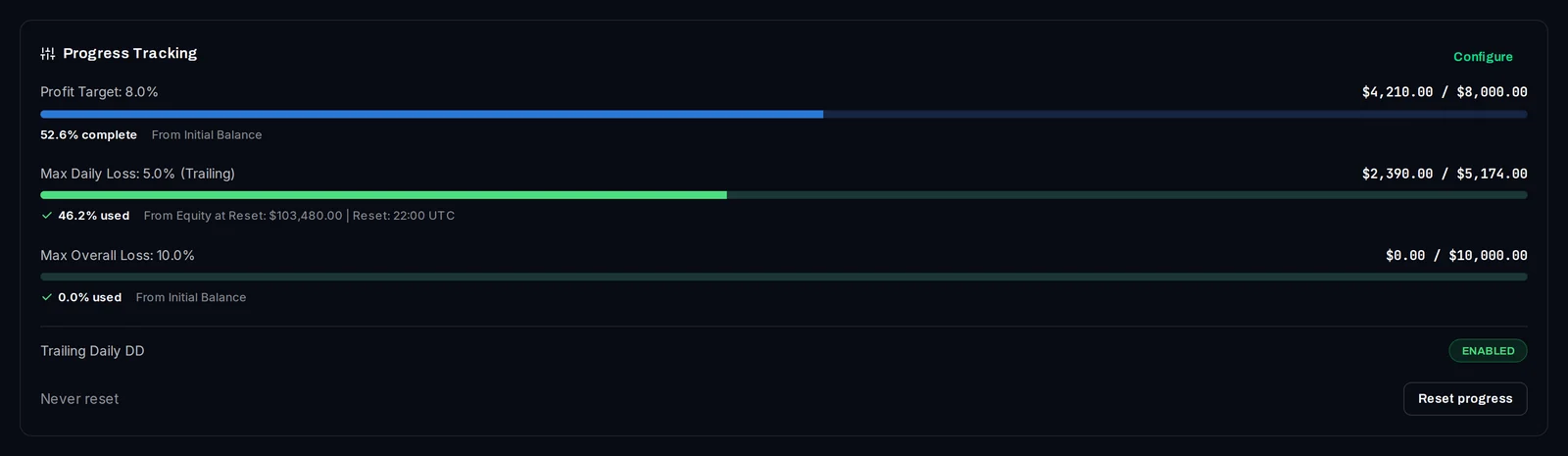
- Track a prop-firm challenge with Progress Tracking
- Reset progress after a payout or a new phase
- Set your risk levels
- Give one account its own risk limits
- Drawdown DNA: how deep, how long and how fast it recovered
5. Alerts
Be told when a drawdown grows, a terminal goes offline or an account changes its risk level: in the dashboard, on Discord, on Telegram or in your browser.
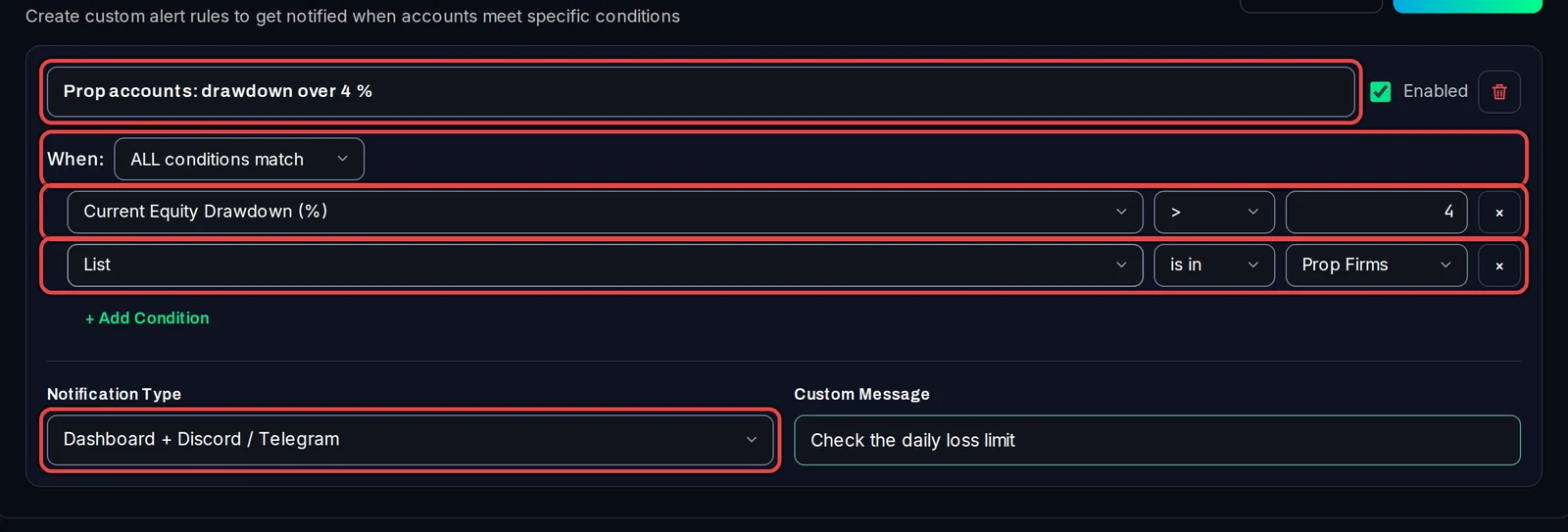
- Create an alert rule
- Get your alerts on Discord
- Get your alerts on Telegram
- Get your alerts as browser notifications
- Read and acknowledge your alerts
6. Backtests, portfolios and analytics
Check whether a robot trades live the way it did in its backtest, compare one robot across brokers, and build a portfolio from your accounts.
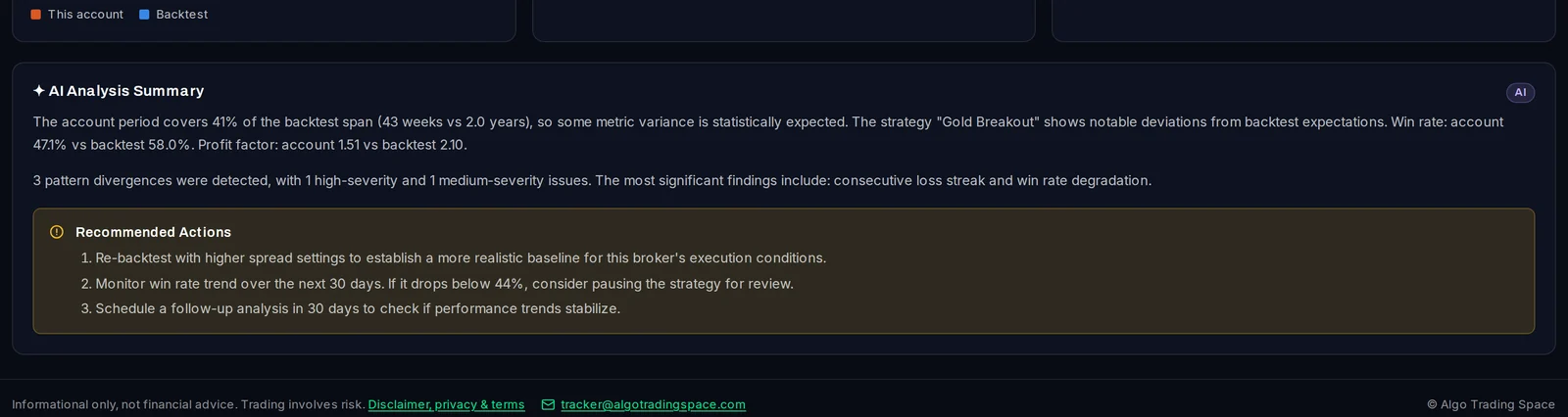
- Compare a backtest with live trading
- Link a test from the Backtest Manager
- Read the eight checks and the verdict
- Compare one EA across brokers (Strategy Performance)
- Build a portfolio with the Screener
- See where your capital is (Capital Allocation)
- Analytics and the Risk-Adjusted Score
- System Health: uptime and the connection log
7. Reports and sharing
Print a monthly report, prepare your yearly tax figures, and share an account's results with a public link.
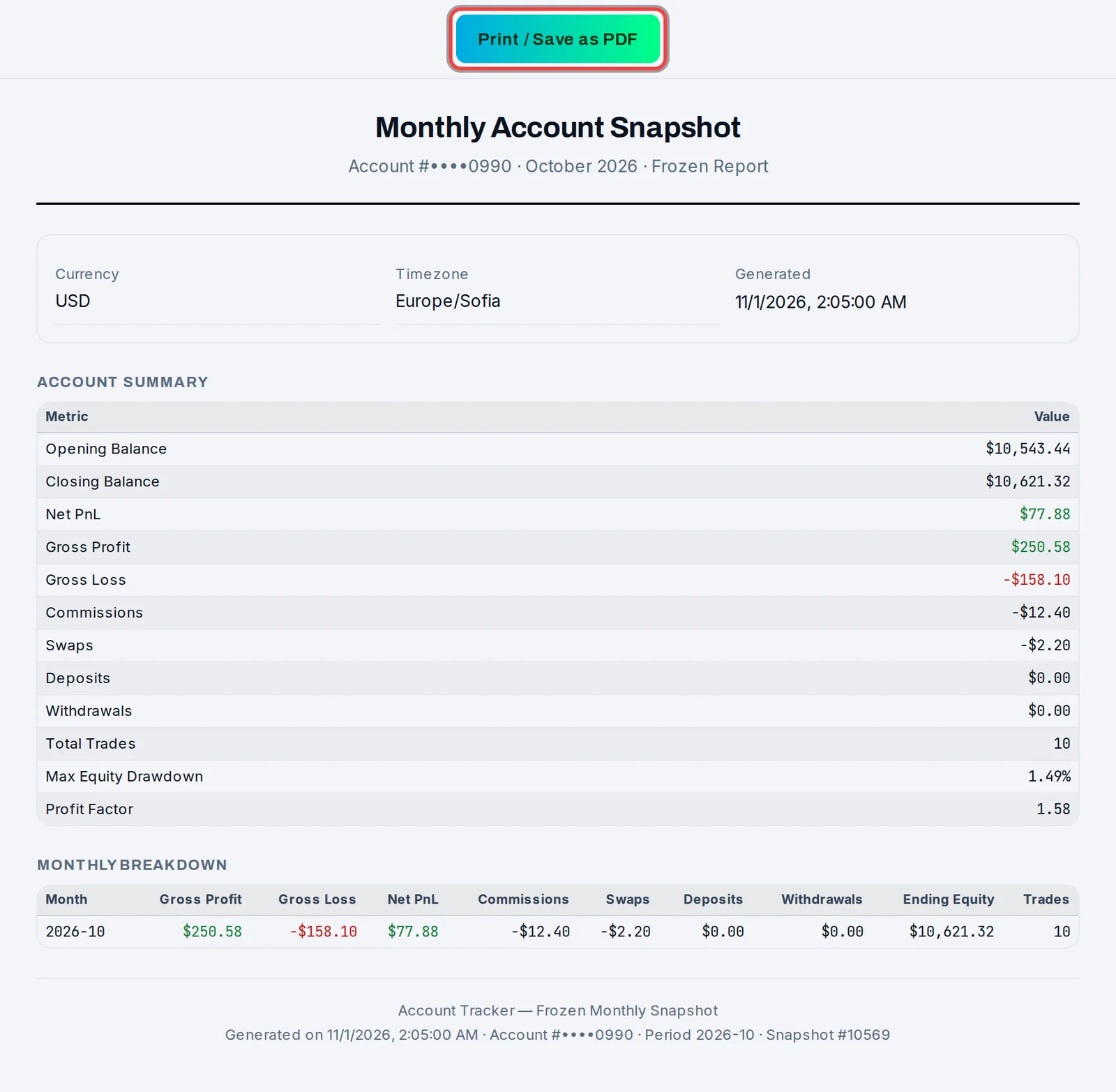
- Print a monthly account report
- Monthly breakdown for several accounts
- Annual tax and accounting report
- Share an account with a public link
- Manage and revoke your shared links
8. AI, API and teams
Ask Claude or another AI assistant about your accounts, use the API in your own scripts, and share accounts with your team.
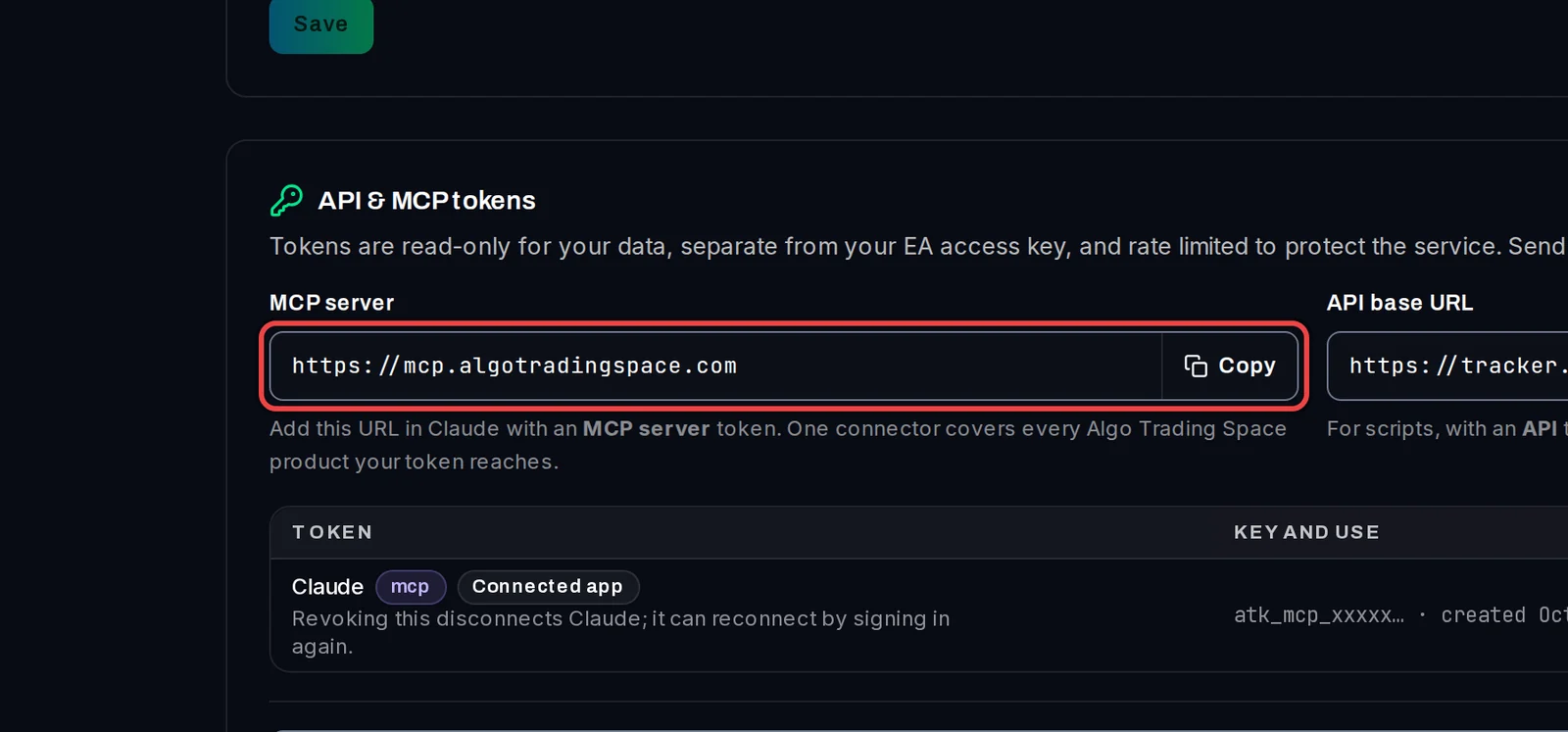
- Connect Claude to your accounts
- Connect another AI assistant with a token
- Use the API in your own scripts
- Let your AI assistant remember you (Connector memory)
- Share accounts with your team (Workspaces)
9. Your account and plan
Compare the plans, manage your subscription, and keep your login safe.
- Free, Pro and VIP: what each plan includes
- Upgrade or manage your subscription
- Turn on two-factor authentication
- Show times in your own time zone
- Regenerate your access key
Still stuck?
Write to [email protected] with your account number and what you see on the screen. A screenshot helps.