
Knowledge Base
Help Center articles
Print a monthly account report
On the 1st of every month the tracker freezes the month that just ended for each account, so its figures never change afterwards. You can open any frozen month as a one-page report and print it or save it as a PDF, for your records, an investor or a prop firm.
Plan: every plan.
Find the month
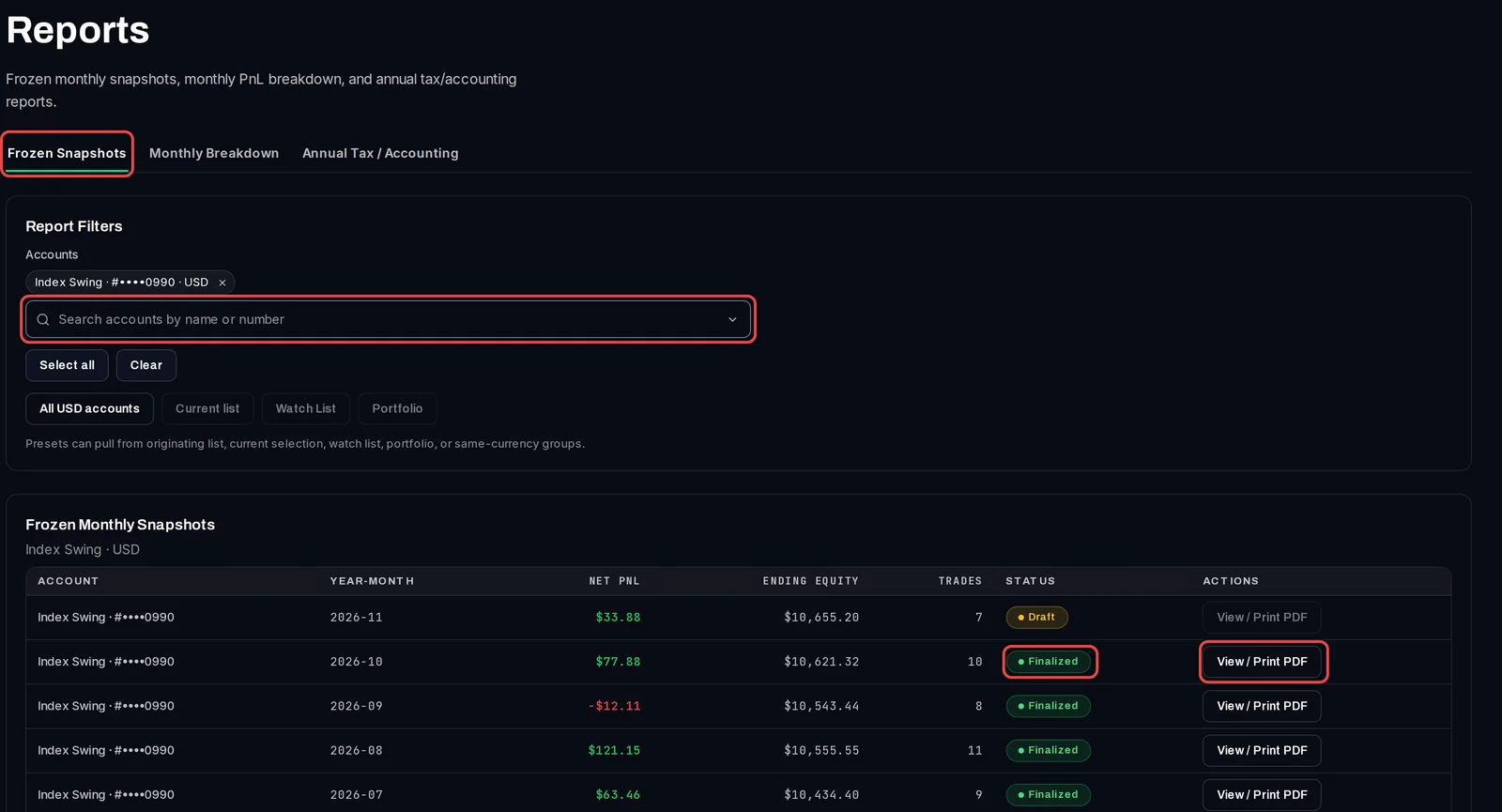
- In the menu on the left, click Analytics, then Reports.
- Stay on the Frozen Snapshots tab.
- Under Accounts, type the account's name or number and pick it. You can pick several, or click Select all.
- Find the month in the Frozen Monthly Snapshots table. A closed month reads Finalized; the current month reads Draft until it closes.
- Click View / Print PDF on that row.
Print it or save it as a PDF
- The Monthly Account Snapshot opens in a new tab, and your browser's print window opens with it.
- To save a file, choose Save as PDF as the printer in that window. To print it again later, click Print / Save as PDF at the top of the page.
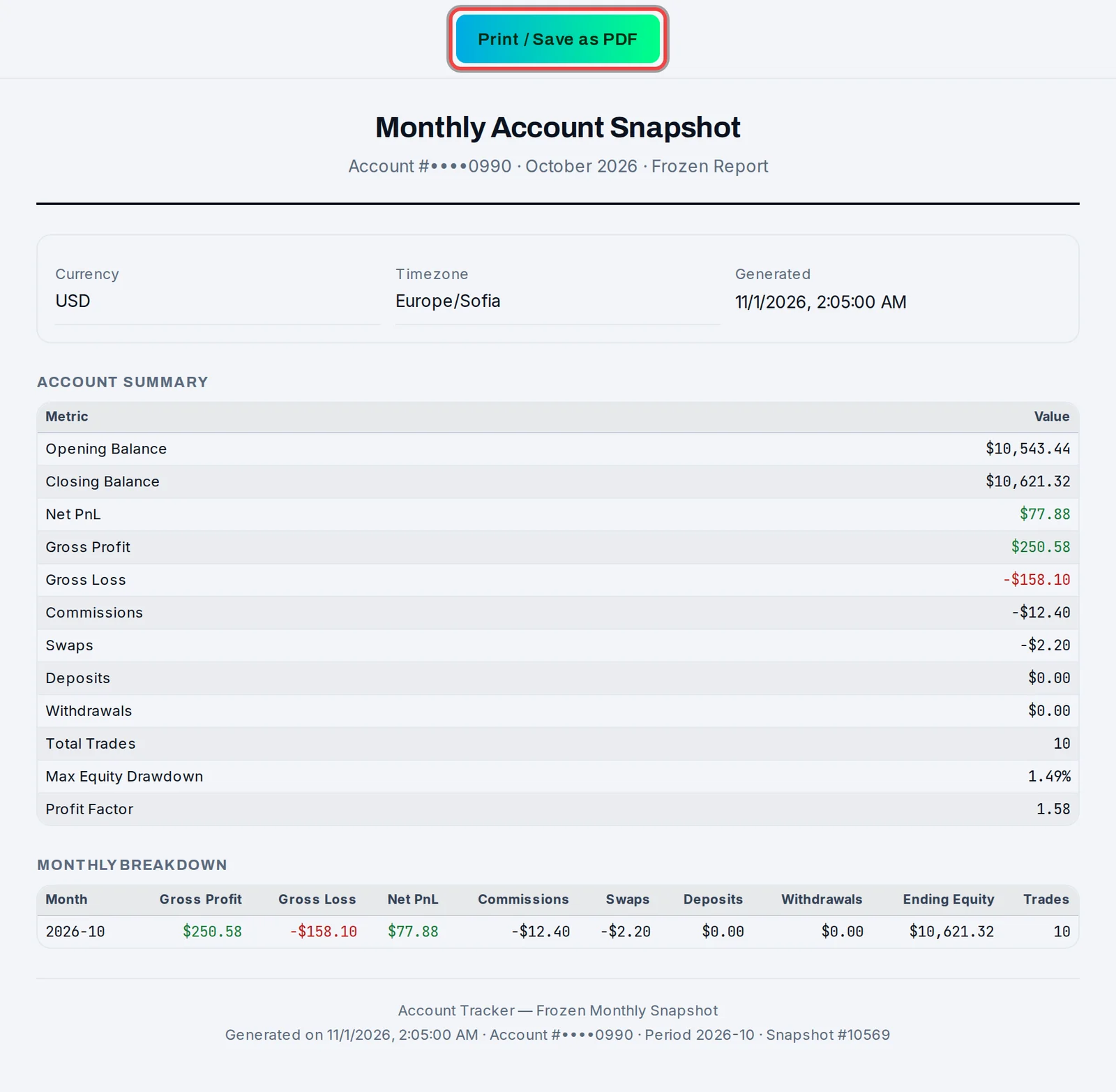
The report shows the opening and closing balance, net profit (Net PnL), gross profit and loss, commissions, swaps, deposits, withdrawals, the number of trades, the largest equity drawdown of the month (the deepest fall from a peak) and the profit factor (gross profit divided by gross loss).
Good to know
- View / Print PDF only works for a Finalized month. The current month can be printed once it has closed.
- A frozen month does not change, even if the account's history is resynced later. That makes it a fixed record you can hand over.
- The report shows the account number, so check who you send it to. To show results without it, use a public link instead.