
Knowledge Base
Help Center articles
Share an account with a public link
A public link shows an account's results to an investor, a prop firm or a community without giving anyone access to your account. Anyone with the link can open the report without signing in.
Plan: every plan.
Create the link
- Open the account.
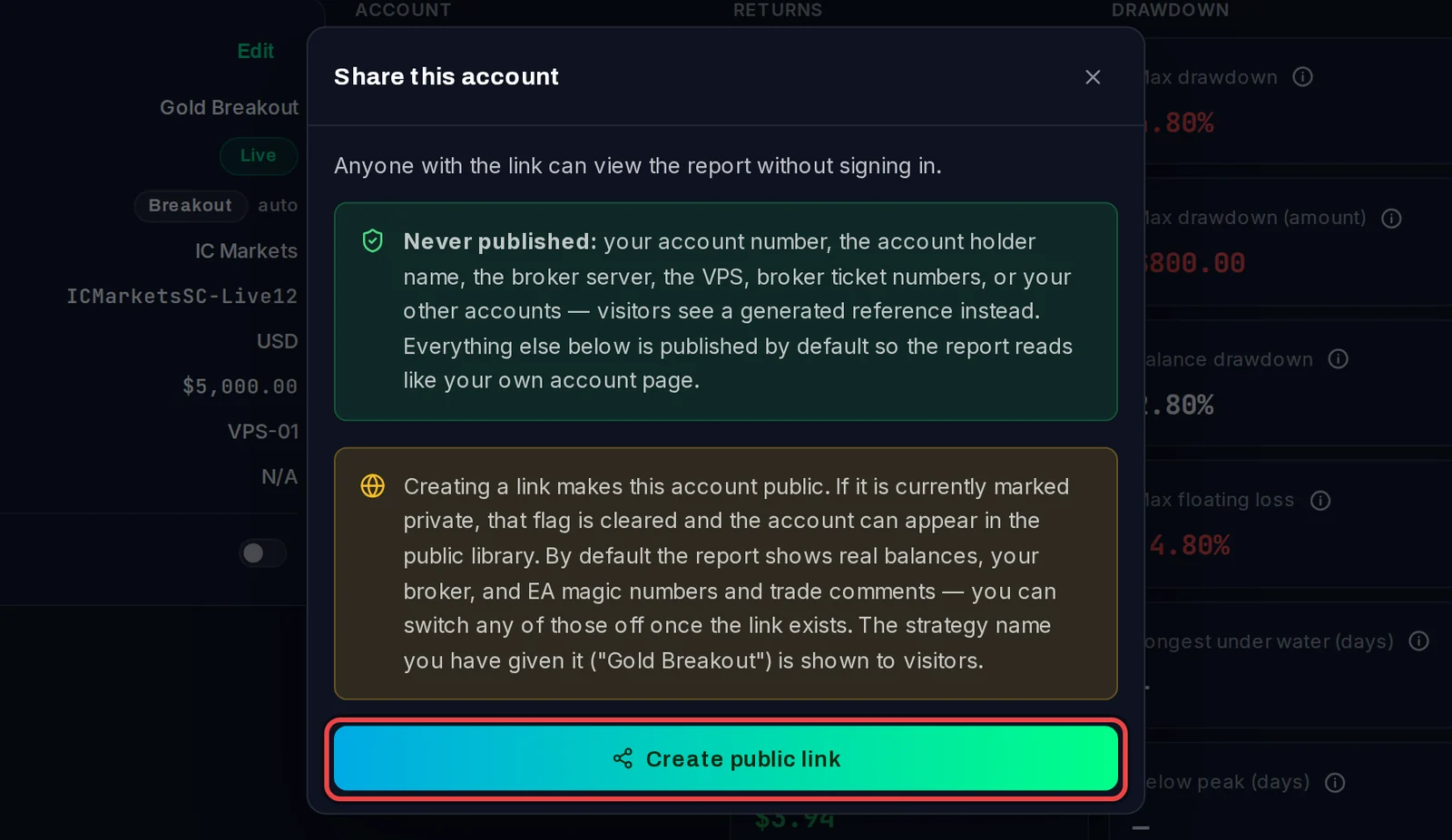
- Click the share icon at the top right (Share this account).
- Read the two notes: what is never published, and that the link makes the account public.
- Click Create public link.
Choose percentages or real amounts
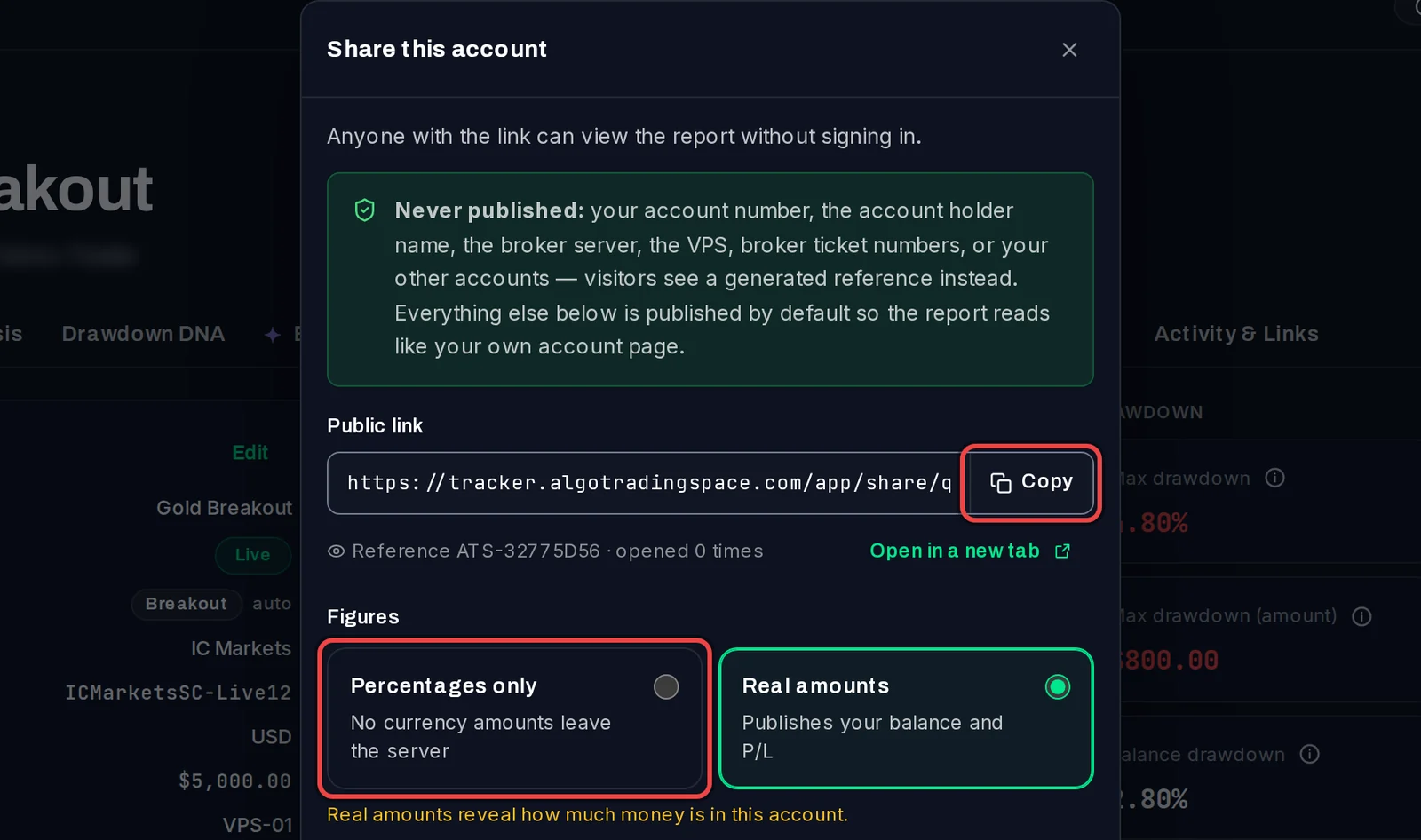
- Under Figures, choose Percentages only to keep money amounts private, or Real amounts to show your balance and profit. New links start on Real amounts.
Choose what it shows
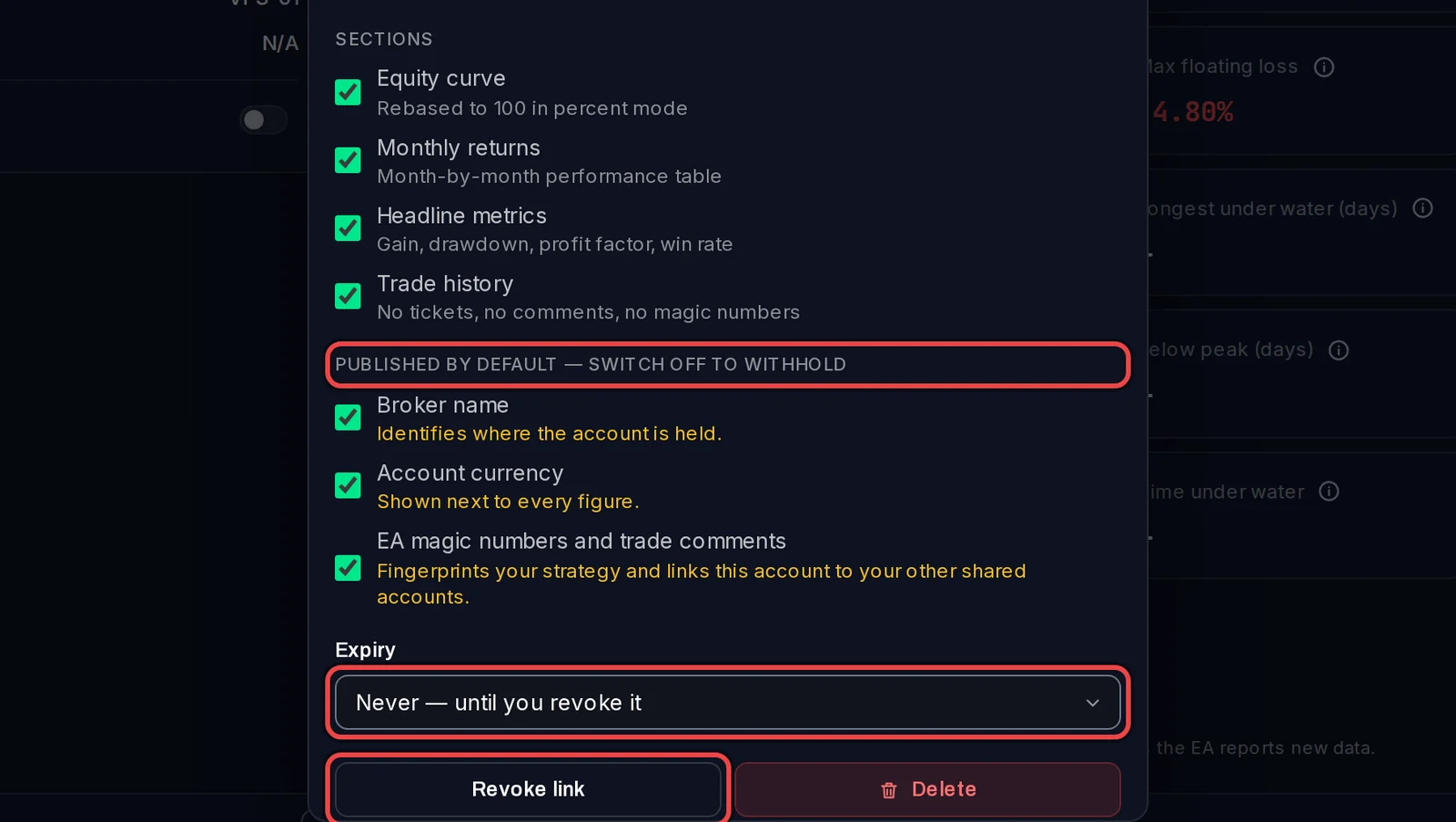
- Under Sections, untick anything you don't want to show: Equity curve, Monthly returns, Headline metrics or Trade history.
- Under Published by default — switch off to withhold, untick Broker name, Account currency or EA magic numbers and trade comments to hide them.
- Under Expiry, keep Never — until you revoke it or pick 24 hours, 7, 30 or 90 days.
Every change is saved at once and applies to the link you already sent.
Send the link
- Click Copy next to Public link and paste it where you want.
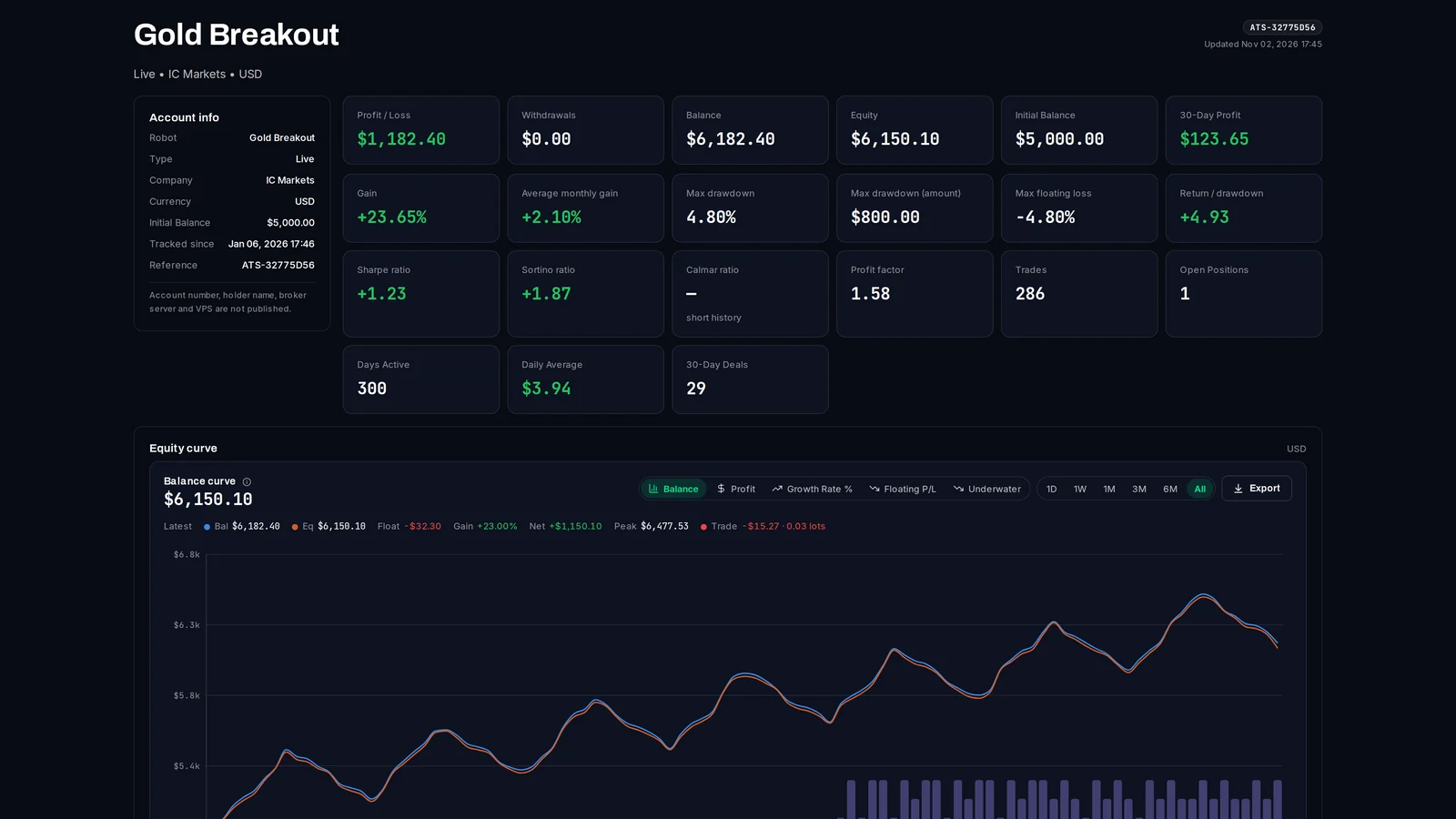
- Click Open in a new tab to see what visitors see. The line under the link shows its reference and how many times it was opened.
Good to know
- Your account number, the account holder's name, the broker server, the VPS and broker ticket numbers are never published. Visitors see a reference such as ATS-32775D56 instead.
- Creating a link clears the account's private setting, so it can also appear in the public library.
- One account has one live link. Opening the panel again shows the same link and its settings.
- To stop sharing, click Revoke link in the same panel. Visitors then see "This report is not available".