
Knowledge Base
Help Center articles
Link a test from the Backtest Manager
If you ran the backtest in the Backtest Manager, you don't need to save and upload a report file. Link the test to the account straight from your library, and the Backtest Comparison tab uses it as the backtest.
Plan: Pro or VIP. The 14 days of Pro every new user starts with include it. You also need tests in your own Backtest Manager library.
Open your library
- Open the account and click the Backtest Comparison tab.
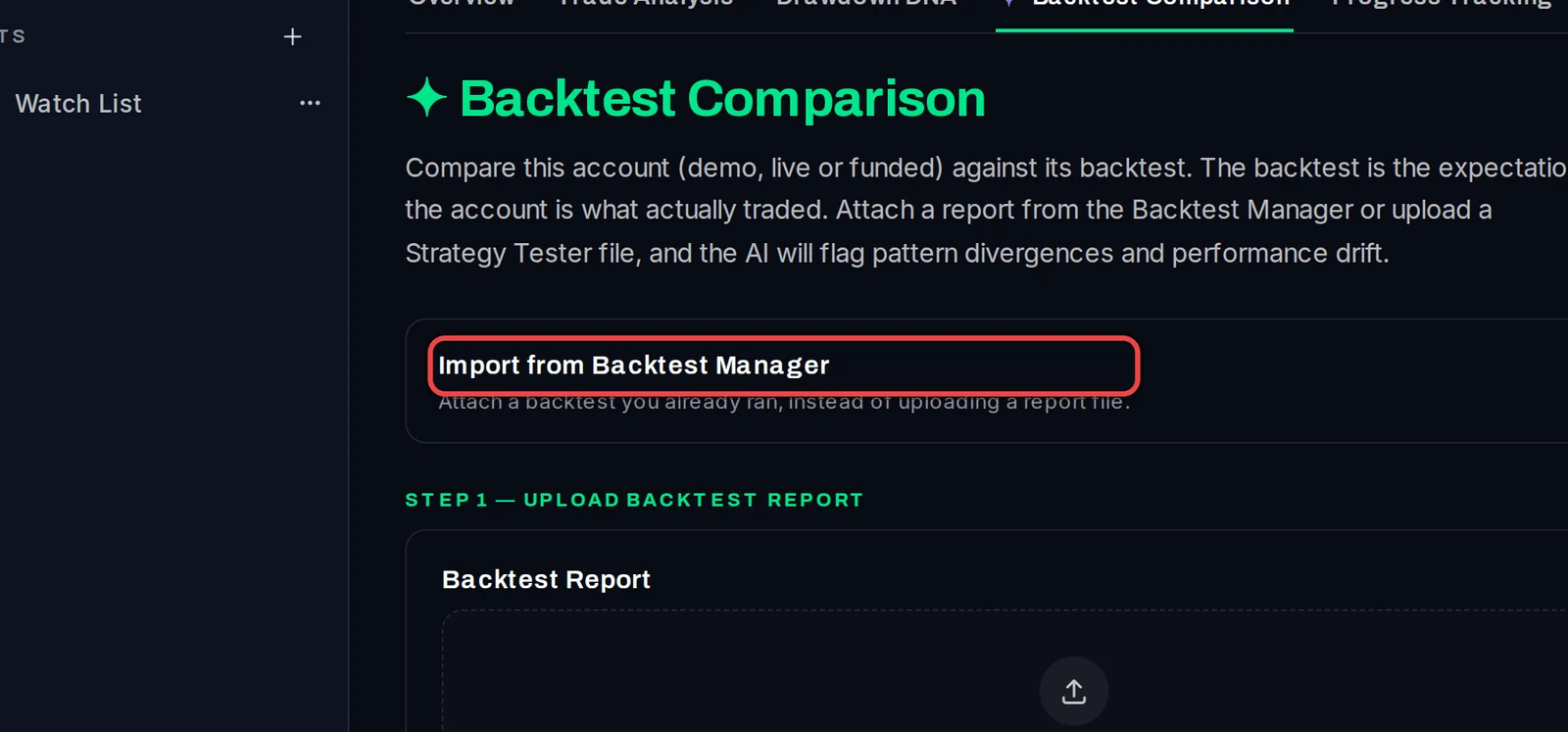
- Click Import from Backtest Manager at the top of the tab.
Link a test
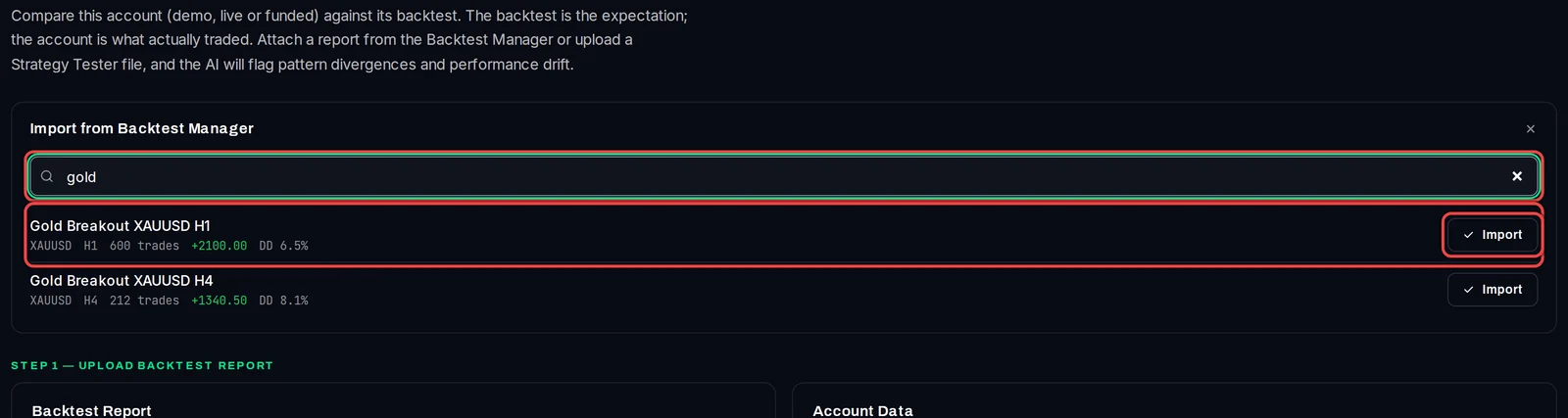
- Type a robot name or a symbol in the search box, for example
gold. Each test shows its symbol, timeframe, number of trades, net profit and drawdown (DD). - Click Import beside the test that matches the robot on this account.
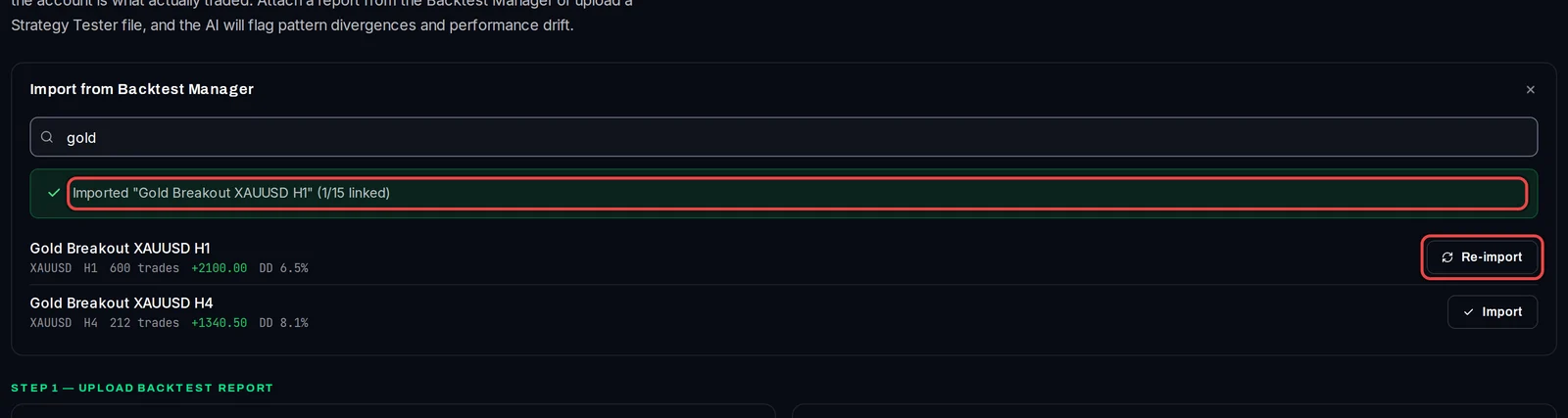
A green line confirms it, for example Imported "Gold Breakout XAUUSD H1" (1/15 linked), and the button now reads Re-import.
Compare it
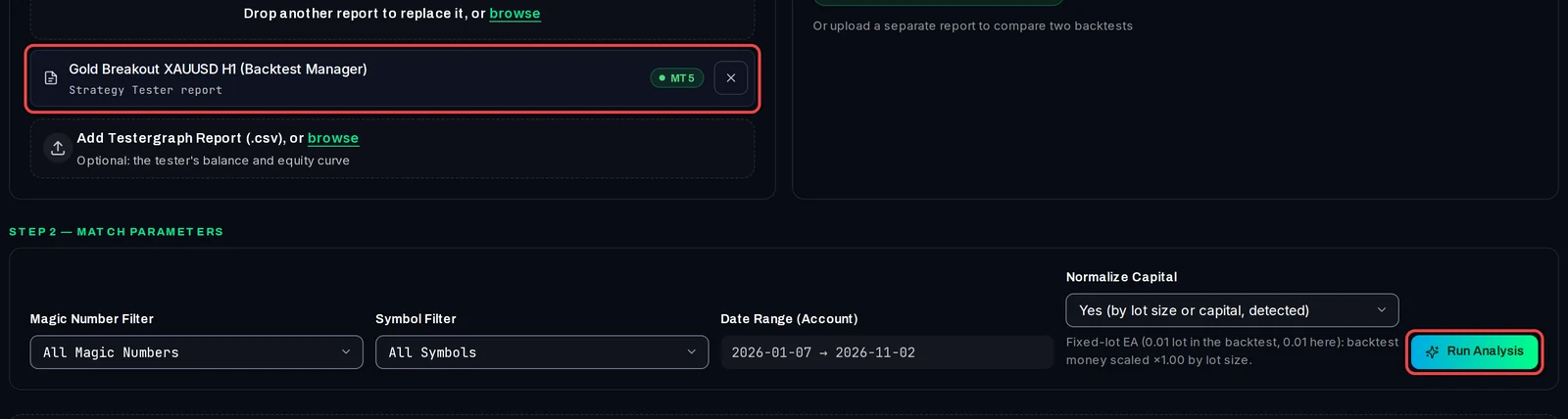
- The linked test is loaded as the backtest on the Backtest Report card, marked (Backtest Manager).
- Set the filters in Step 2 — Match Parameters and click Run Analysis.
Good to know
- An account can have up to 15 linked tests. Each is kept under History like an uploaded report.
- When you run a linked test again in the Backtest Manager, the tracker picks up the new results by itself within the hour. Re-import fetches them at once.
- With two or more tests linked, a Portfolio correlation card shows how closely they move together.
- If the panel says your login is not linked to an Algo Trading Space platform account, sign in to the Account Tracker once through algotradingspace.com, then try again.