
Knowledge Base
Help Center articles
Create an alert rule
An alert rule tells you when an account needs a look, for example when its drawdown passes 4 %. The tracker checks your rules on its server every minute, even while the dashboard is closed.
Plan: every plan can create rules and see the alerts on the Alerts page. Sending them to Discord or Telegram needs Pro or VIP; the 14 days of Pro every new user starts with include it.
Add a rule
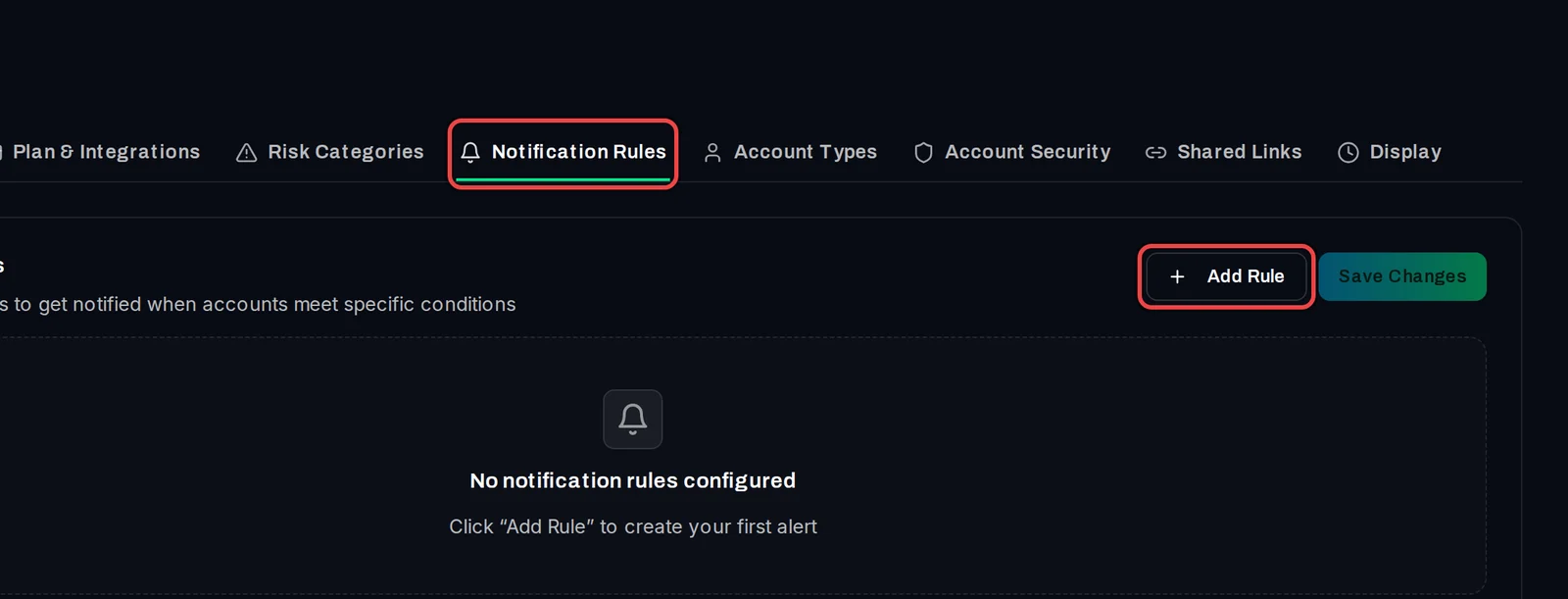
- Open Settings › Notification Rules.
- Click Add Rule.
Set what it watches
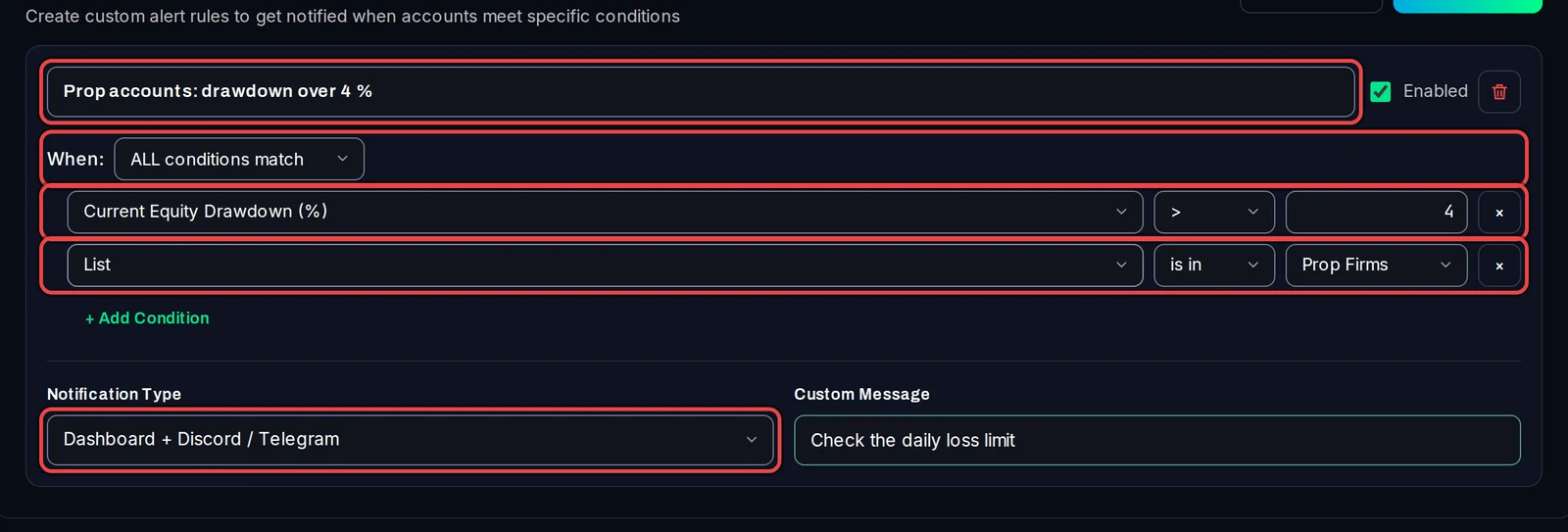
- Replace "New Alert Rule" with a name you will recognise in the alert.
- Set the first condition: a figure, a comparison and a number, for example Current Equity Drawdown (%) > 4.
- To limit the rule to some accounts, click + Add Condition and pick List is in one of your lists, or Account Type is not Demo.
- Next to When:, choose ALL conditions match or ANY condition matches.
- Under Notification Type, choose Dashboard only, or Dashboard + Discord / Telegram to also get it on your channels.
- Optionally, type a Custom Message. It is added to the end of the alert.
Save it
- Click Save Changes at the top of the tab.
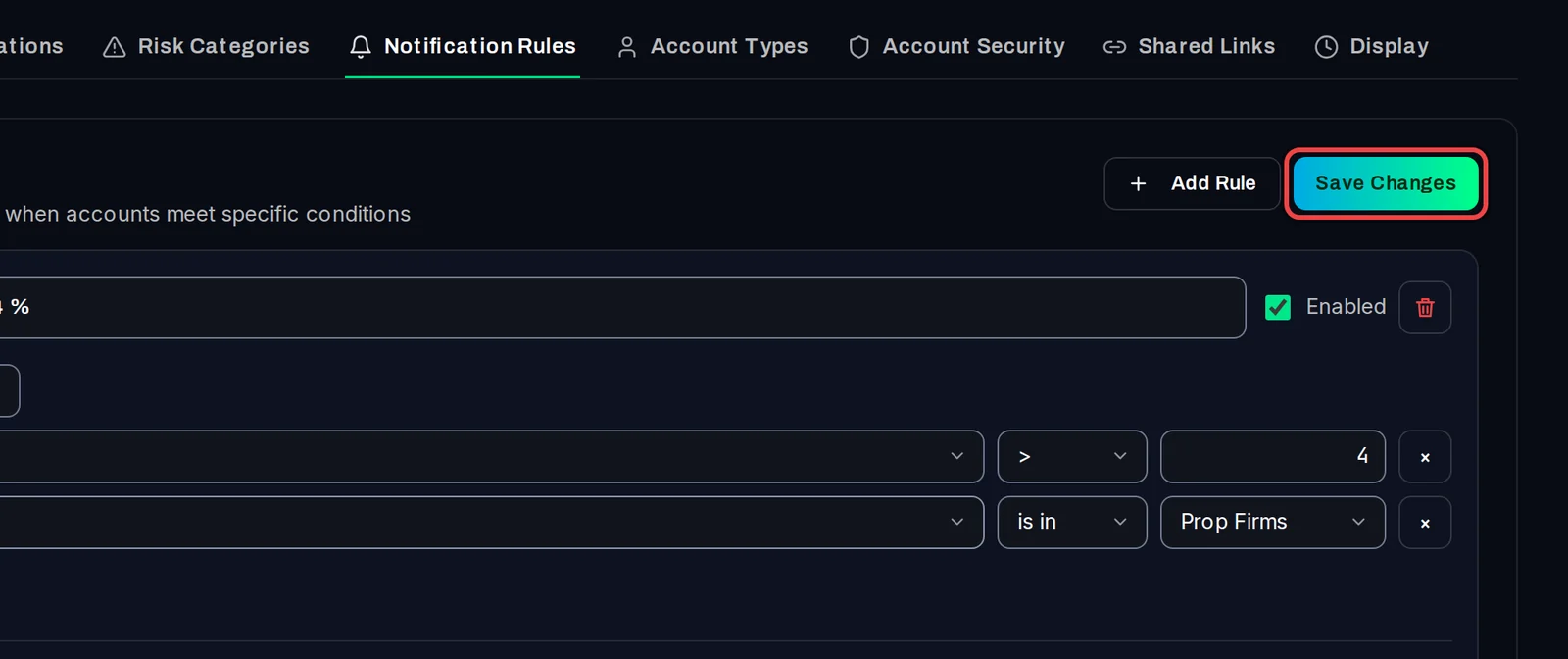
To pause a rule without deleting it, untick Enabled and save. The bin icon deletes it.
Good to know
- An alert fires once when the condition becomes true, not every minute while it stays true. It can fire again after the condition clears and comes back. The Minimum gap between repeat alerts on the Alerts page (15 minutes by default) stops a figure that hovers around your number from firing over and over.
- Every alert is listed on the Alerts page, whichever Notification Type you choose. Alerts from your own rules show as Warning.
- Four alerts are built in, so you don't need rules for them: Terminal offline / back online, Risk level changed, Long drawdown and Time under water > 20%. Switch them on or off on the Alerts page.
- On the Free plan, an alert set to Discord / Telegram stays in the dashboard.