
Knowledge Base
Help Center articles
Read and acknowledge your alerts
Every alert the tracker raises for you is kept on the Alerts page: your own rules, a terminal going offline, a change of risk level. Acknowledge an alert once you have dealt with it, so only the new ones stand out.
Plan: every plan.
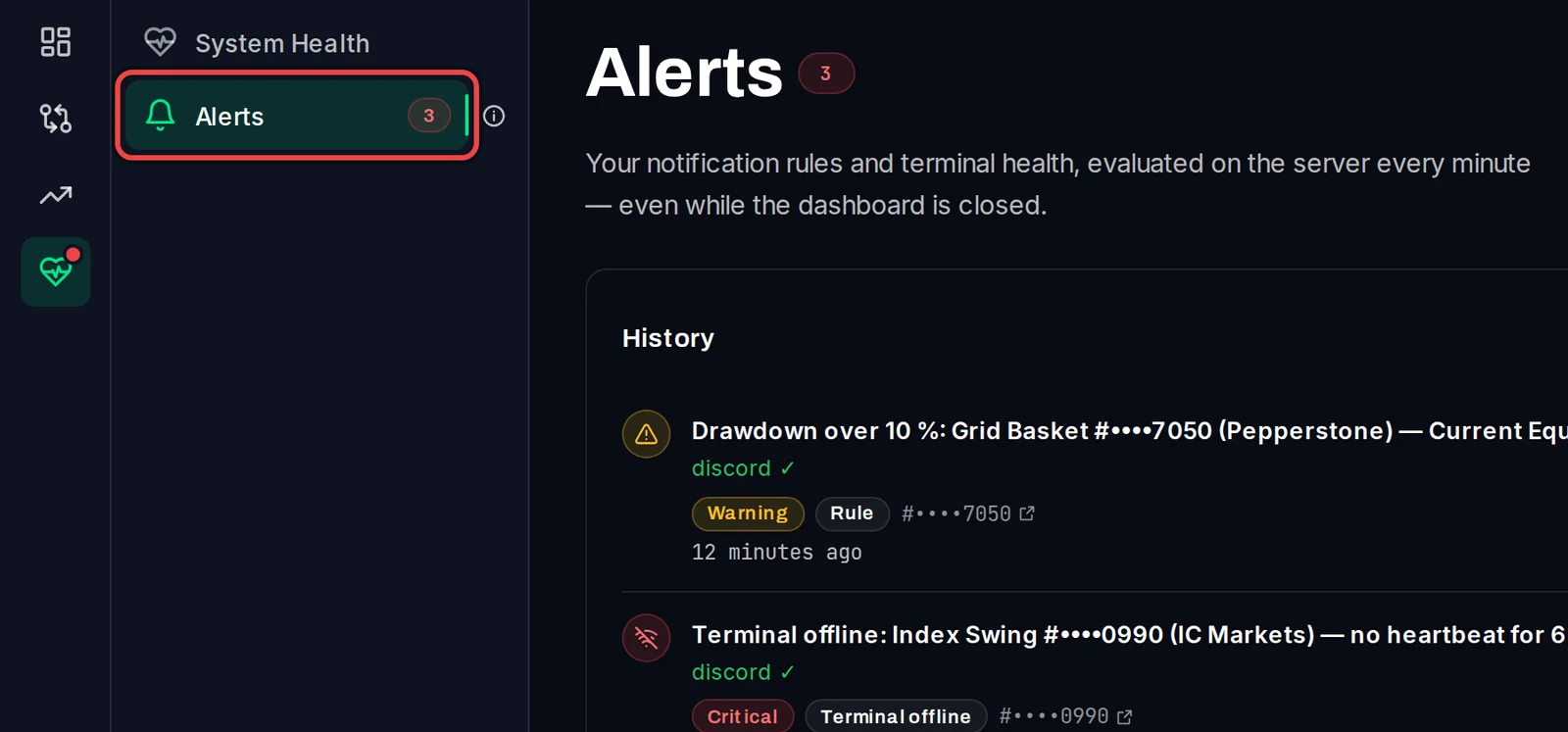
Open your alerts
- In the menu, open Monitoring › Alerts. The red number beside Alerts is how many alerts you haven't acknowledged yet.
Read an alert
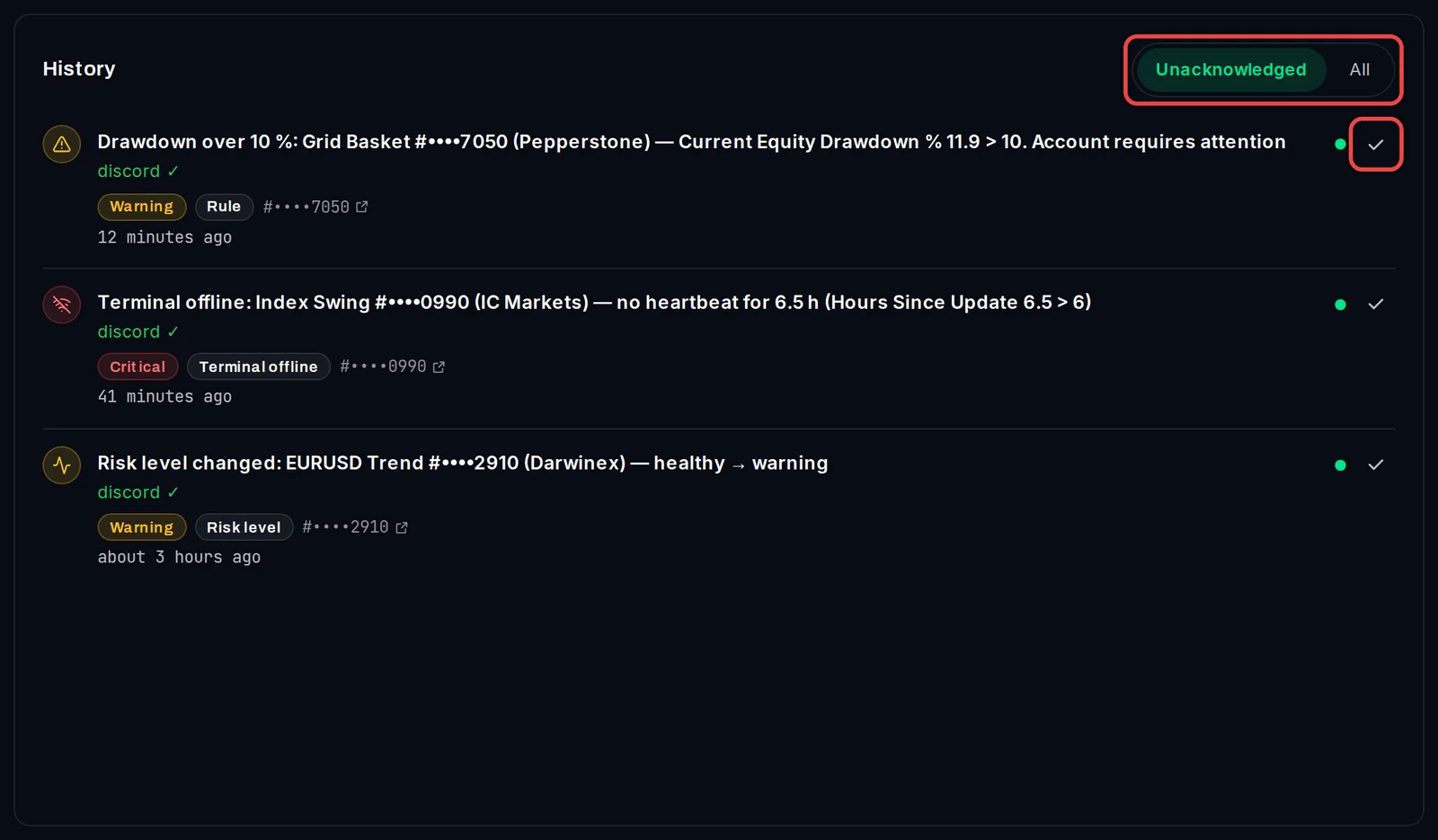
Under History, each alert shows its message with the account, its severity (Critical, Warning or Info), its type (for example Rule or Terminal offline), the account number (click it to open the account), how long ago it fired, and where it was delivered, for example discord ✓.
Acknowledge alerts
- Click the tick at the right of an alert to acknowledge it. It leaves the list and the count goes down.
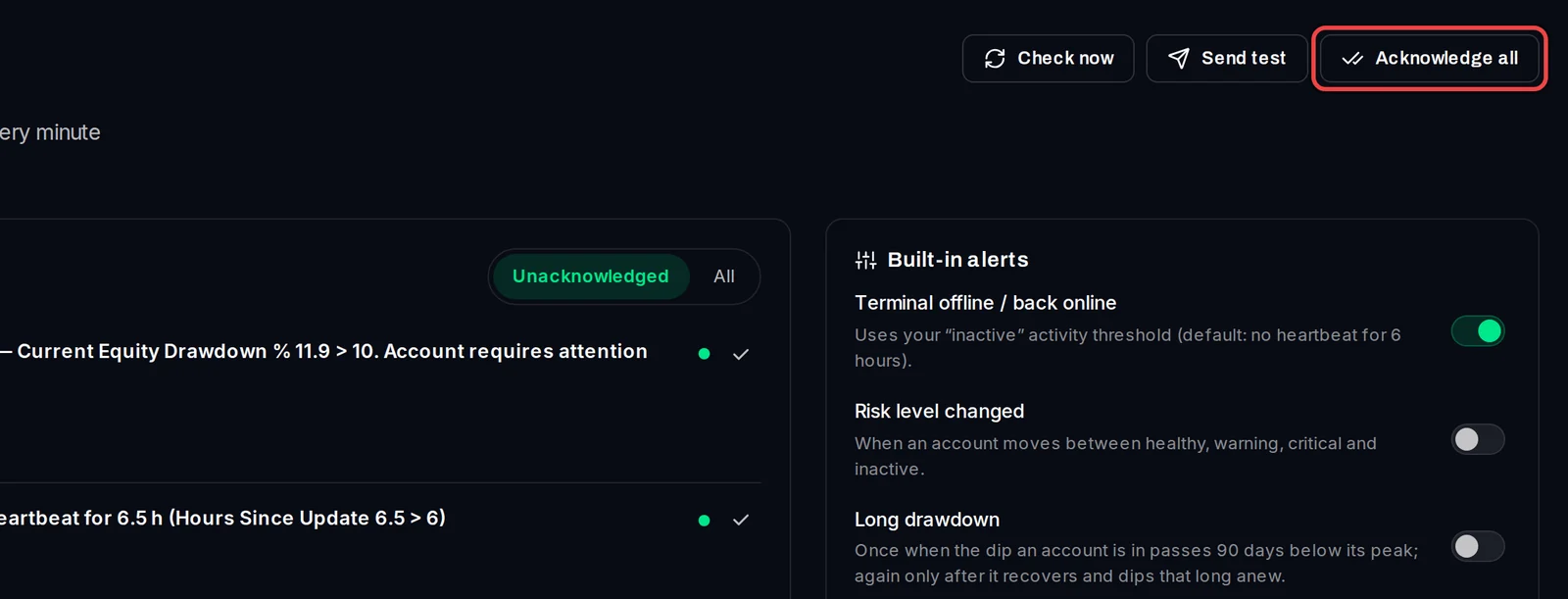
- To acknowledge everything at once, click Acknowledge all at the top of the page.
See older alerts
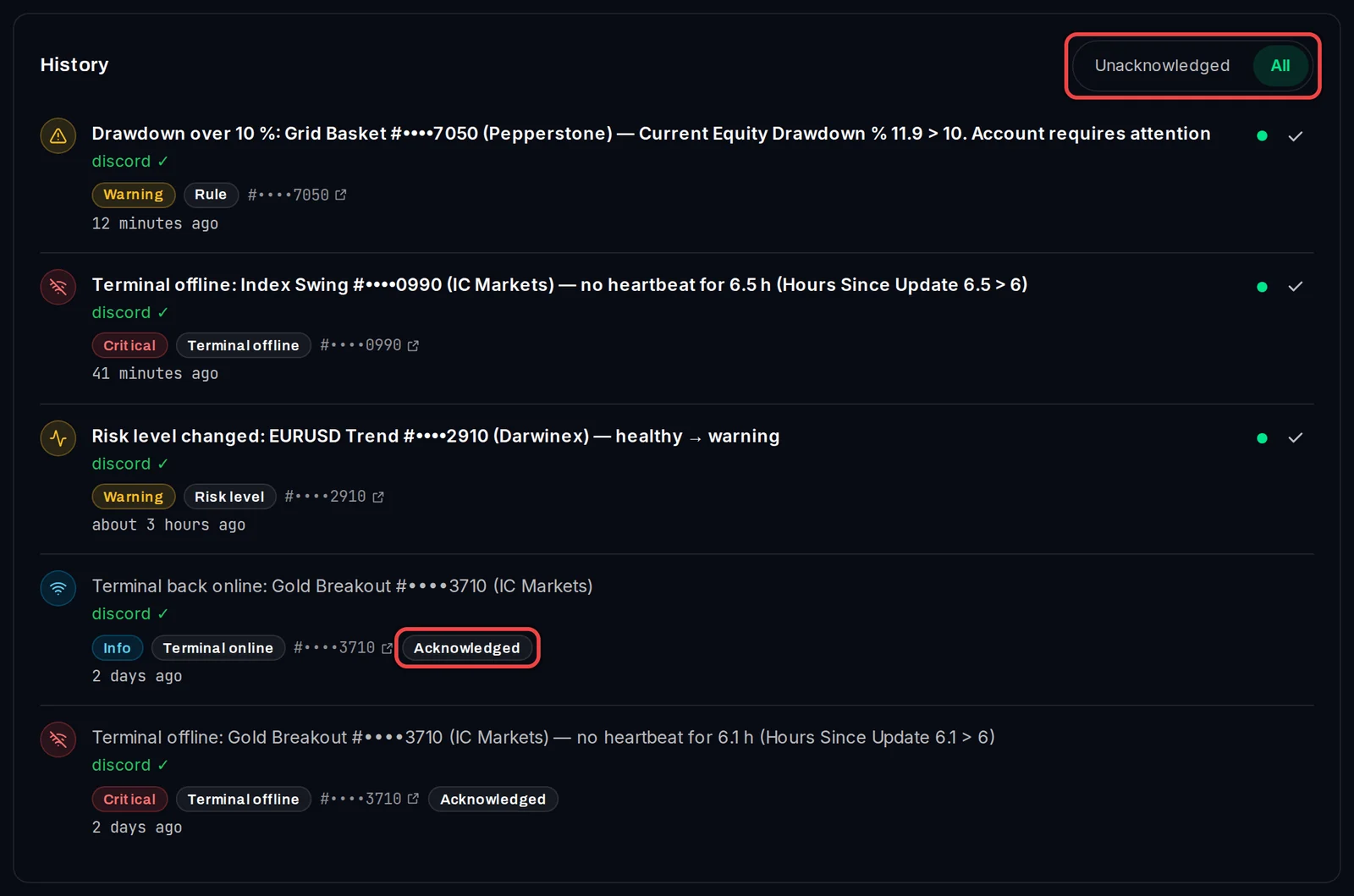
- Next to History, switch from Unacknowledged to All. Alerts you have acknowledged are marked Acknowledged.
Good to know
- Acknowledging only marks an alert as read. It doesn't switch the rule off or stop a new alert if the condition comes back.
- Check now checks all your accounts straight away and lists anything true right now that has no open alert yet.
- The Built-in alerts panel on the same page switches the built-in alerts on or off and sets the Minimum gap between repeat alerts.
- For a terminal's full connection log, open Monitoring › System Health.