
Knowledge Base
Help Center articles
Get your alerts on Discord
Get your Account Tracker alerts in Discord, either posted to a channel of your server or as a direct message to you, so you see them on your phone without opening the dashboard.
Plan: Pro or VIP. The 14 days of Pro every new user starts with include it.
Option 1: post to a channel of your server
- In Discord, open your server's Server Settings › Integrations › Webhooks.
- Click New Webhook, give it a name (for example "ATS Tracker") and pick the channel for your alerts.
- Click Copy Webhook URL.
- In the tracker, open Settings › Plan & Integrations and scroll to Custom alert channels.
- Tick Discord, choose Post to a channel and paste the webhook URL in the field.
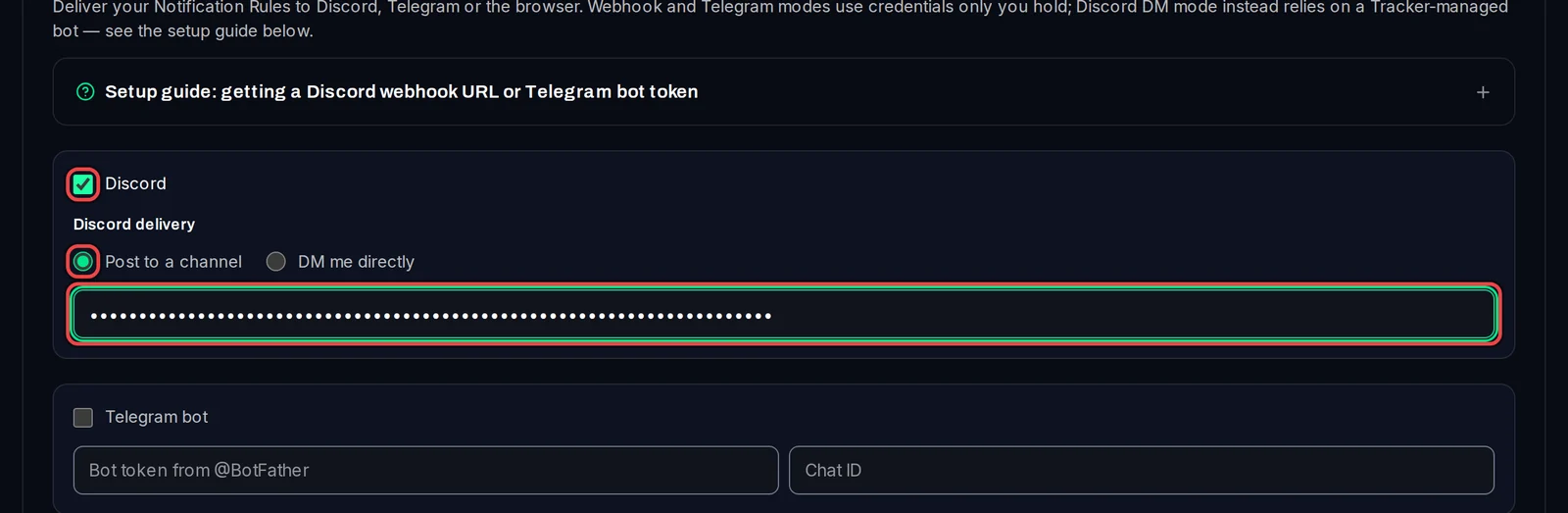
Option 2: get a direct message
The ATS bot sends the message. It can only message you if you are in a Discord server with it; the setup guide on the page says which one.
- In Discord, open Settings › Advanced and switch on Developer Mode.
- Right-click your own name anywhere and choose Copy User ID.
- In the tracker's Custom alert channels, tick Discord, choose DM me directly and paste your user ID.
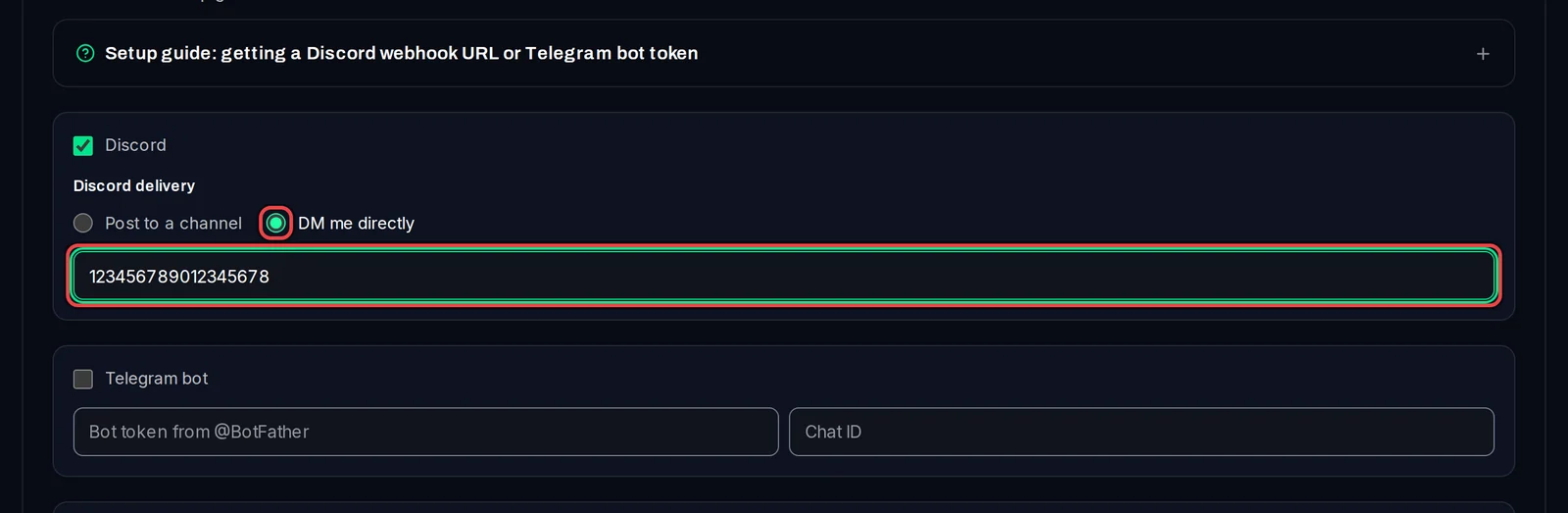
Save and test
- Click Save channels at the bottom of the card. You will see Alert channels saved.
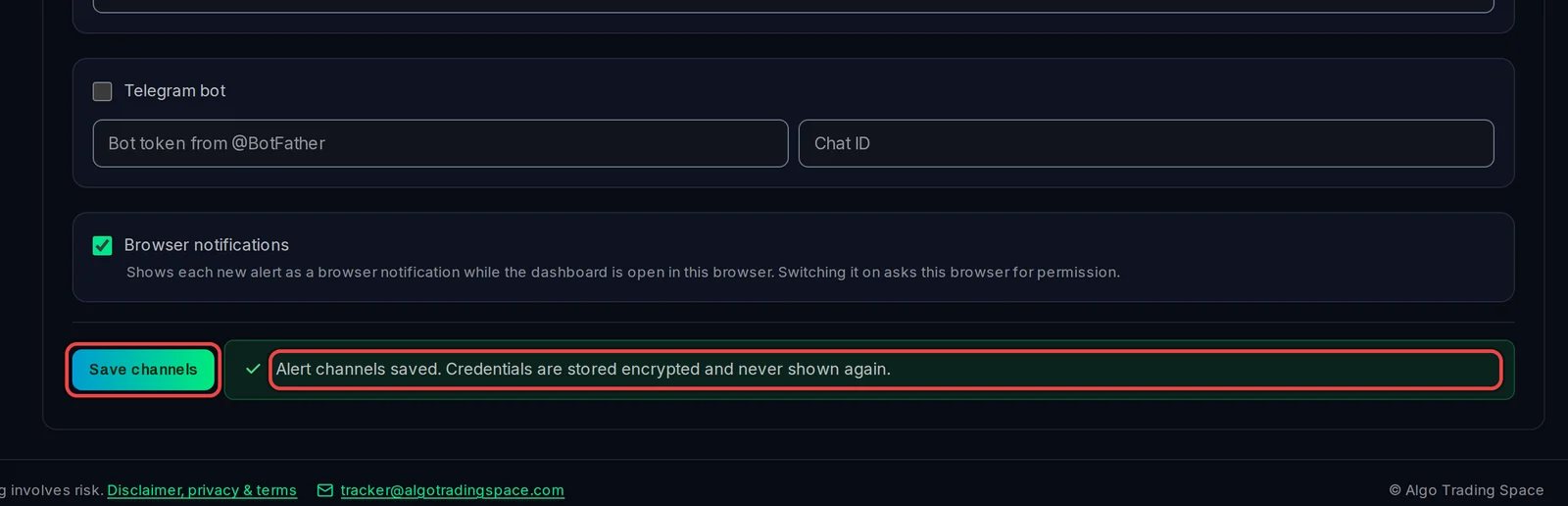
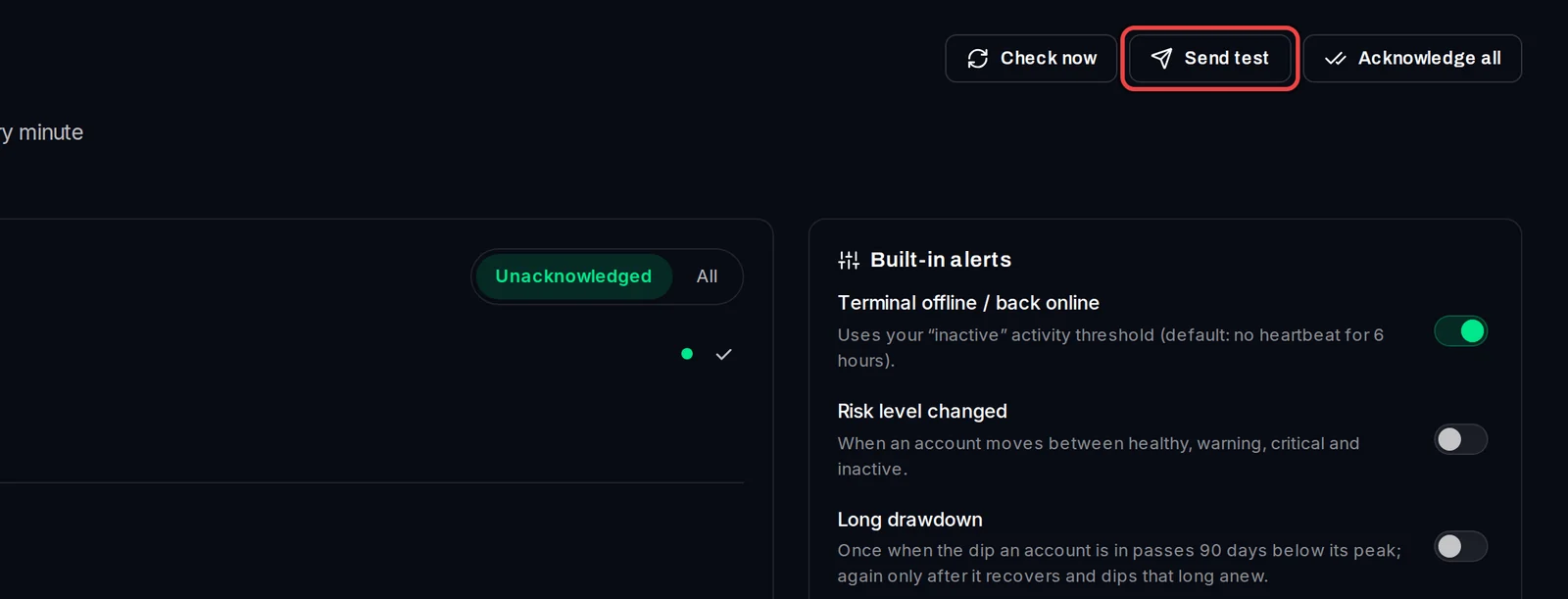
- Open Monitoring › Alerts and click Send test. A test message should arrive in Discord, and the page says whether it was delivered.
Good to know
- A rule is sent to Discord only when its Notification Type includes Discord / Telegram. The built-in alerts (terminal offline, risk level and the drawdown ones) are sent while Push built-in alerts to Discord / Telegram is on, on the Alerts page.
- Your webhook URL is stored encrypted and never shown again. To change it, paste a new one and save.
- If the test says it failed, the webhook may have been deleted in Discord: create a new one and paste it.
- The setup steps are also on the page: open Setup guide: getting a Discord webhook URL or Telegram bot token above the fields.