
Knowledge Base
Help Center articles
Group accounts in your Watch List and your own lists
Lists group your accounts the way you think about them: by broker, by robot, your prop-firm accounts or one client's accounts. The Watch List is a list of its own, and the Overview opens with it.
Plan: every plan.
Add an account to a list
- On the Overview, find the account's card. In the table, use the row instead.
- Click the + at the top right of the card (in the table, next to the robot's name).
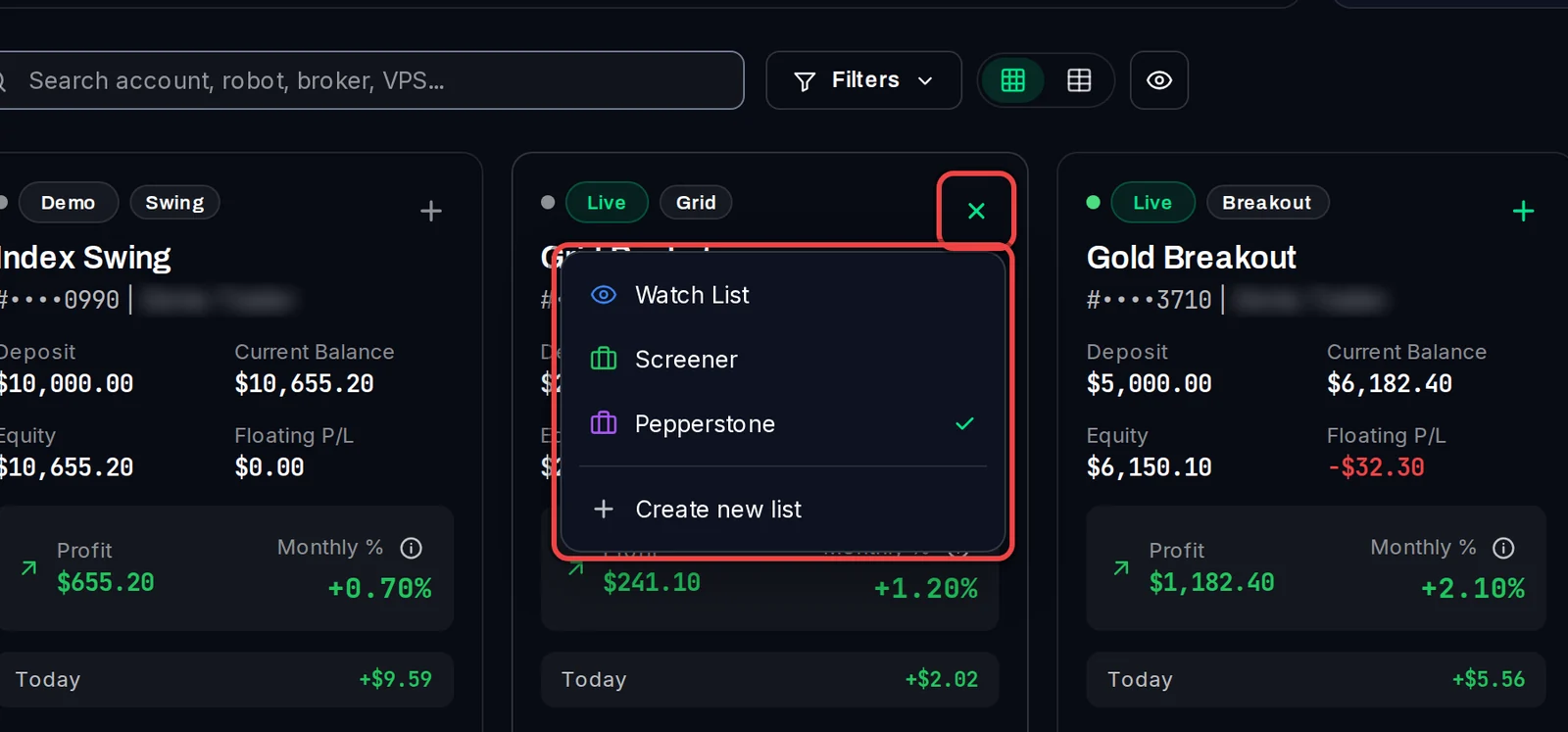
- Click Watch List or one of your lists. A tick shows the lists the account is in; click a ticked list to take the account out.
Create a list
- In the same menu, click Create new list.
- Type a name, then pick an Icon and a Color.
- Click Create & Add Account. The list is created with this account in it.
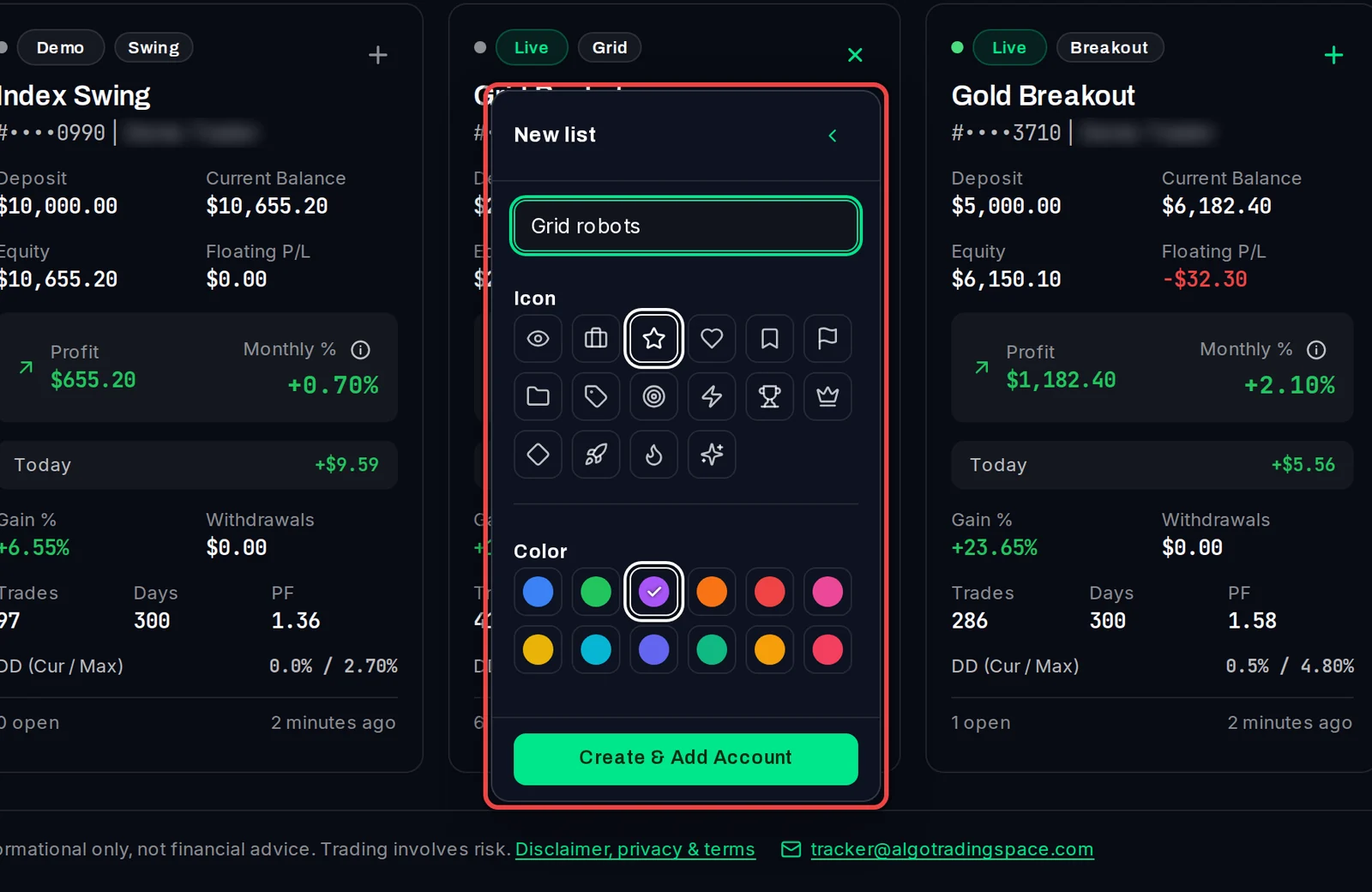
You can also click + next to Lists in the menu, type a name and press Enter.
Open, rename or delete a list
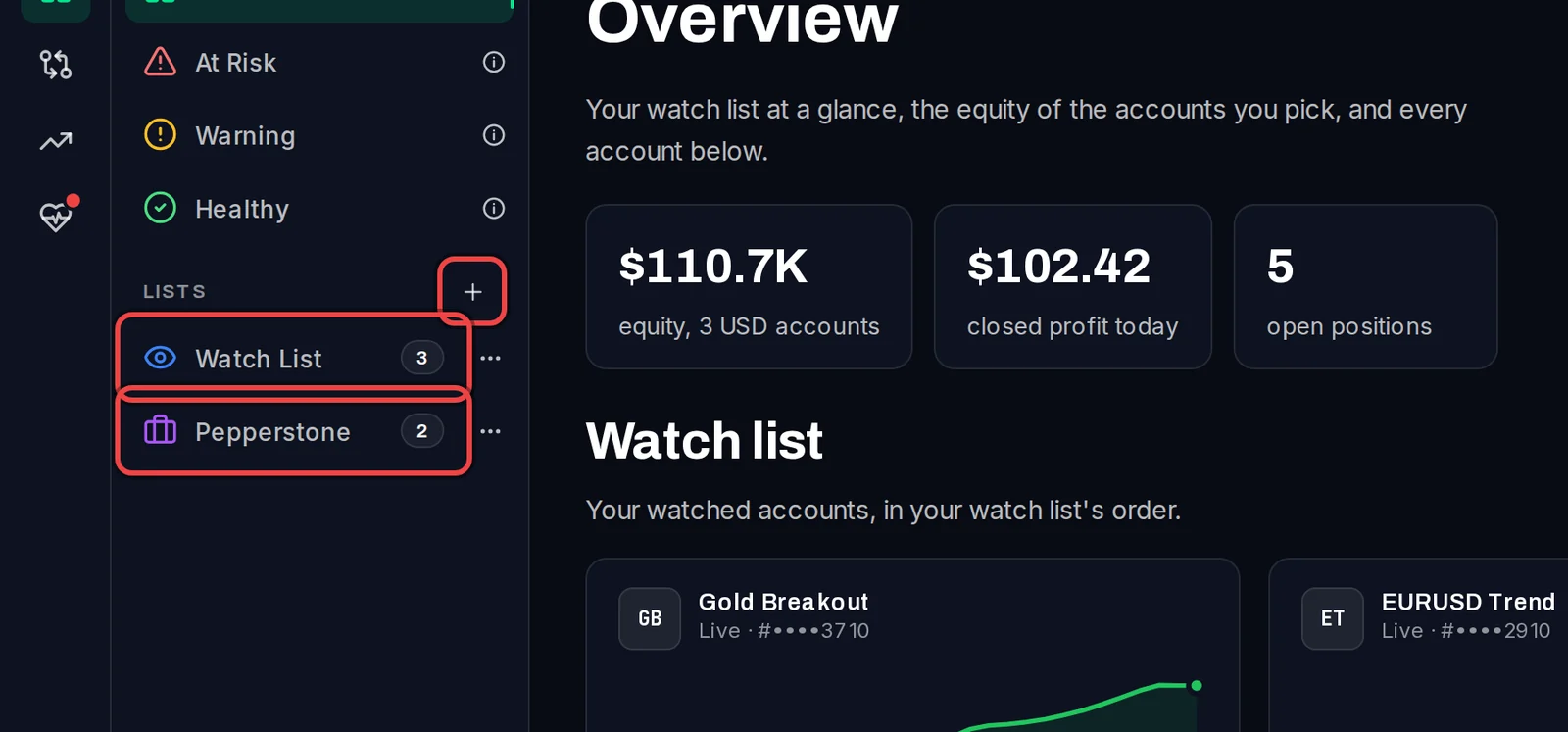
- Your lists are in the menu under Lists, each with the number of accounts in it. Click one to open it as its own page, with the same totals, filters and cards as the Overview.
- Click … next to a list and choose Rename to change its name, colour or icon, or Delete to remove it.
Use the Watch List
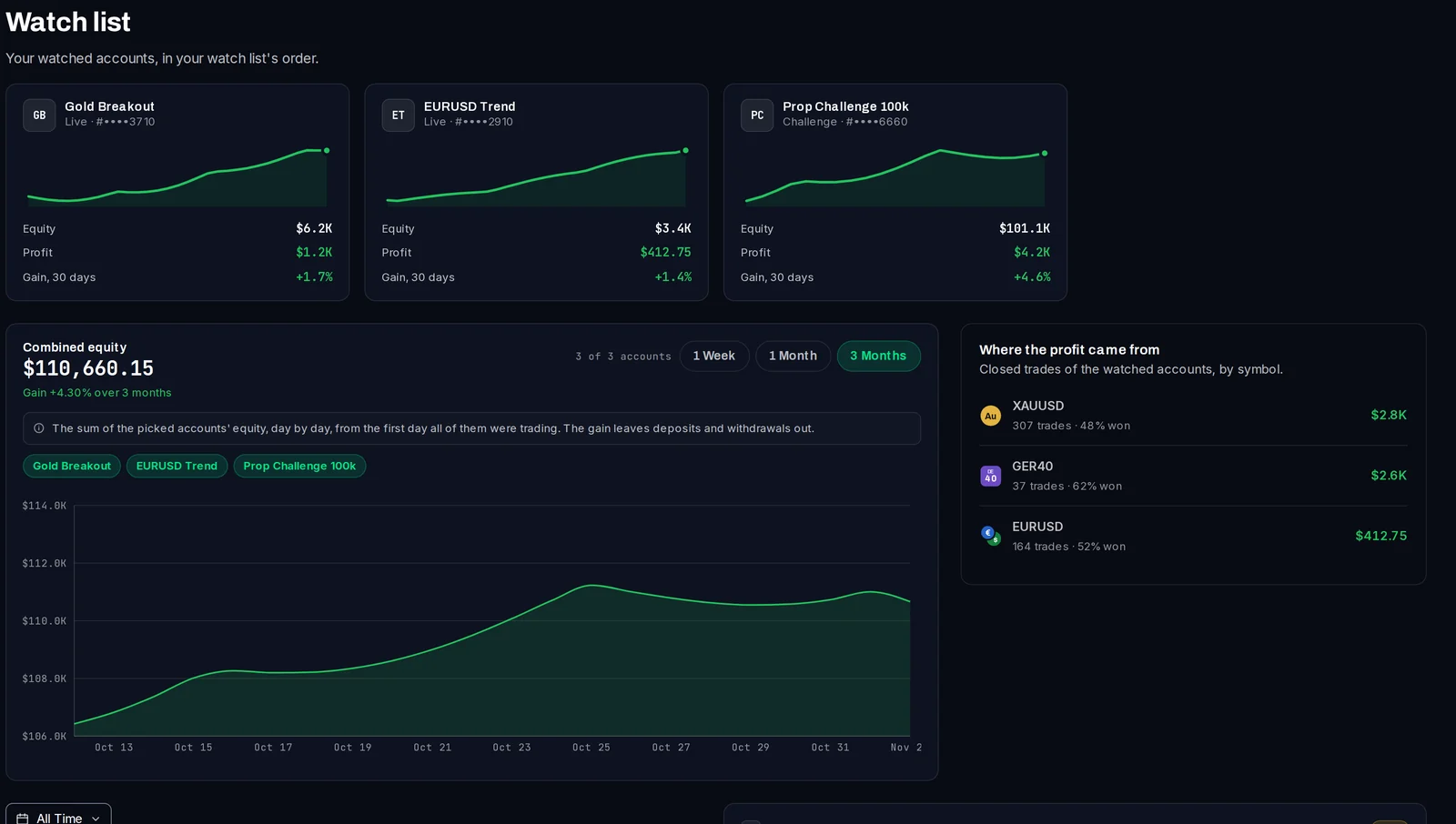
The Overview opens with your Watch list: a card for each watched account with its equity, profit and gain over the last 30 days, a Combined equity chart (1 Week, 1 Month or 3 Months) and Where the profit came from, by symbol. Click an account's name under the chart to leave it out of the line or add it back.
Good to know
- Lists are saved with your login, so they are the same in every browser and on every device.
- An account can be in as many lists as you like. Deleting a list does not remove its accounts from the tracker.
- The Watch List can be renamed but not deleted.
- Each list page, the Watch List too, has an Open Monthly PnL button with the month-by-month results of its accounts.
- Risk levels and alert rules can be limited to one list.