
Knowledge Base
Help Center articles
Set your risk levels
Every account is marked Healthy, Warning, Critical or Inactive. You decide what each level means, for example "Critical when the drawdown is over 15 %". The level colours the account cards, fills the At Risk, Warning and Healthy pages and drives the "Risk level changed" alert.
Plan: every plan.
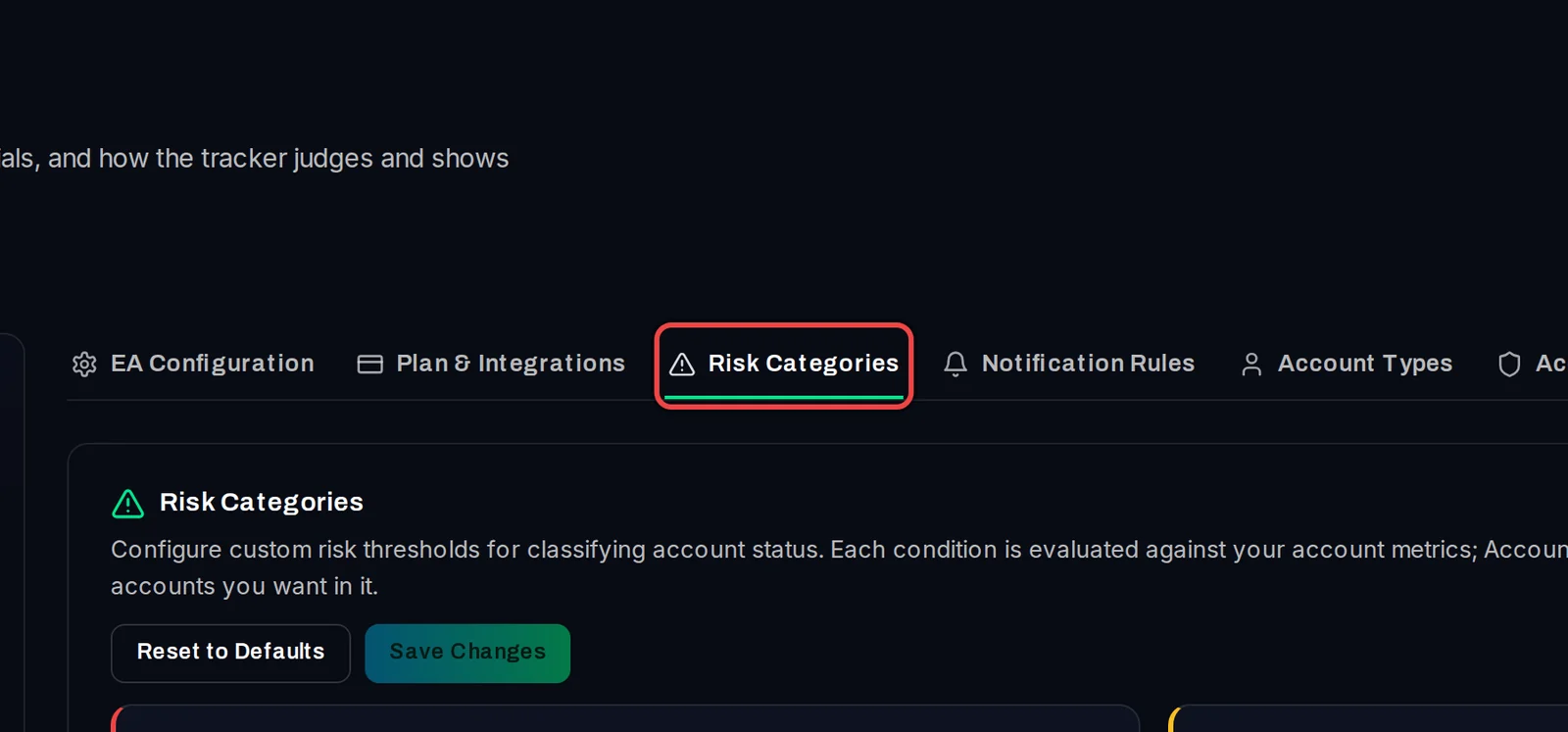
Open Risk Categories
- Open Settings in the menu.
- Click the Risk Categories tab.
Set the conditions for each level
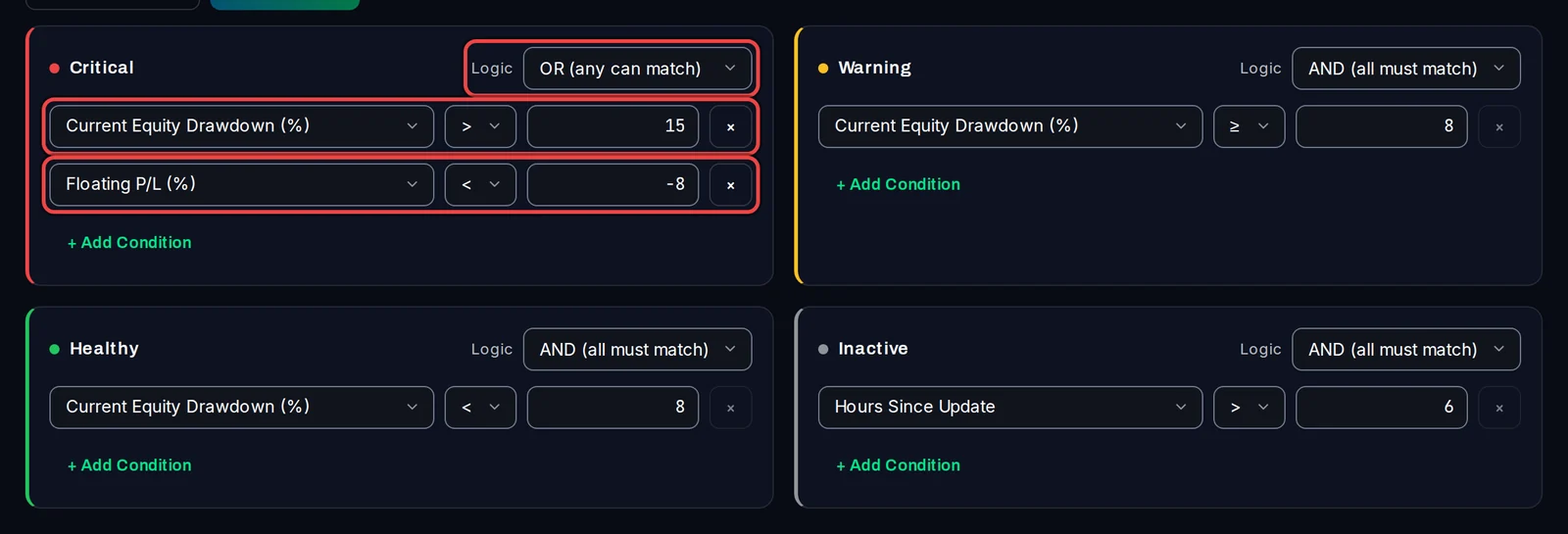
There is one card per level: Critical, Warning, Healthy and Inactive. Each condition is a figure, a comparison and a number, for example Current Equity Drawdown (%) > 15. A drawdown is how far the account has fallen from its highest point.
- In a card, pick the figure, the comparison (>, <, ≥, ≤ or =) and type the number.
- Click + Add Condition to add another one, or × to remove one.
- Under Logic, choose AND (all must match) or OR (any can match).
Leave out demo accounts or cover one list
- Click + Add Condition in a card.
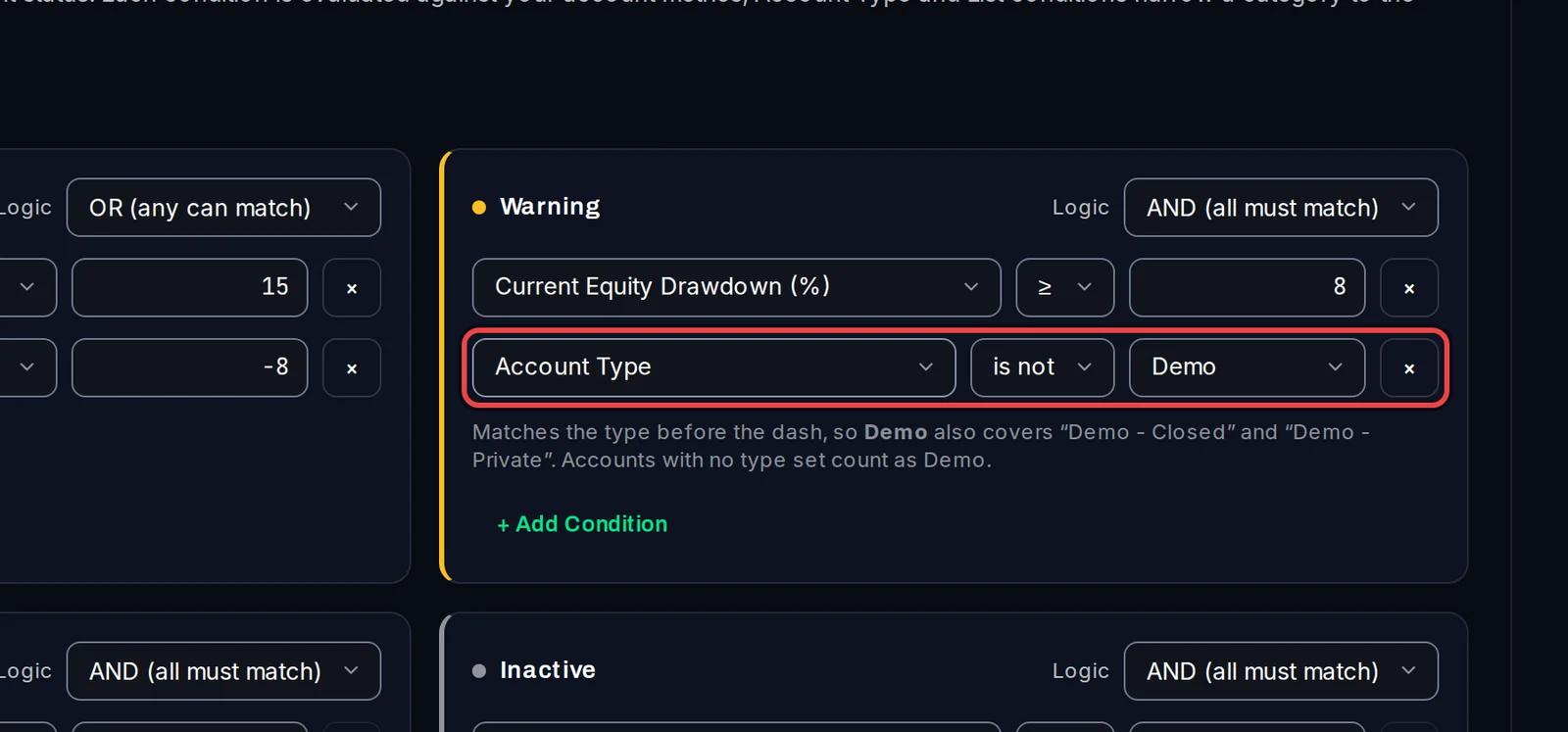
- In the first box pick Account Type (is / is not) or List (is in / is not in).
- Pick the type or the list, for example Account Type is not Demo.
Save
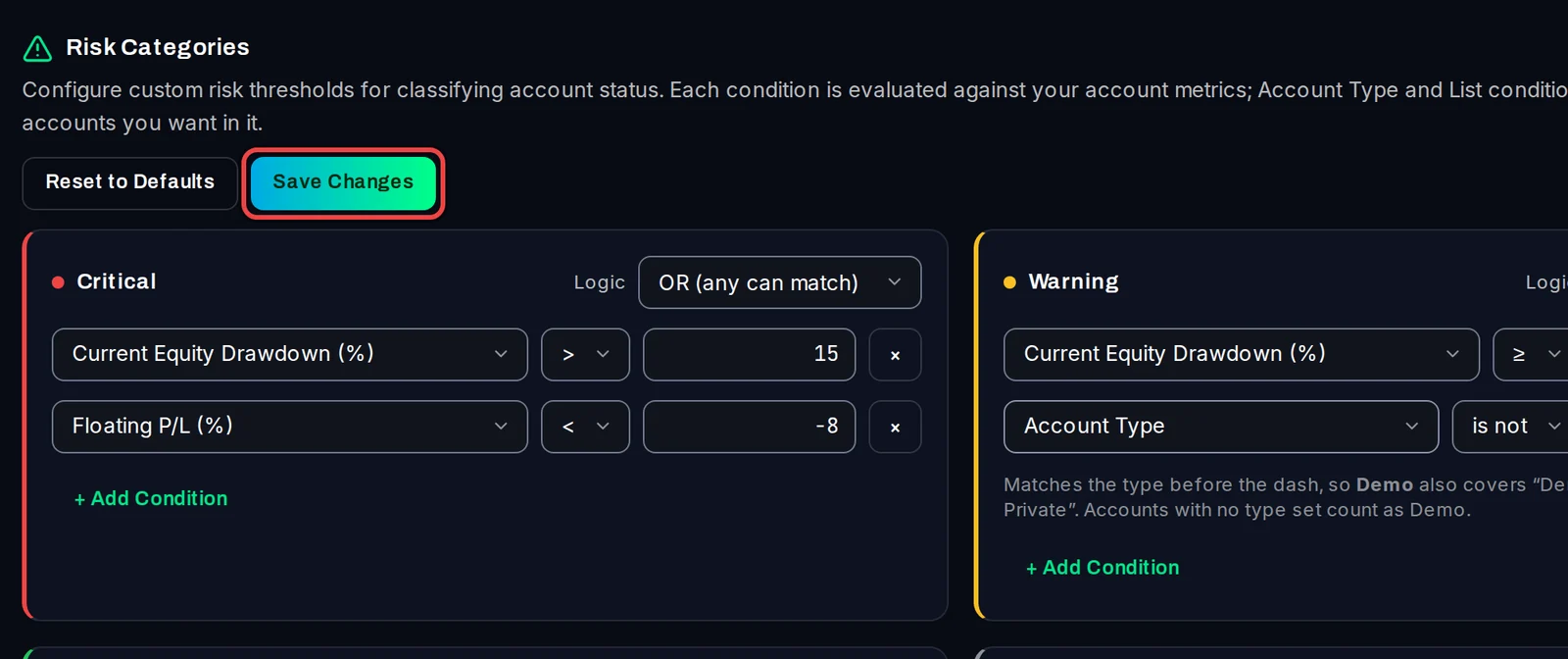
- Click Save Changes at the top. Reset to Defaults brings back the built-in levels.
Good to know
- The levels are checked in this order: Inactive, Critical, Warning, Healthy. The first one that matches wins. An account that matches none shows as Uncategorized.
- The defaults: Critical above 20 % current equity drawdown; Warning and Healthy need an average monthly gain of 2 % or more, with a current drawdown of 10 % or more (Warning) or under 10 % (Healthy); Inactive after 6 hours without an update. With these, a slow account under 2 % a month is Uncategorized, so adjust them to your trading.
- Account Type matches the type before the dash, so Demo also covers "Demo - Closed". Accounts with no type set count as Demo.
- The alerts judge risk with the same levels, and the Inactive level is what the "Terminal offline" alert uses.