
Knowledge Base
Help Center articles
Find your way around the dashboard
The dashboard has a narrow rail on the far left with its sections, a menu beside it with the pages of the section you are in, and your plan and profile at the top right. This guide shows where everything is.
Plan: every plan. The Screener and Workspaces need Pro or VIP.
Move between the sections
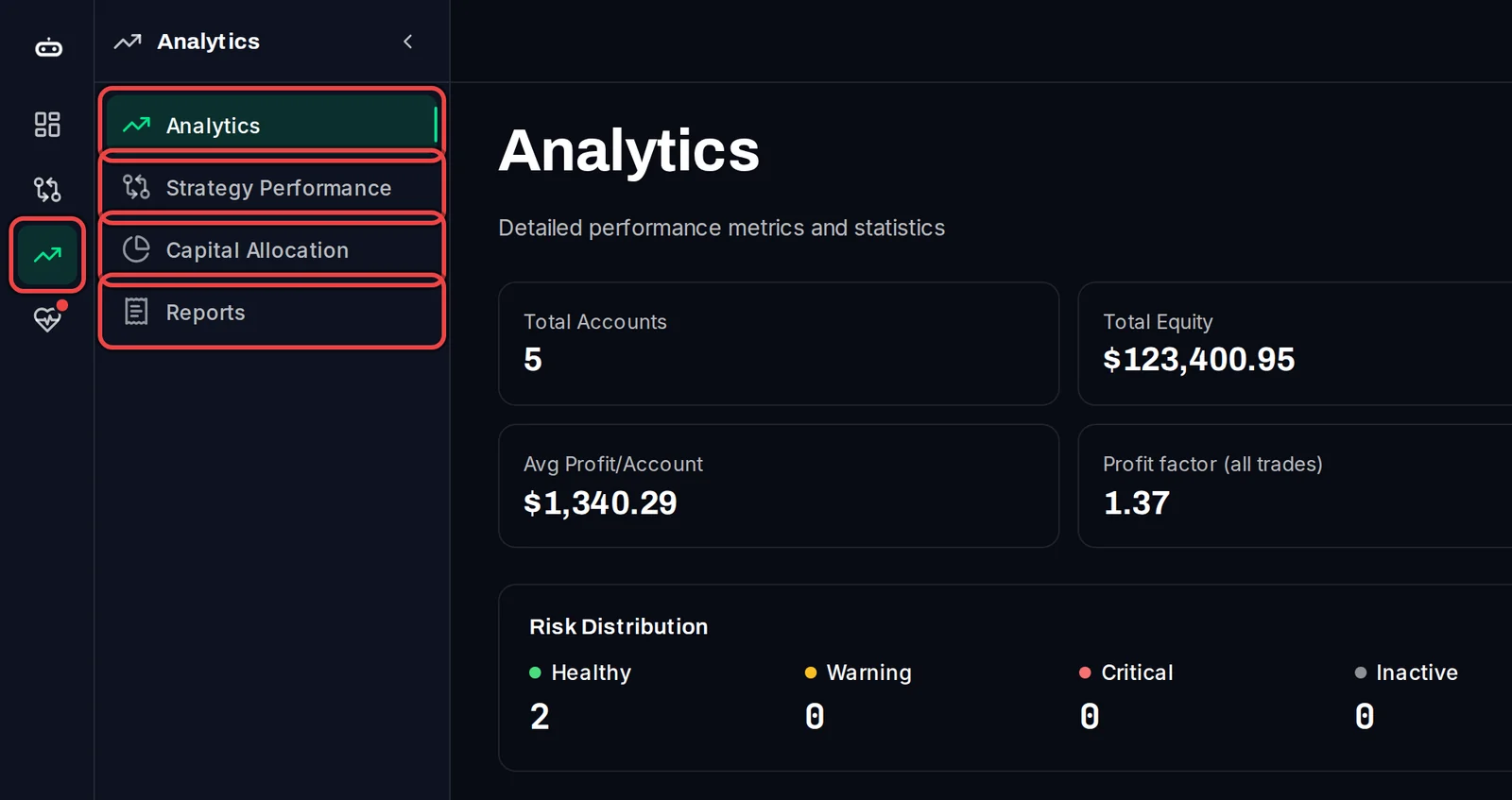
- Click an icon in the rail on the far left: Accounts, Screener, Analytics or Monitoring. Settings is the gear at the foot of the rail.
- The menu beside the rail lists the pages of that section. Click one to open it.
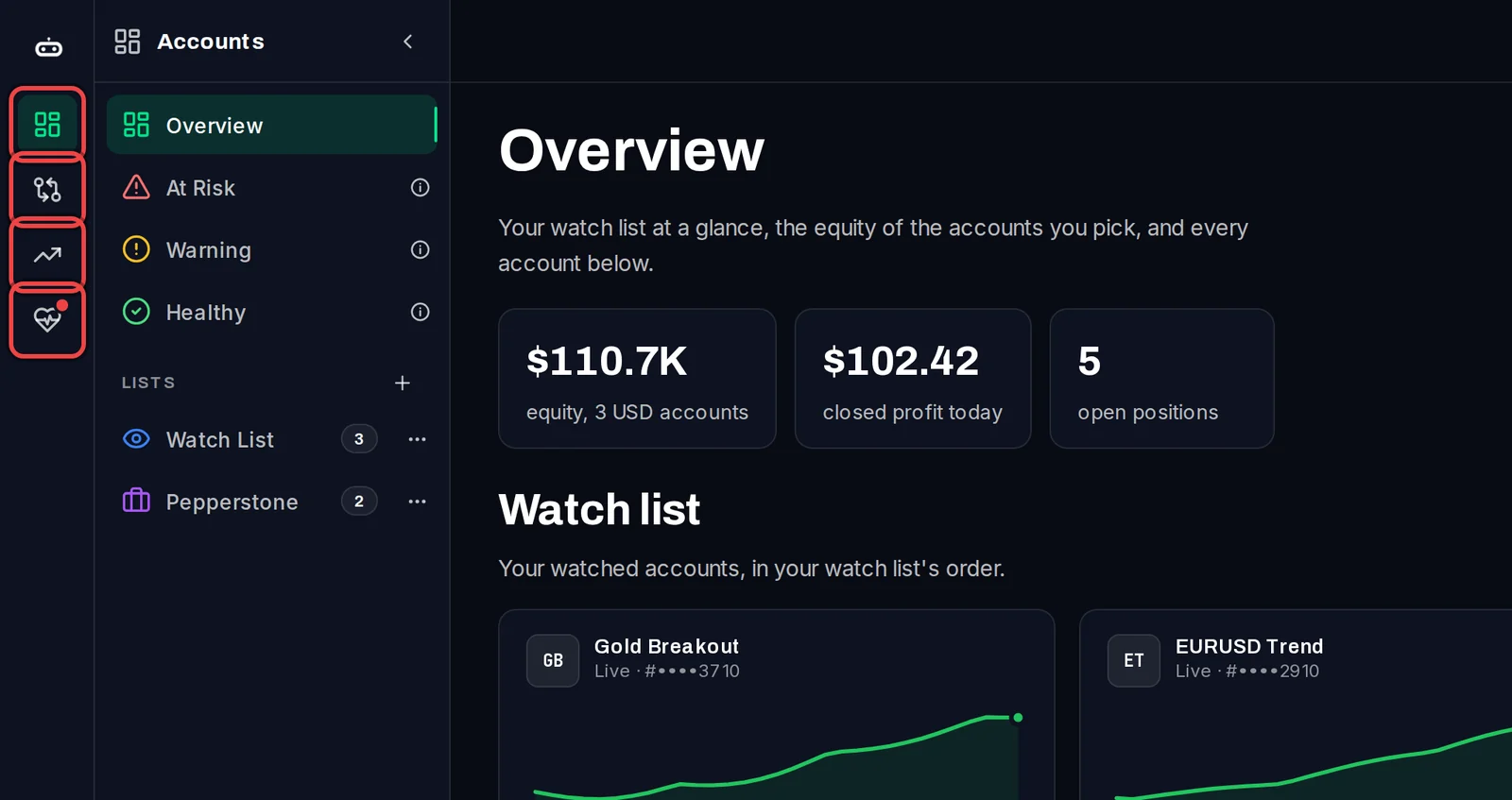
What is in each section:
- Accounts: Overview, At Risk, Warning, Healthy, and under Lists your Watch List and the lists you create.
- Screener (Pro): suggests combinations of your accounts with an allocation for each.
- Analytics: Analytics, Strategy Performance, Capital Allocation and Reports.
- Monitoring: System Health and Alerts. A red dot on the rail means alerts you have not read yet.
- Settings: Settings, Workspaces and API Docs.
Use the top bar
- The badge shows your plan: FREE, PRO or VIP.
- Click the bell to see your Live Alerts.
- Click the gear to open Settings.
- Click your name to open your profile, where you can also set the time zone the dashboard shows times in.

Read the Overview
- Click Accounts › Overview. It opens with your Watch list: a card for each account you watch and their combined equity.
- Below it are the totals of all your accounts: Total Balance, Total P&L, Win rate and Profit factor, with a Performance Summary for today, this week, this month and this year.
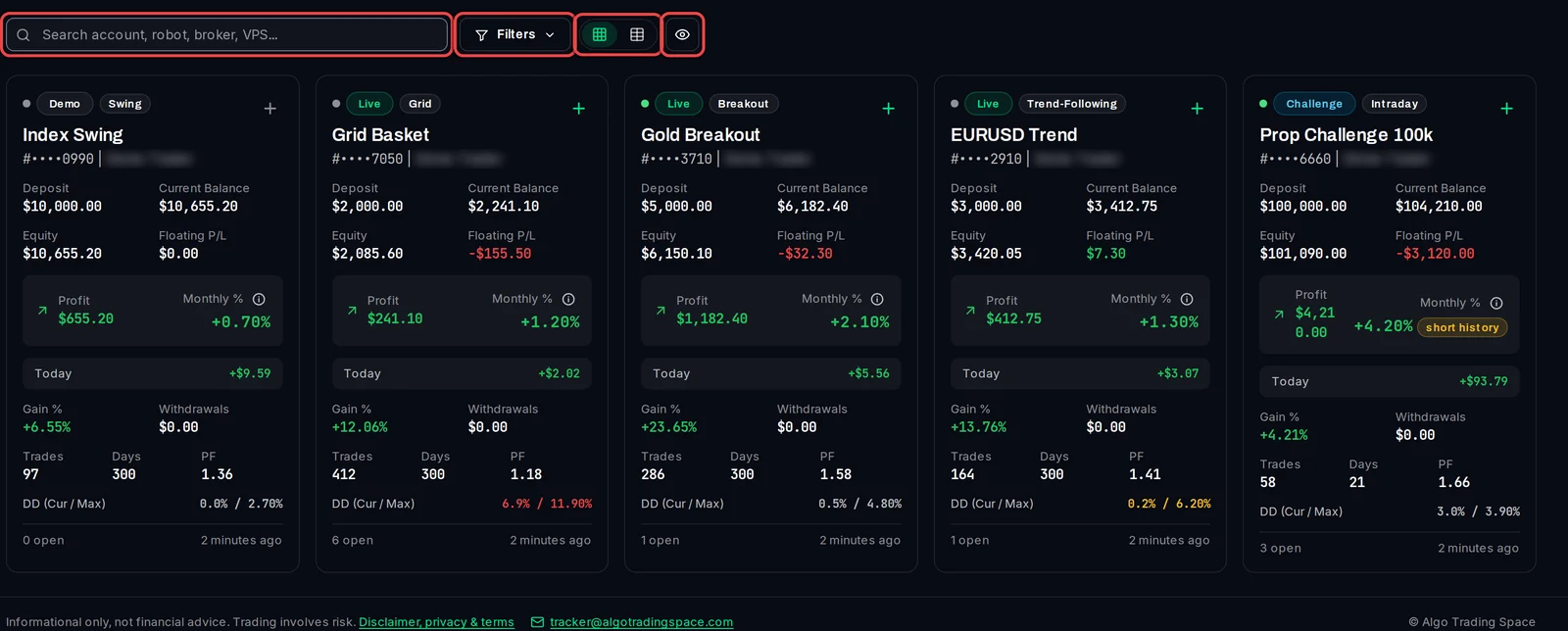
- Further down, every account has a card. Above the cards are the search box, Filters, the card and table buttons and the eye button that hides account numbers.
- Click an account's card to open its page.
Good to know
- The All Time button above the totals picks a date range. The totals and the cards then count only the trades closed in that range.
- Hover the i next to At Risk, Warning or Healthy to see the rule behind each page.
- The dashboard works on a phone too: the menu opens from the button at the top left.