
Knowledge Base
Help Center articles
Filter your accounts
With many accounts on the Overview, filters narrow the list to the ones you want, for example only your live accounts at one broker. The totals at the top of the page follow the filter.
Plan: every plan.
Search for an account
- On the Overview, scroll down to your accounts.
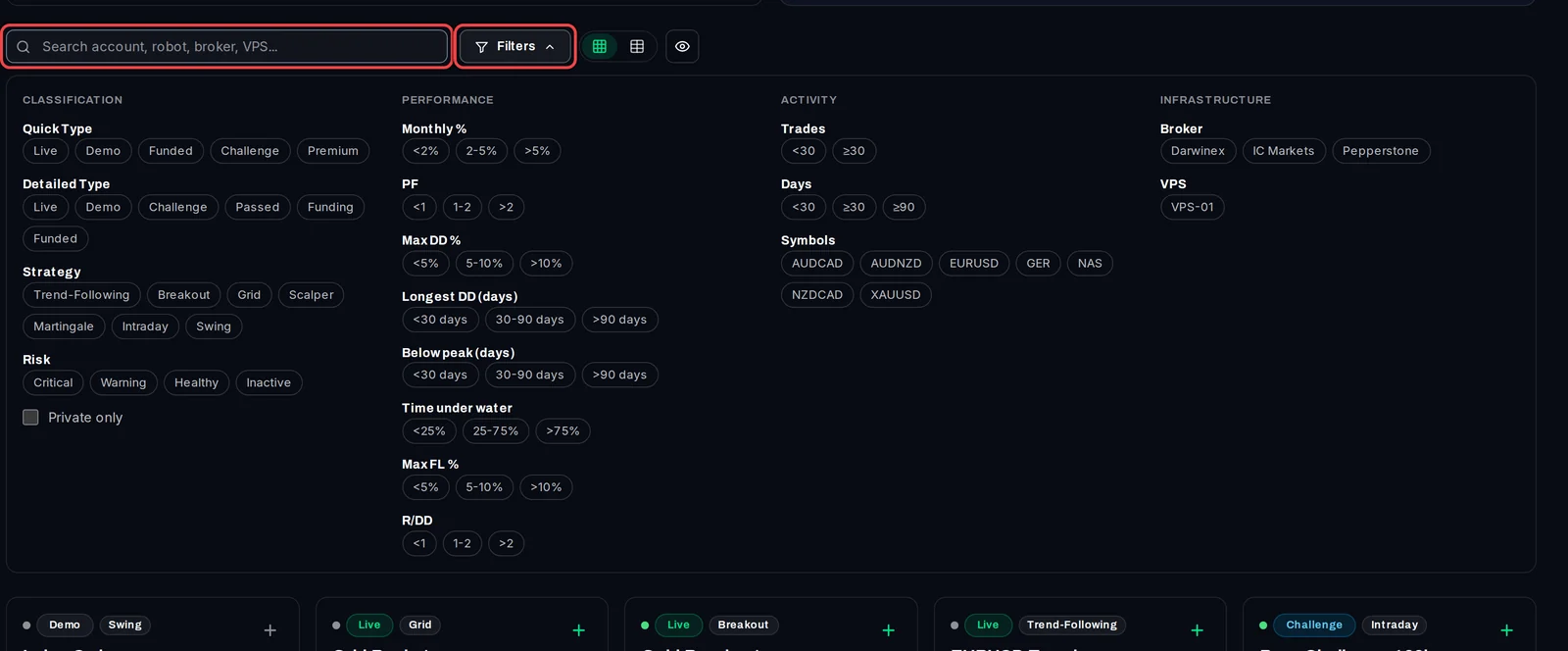
- Type in the box Search account, robot, broker, VPS.... The cards update as you type.
Choose filters
- Click Filters. The panel opens with four groups: Classification (account type, strategy, risk level), Performance (monthly gain, profit factor, drawdown), Activity (trades, days, symbols) and Infrastructure (broker, VPS).
- Click the choices you want, for example Live under Quick Type and Pepperstone under Broker.
- Click Filters again to close the panel.
Remove filters
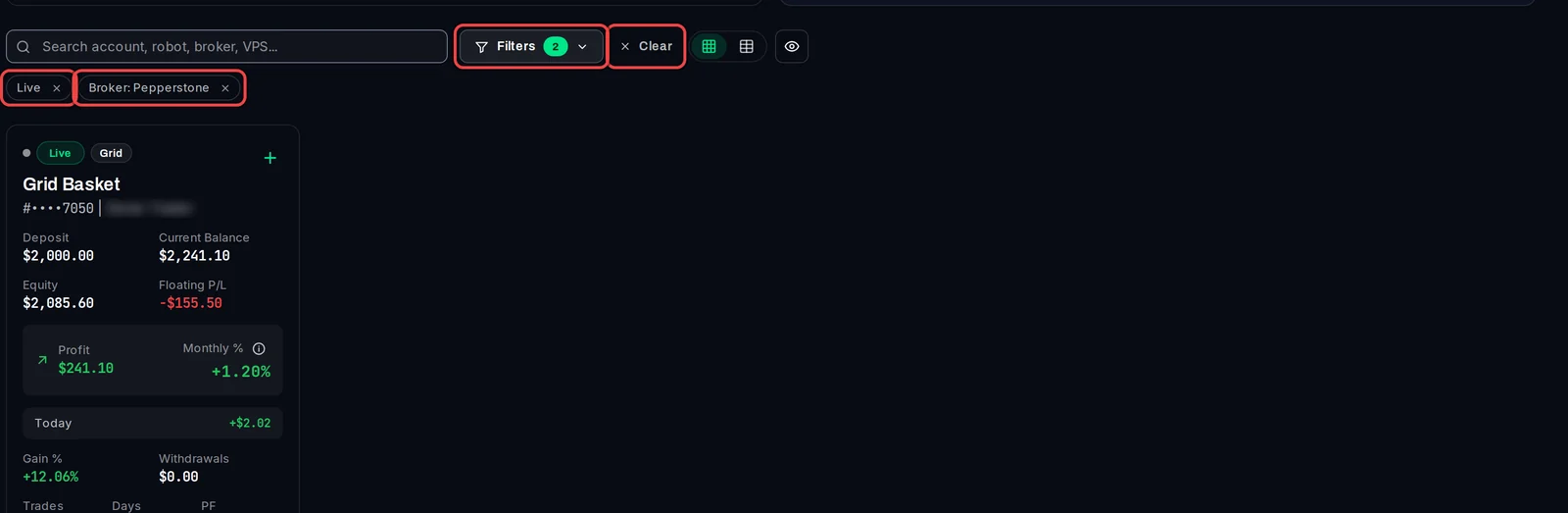
- Each filter in use shows as a chip under the search box, and the Filters button shows how many are on.
- Click the × on a chip to remove that filter.
- Click Clear to remove them all.
Good to know
- Choices in the same group add accounts (Live or Demo). Choices in different groups narrow the list (Live and Pepperstone).
- The filters are part of the page address, so you can bookmark a filtered Overview.
- The same filters are on the At Risk, Warning and Healthy pages and on Capital Allocation. A filter stays on while you move between these pages, until you clear it.
- To look at a period instead, use the All Time button above the totals: This Month, Last Month, Last 3 Months, YTD or a custom range.