
Knowledge Base
Help Center articles
See where your capital is (Capital Allocation)
Capital Allocation shows how your money is spread across your robots, brokers, servers or VPSs: a ring chart with each part's amount and share of the total.
Plan: every plan.
Open Capital Allocation
- Click Analytics in the rail on the left.
- Click Capital Allocation in the menu.
Choose what the chart shows
- Under Group By, pick what to add up: Balance, Deposits or Withdrawals.
- Under Split By, pick how to split it: Robot (Tagname), Broker (Company), Server or VM.
- The chart's title says what you are looking at, for example Balance by Broker (Company). Each part is listed with its amount and share, and the total is at the bottom.
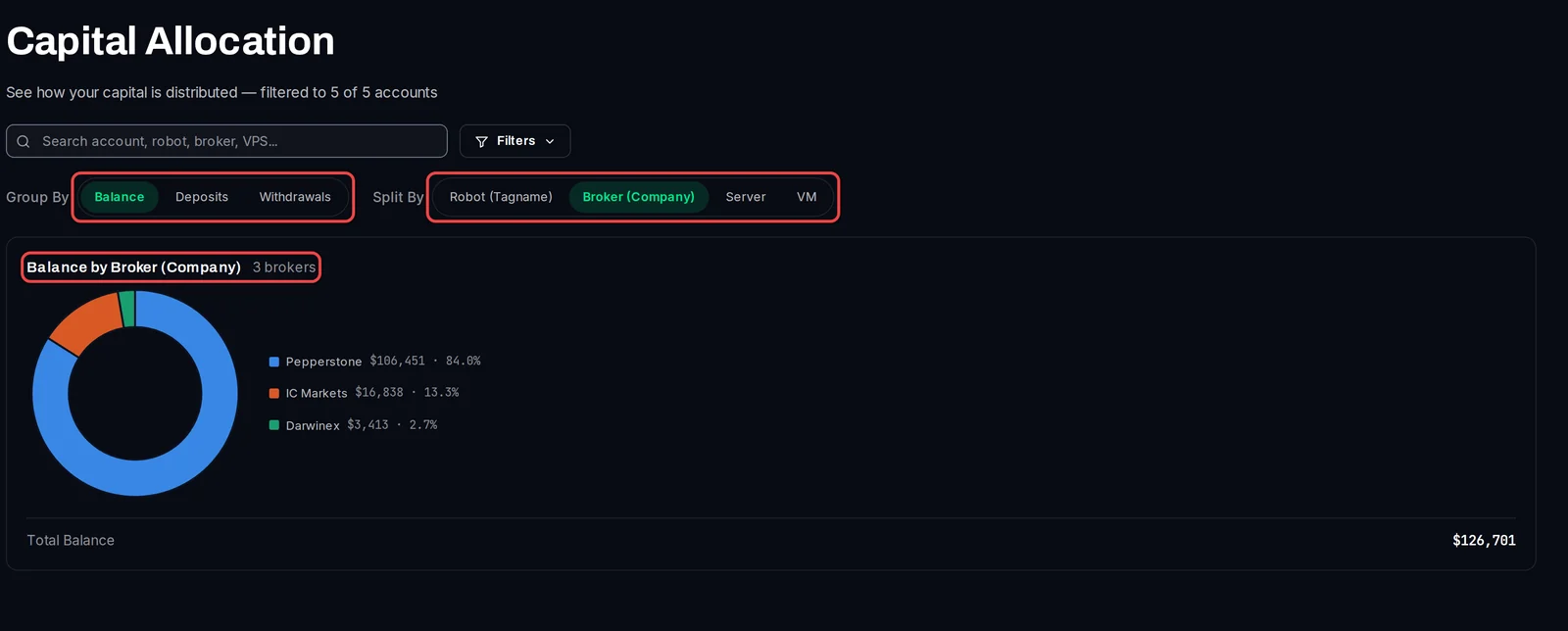
Click a part of the ring, or its name, to highlight it. Click it again to clear the highlight.
Count only some accounts
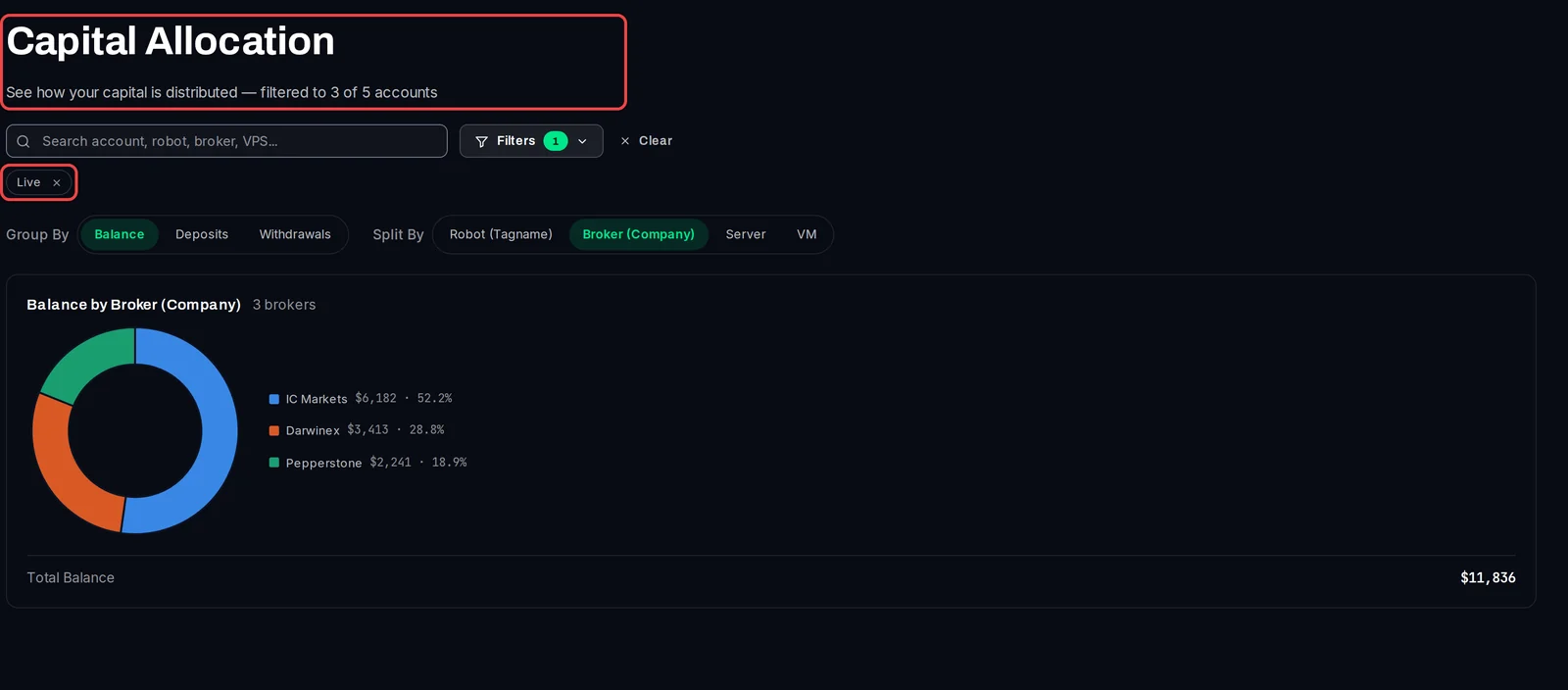
- Click Filters and pick what you want, for example Live under Quick Type. You can also type in the search box.
- The line under the title says how many accounts are counted, for example filtered to 3 of 5 accounts.
- Click Clear to count all your accounts again.
Good to know
- Robot (Tagname) uses the robot name you gave each account, and VM the VM label on the account page. Accounts without one are grouped together.
- Amounts are added as they are and shown in US dollars. Accounts in other currencies are not converted.
- With more than 15 parts, the smallest are grouped as Other.
- The filters are the same as on the Overview: one you set there is still on here until you clear it.