
Knowledge Base
Help Center articles
Name the robot, set the account type and strategy tags
Give each account a name you recognise, say what kind of account it is and tag its trading style. These labels show on every card and list, and you can filter by them.
Plan: every plan.
Open the edit form
- Open the account. You land on the Overview tab.
- In the Account Info box, click Edit.
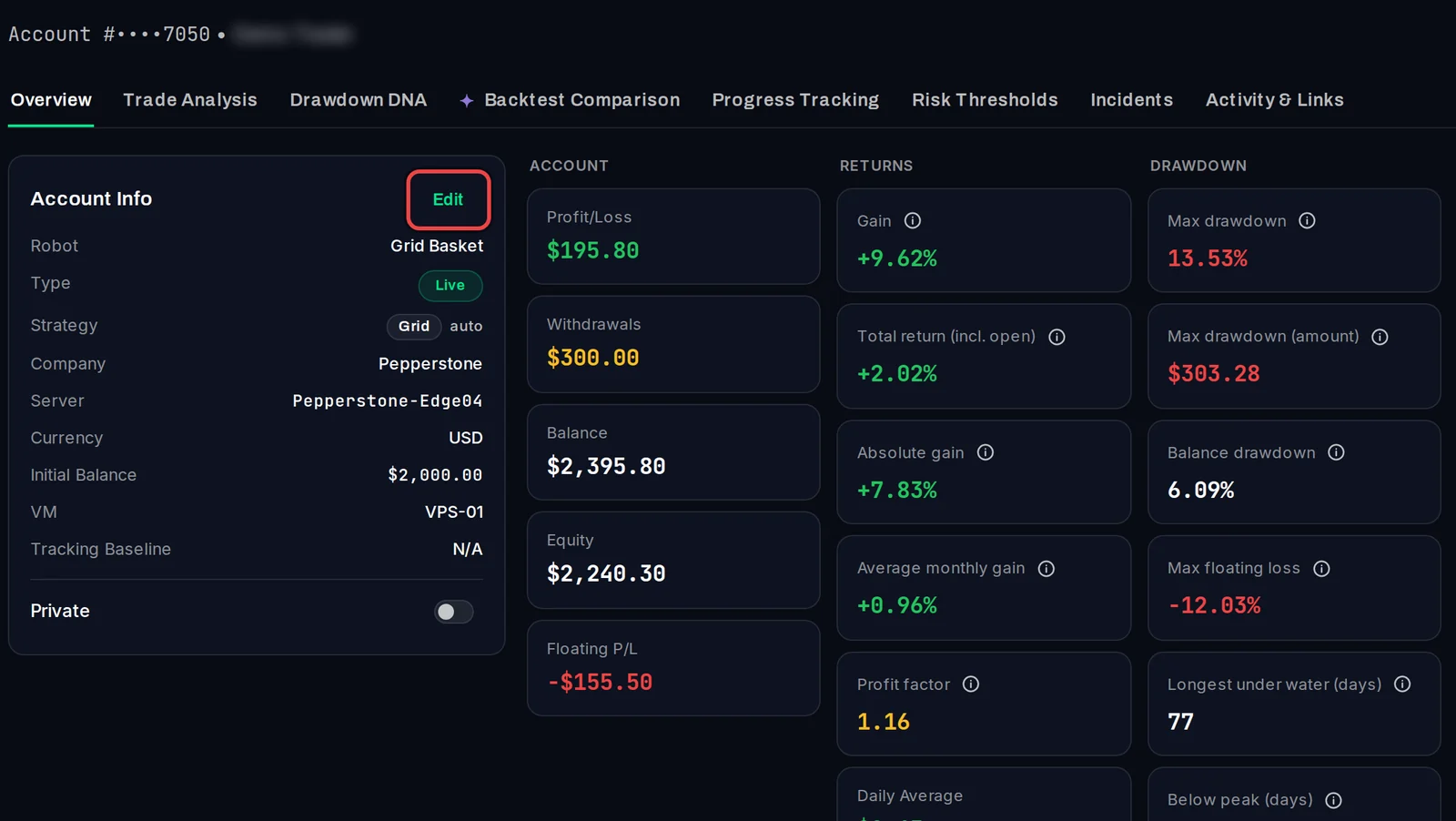
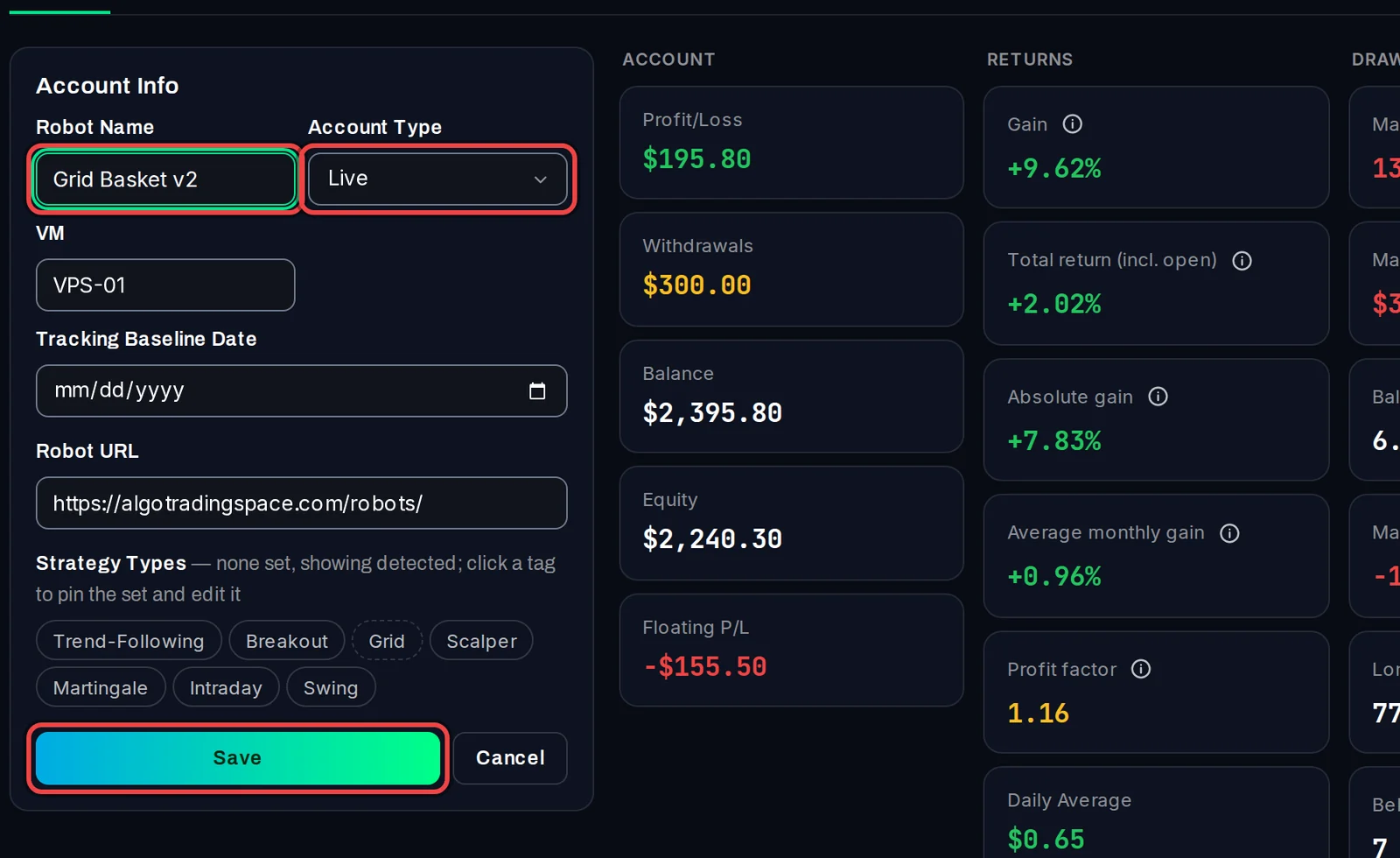
Change the labels
- In Robot Name, type the name to show for this account, for example the EA and its version.
- In Account Type, choose a type, for example Live, Demo, Challenge or Funded.
- In VM, type the name of the VPS or computer the terminal runs on.
- In Robot URL, paste a link to the robot's page if you want one at hand.
- Under Strategy Types, click tags to set the trading style yourself (see the related guide).
- Click Save. Cancel closes the form without changes.
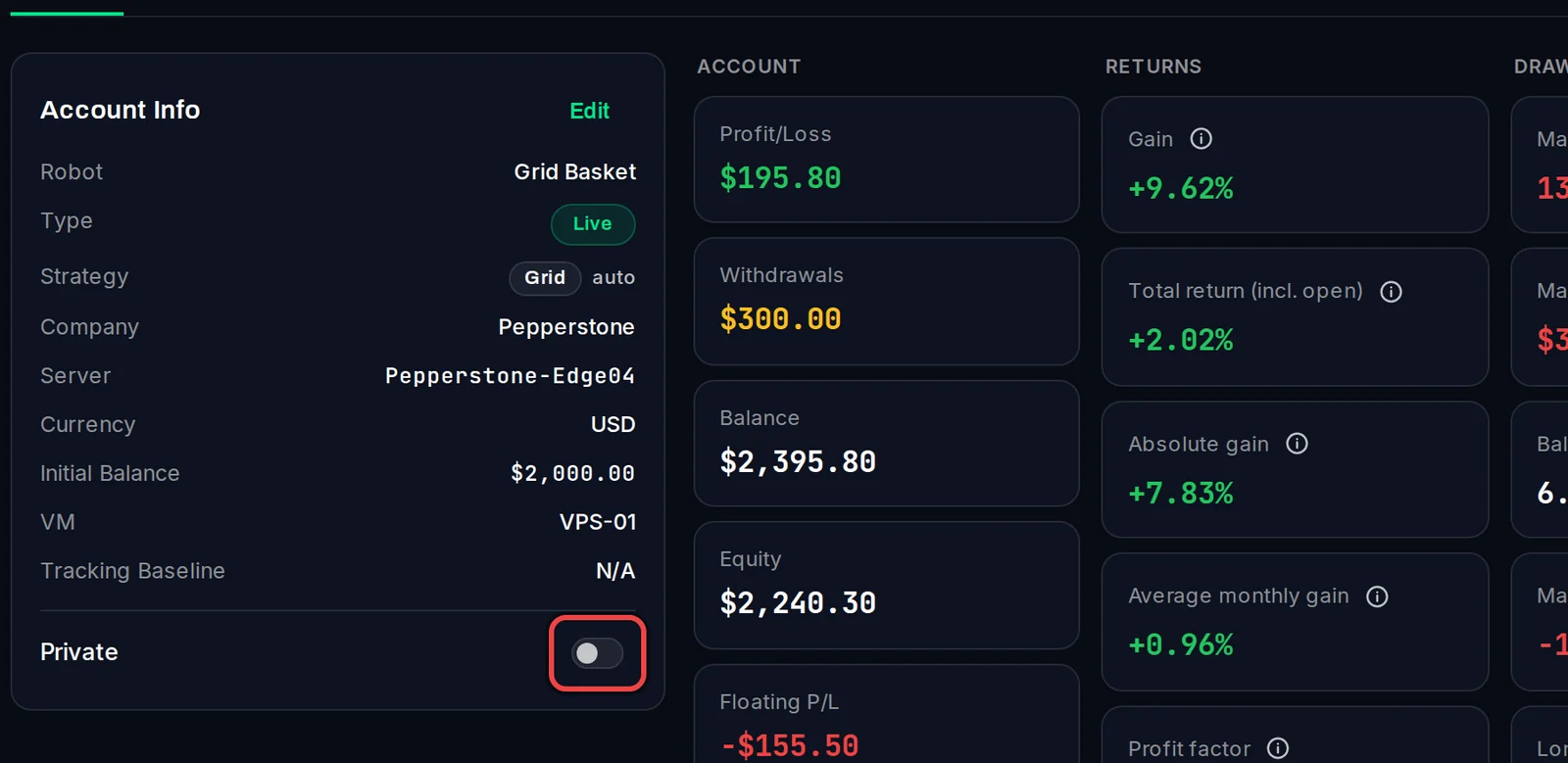
Keep an account private
- At the bottom of Account Info, switch on Private.
- The account stays out of the public library of track records.
Good to know
- These labels live in the dashboard only. They don't change anything in MetaTrader or in your EA.
- The account types come from Settings › Account Types, where you can add your own with their own colours.
- The robot link shows on the Activity & Links tab as Open.
- The VM name lets you filter the Overview by VPS and see your capital per VPS.