
Knowledge Base
Help Center articles
Cards or table: switch views and sort your accounts
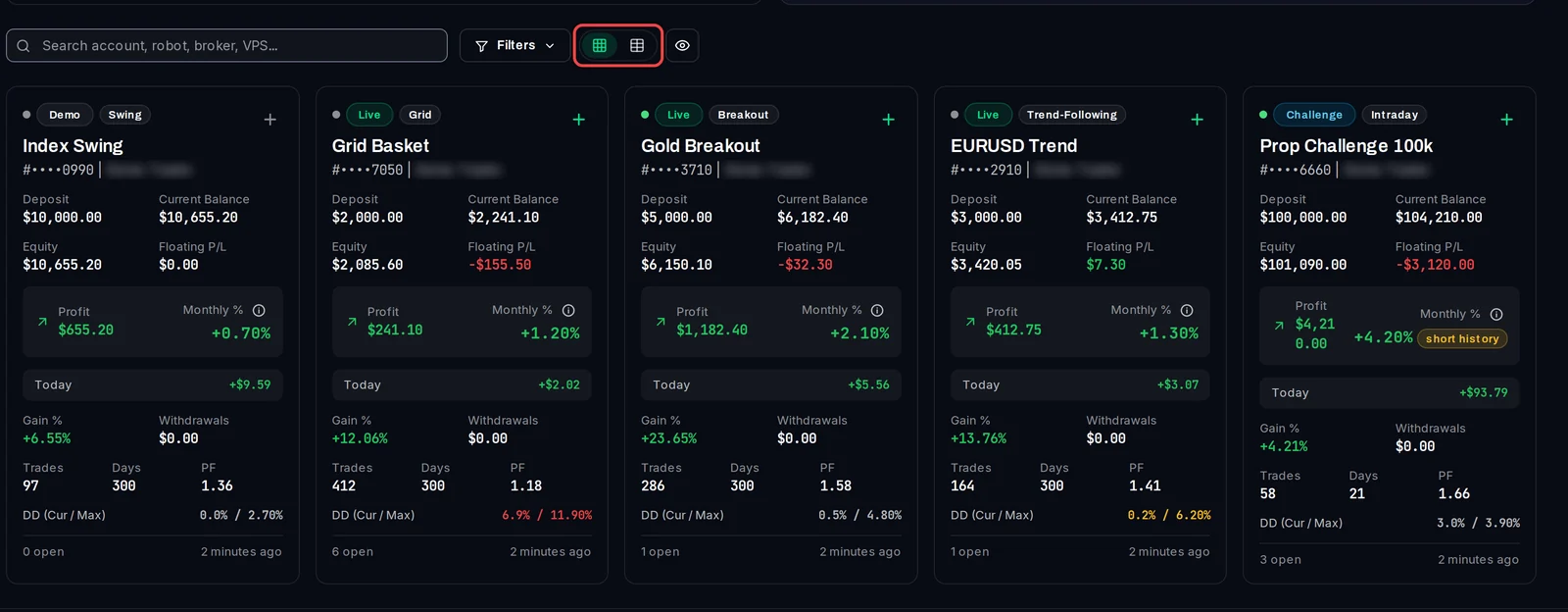
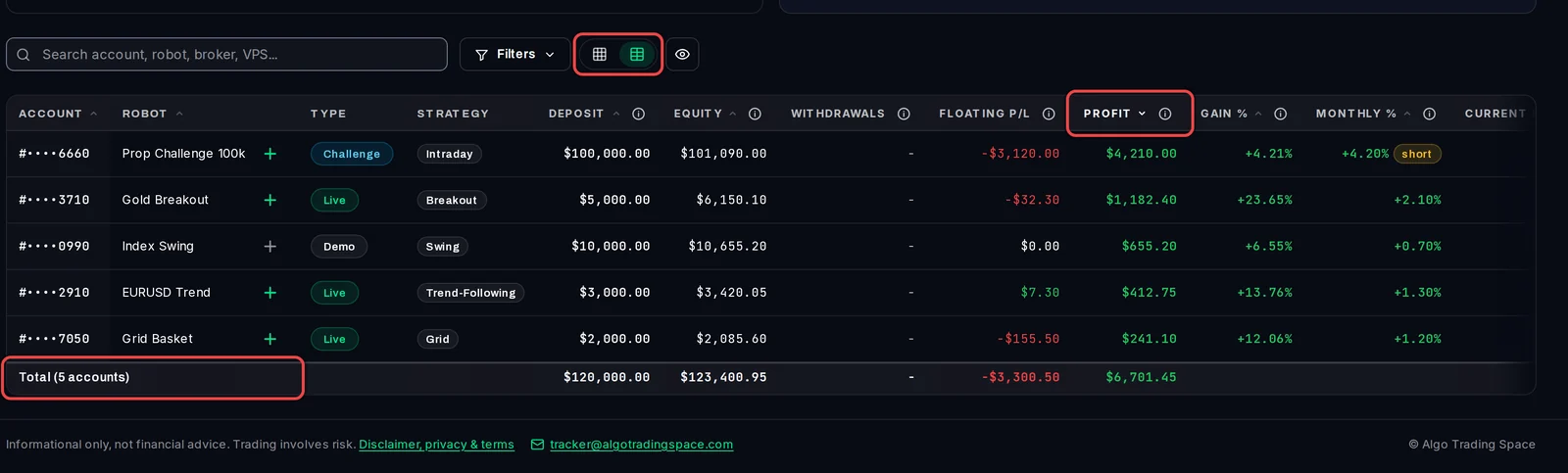
The Overview shows your accounts as cards or as a table. Cards are quick to scan; the table puts one account on each row, lets you sort by any figure and adds a total.
Plan: every plan.
Switch between cards and the table
- On the Overview, scroll down to your accounts.
- Next to Filters, click the second of the two square buttons to see the table.
- Click the first button to go back to the cards.
Read a card
Each card shows the account type and strategy tags, the robot's name, the account number and holder, then Deposit, Current Balance, Equity, Floating P/L (the result of the trades still open), Profit, Monthly %, Today, Gain %, Withdrawals, Trades, Days, PF (profit factor: what the winners made divided by what the losers lost) and DD (Cur / Max), the current and the largest drawdown (drop from a peak). At the bottom are the open positions and when the account last updated. The dot at the top left is the account's risk level colour.
Sort the table
- Click a column heading, for example Profit. The arrow beside it shows the order.
- Click the heading again to reverse the order.
- Hover the i next to a heading to see how that figure is worked out.
Good to know
- Cards cannot be sorted. To put your accounts in order, use the table.
- Your choice of cards or table is saved with your login. The sort order goes back to account number when you leave the page.
- On a smaller screen the table hides some columns. Widen the window to see them all.
- The Total row is shown in US dollars and adds each account's figures as they are. If your accounts use different currencies, read it with care.