
Knowledge Base
Help Center articles
Regenerate your access key
Your access key is the password the ATS Terminal EA uses to send your accounts to the tracker. Make a new one if someone else may have it, for example after you shared a set file or a screenshot of your settings.
Plan: every plan.
Make a new key
- Open Settings › EA Configuration.
- Under Access Key, click Regenerate Access Key.
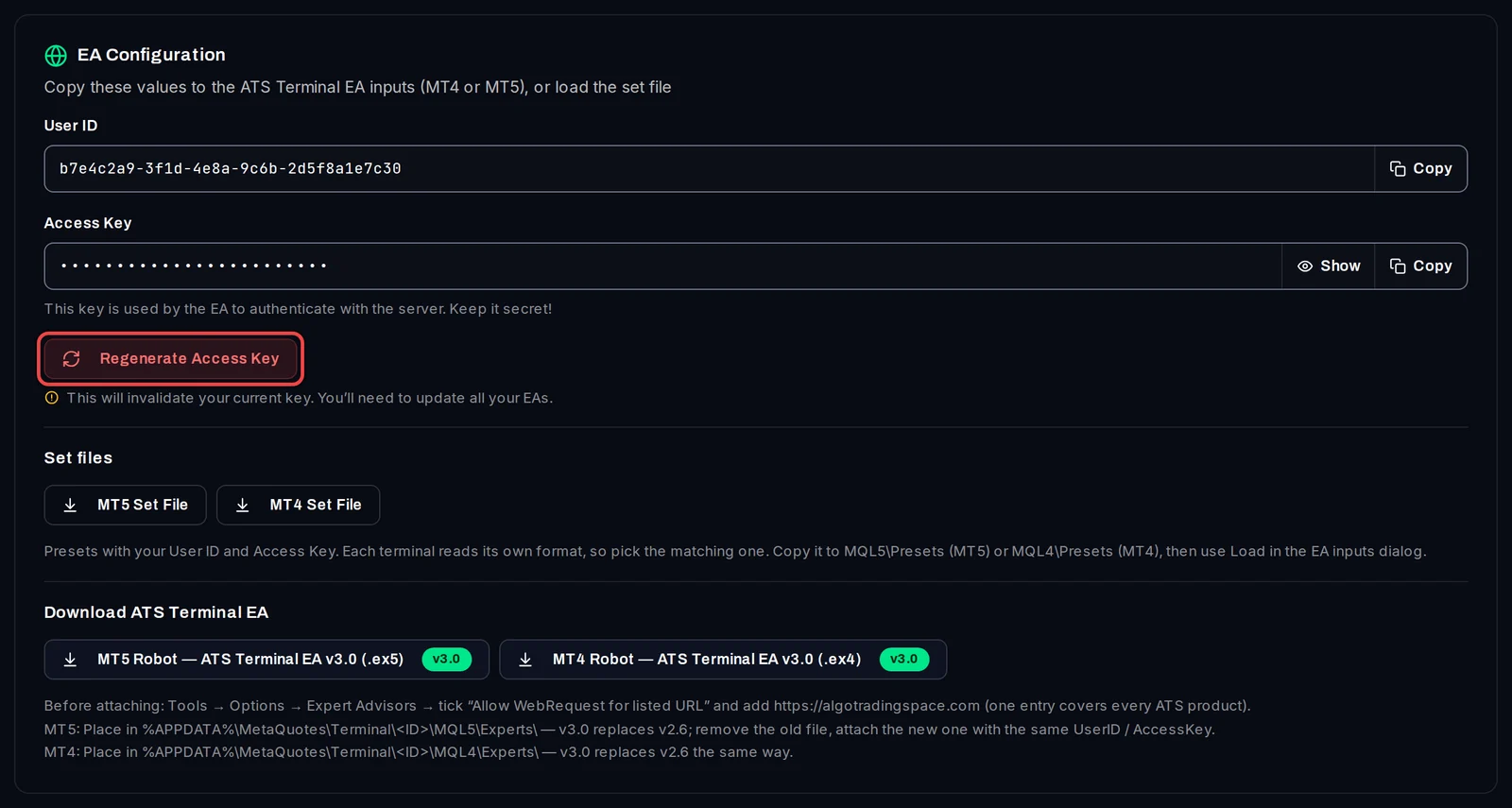
Confirm with your password
- Enter your Algo Trading Space password.
- Click Regenerate Key. The old key stops working at once.
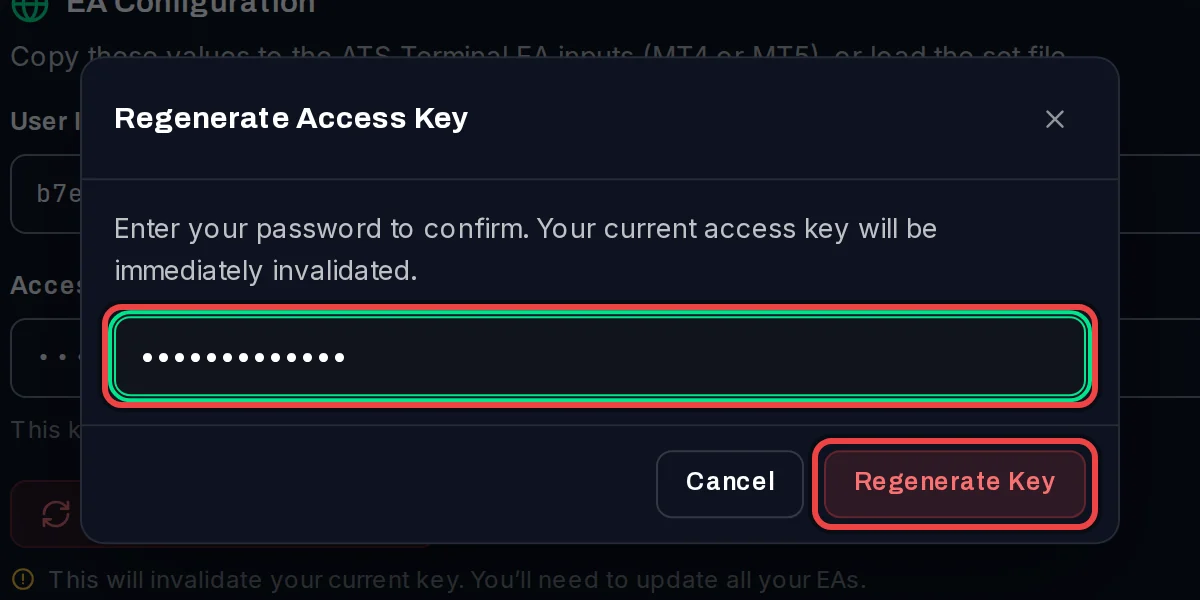
Give the new key to every terminal
- In Settings › EA Configuration, click MT5 Set File or MT4 Set File to download a set file with the new key.
- In MetaTrader, choose File › Open Data Folder and copy it into MQL5 › Presets (MT4: MQL4 › Presets), replacing the old one.
- On the EA's chart, press F7 to open its settings. On the Inputs tab, click Load, choose the new set file and click OK.
- Do this on every terminal that runs the ATS Terminal EA.
- Used the one-command VPS setup? Generate a new install command and run it on each VPS.
Good to know
- Until a terminal gets the new key, its EA shows Access key changed — update AccessKey from Settings, then UPLOADS HALTED on the chart, and that account stops updating.
- Regenerating also removes every terminal registered by the one-command setup and stops the current install command.
- Your User ID, your password, your dashboard sign-in and the data already recorded stay the same. Trades closed in the meantime arrive once the EA reports again.
- The set file holds your key. Keep it private, like a password.