
Knowledge Base
Help Center articles
Connect every terminal on a VPS with one command
Running several MetaTrader terminals on one Windows VPS? One PowerShell command finds every MT4 and MT5 terminal, installs the ATS Terminal EA with your set file, attaches it to a chart of its own and keeps it attached after restarts. The feature is marked beta.
Plan: every plan.
Make the install command
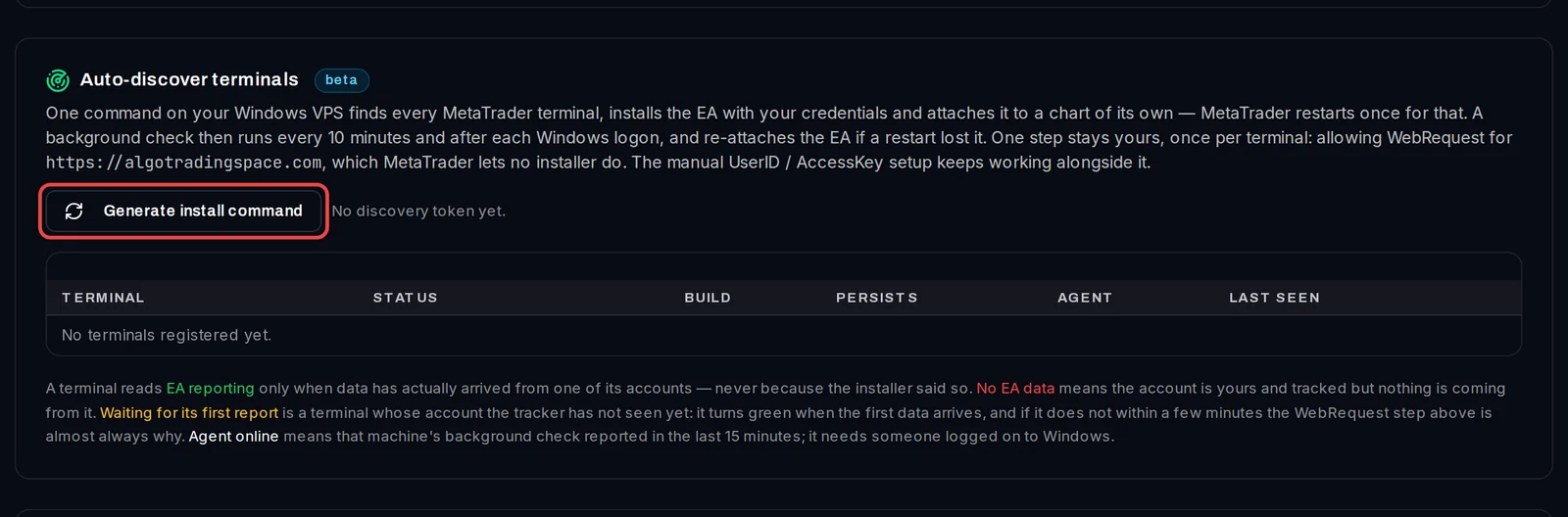
- In the tracker, open Settings › EA Configuration and scroll to Auto-discover terminals.
- Click Generate install command.
Copy the command
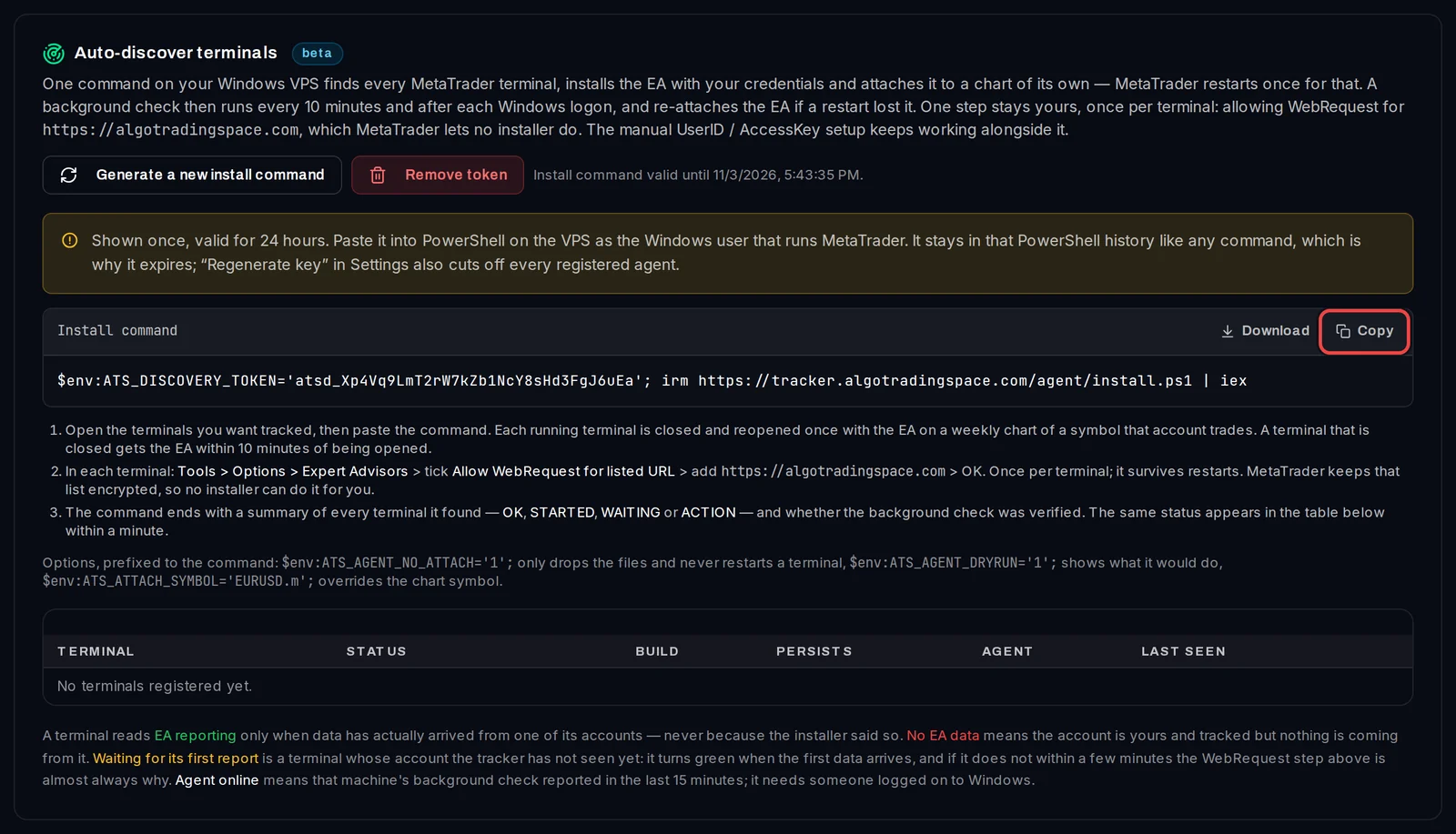
- The command appears once and works for 24 hours. Click Copy in the Install command box.
Run it on the VPS
- On the VPS, open the MetaTrader terminals you want tracked.
- Open PowerShell as the Windows user that runs MetaTrader.
- Paste the command and press Enter.
- Each running terminal closes and reopens once, with the EA on a weekly chart of a symbol that account trades. A terminal that already reports is left alone. A closed terminal gets the EA within 10 minutes of being opened.
Allow WebRequest in each terminal
This is the one step MetaTrader lets no installer do. Once in each terminal:
- Open Tools › Options › Expert Advisors.
- Tick Allow WebRequest for listed URL, add
https://algotradingspace.comand click OK.
The EA tries again within 5 minutes; no restart is needed.
Read the summary
The PowerShell window ends with ATS Tracker: what just happened: one line per terminal, with the next step spelled out.
- OK: the EA is reporting (or already was, and the terminal was not restarted).
- STARTED: the EA was attached just now. Its first report takes up to 5 minutes. If MetaTrader asks to allow WebRequest, do the step above.
- WAITING: the EA is installed but the terminal is closed. It is attached within 10 minutes of you opening it.
- ACTION: something needs you, usually the WebRequest step. The line says what.
- CHECK: no report confirmed yet. The background check tries again in 10 minutes.
Check the terminals table
Within a minute the same terminals appear in the table under Auto-discover terminals: host, platform, data folder, status, build, agent version and when it was last seen.
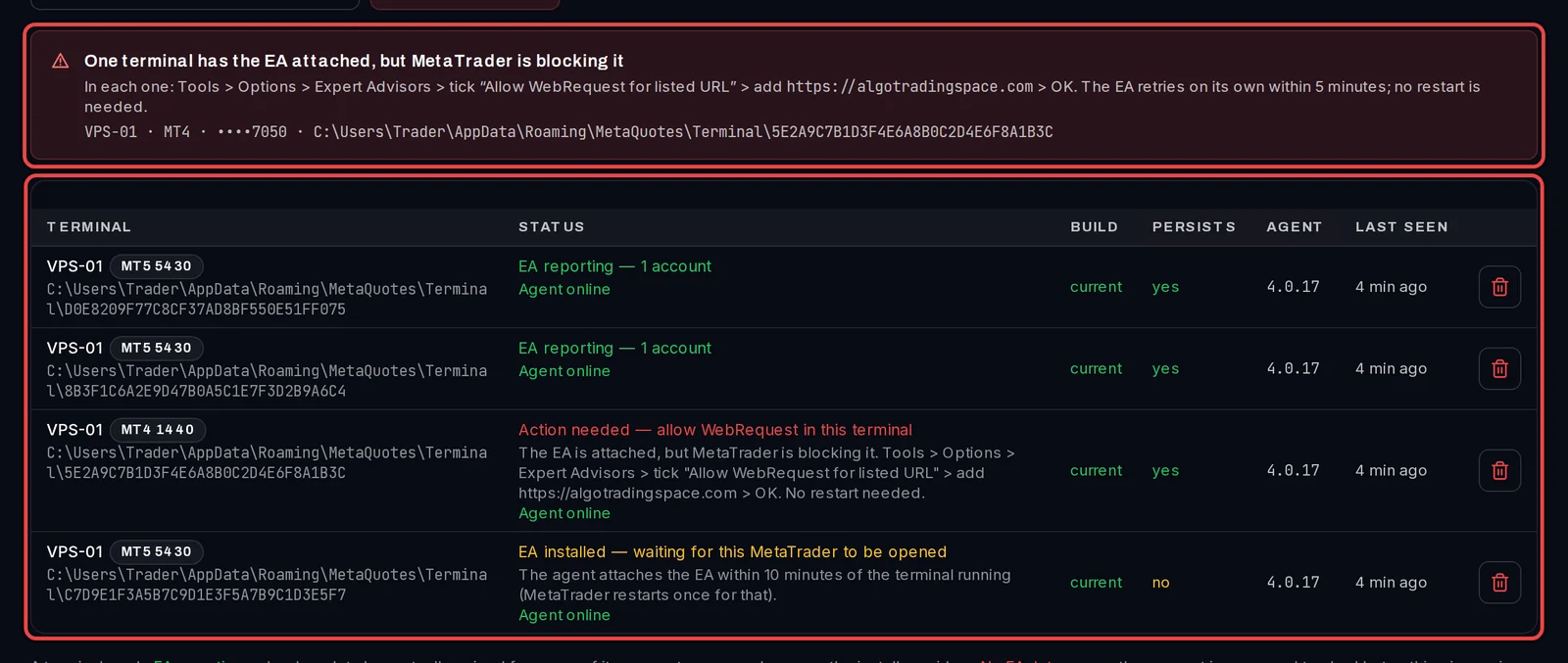
- EA reporting (green) appears only when data has really arrived from the terminal's account.
- Action needed — allow WebRequest in this terminal (red) also shows in a box above the table, with the exact clicks.
- Agent online means the VPS's background check reported in the last 15 minutes.
- Persists: yes means the EA comes back by itself after a restart. The bin icon revokes a terminal.
Good to know
- A background check runs every 10 minutes and after each Windows logon. It re-attaches the EA when an account goes silent and keeps the EA up to date. It needs someone logged on to Windows.
- Making a new install command stops the old one. Terminals already registered keep working.
- Regenerate Access Key cuts off every registered terminal. Run a new install command afterwards.
- To see what the command would do without changing anything, put
$env:ATS_AGENT_DRYRUN='1';in front of it. - The manual setup with the set file keeps working beside it.