
Knowledge Base
Help Center articles
Connect a MetaTrader account with the ATS Terminal EA
The ATS Terminal EA sends one MetaTrader account to the tracker. You attach it once to a chart, and it reports the account every few minutes. It only reads the account; it never trades. Setting it up takes about ten minutes.
Plan: every plan.
Download the EA and your set file
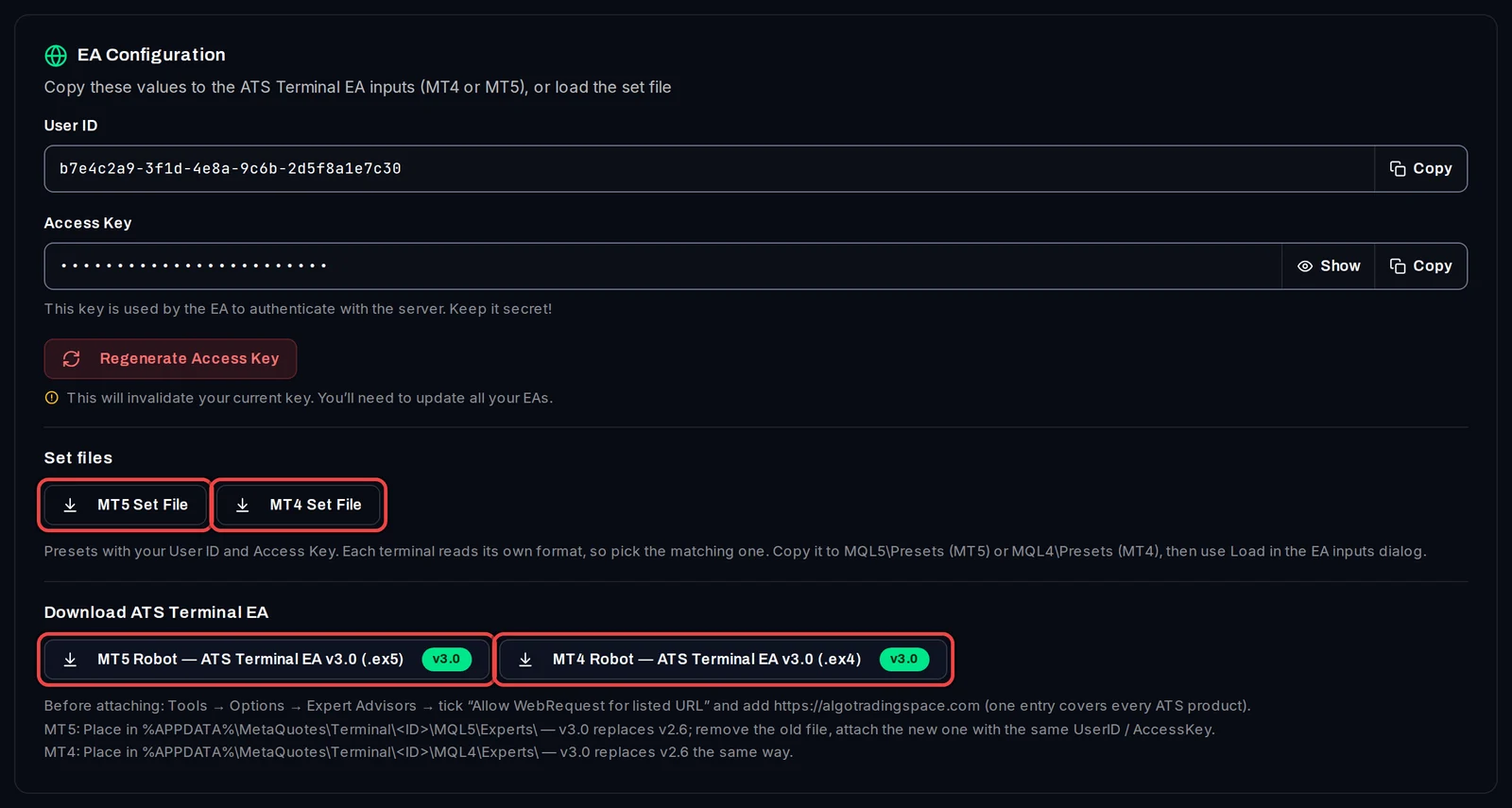
- In the tracker, open Settings › EA Configuration.
- Under Download ATS Terminal EA, click MT5 Robot — ATS Terminal EA v3.0 (.ex5) or MT4 Robot — ATS Terminal EA v3.0 (.ex4).
- Under Set files, click MT5 Set File or MT4 Set File for the same platform. The set file holds your User ID and Access Key, so you type nothing by hand. An MT4 set file does not load in MT5, and the other way round.
Allow the tracker's address in MetaTrader
- In MetaTrader, open Tools › Options and click the Expert Advisors tab.
- Tick Allow WebRequest for listed URL.
- Add
https://algotradingspace.comto the list and click OK.
Without this entry MetaTrader blocks the EA from sending anything. The one entry covers every Algo Trading Space product.
Copy the files into MetaTrader
- Choose File › Open Data Folder.
- Copy
ATS Terminal EA.ex5into MQL5 › Experts (MT4:ATS Terminal EA.ex4into MQL4 › Experts). - Copy
ATS Terminal EA MT5.setinto MQL5 › Presets (MT4:ATS Terminal EA MT4.setinto MQL4 › Presets). - In the Navigator window, right-click Expert Advisors and choose Refresh. ATS Terminal EA appears in the list.
Attach the EA to a chart
- Open a new chart of any symbol (File › New Chart). Give the EA a chart of its own, for example a weekly chart, so it is not removed when you change your trading charts.
- Drag ATS Terminal EA from the Navigator onto that chart.
- In the window that opens, click the Inputs tab, click Load and choose the set file you copied. User ID and Access Key fill in.
- Leave Event Logging and Start Date as they are and click OK.
Check that it reports
The EA sends its first update as soon as it starts, then one every 3 to 5 minutes. At the top left of its chart it shows a status text: ATS Terminal EA v3.0 | Account: your account number, then the balance, equity, drawdown and open positions.
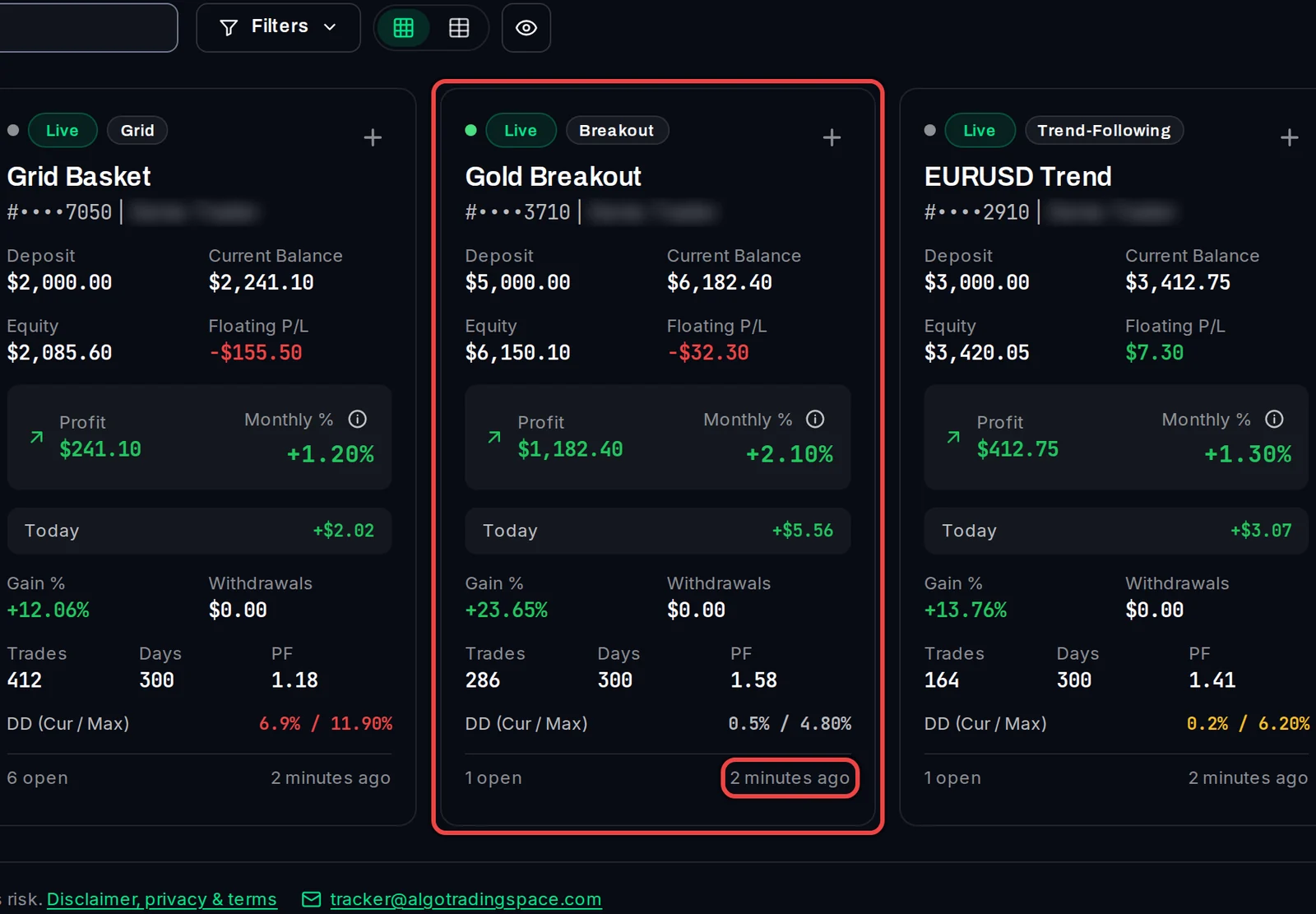
The account appears on the tracker's Overview within a minute or two. A long trade history fills in over the next few updates.
If MetaTrader shows a message
- Allow WebRequest for https://algotradingspace.com (and NOT REPORTING on the chart): do the WebRequest step above. The EA tries again by itself; no restart needed.
- UserID and AccessKey are empty — load the .set file, AccessKey is wrong or UserID is wrong: MetaTrader removes the EA. Attach it again and load the set file.
- Access key changed or Credentials not recognised: your key was regenerated. Download a new set file and load it.
- Plan limit — upgrade or free a slot in the dashboard: your plan already has its maximum number of accounts.
- Account is linked to another dashboard user: this MetaTrader account is tracked under another login.
Good to know
- The ATS Terminal EA is a tracker, not a trading robot. Keep your trading robots on their own charts; it reports what they do.
- One copy per account is enough. A second copy on the same terminal shows This copy is standing by and takes over only if the first one stops.
- Reusing a broker account for a new robot? Set Start Date to the day you start. The account page then offers to apply it as the Tracking Baseline Date, with Apply or Dismiss. Turn Event Logging on only when our support asks for it.
- MT4 sends only the history its Account History tab shows. Right-click that tab and choose All History.
- EAs older than v3.0 are no longer recorded. If you had one, remove it from the chart and attach v3.0 with the same set file.