
Knowledge Base
Help Center articles
When an account does not appear or stops updating, the cause is almost always on the MetaTrader side: WebRequest not allowed, the EA not on a chart, an old key or an old EA. Work down this list; most fixes take a minute.
Plan: every plan.
First, what to expect: the ATS Terminal EA is a tracker. It reads your account and reports it; it never opens, changes or closes a trade. If a trading robot is not taking trades, the cause is in that robot or its settings. The ATS Terminal EA cannot place trades for it.
Check the EA's chart
- Find the chart with the ATS Terminal EA. Its status text at the top left starts with ATS Terminal EA v3.0 | Account: and shows the balance and equity.
- No status text at all? The EA is not on that chart. Attach it again and load your set file.
- NOT REPORTING: MetaTrader is blocking it. Open Tools › Options › Expert Advisors, tick Allow WebRequest for listed URL, add
https://algotradingspace.comand click OK. The EA tries again by itself. - UPLOADS HALTED: the User ID or Access Key no longer match, usually because the key was regenerated. Download a new set file in Settings › EA Configuration and load it in the EA's inputs.
- This copy is standing by: another chart already reports this account. Nothing to fix.
Read the EA's message
On the first attach, a MetaTrader alert names the problem. You can also open View › Toolbox (MT4: View › Terminal) and read the Experts tab: the lines starting with ATS Terminal EA say what is wrong.
- Allow WebRequest for https://algotradingspace.com: do the WebRequest step above.
- UserID and AccessKey are empty, AccessKey is wrong or UserID is wrong: attach the EA again and load the set file instead of typing.
- Access key changed or Credentials not recognised: load a new set file.
- Plan limit — upgrade or free a slot in the dashboard: see the next section.
- Account is linked to another dashboard user: this account is tracked under another login. Contact our support.
- This EA (v2.6) is no longer supported and its data is not recorded: download v3.0 from Settings › EA Configuration, remove the old EA from the chart and attach the new one with the same set file.
Check your plan's account limit
A notice at the top of the dashboard says how many accounts are paused because of your plan.
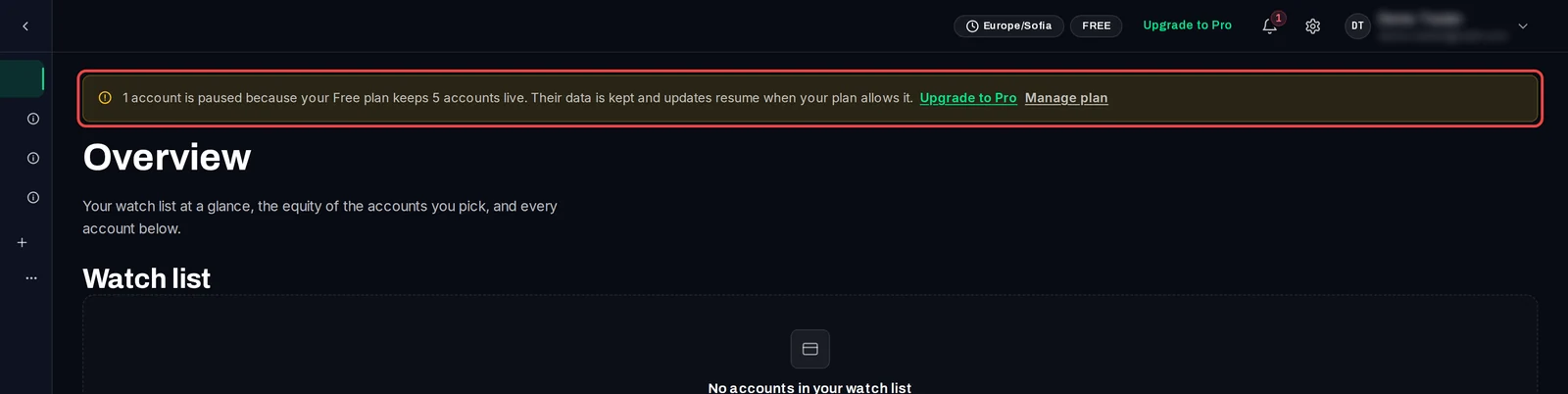
The paused account's card carries a Paused badge. Its data is kept, and it updates again when your plan allows.
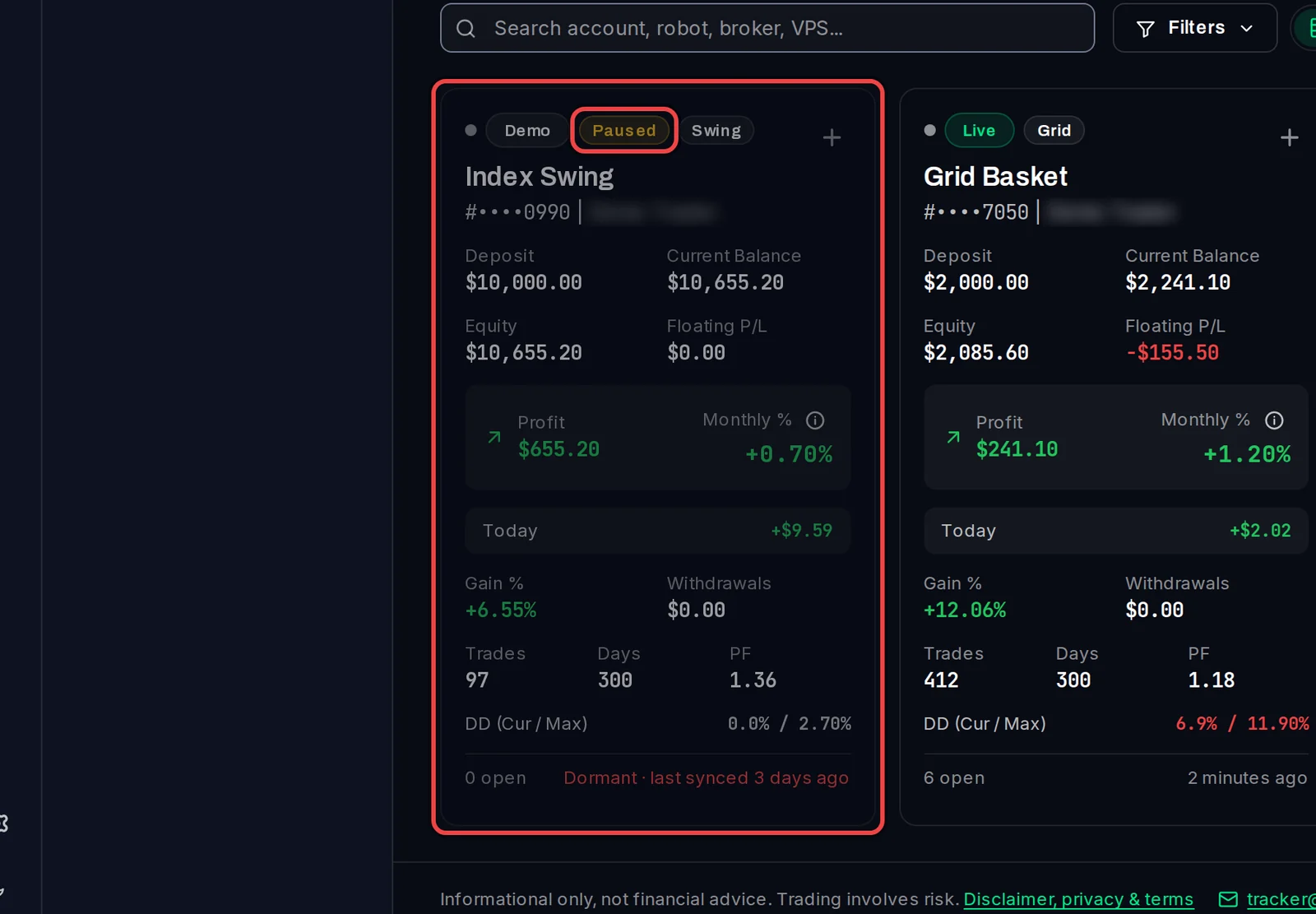
- Click Upgrade to Pro in the notice, or make room by deleting an account you no longer need.
- To delete one, remove its EA from MetaTrader first, then open the account and click the bin icon at the top right.
A new account over the limit does not appear at all; the EA shows the Plan limit message instead.
Check why it stopped updating
- Look at the time at the bottom right of the account's card. Amber means no report for 15 minutes; Dormant means 24 hours.
- Check that MetaTrader is open, connected to the broker, and that the PC or VPS did not sleep or restart.
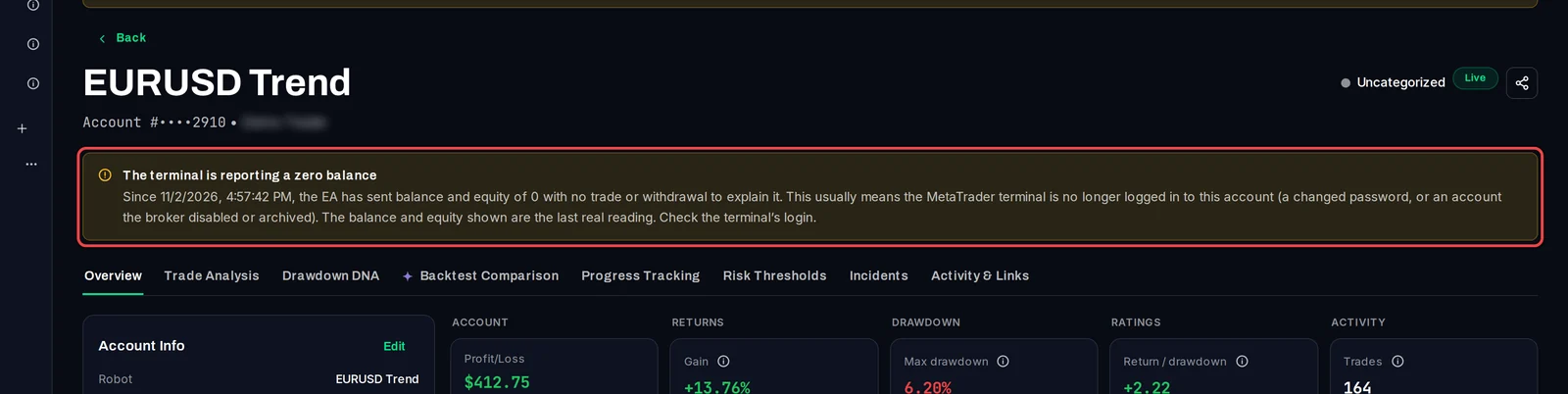
- A warning The terminal is reporting a zero balance means MetaTrader is no longer logged in to the account (a changed password, or an account the broker archived). The tracker keeps the last real balance. Log the terminal back in.
Good to know
- Old trades missing? The EA uploads history from its Start Date; leave it at 1970.01.01 for the full history. On MT4, right-click the Account History tab and choose All History.
- Balance and equity appear within a minute or two of attaching; a long history fills in over the next few updates (every 3 to 5 minutes).
- Still stuck? Turn Event Logging on in the EA's inputs, wait for the problem to happen again, and send the Experts tab and your account number to [email protected].