
Knowledge Base
Help Center articles
See each robot's results with Trade Analysis
Several robots on one MetaTrader account all add up to one balance. Trade Analysis splits that account back into its robots, so you can see which one makes the money and which one loses it.
Plan: every plan.
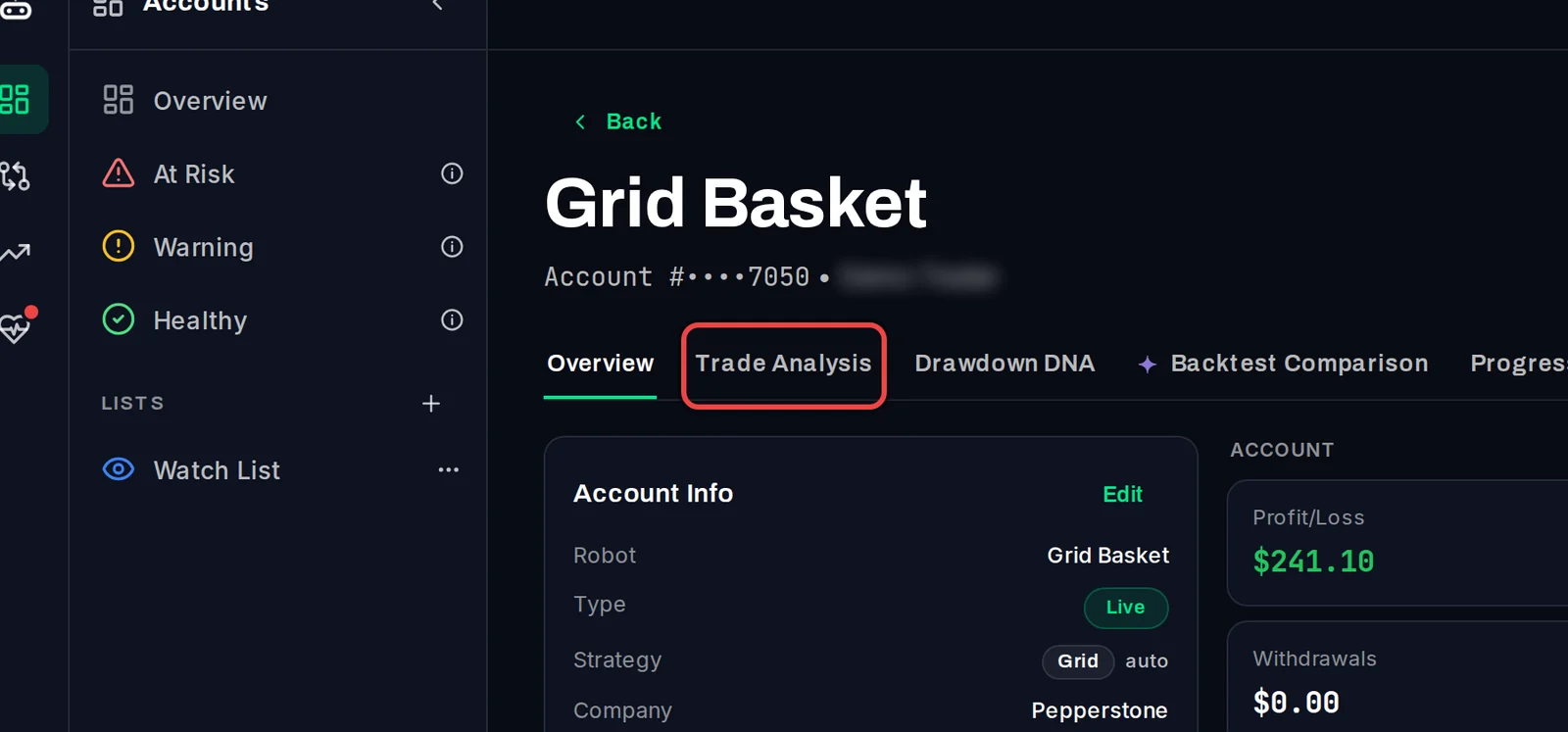
Open Trade Analysis
- On the Overview, click the account's name.
- On the account page, click the Trade Analysis tab.
Read the robot cards
Under Strategy Breakdown — By Magic Number, each robot gets its own card. A robot is told apart by its magic number (the ID an EA stamps on every trade it opens) and its symbol.
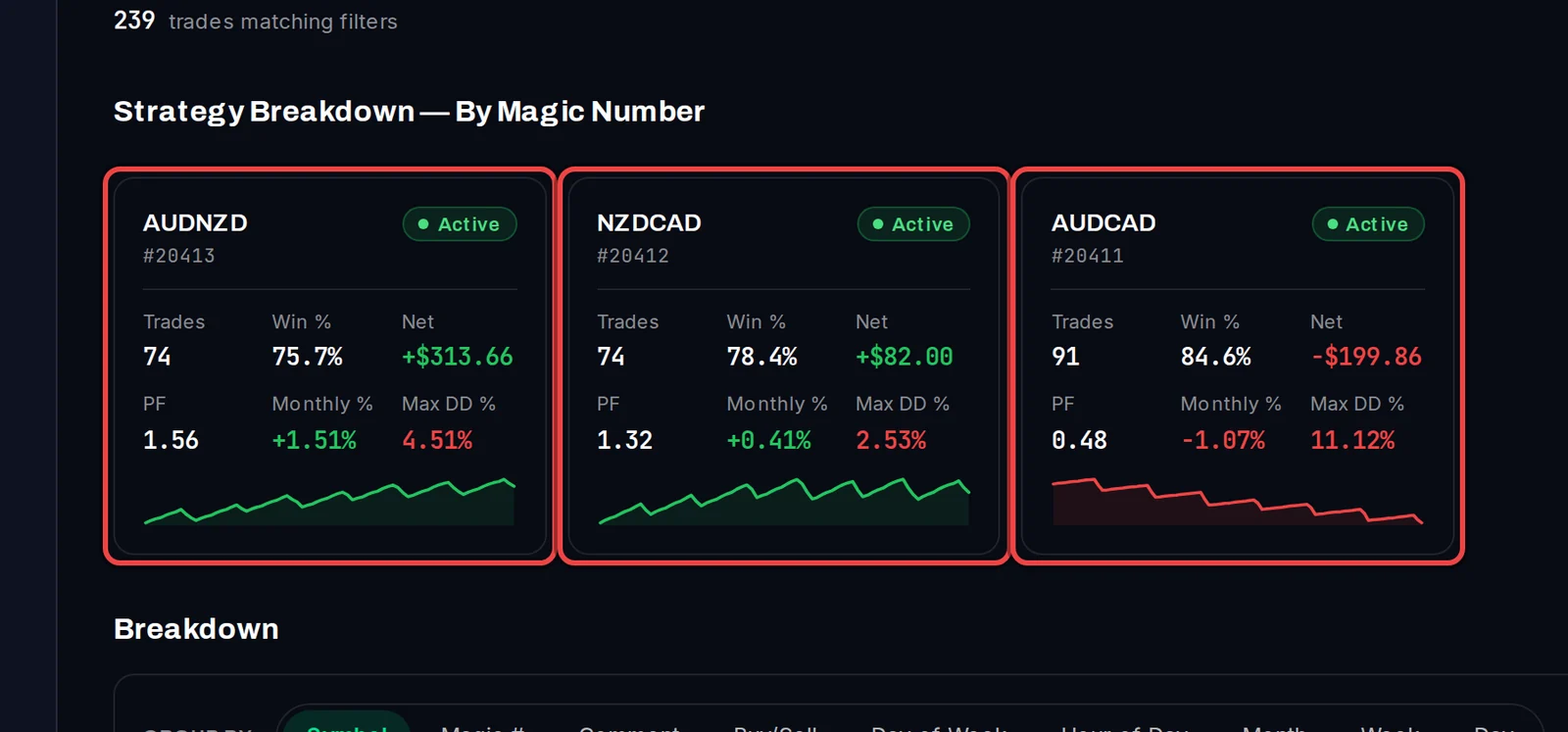
Each card shows the robot's Trades, Win % and Net profit, its PF (profit factor), Monthly % and Max DD % (its own largest drawdown), a small curve of its results, and whether it is Active, Warning or Inactive. Prefer a table? Click the table icon at the top right of the section.
Look at one robot only
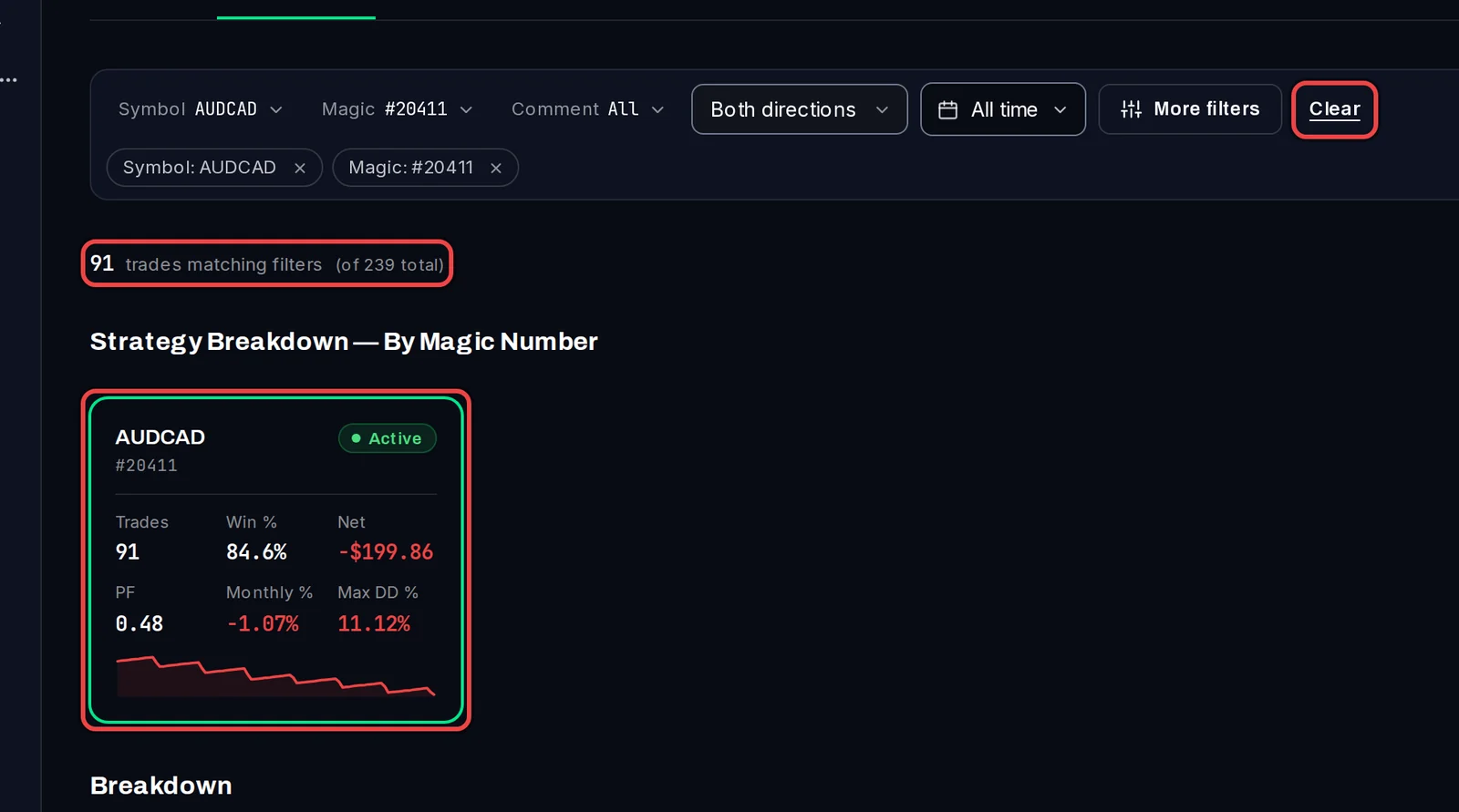
- Click a robot's card. The whole account page now shows only that robot's trades: the chart, the summary, the Terminal and the Breakdown further down.
- The filter bar shows the robot's symbol and magic number, and how many trades match, for example 91 of 239 trades.
- Click Clear in the filter bar to see the whole account again.
Good to know
- A robot that trades several symbols gets one card per symbol.
- Trade Analysis counts closed trades. Open positions are in the Terminal on the Overview tab.
- The filter is part of the page address, so you can bookmark one robot's view or send it to someone you share the account with.