
Knowledge Base
Help Center articles
Filter an account by robot, symbol or dates
When several robots share one account, or you only care about last month, the filter bar narrows the account page to just those trades. The chart, the summary, the Terminal and Trade Analysis all follow it.
Plan: every plan.
Find the filter bar
- Open the account and stay on the Overview tab.
- Scroll down past the figures. The filter bar sits above the equity chart: Symbol, Magic, Comment, the direction, the period and More filters. The same bar is at the top of Trade Analysis and Drawdown DNA.
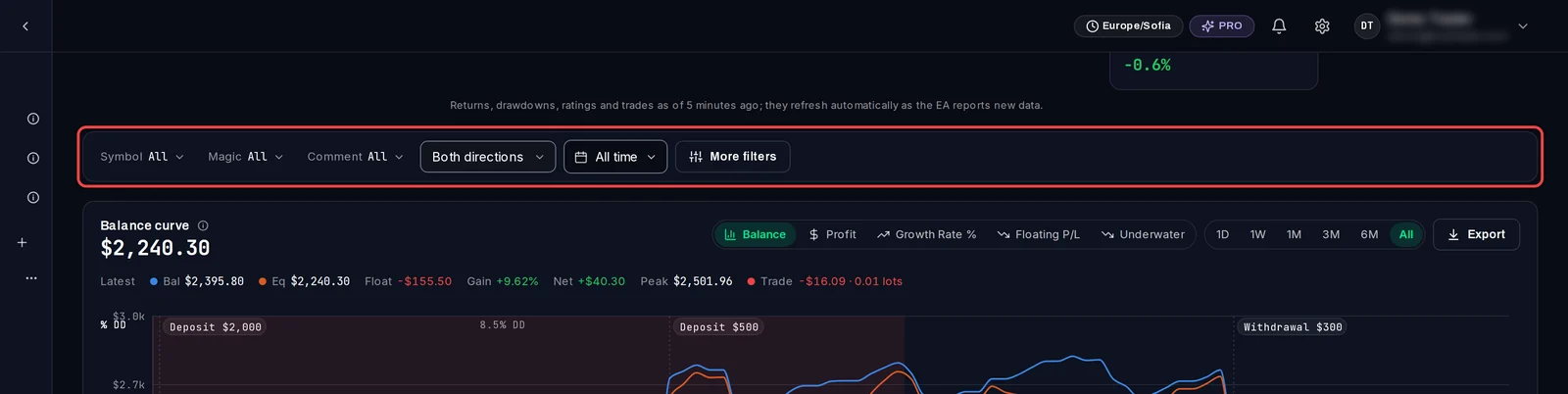
Look at one robot or symbol
- Click Magic. Each robot is listed by its magic number (the ID an EA stamps on every trade it opens), with its symbol and number of trades.
- Click the robot you want. Click another to add it too.
- To match by text instead, type part of a name in the search box, for example part of a trade comment, and pick Contains.
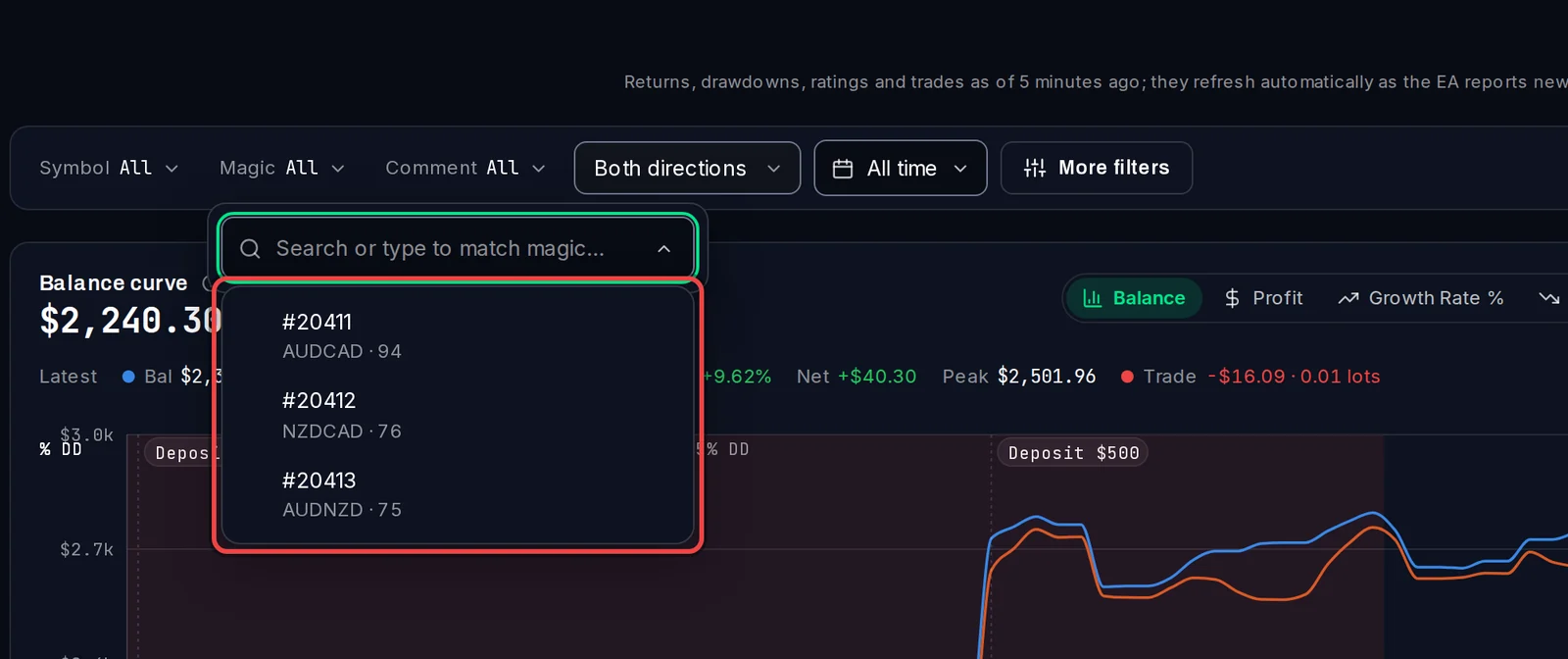
Symbol and Comment work the same way. To see only buys or only sells, choose Long only or Short only instead of Both directions.
Pick a period
- Click All time.
- Choose Last 7 days, Last 30 days or Last 90 days, or enter a From date and To date (inclusive) and click Apply.
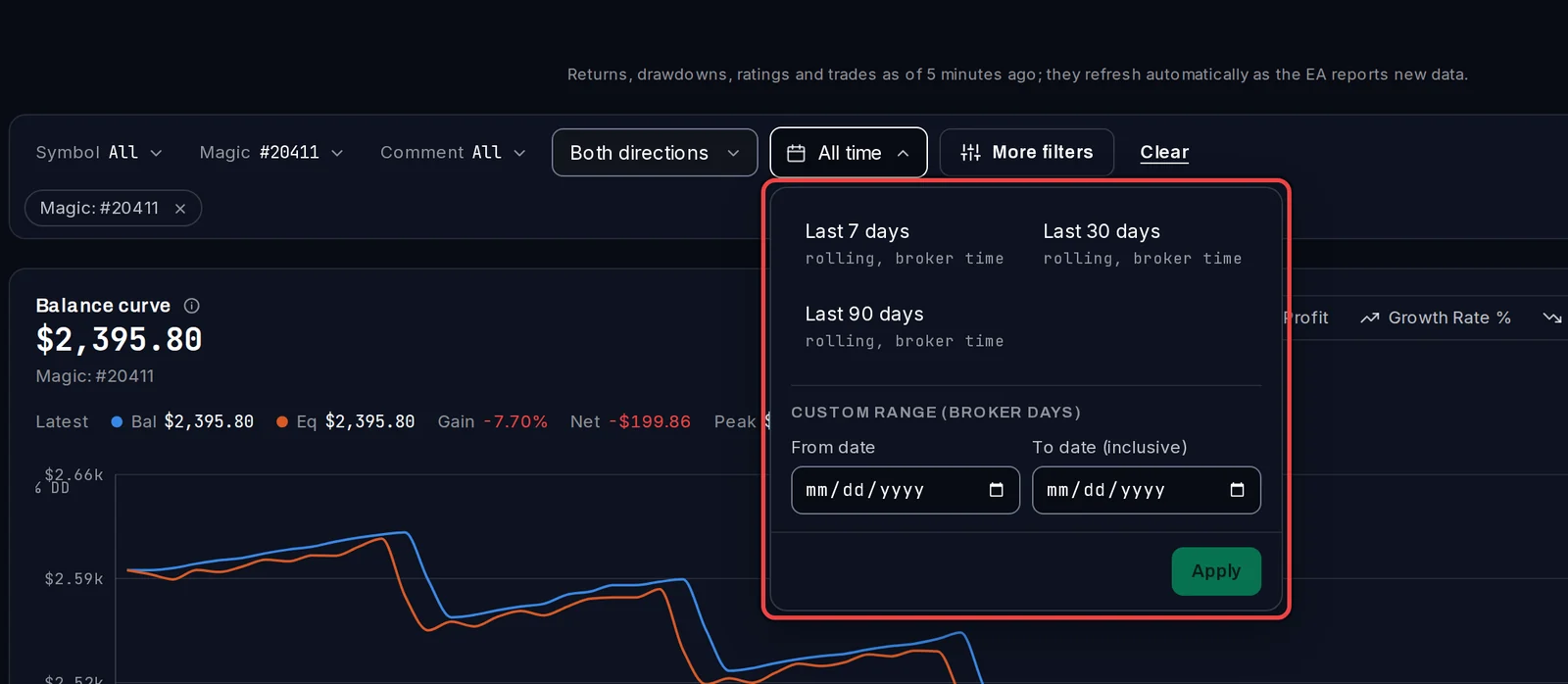
Read and clear the result
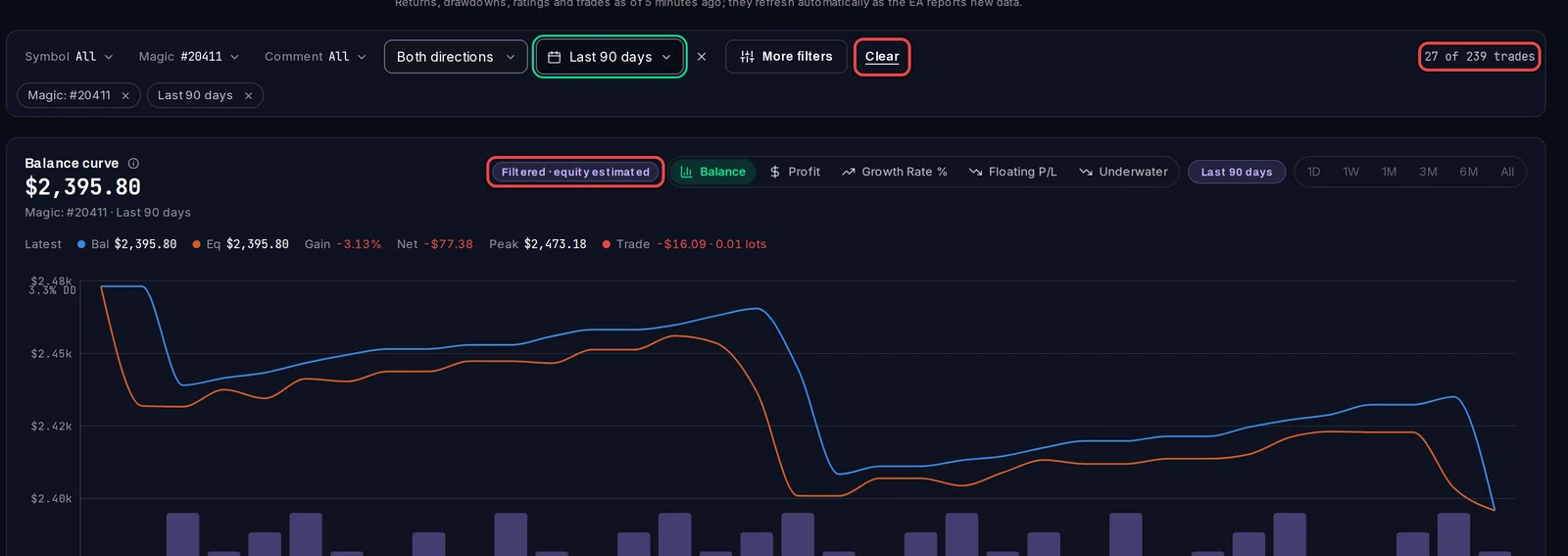
- Each filter shows as a chip under the bar. The right end shows how many closed trades match, for example 27 of 239 trades.
- The chart is marked Filtered · equity estimated and redraws only those trades.
- Click the × on a chip to drop one filter, or Clear to drop them all.
Limit by profit per trade
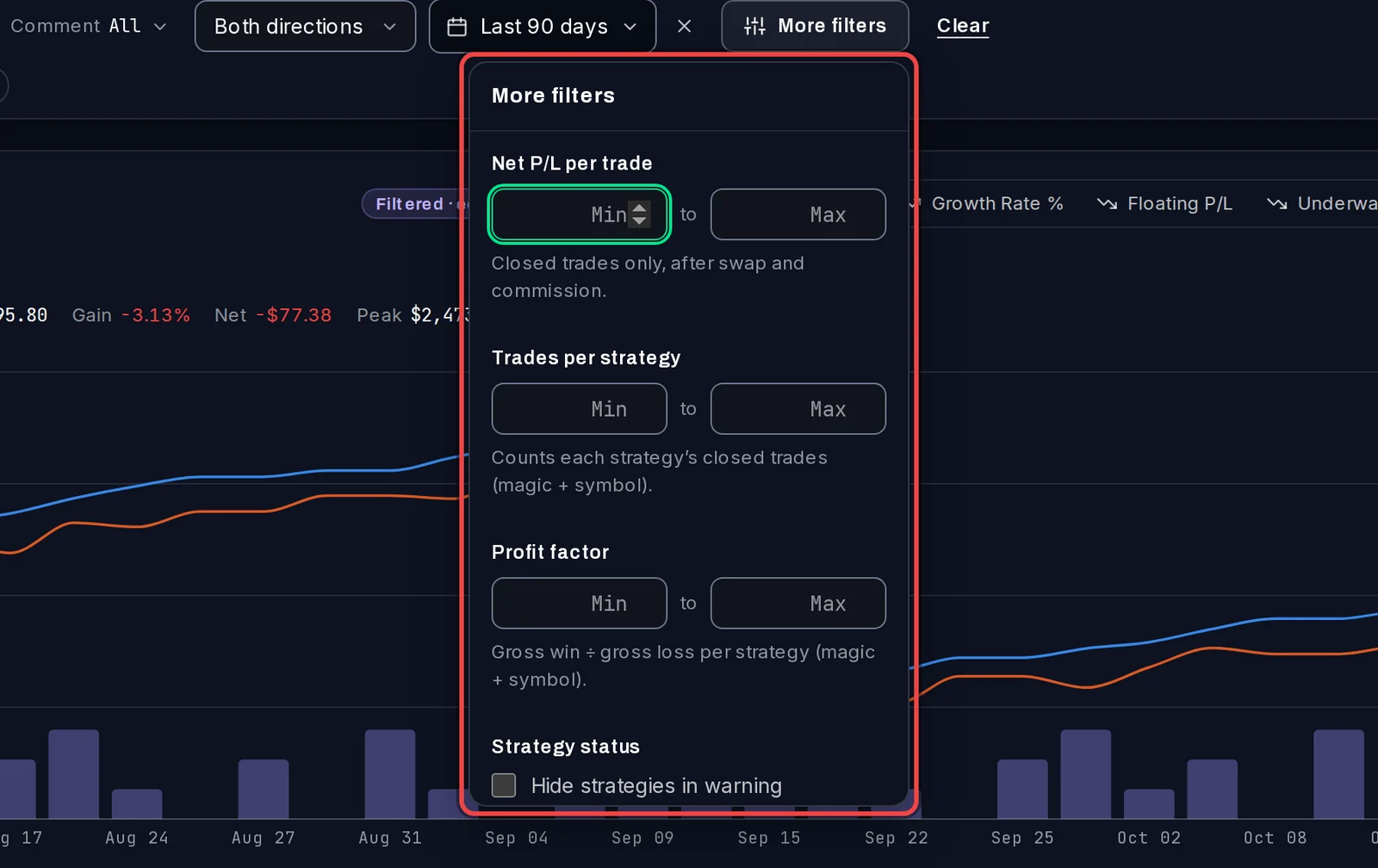
- Click More filters.
- Under Net P/L per trade, enter a Min, a Max or both. Net P/L is a closed trade's result after swap and commission.
Good to know
- Periods use the broker's clock, the same days as your MetaTrader statement.
- The filters are part of the page address, so you can bookmark a filtered view or send it to someone you share the account with.
- The figures at the top of the Overview stay for the whole account; they don't follow the filter.
- On a phone the bar folds behind a Filters button that shows the match count.