
Knowledge Base
Help Center articles
Give one account its own risk limits
A grid robot can sit in a 12 % drawdown on a normal day, while 5 % is already too much for a prop-firm account. Give such an account its own risk limits, and the tracker judges it by those instead of the Risk Categories that apply to all your other accounts.
Plan: every plan. Alerts on Discord or Telegram need Pro or VIP.
Open the account's Risk Thresholds
- On the Overview, click the account's name.
- Click the Risk Thresholds tab. Global Defaults means the account is judged by your Risk Categories.
- Click Customize.
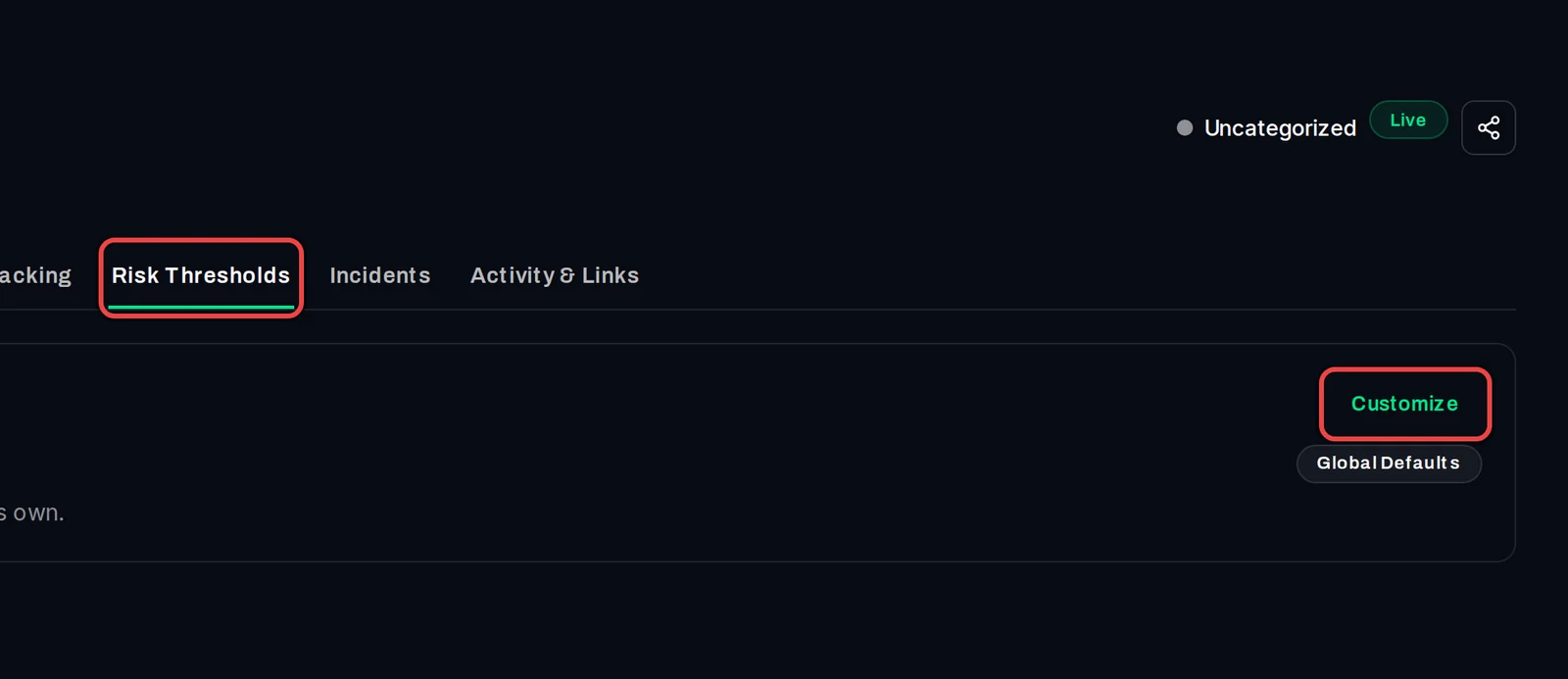
Enter the limits and save
- Type the drawdown levels in DD Warning (%) and DD Danger (%). The drawdown is the account's current equity drawdown.
- Type the lowest average monthly gain you accept in Monthly Warn (%) and Monthly Danger (%).
- Click Save.
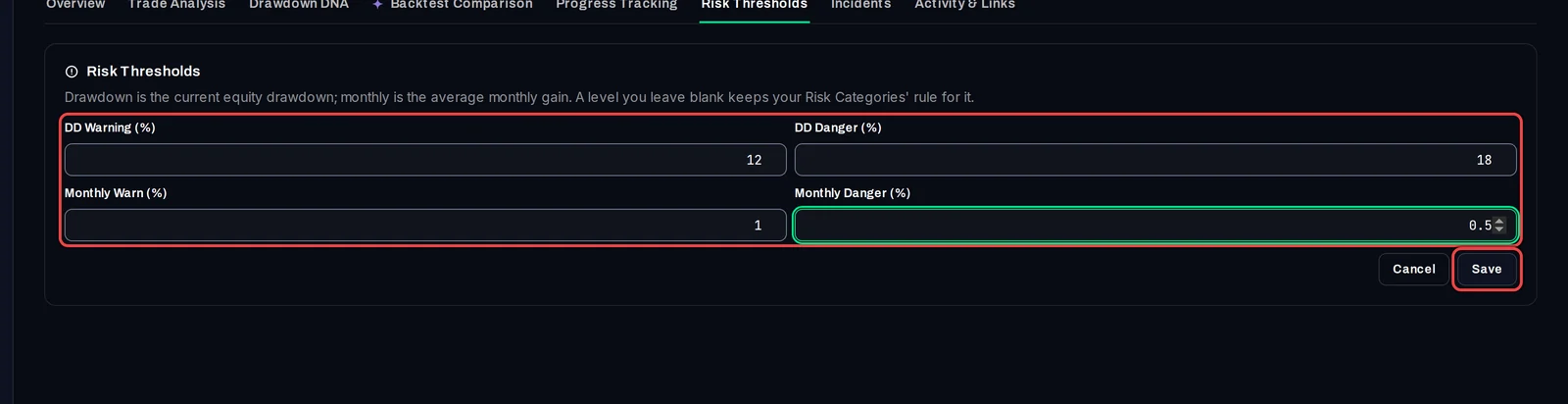
The tab now says Custom Thresholds. From now on, this account is:
- Critical when its drawdown reaches DD Danger, or its average monthly gain falls below Monthly Danger;
- Warning when its drawdown reaches DD Warning, or its monthly gain falls below Monthly Warn;
- Healthy below both lines.

What the limits change
- The account's level on the Overview, in the table and on the At Risk, Warning and Healthy pages.
- The "risk level changed" alert: it fires when the account crosses its own lines.
- The equity chart's drawdown lines: they move to DD Warning and DD Danger.
Good to know
- Leave a level's two fields blank and that level keeps your Risk Categories' rule. Inactive accounts are always judged by the Risk Categories.
- To go back to the Risk Categories, click Edit, then Reset, or clear all four fields and save.
- On an account someone shares with you in a workspace, only its owner can change these thresholds.
- Want a message at a level that isn't a risk level, for example a 10 % drawdown on one list of accounts? Use an alert rule.