
Knowledge Base
Help Center articles
Connect Claude to your accounts
Connect Claude to the Account Tracker and ask about your accounts in plain words: which accounts are at risk, what happened in March, does this EA work at every broker. You add one address in Claude and sign in. There is no token to copy.
Plan: Pro or VIP. The 14 days of Pro every new user starts with include it.
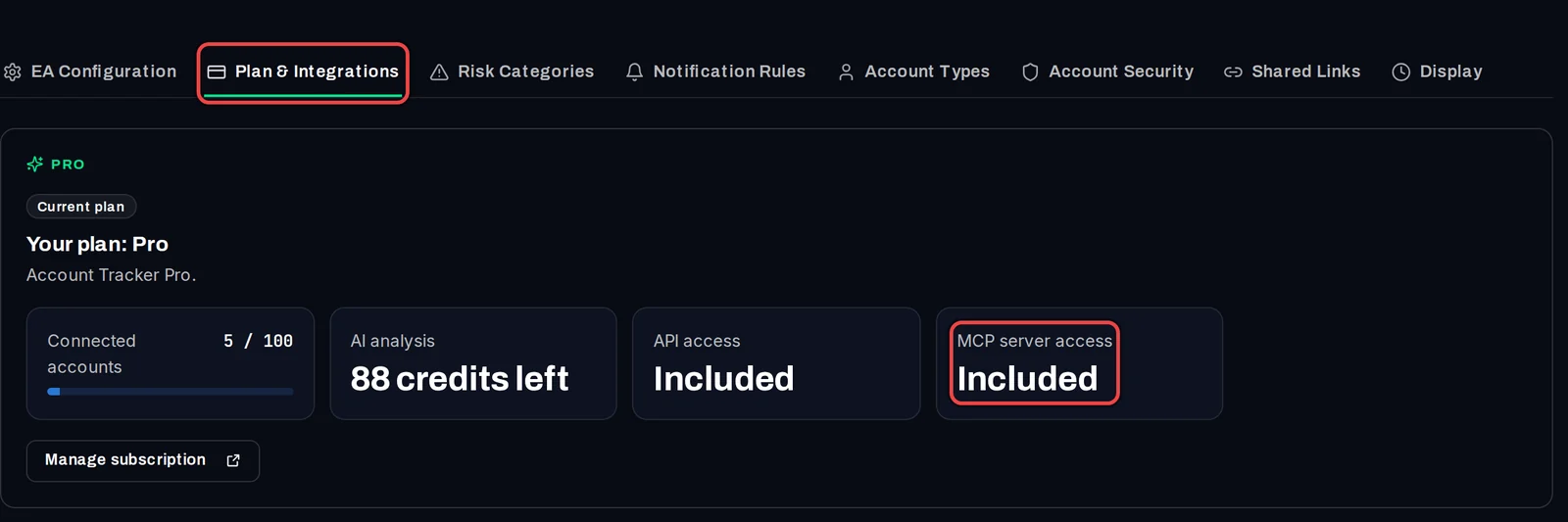
Check that your plan includes it
- In the tracker, open Settings › Plan & Integrations.
- Under your plan, MCP server access should say Included. (MCP is the standard way AI assistants connect to other apps.)
Add the connector in Claude
- In Claude (claude.ai or the Claude desktop app), open Settings › Connectors and click Add custom connector.
- Give it a name, for example Algo Trading Space.
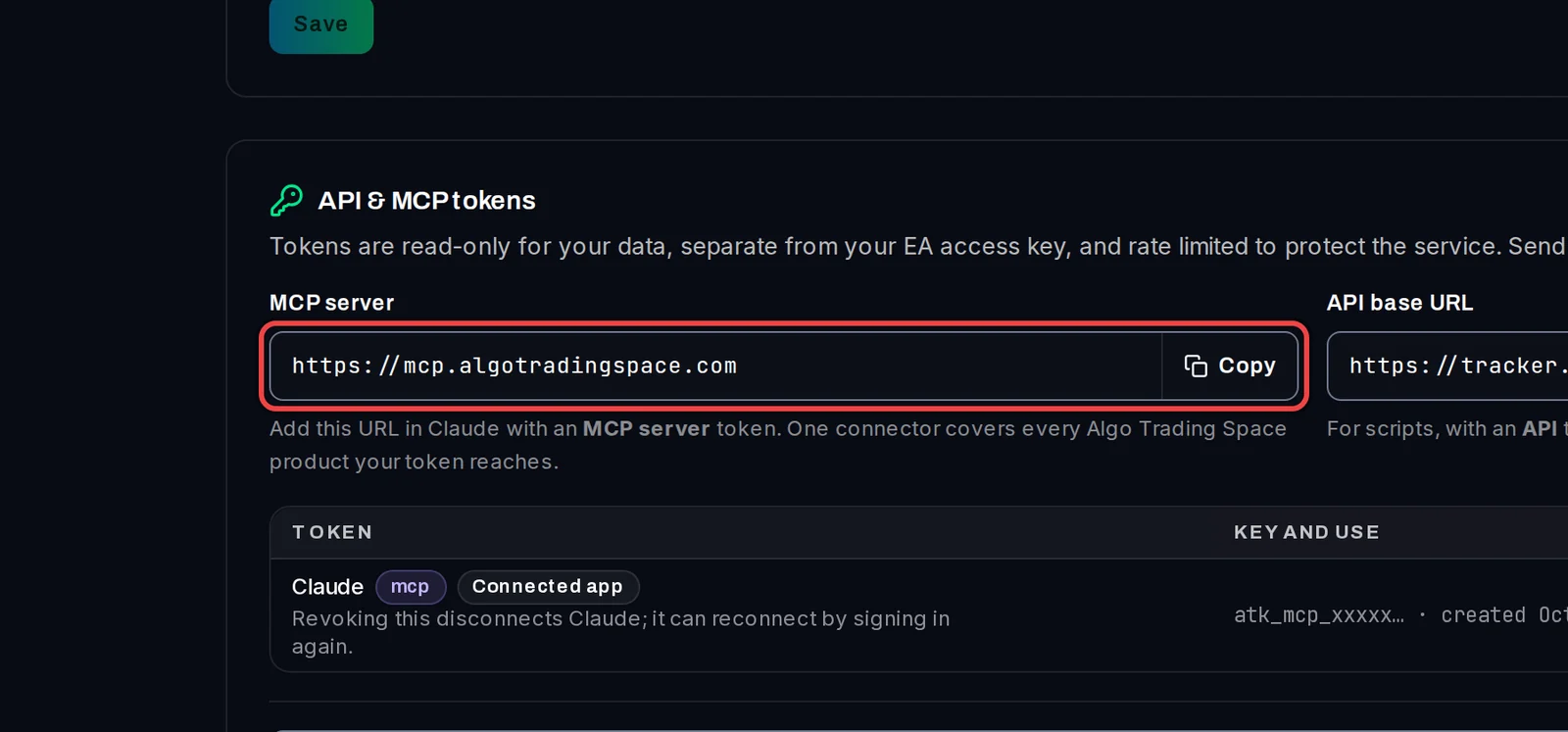
- As the address, enter
https://mcp.algotradingspace.comand click Add. Leave the advanced settings empty. - Click Connect next to the new connector. A sign-in page from Algo Trading Space opens.
The address is also in the tracker under API & MCP tokens.
Sign in and allow access
- On Sign in to continue, enter the email and password you use for the Account Tracker and click Sign in.
- If you use two-factor authentication, enter the code from your authenticator app, or a recovery code.
- Check the Connect Claude? screen: it names the app, your email and how many accounts it will read. Wrong email? Click Use a different account.
- Click Allow access. You are sent back to Claude, and the connector shows as connected.
Ask your first question
- Start a new chat and ask, for example: Which of my accounts are at risk this week?
- The first time Claude uses one of the tracker's tools, it asks for permission. Choose to allow it once or always.
Claude also offers two ready-made prompts from the connector: Review fleet risk and Compare an EA across brokers.
Disconnect Claude
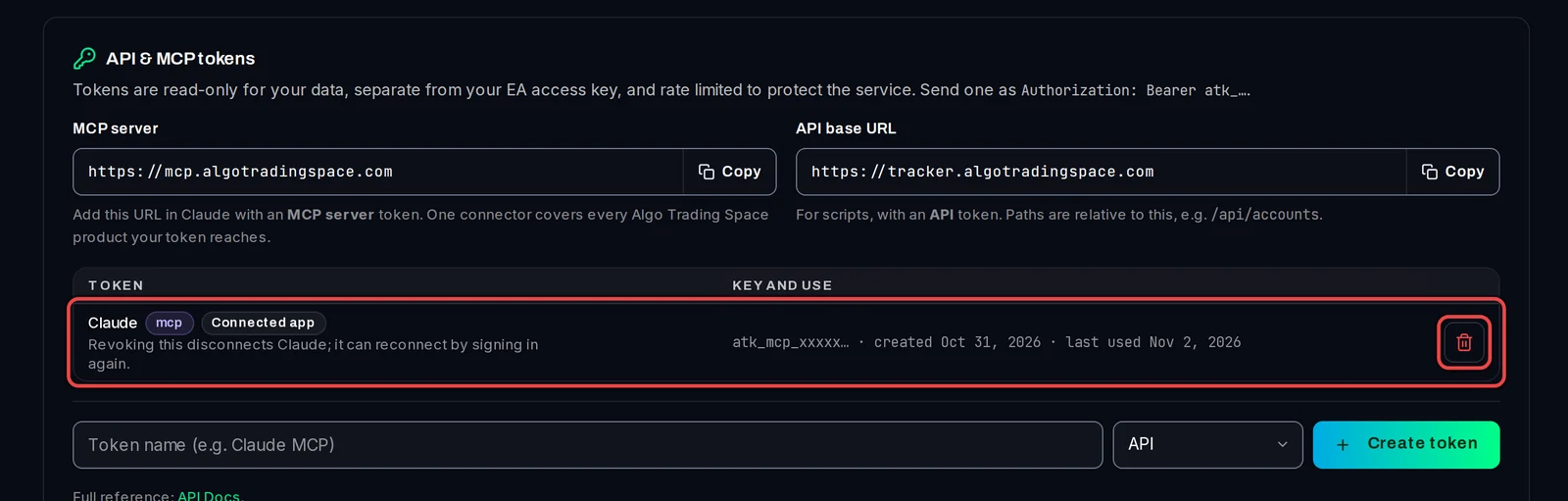
- Open Settings › Plan & Integrations and find API & MCP tokens.
- Claude is listed with the label Connected app. Click the bin icon (Revoke) on its row and confirm.
Good to know
- Claude can only read: your accounts, trades, equity history, reports, alerts, incidents and backtest comparisons, through 21 tools. It cannot place trades, change settings or see your keys. The one thing it can start is a Backtest Comparison analysis, and it asks you to confirm first.
- It sees only your own accounts and those shared with you in a workspace, plus your platform orders, licences and courses.
- Each connected app uses one of your 10 token places. If all 10 are in use, the sign-in page lists your tokens so you can remove one you no longer need.
- Answers describe your past trading. They are not trading advice.