
Knowledge Base
Help Center articles
Keep notes on an account
Changed the lot size, swapped the set file or moved to a new VPS? Write it down on the account. Each note keeps the account's figures of that moment, so later you can see what the change did.
Plan: every plan.
Add a note
- Open the account and click the Activity & Links tab.
- Under Timeline, click Add Note.
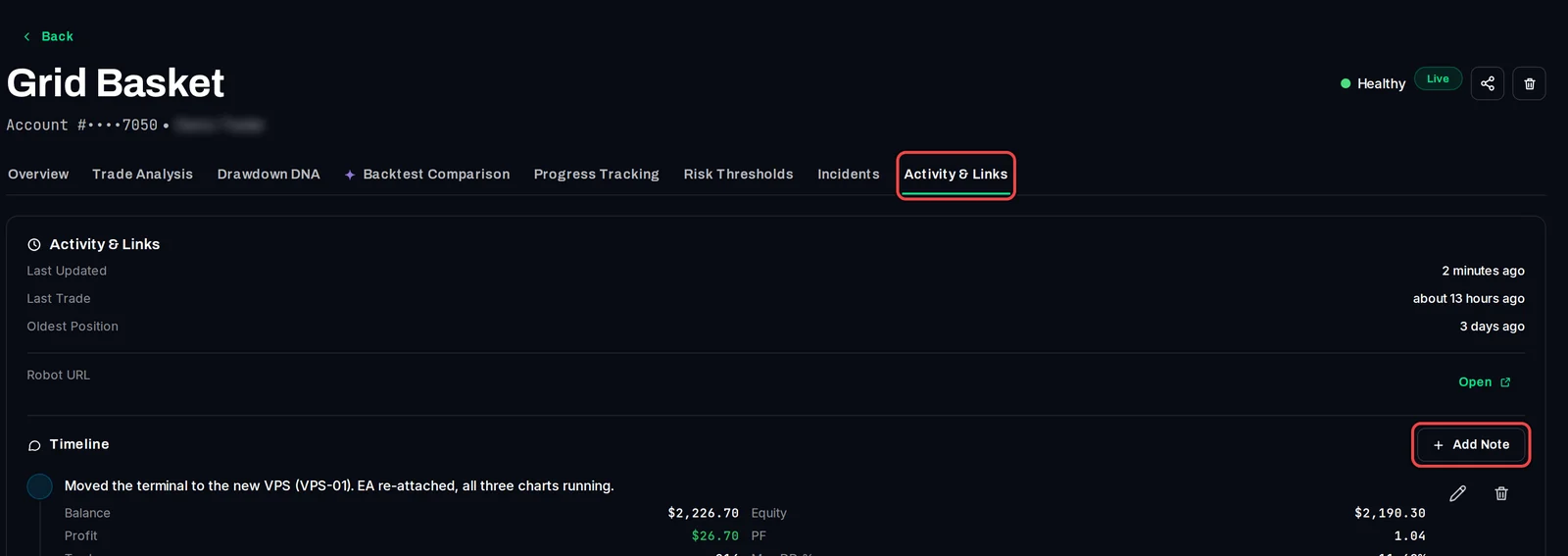
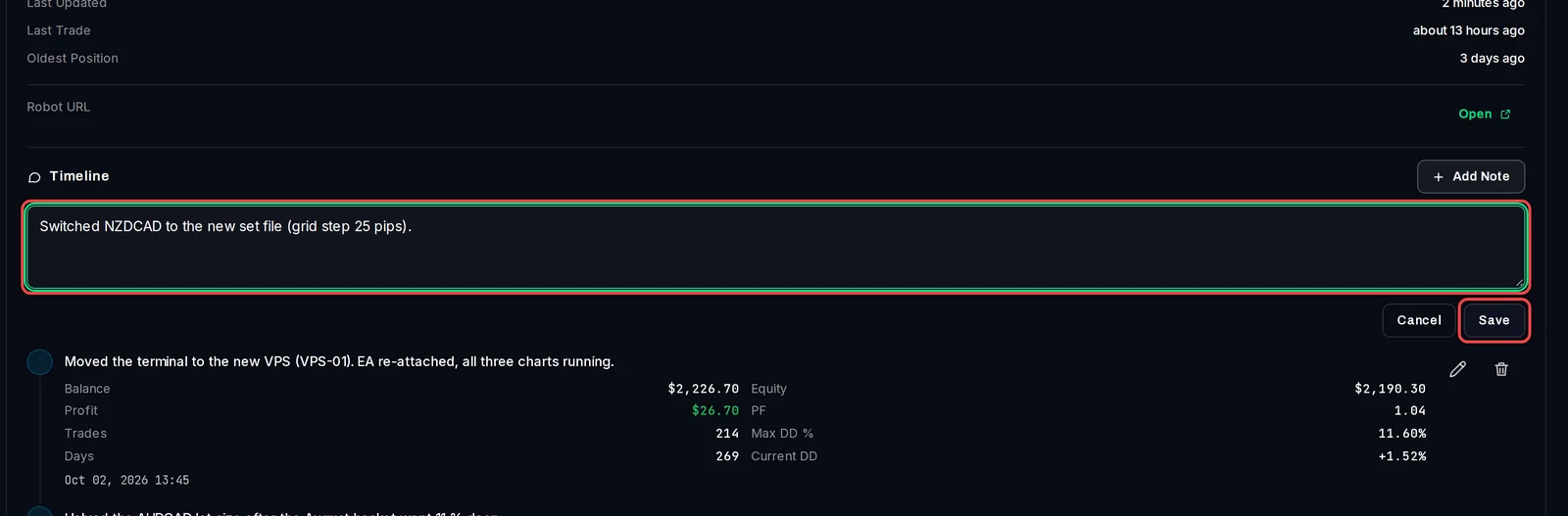
- Type what you changed and why.
- Click Save.
Read, edit or delete your notes
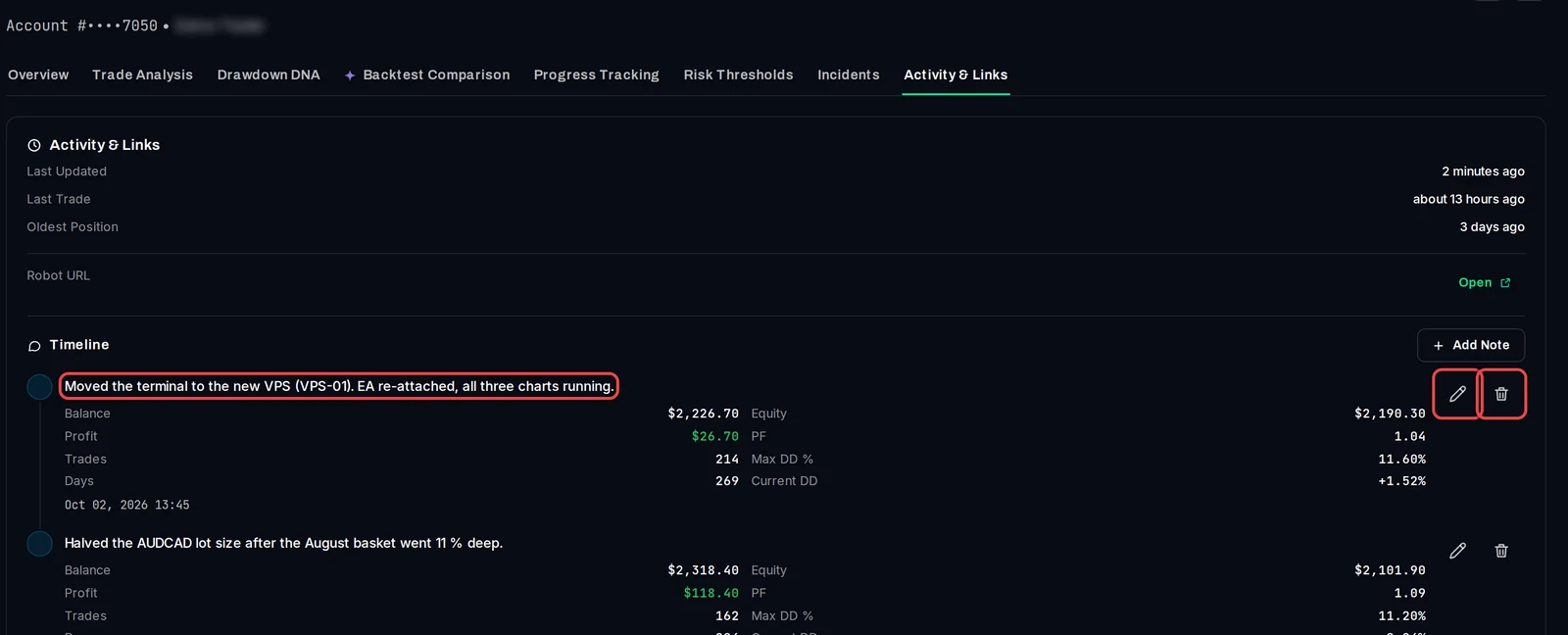
- Notes are listed newest first, each with its date and time.
- Under each note you see the account's Balance, Equity, Profit, PF (profit factor), Trades, Max DD %, Days and Current DD at the moment you wrote it. Compare them with today's figures on the Overview.
- Click the pencil to change a note's text, then the tick to save it.
- Click the bin to delete a note, and confirm.
Save an event as a note
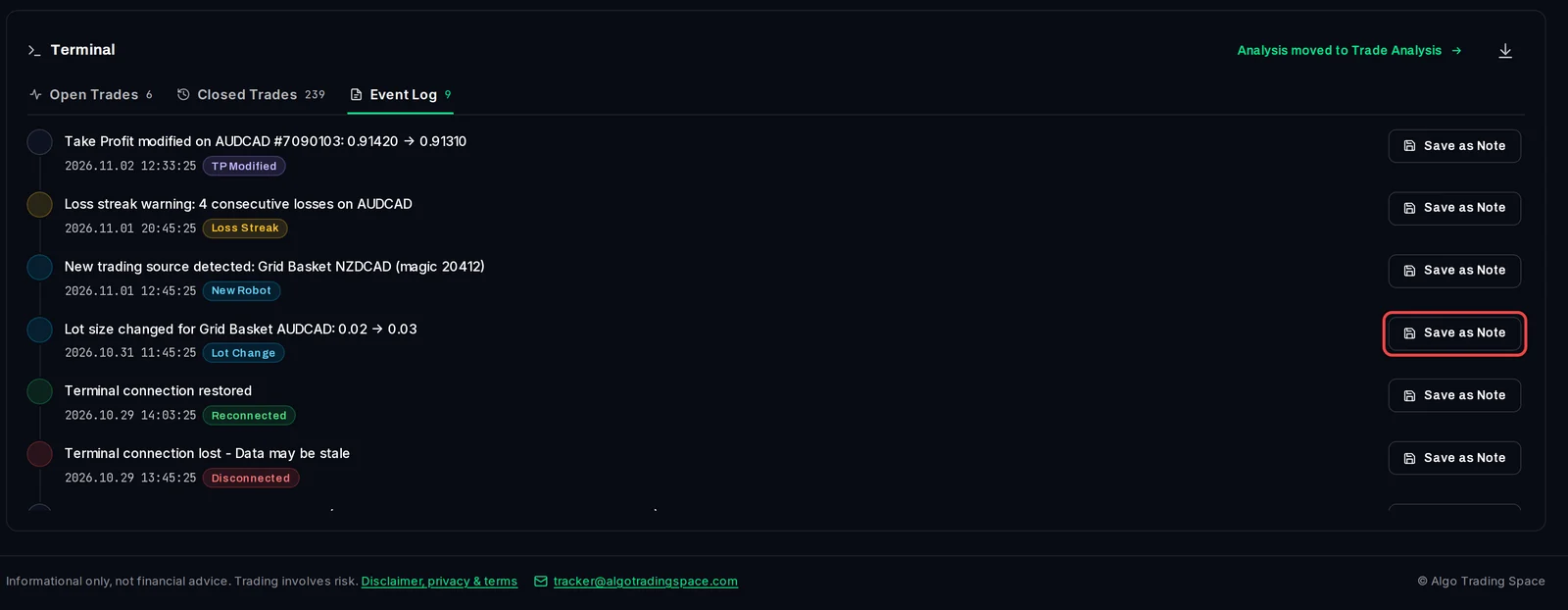
- On the Overview tab, scroll to the Terminal and click Event Log.
- Click Save as Note beside an entry, for example a lot size change.
- The entry is added to the timeline with the time of the event and the account's figures of now.
Good to know
- Notes are private: they are not shown on public links.
- Editing a note changes only its text; the figures saved with it stay as they were.
- In a shared workspace, only the account's owner can add, edit or delete notes.