
Knowledge Base
Help Center articles
Open trades, trade history and the Event Log
The Terminal at the bottom of the account page works like the Trade and History tabs in MetaTrader: the open positions, every closed trade and a log of what the EA saw. It is your trade journal, kept for you.
Plan: every plan.
See the open trades
- Open the account and scroll to the bottom of the Overview tab.
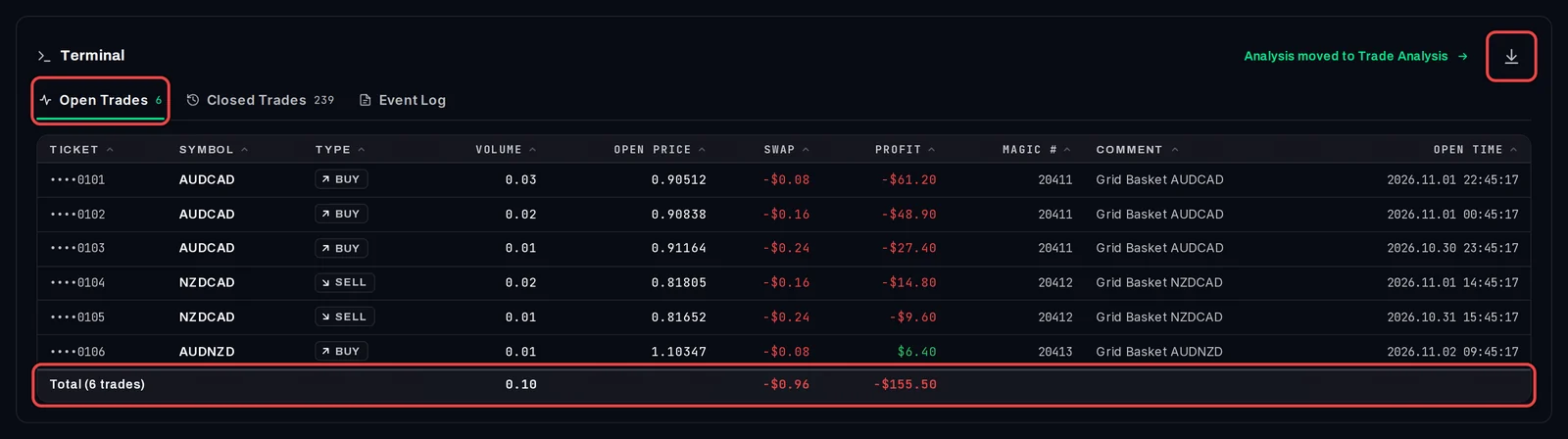
- Click Open Trades. Each open position shows its ticket, symbol, buy or sell, volume, open price, swap, current profit, magic number, comment and open time.
- The last row adds them up, for example Total (6 trades).
Look through the trade history
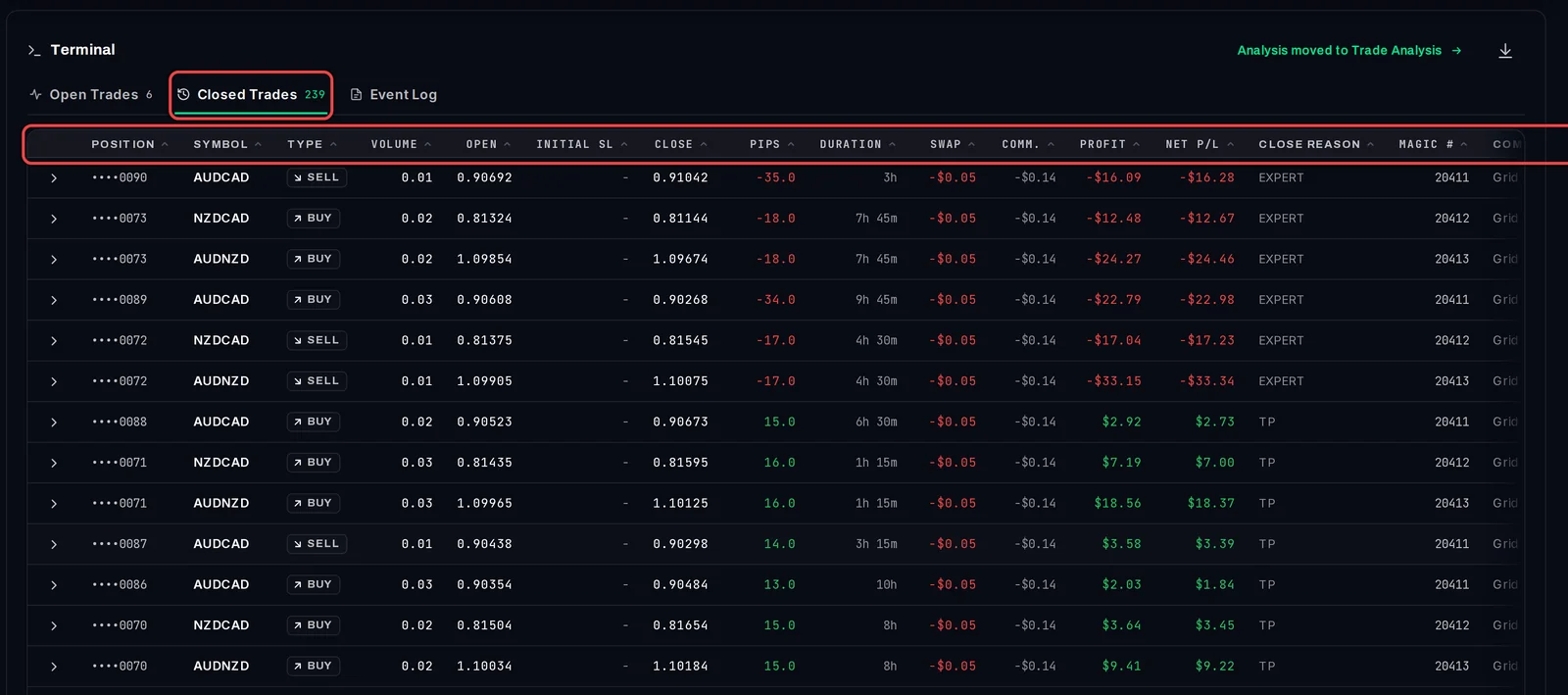
- Click Closed Trades. The number beside it is how many closed trades the account has.
- Each row shows the open and close price, pips, duration, swap, commission (Comm.), Profit, Net P/L (profit after swap and commission), the close reason, magic number and comment.
- Click a column name to sort by it.
- Click the arrow at the start of a row to see that position's history.
- The list shows 50 trades at a time; use the button under it to load more.
Check the Event Log
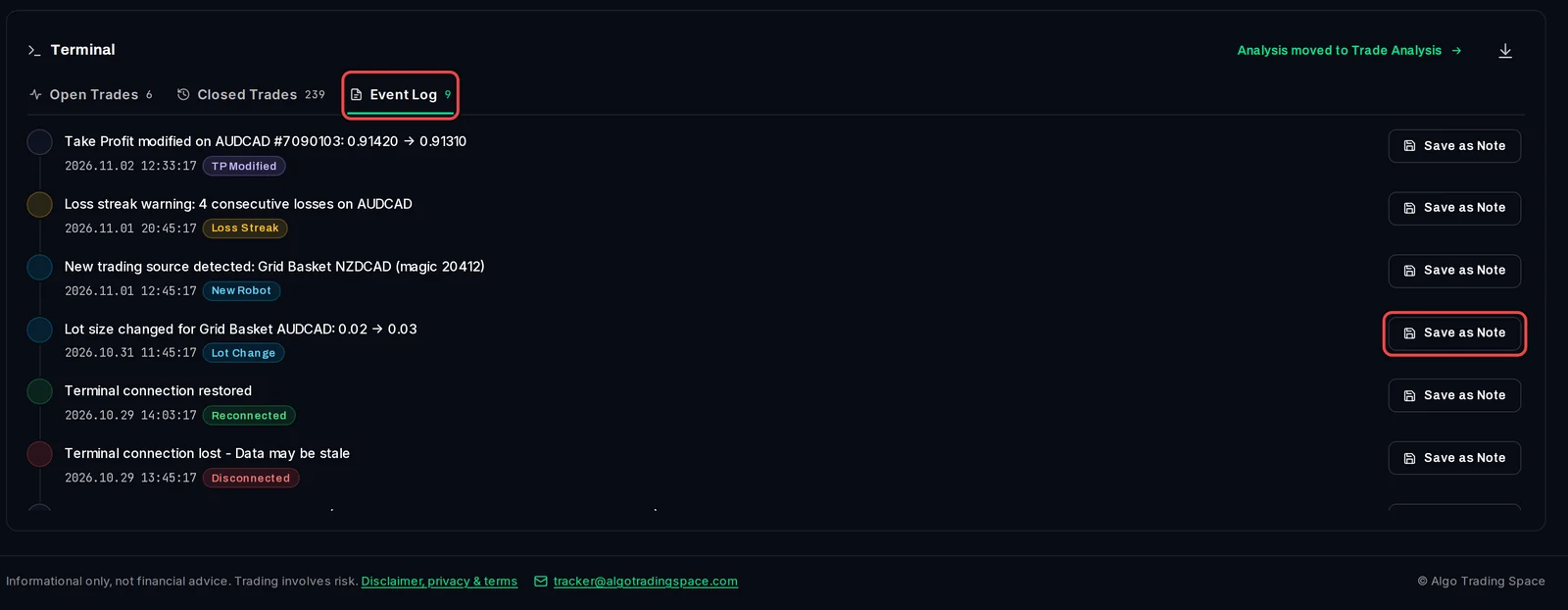
- Click Event Log. It lists what the EA reported, newest first: EA attached or removed, connection lost and restored, lot size changes, take-profit changes, loss streaks and more.
- Times are the broker's server time.
- Click Save as Note on an entry to keep it on the account's timeline with the account's figures at that moment.
Download your trades
- Click the download arrow at the top right of the Terminal.
- A CSV file with the open positions and then the closed trades is saved to your computer.
Good to know
- The Terminal follows the filter bar: filter to one robot and the tables and totals show only its trades. The CSV download always holds the whole account, from its Tracking Baseline Date if you set one.
- Open trades update each time the EA reports, every 2 to 5 minutes.
- The EA's Event Logging input adds more events. EA start and stop and lost connections are logged even with it off.
- Group-by tables and charts are on the Trade Analysis tab; the link Analysis moved to Trade Analysis takes you there.