
Knowledge Base
Help Center articles
Get your alerts as browser notifications
With browser notifications on, each new alert pops up on your computer while the tracker is open in a browser tab, even when you are working in another window.
Plan: Pro or VIP. The 14 days of Pro every new user starts with include it.
Switch on browser notifications
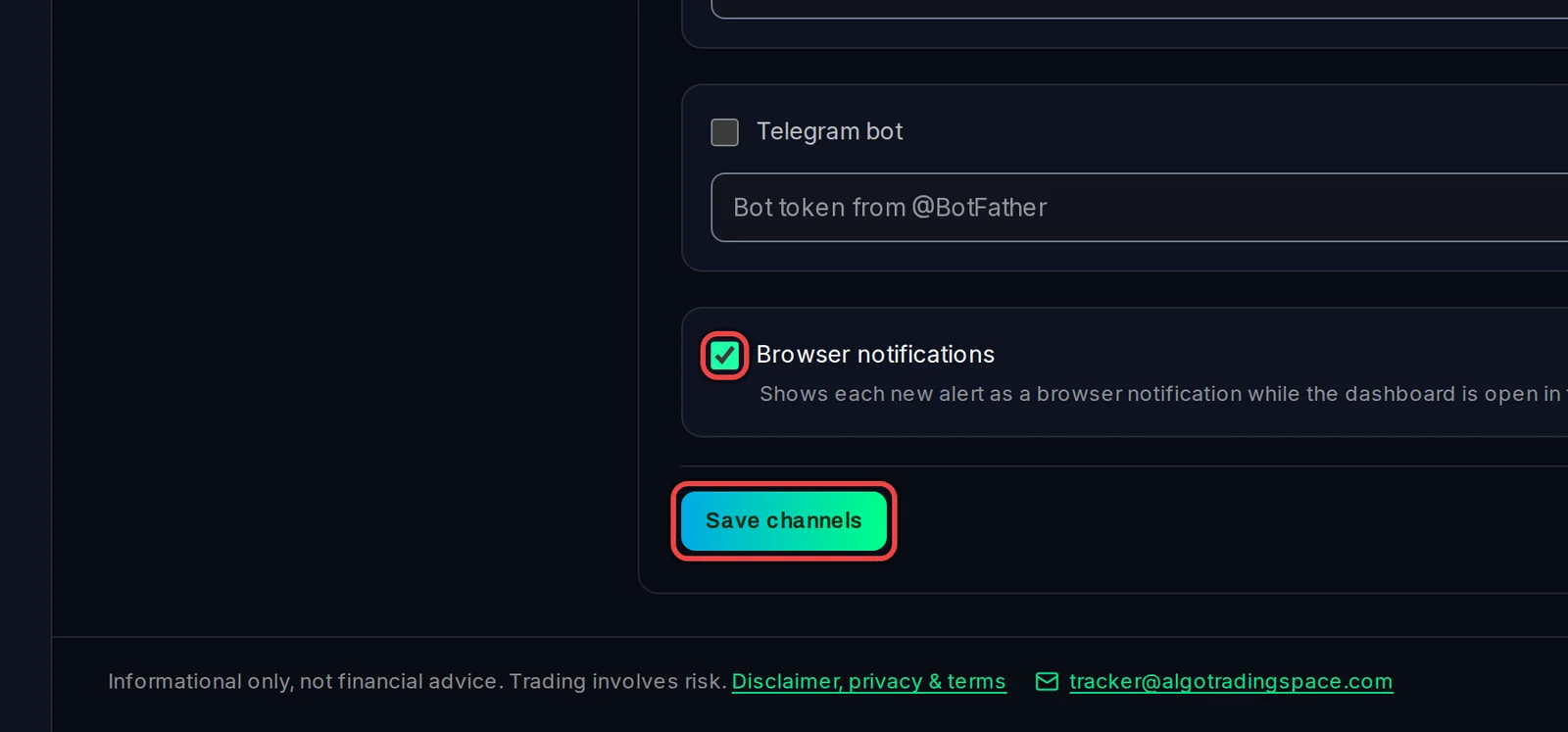
- Open Settings › Plan & Integrations and scroll to Custom alert channels.
- Tick Browser notifications.
- Your browser asks whether the site may show notifications. Click Allow. If you block it, the box unticks itself.
- Click Save channels.
What you get
- A notification for each new alert, with the alert's message, for example Drawdown over 10 %: Grid Basket. Critical alerts are titled Critical alert · Account Tracker.
- Click the notification to open Alerts in the tracker.
- Many alerts at once? You get the three newest, plus one notification that says how many more are waiting.
Good to know
- Notifications arrive only while the tracker is open in a tab of this browser. With the tab closed, nothing arrives; connect Discord or Telegram to get alerts on your phone at any time.
- Switching it on doesn't replay old alerts, and reloading the page doesn't repeat them.
- The permission belongs to this browser on this computer. Repeat the steps in each browser you use.
- Chrome on Android doesn't show these notifications. Use Discord or Telegram on your phone.
- Blocked notifications by mistake? Allow them again in your browser's site settings (the icon left of the address bar), then tick the box again.