
Knowledge Base
Help Center articles
Hide account numbers when you share your screen
Before you share your screen, record a video or post a screenshot, one click hides your account numbers and blurs the account holder's name.
Plan: every plan.
Turn privacy on
- On the Overview, scroll down to your accounts.
- Click the eye button next to the card and table buttons.
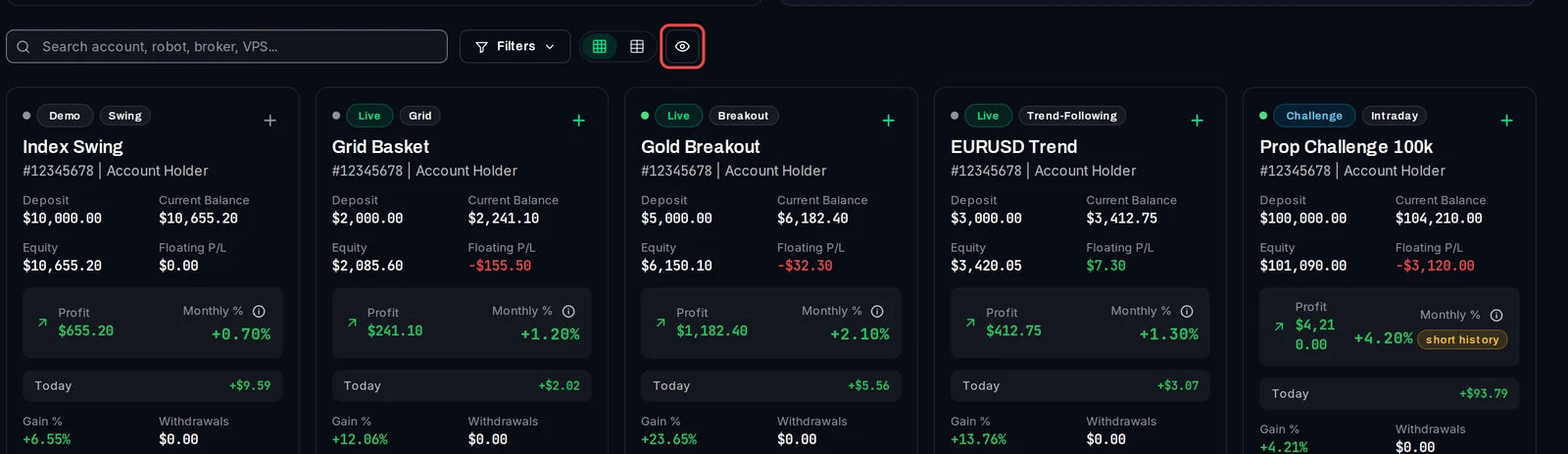
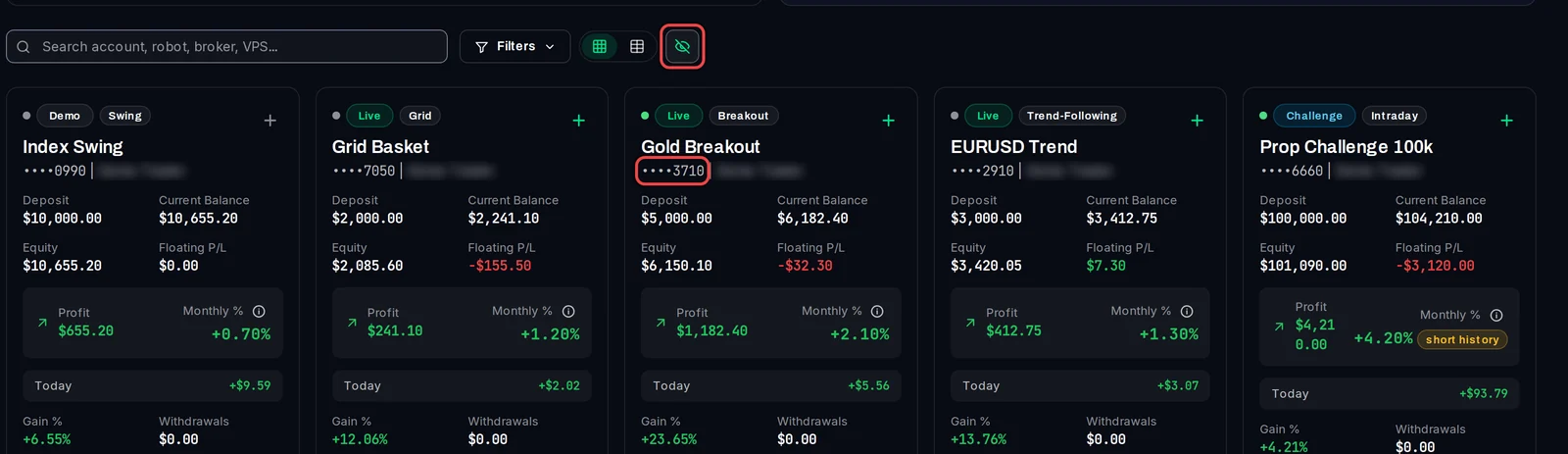
Account numbers now show only their last four digits, for example ••••3710, and holder names are blurred. The eye is crossed out while privacy is on. Click it again to show everything.
Hide only numbers or only names
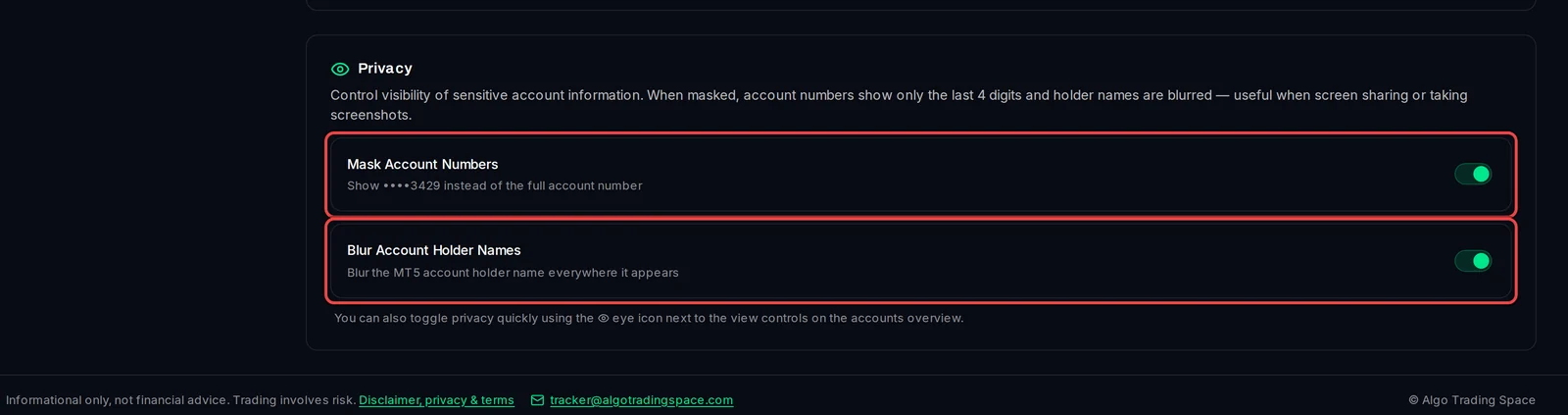
- Open Settings › Display.
- Under Privacy, switch Mask Account Numbers and Blur Account Holder Names on or off. Each works on its own.
Good to know
- The setting is saved with your login, so it stays on in every browser until you turn it off.
- It covers the account cards and table, the Watch List and the account pages. Account numbers still show in full on Analytics (the risk score ranking) and on System Health, so check those pages before you share them.
- Privacy only changes what your screen shows. Nothing is changed in your accounts or in the data the EA sends.