
Knowledge Base
Help Center articles
Build a portfolio with the Screener
The Screener looks through your tracked accounts, drops the ones that don't meet your standards and suggests combinations of robots that worked well together, with how much capital to give each one.
Plan: Pro or VIP. The 14 days of Pro every new user starts with include it.
Open the Screener
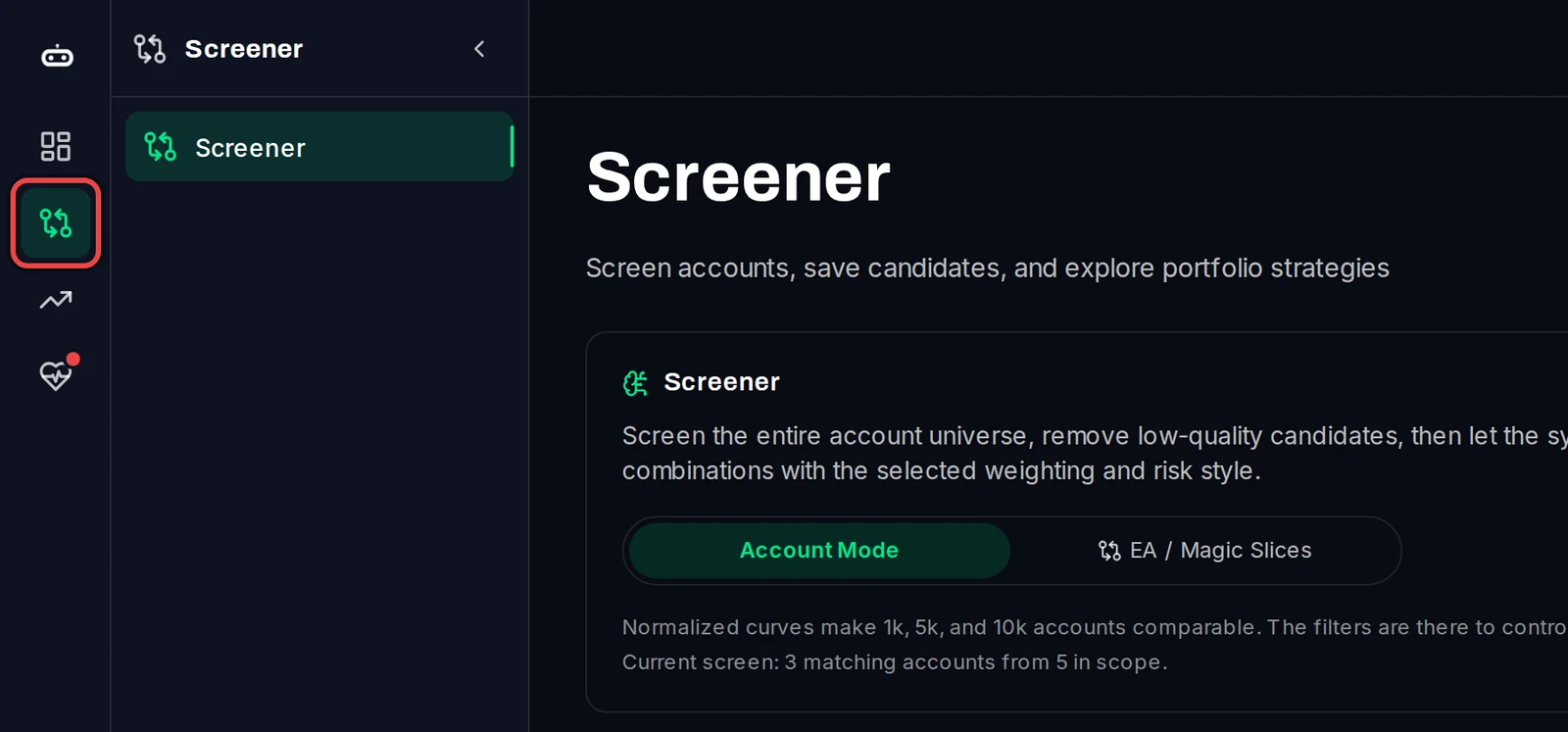
- In the menu on the left, click the Screener icon (two crossing arrows).
- Choose Account Mode to treat each account as one candidate, or EA / Magic Slices to treat each robot on each symbol as its own candidate. Slices help when one account runs several robots.
Set the screening criteria
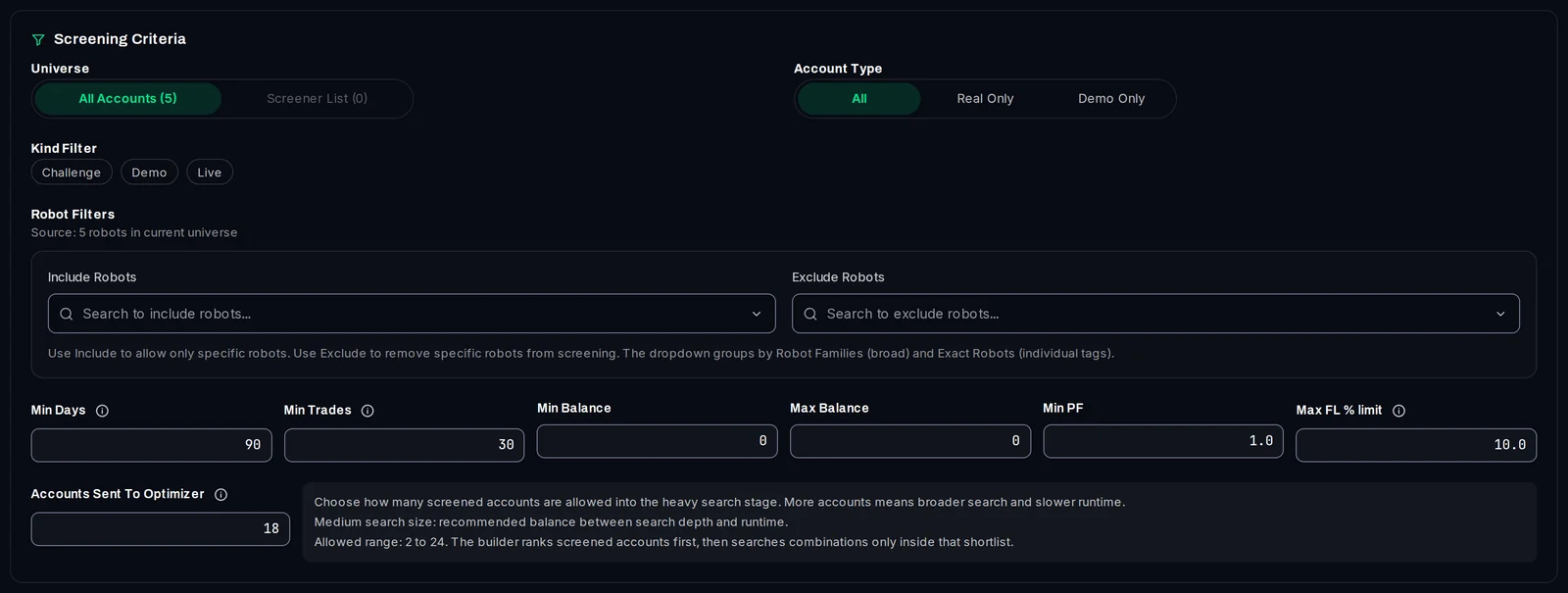
- Under Universe, keep All Accounts or pick Screener List to screen only the accounts you saved there.
- Under Account Type, choose All, Real Only or Demo Only. Click a chip under Kind Filter to keep only that kind, for example Live.
- Use Include Robots or Exclude Robots to keep or drop particular robots.
- Set the minimums: Min Days (90 by default), Min Trades (30), Min PF (profit factor, 1.0) and Max FL % limit, the largest floating loss an account may have had (10%).
Set the target and run
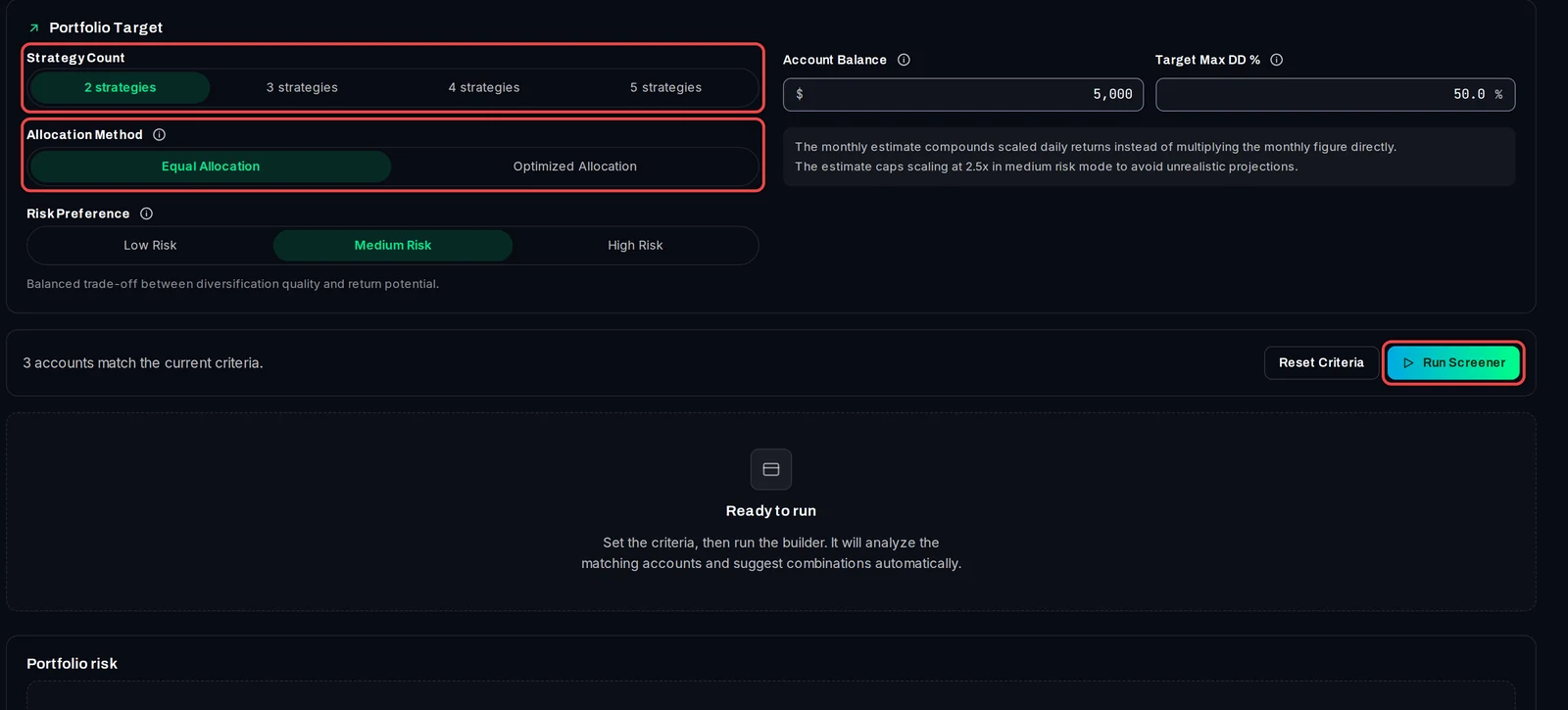
- Under Strategy Count, choose how many robots the portfolio holds, from 2 to 5.
- Under Allocation Method, choose Equal Allocation (the same share each) or Optimized Allocation (the mix that best fits your risk preference).
- Pick Low Risk, Medium Risk or High Risk, and enter your Account Balance and Target Max DD % (the drawdown you accept).
- Click Run Screener. It needs at least two accounts that pass the criteria.
Read the results
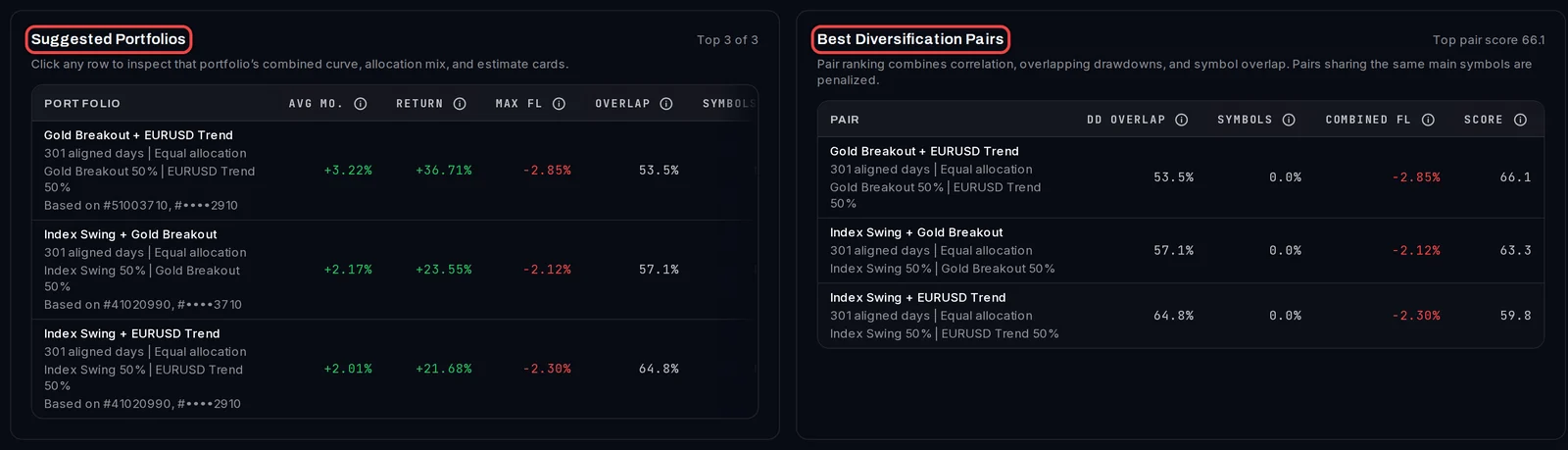
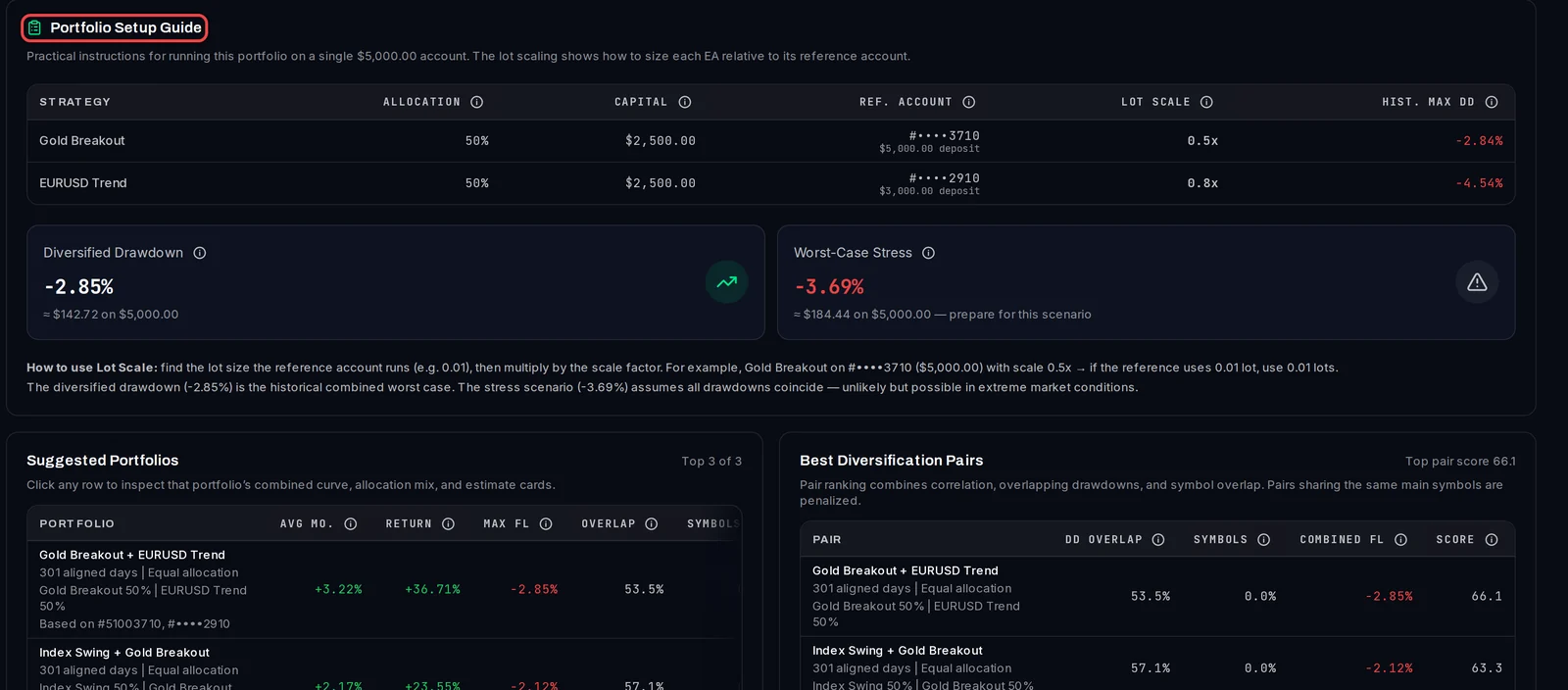
- Suggested Portfolios ranks the combinations with their monthly average, return, largest floating loss and score. Click a row to look at that one.
- Best Diversification Pairs lists the robots that combine best two by two: the less they move together, lose at the same time or trade the same symbols, the higher the score.
Set up the portfolio
- The Portfolio Setup Guide shows, for your balance, each robot's share, capital and Lot Scale: multiply the lot size of the account it came from by this number.
- To keep a combination, click Save Selected To Portfolio. Its accounts go on your Screener List, which you can pick under Universe next time.
Good to know
- Curves are compared in percent, so a $1,000 account and a $10,000 account weigh the same.
- Worst-Case Stress assumes all the robots lose at the same time. Plan your capital for it.
- The figures come from past results. They are not a forecast or financial advice. Test a portfolio on a demo account before you trade it with real money.