
Knowledge Base
Help Center articles
Show times in your own time zone
MetaTrader stamps every trade with your broker's server time, which is often two or three hours away from yours. Two settings make the tracker show times in your own time zone.
Plan: every plan.
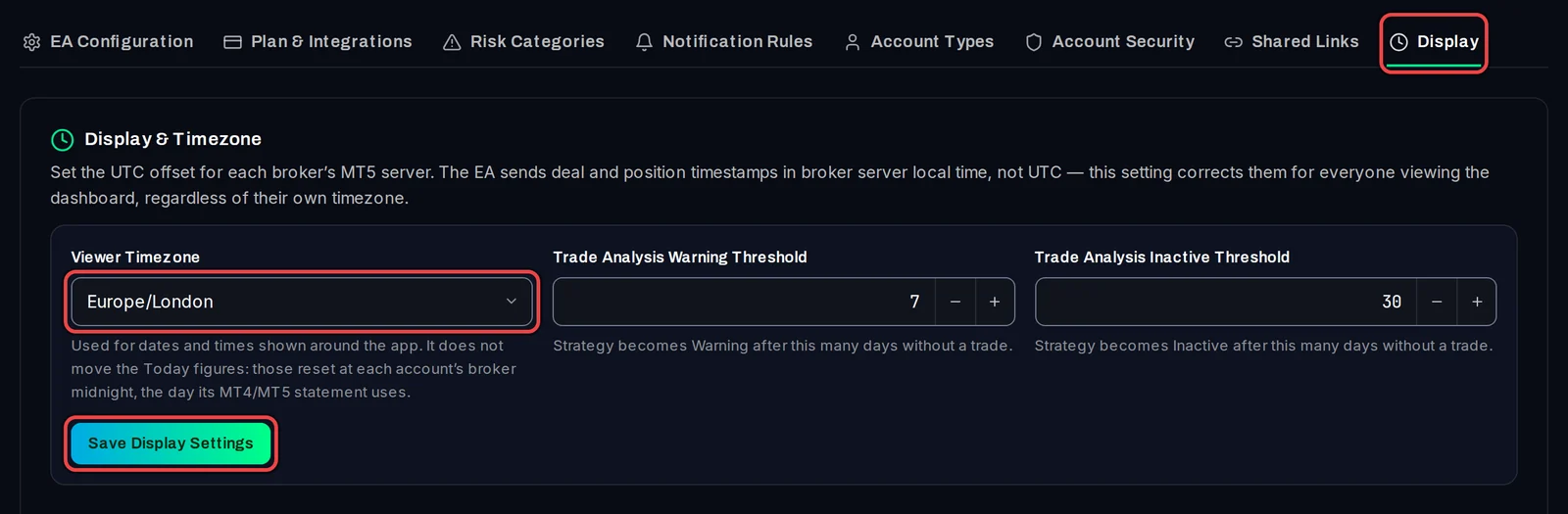
Choose your own time zone
- Open Settings › Display.
- Under Viewer Timezone, pick your time zone. Yours not listed? Pick a city that keeps the same time.
- Click Save Display Settings.
Set each broker's server time
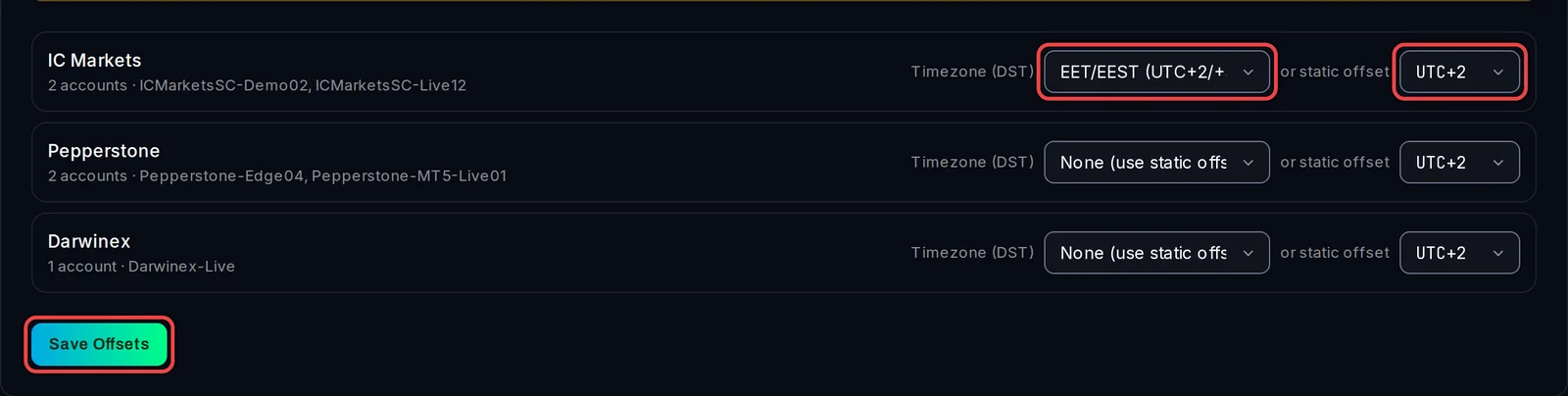
- On the same tab, scroll to the list of brokers. Each row shows a broker, its accounts and servers.
- Under Timezone (DST), choose the broker's server time zone. It follows summer time by itself. Most European brokers use EET/EEST (UTC+2/+3).
- If no zone fits, leave None (use static offset) and choose a fixed offset under or static offset, for example UTC+2.
- Click Save Offsets.
Not sure of your broker's server time? Compare the time at the top of MetaTrader's Market Watch window with UTC.
Good to know
- Without a broker setting, trade times show in the broker's server time, the same as MetaTrader's history.
- Today, This Week and This Month still follow each broker's day (its midnight), the day your statement and a prop firm's daily limit use.
- The broker setting applies to every account at that broker, and to everyone who views those accounts.