
Knowledge Base
Help Center articles
This is the whole Backtest Manager user guide on one page. Backtest Manager is a Windows app that runs your MetaTrader 5 backtests and optimizations on copies of the MT5 you already have, keeps every result, and helps you check which strategies hold up. Each link below is a short guide to one feature, with pictures of the real app and the exact buttons to click. New to it? Follow the first five guides in order.
Plan: every plan. Each guide says if a feature needs Pro. New accounts get 14 days of Pro when they first sign in to the app.
1. Getting started
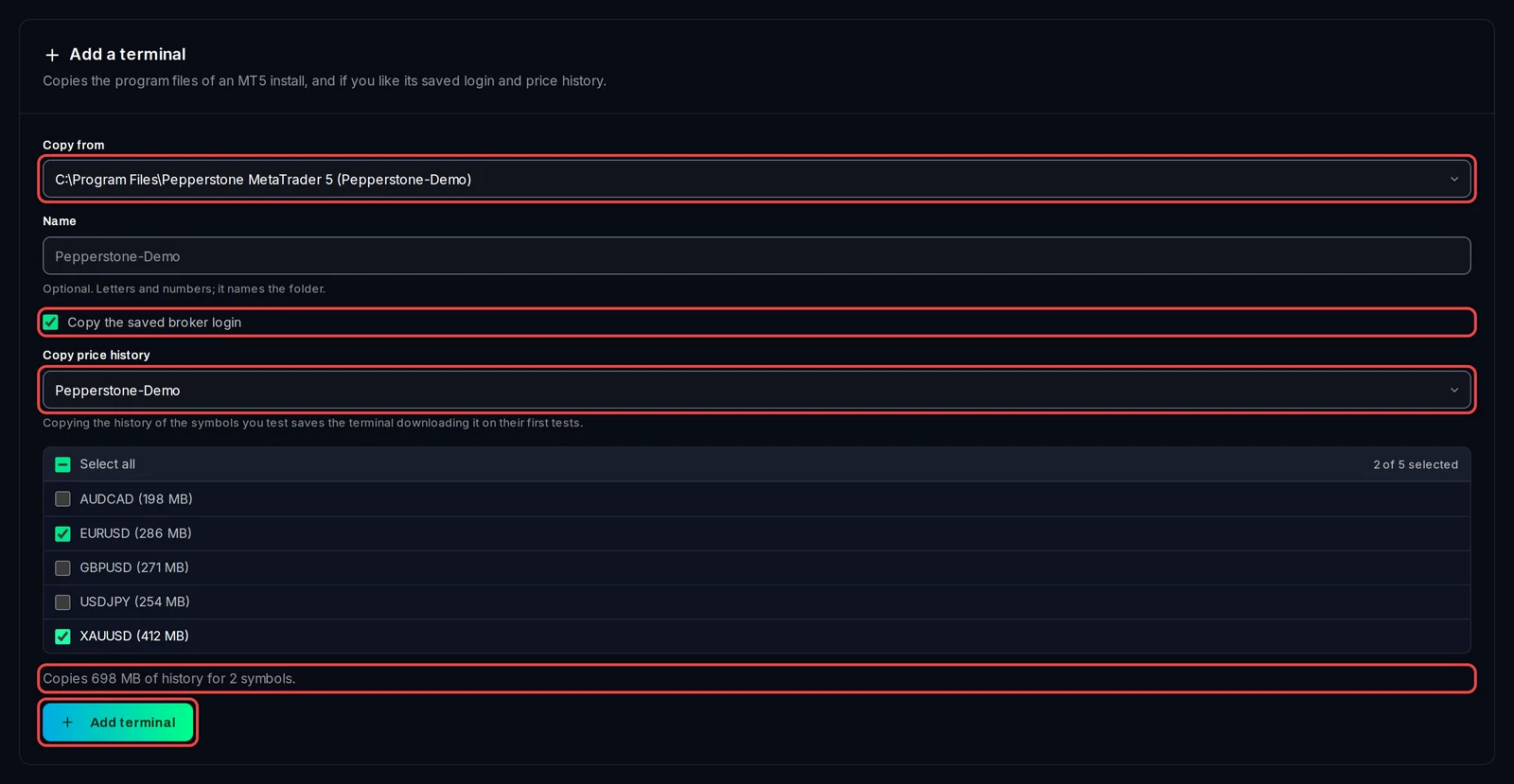
Install the app, sign in with your Algo Trading Space account, and add your first test terminal: a copy of an MT5 install, logged in to your broker, that the app runs tests on. Your own MetaTrader is never changed.
- Backtest Manager: what you need before you start
- Install Backtest Manager: installer or portable ZIP
- Sign in and check your plan
- Add your MT5 test terminals
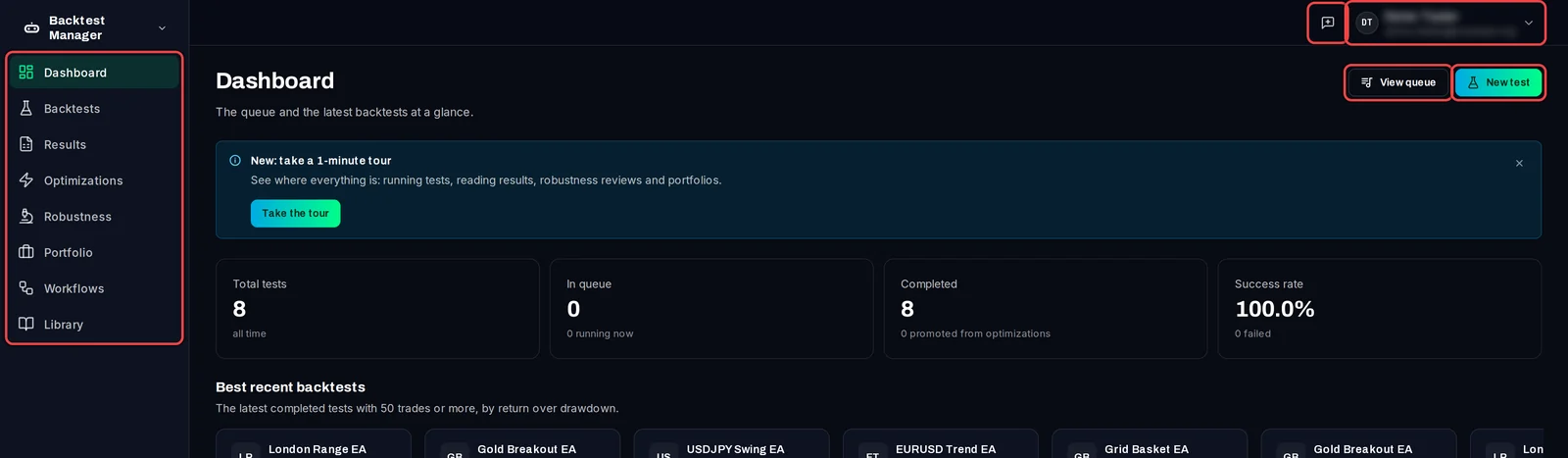
- Find your way around the app
2. Running tests
Pick an EA and its set file, the symbol, timeframe and dates, and add the test to the queue. Batch mode makes many tests from one form. Every plan runs tests side by side on as many test terminals as your PC can hold.
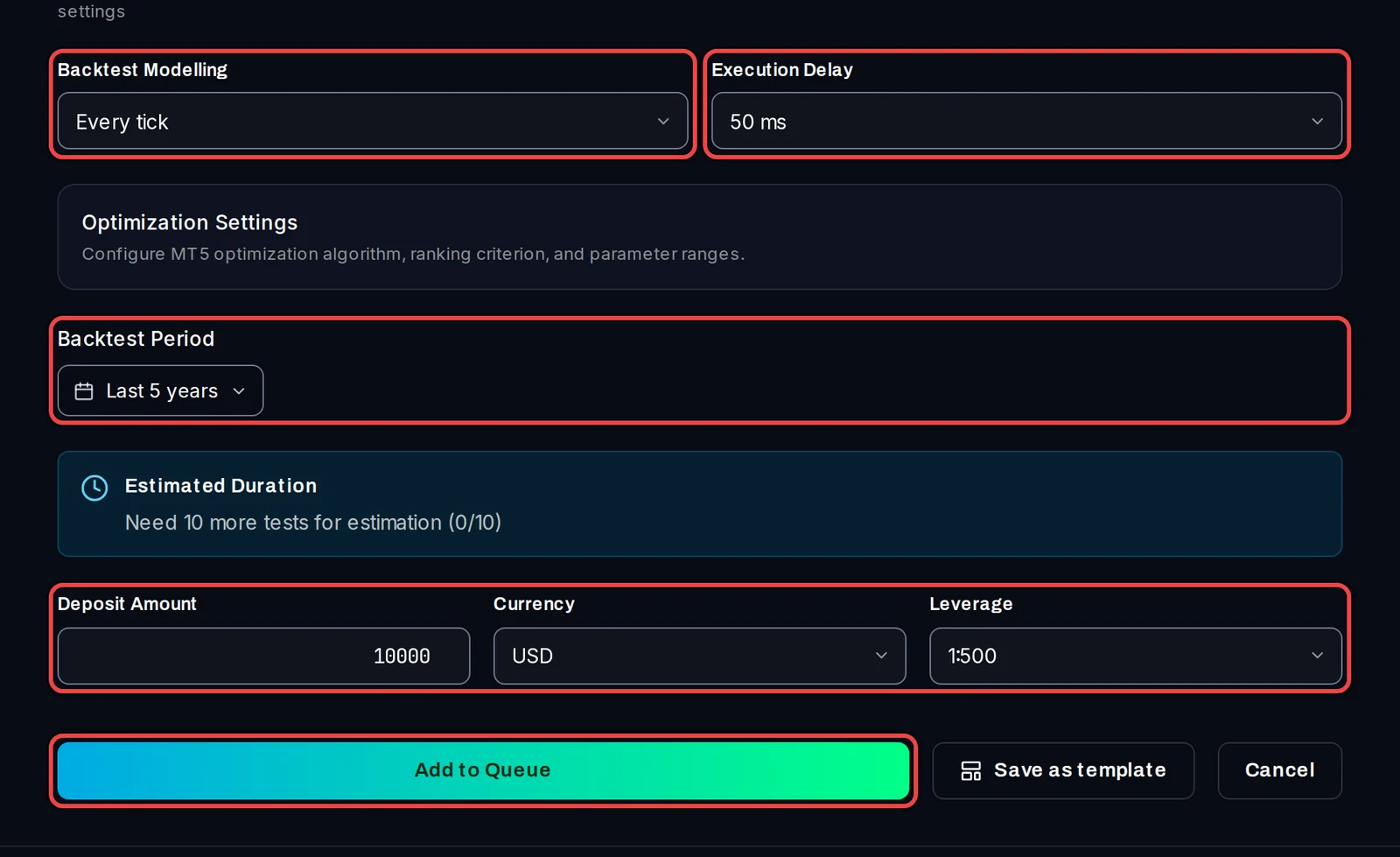
- Run a backtest
- Run a batch of tests
- Manage the queue: pause, stop and requeue tests
- Set your default test settings
- Save a test as a template and reuse it
3. Results
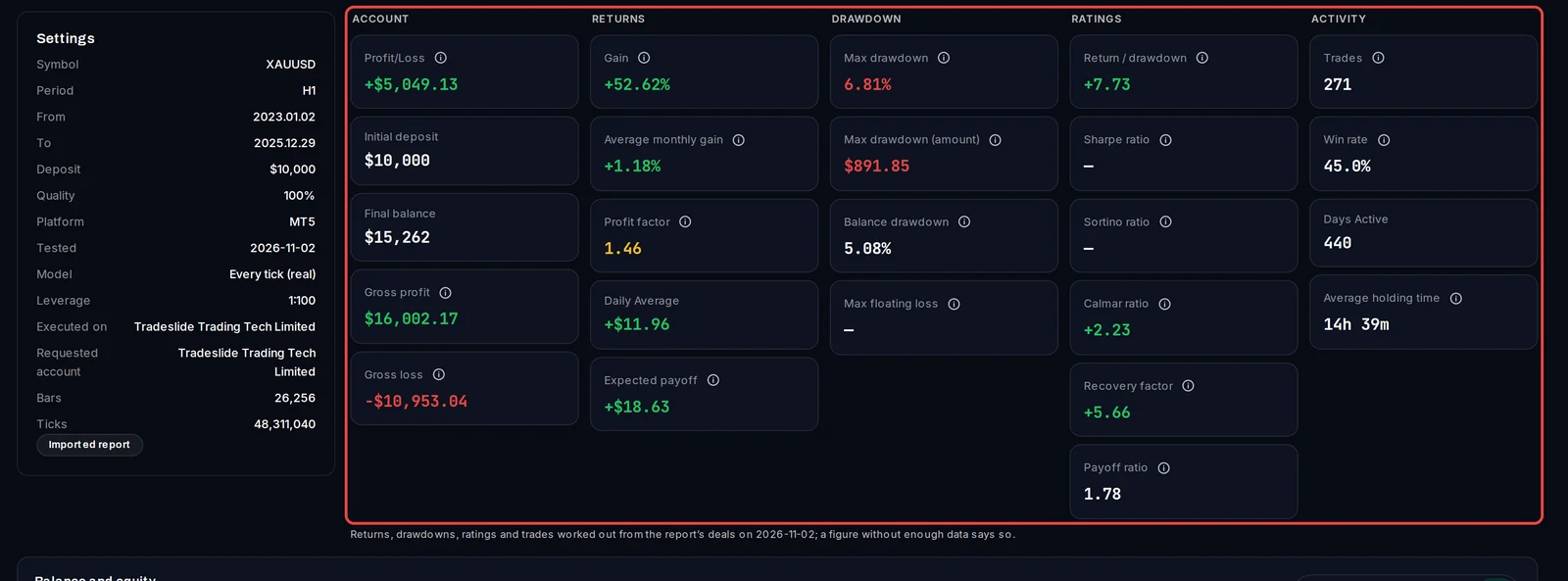
Every finished test becomes a full report: profit, drawdown, ratios, the equity curve, every deal and more. Find results quickly, compare them, export them, and import MT5 reports you ran before.
- Find and filter your results
- Read a result page
- Download a PDF, the MT5 report or the set file
- Import an MT5 report you already have
- Compare backtests
- See how sensitive a result is (Sensitivity tab)
- Combine backtests into one
4. Optimization
Let MT5's optimizer try ranges of your EA's inputs, sort the passes by the figure you care about, and turn the best ones into normal backtests.
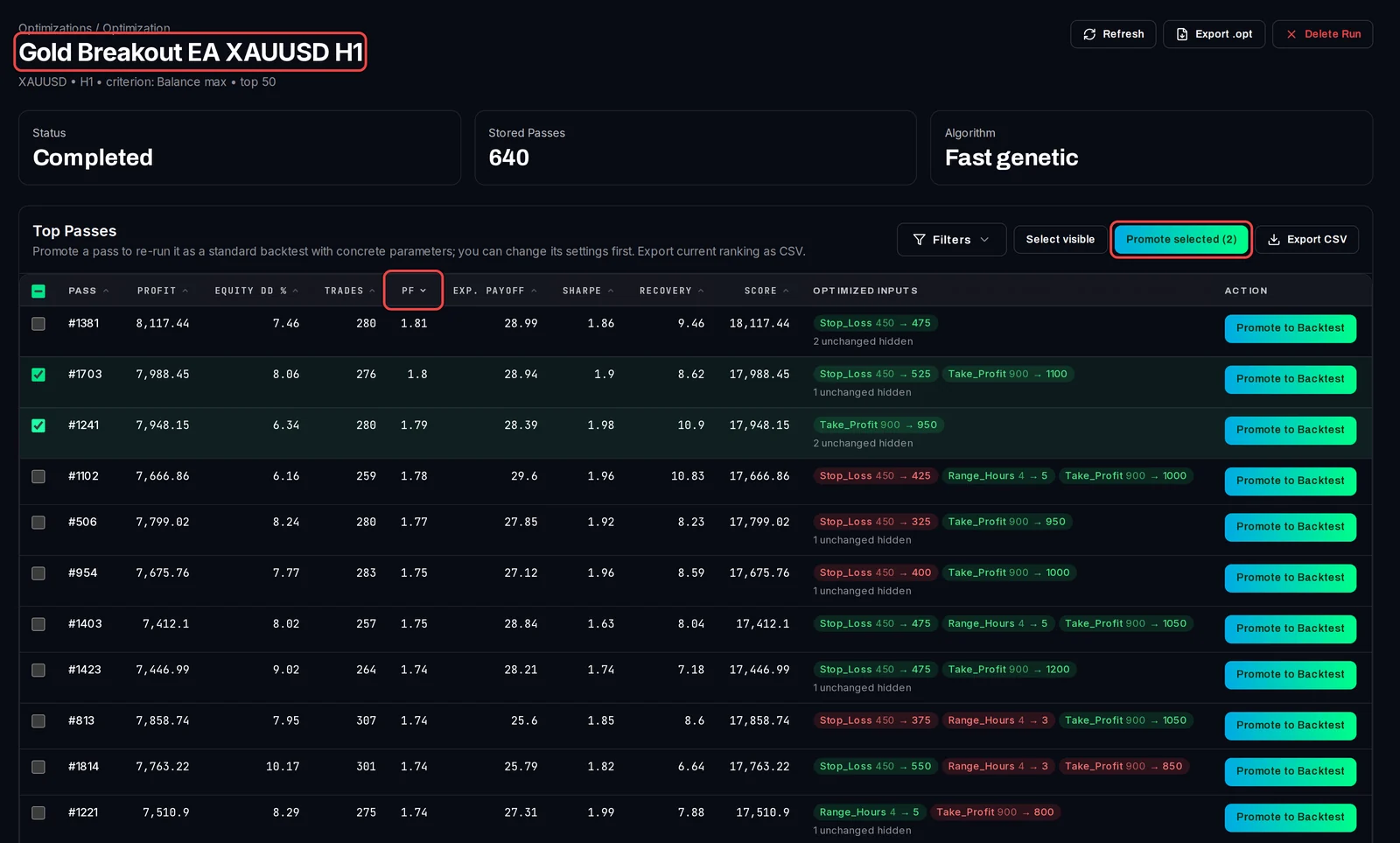
- Run an optimization
- Read the passes and promote one to a backtest
- Import an MT5 optimization (.opt) file
5. Robustness
A good backtest can still be luck. A robustness review re-tests the strategy with changes it was not tuned for, and on another price feed, and gives a verdict.
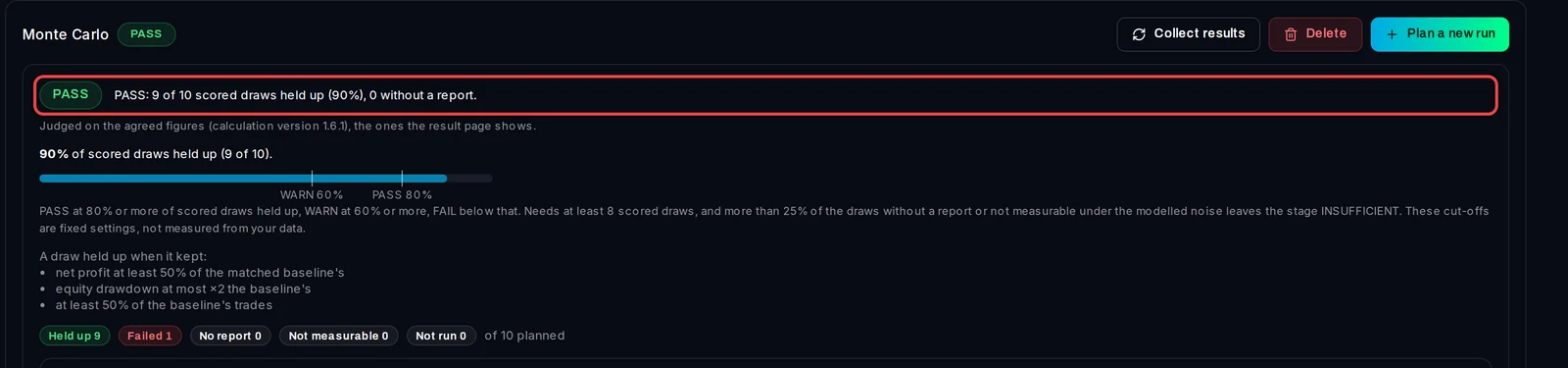
- Start a robustness review
- Cross-data check: the same test on another price feed
- Monte Carlo check
- Send the strategies that pass to the Portfolio Builder
6. Portfolio Builder
Combine several strategies on one account: set your goals, let the builder pick and size the strategies, and compare the portfolios it suggests.
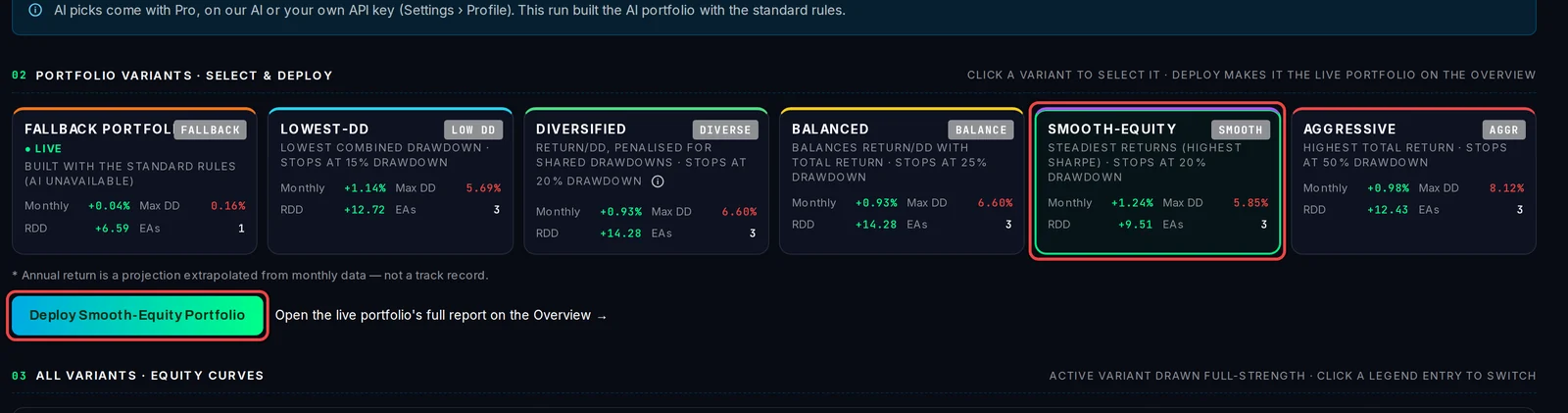
- Add strategies to the Portfolio Builder
- Check how your reports were matched into strategies
- Set your goals and build portfolios
- Compare the portfolio variants
- Read the portfolio overview and analysis
- Find the best combination (Combination Search)
7. Library and workflows
Keep your EAs, set files and licence keys in one place, save tests to re-run them later, and chain steps into a workflow.
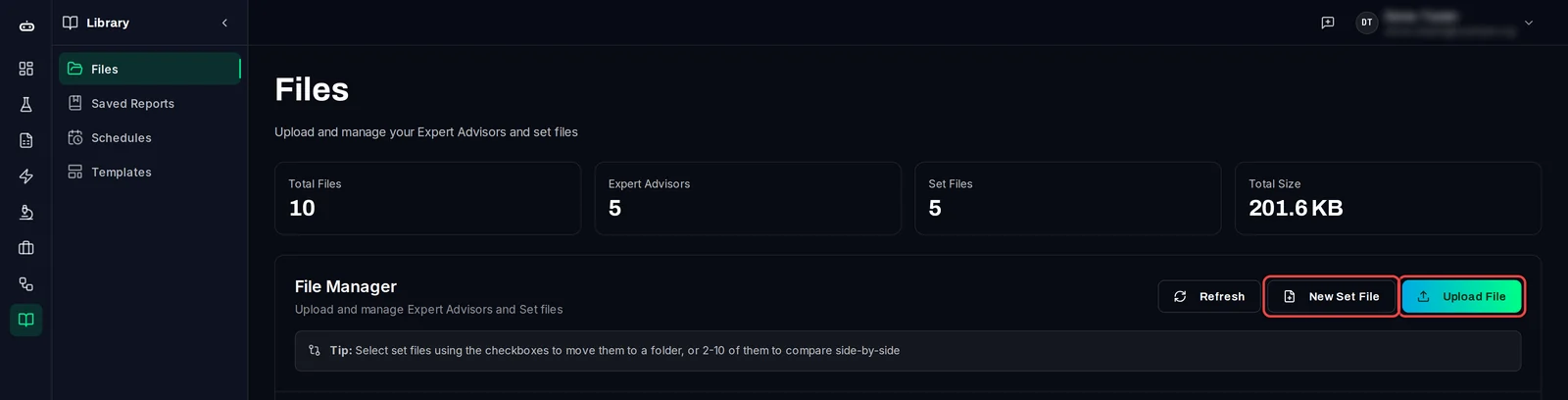
- Manage your EAs and set files
- Add licence keys for your EAs
- Save a test to the Library and re-run it
- Re-run library tests on a schedule
- Get health alerts on a library test
- Build and run a workflow
8. Settings, plans and troubleshooting
Compare Free and Pro, use AI in the Portfolio Builder, keep tests running in the background, update the app, and fix the most common problems.
- Free and Pro: what each plan includes
- Use AI in the Portfolio Builder
- Run tests in the background: tray, start with Windows, shut down when done
- Update the app
- Send feedback or a diagnostics file
- Backtest Manager troubleshooting
Still stuck?
In the app, click Send feedback at the top right and describe what you see; it can attach a screenshot. Or open a ticket in this help centre.