
Knowledge Base
Help Center articles
Check how your reports were matched into strategies
When you add reports, the Portfolio Builder reads each one's EA name, symbol, timeframe and magic number (the ID an EA stamps on its trades) and groups the reports into strategies. Match is where you check that grouping before you build a portfolio.
Plan: every plan.
Open Match
- Click Portfolio in the left rail, then Match in the menu beside it. The step bar at the top also leads there (Review … matches →).
- Under Automatic matching, a badge says how many strategy records still need review.

Check each strategy
Each row is one strategy. 1 report(s) linked under the name, and Detected From, show which files it came from; Trades and Win Rate are read from those files.
- Correct the Name or Symbol if the report got them wrong. The names are what you see on every later page.
- Check TF (the timeframe) and pick another one if it is wrong.
- Set Type to the kind of strategy, for example Intraday or Trend-Following. The Overview uses it to warn when a portfolio holds only one kind.
- Tick Reviewed when the row is right.
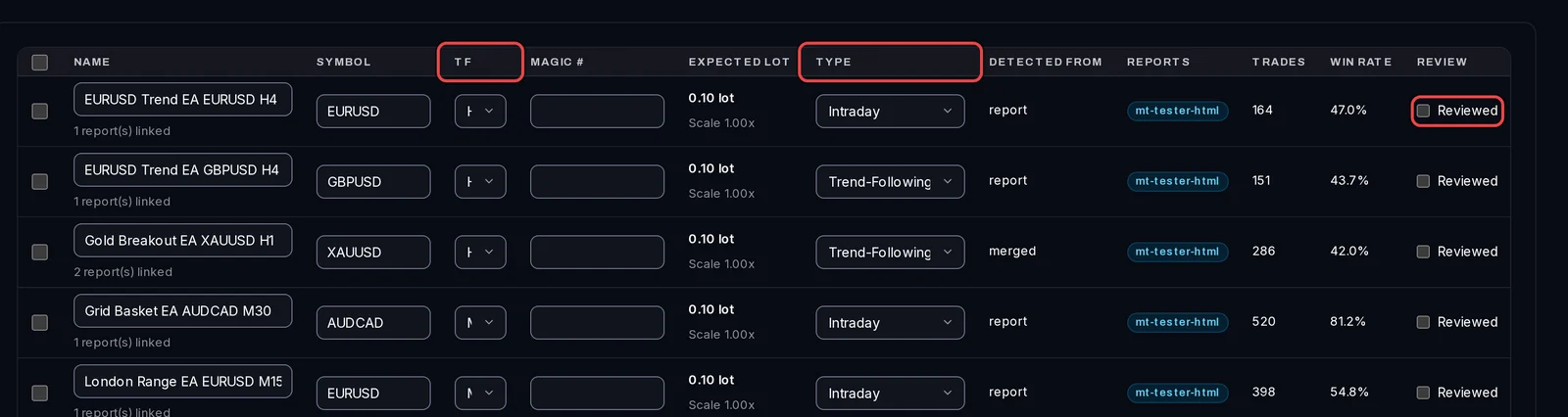
To change several rows at once, tick them on the left and use Bulk Actions: Mark Reviewed, Set Timeframe… or Set Strategy Type…, then Apply. Bulk changes are kept only after you save.
Save and go on
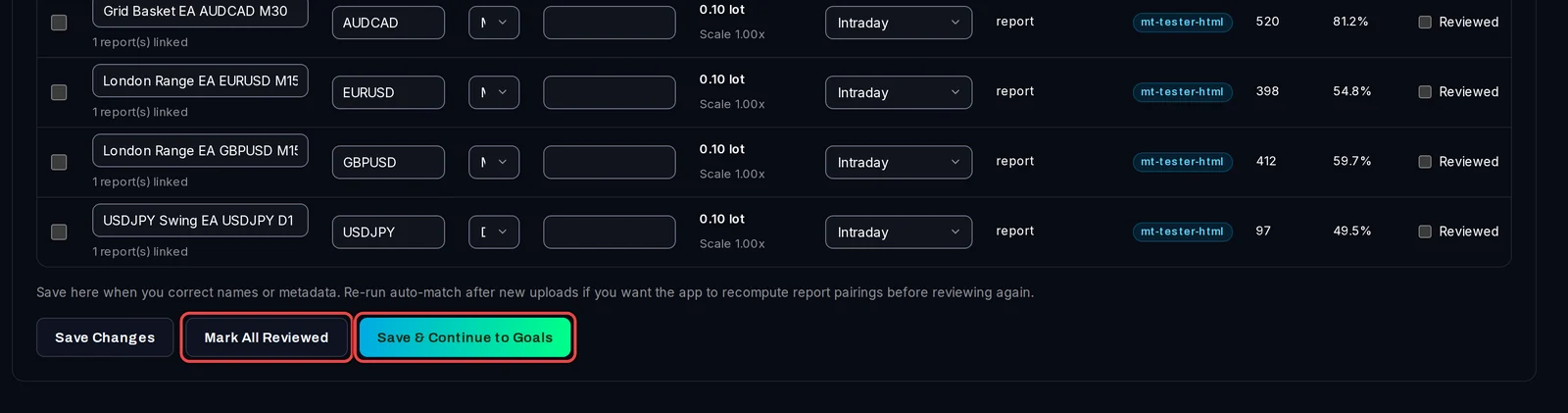
- Click Save Changes to keep your edits, or Mark All Reviewed to save and mark every row.
- Click Save & Continue to Goals for the next step.
Good to know
- Reviewing is a check for you. The builder does not wait for it: you can set goals and build portfolios with rows still marked for review.
- Added more reports later? Click Re-run Auto-Match to group all files again. Then review the rows again.
- Reports from MT5's Strategy Tester often carry no magic number. Magic # then stays empty; the strategy is still used.