
Knowledge Base
Help Center articles
Add strategies to the Portfolio Builder
The Portfolio Builder combines several of your strategies on one account and shows how they would have done together. It starts with a pool of strategies: backtests you send from your results, or report files you upload.
Plan: every plan. Adding strategies is free; building portfolios uses Portfolio Builder runs, and Free includes a monthly allowance of them (see Set your goals and build portfolios).
Send backtests from your results
- Open Results.
- Tick the backtests you want in the portfolio, or tick the box in the header to select every backtest on the page.
- In the bar above the list, choose Send to Portfolio Builder under Bulk Actions.
- Click Apply. A message says how many were added, for example Added 8 to Portfolio.
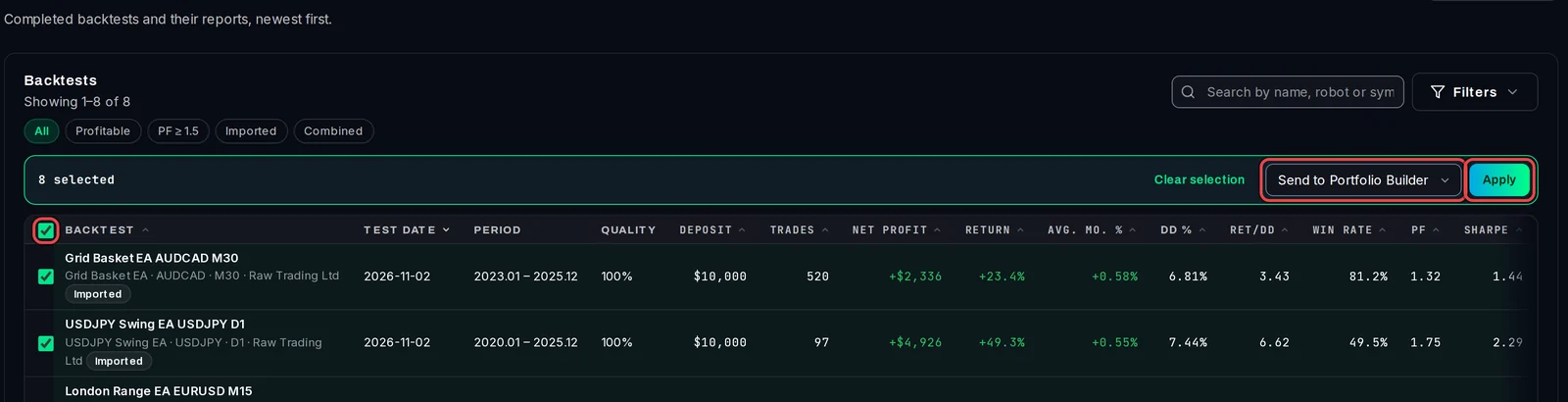
For one backtest, open its result page and choose Actions › Send to Portfolio.
Check your strategy pool
- Click Portfolio in the left rail. It opens Strategies.
- Under Your strategy pool, each strategy has a Use tick. Untick a strategy to keep it in the pool but stop the builder from picking it.
- Use Show (All, In use, Left out) or the filter box to find a strategy. The bin button at the end of a row deletes that strategy and its files from the pool (your result stays in Results).
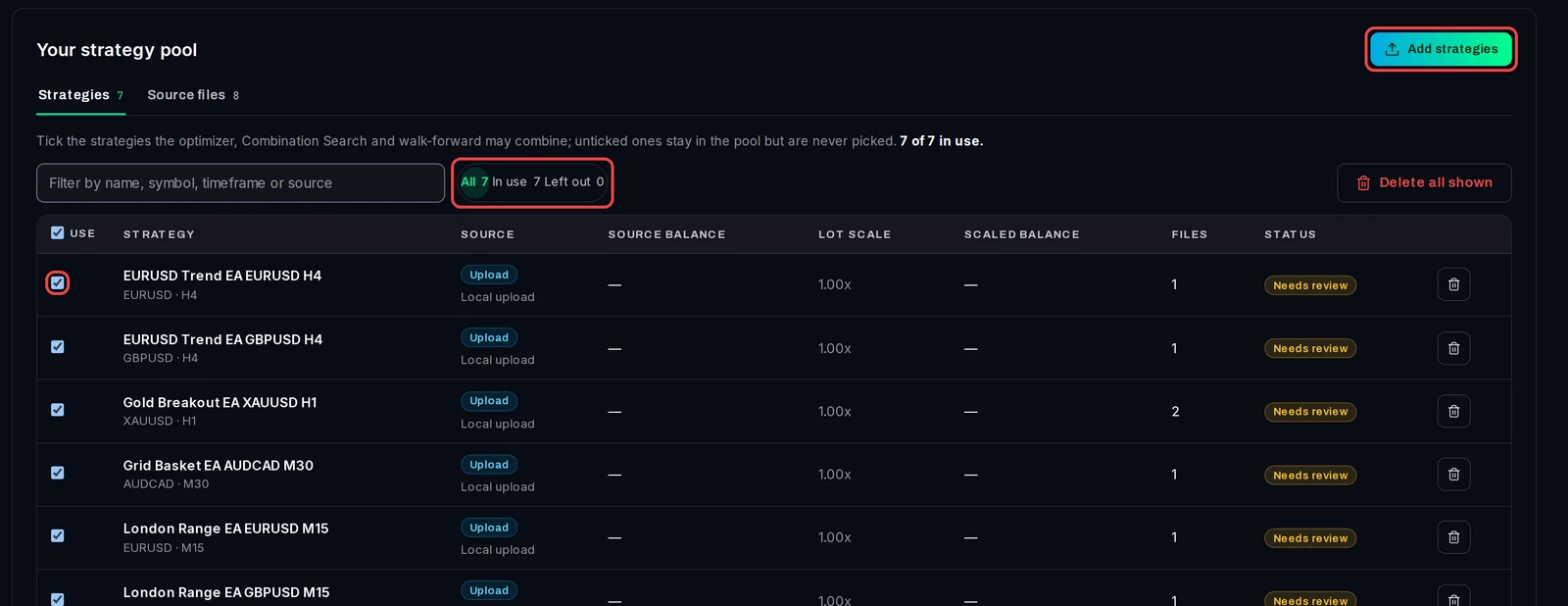
Reports of the same EA on the same symbol and timeframe become one strategy. In the example, eight reports gave seven strategies: the two Gold Breakout EA reports were merged (Files shows 2).
Upload report files
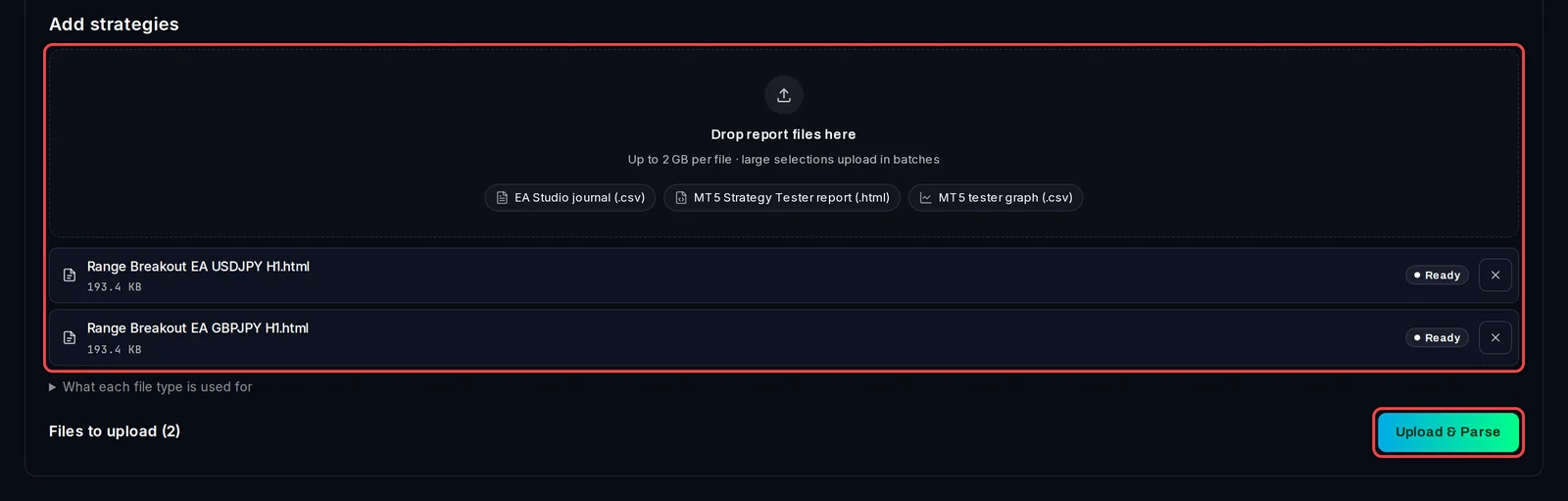
- On Strategies, click Add strategies.
- Drop the files on Drop report files here, or click it to pick them. The builder reads an MT5 Strategy Tester report (
.html), an MT5 tester graph export (.csv) and an EA Studio journal (.csv), up to 2 GB per file. - Click Upload & Parse.
- When the files are read, click Review matches → to check them on Match.
Good to know
- The builder works on the backtest's own trades. It never trades and never changes your MetaTrader.
- To start over, click Clear workspace at the bottom of the pool. It removes every strategy and file, your goals, the variants and the live portfolio, and cannot be undone.
- On Free, Portfolio in the left rail carries a Pro badge. You can still use the builder with your monthly allowance.