
Knowledge Base
Help Center articles
Import an MT5 optimization (.opt) file
Ran an optimization in MetaTrader 5's own Strategy Tester? Import its result file (.opt) and its passes appear under Optimizations like a run made in the app, ready to sort and promote to backtests.
Plan: every plan. Importing does not use your monthly optimization allowance.
Find the .opt file
- In MetaTrader 5, click File › Open Data Folder.
- Open the Tester folder, then cache. Each optimization has a file named after the EA, symbol, timeframe and dates, for example
EURUSD_Trend_EA.EURUSD.H4.20220103.20251231….opt.
Import it
- Click Optimizations in the left menu.
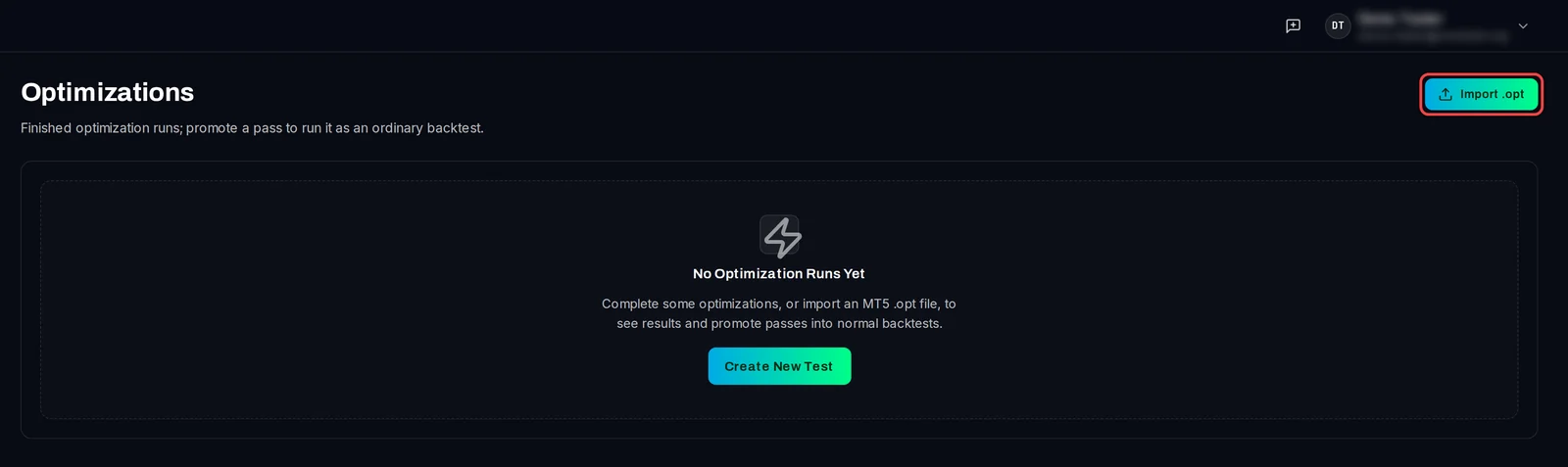
- Click Import .opt at the top right.
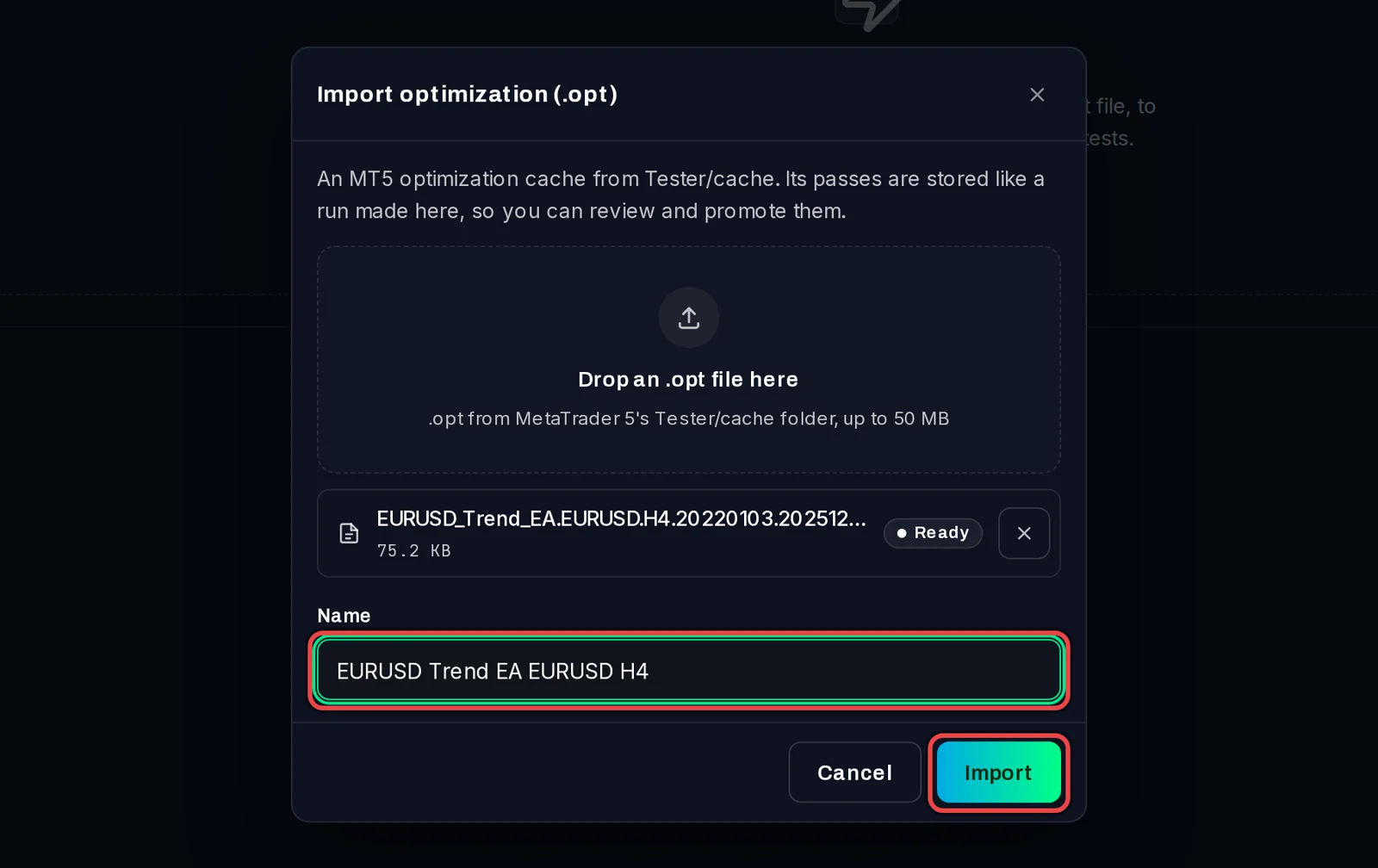
- Drop the .opt file on the box, or click it to choose the file (up to 50 MB).
- Check the Name. It is filled in from the file name; change it to something you will recognise.
- Click Import.
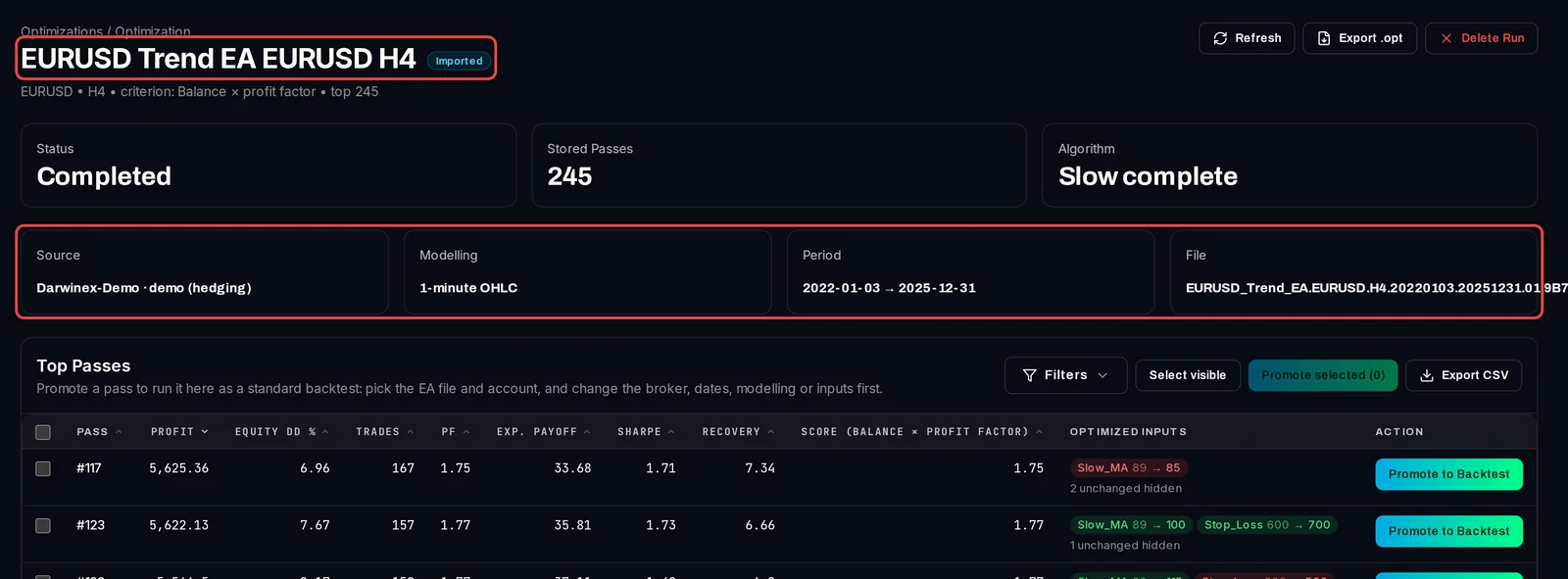
The app opens the imported run. It is marked Imported and shows where it came from: the broker server it ran on (Source), the Modelling, the Period and the File.
Promote a pass from an imported run
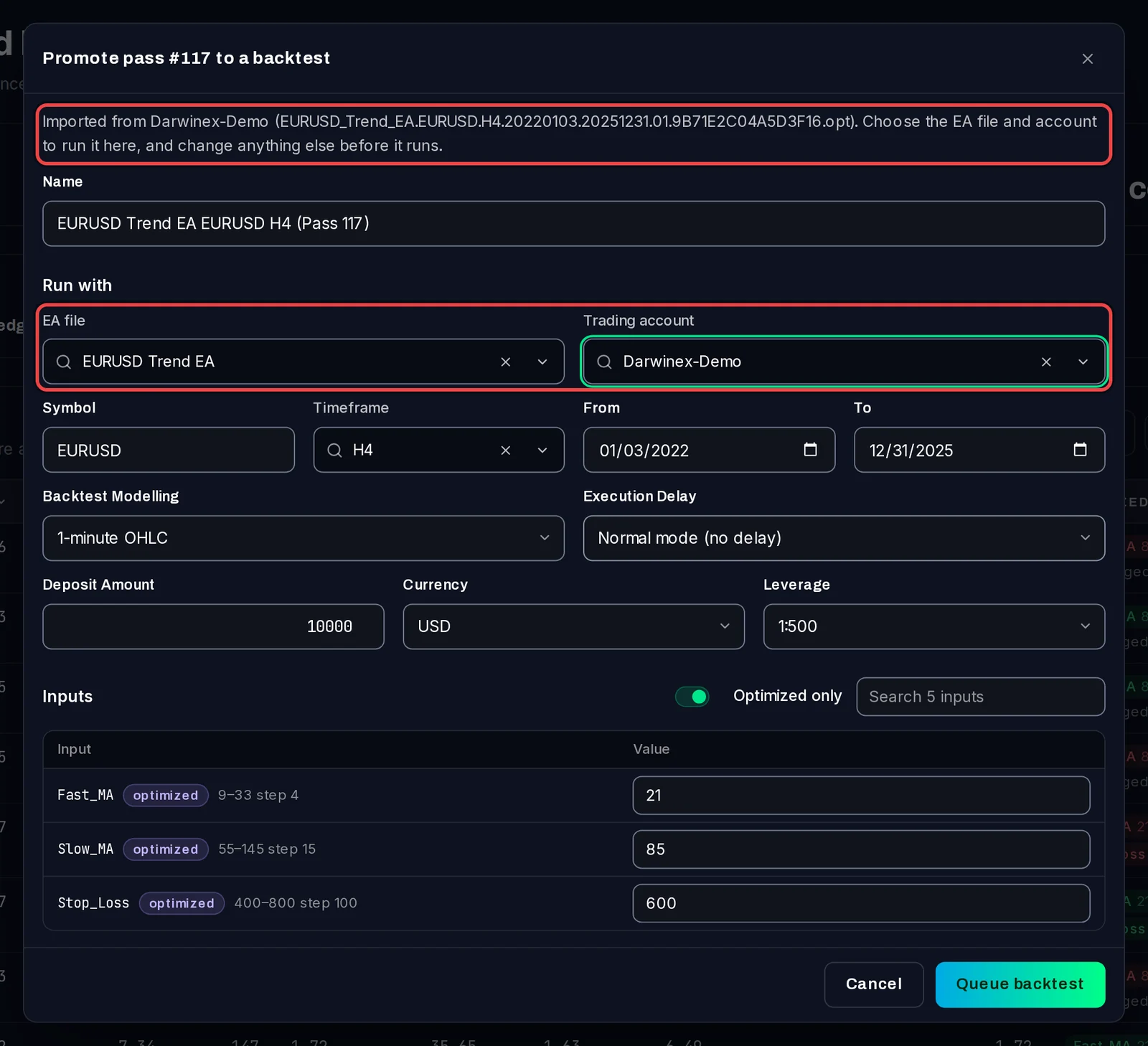
- Click Promote to Backtest on a pass.
- An imported run has no EA file or test terminal of its own, so choose both under Run with: the EA file (the app picks the library EA with the same name when it finds exactly one) and the Trading account (one of your test terminals).
- Change anything else you want, then click Queue backtest.
Good to know
- The EA must be in your library first (Library › Files), or the backtest has nothing to run.
- A forward-tested optimization writes two files. Import the main one: the forward one shows a Forward period only warning and covers only the forward dates.
- Files from an All symbols optimization cannot be imported yet. Files with no finished passes are refused too.
- Text inputs longer than 63 characters are cut short in the .opt file. The promote dialog marks them may be cut short: enter the full value before you run.