
Knowledge Base
Help Center articles
Run an optimization
An optimization runs MetaTrader 5's optimizer on one EA, symbol and timeframe: it tests many combinations of the inputs you choose and keeps each result (a "pass"), so you can see which settings worked best.
Plan: every plan. Free includes a monthly allowance of optimizations and Portfolio Builder runs; Settings › Profile › This month's runs shows what is left. It resets on the 1st of each month. Several optimizations from one form need Pro (€29 a month). New accounts get 14 days of Pro when they first sign in to the app.
Set up the test
- Open Backtests › New test.
- Fill in the test as for a backtest: Test Name, Expert Advisor (EA), its set file under Expert Parameters (the EA's list of inputs), Symbol, Timeframe and Backtest Period.
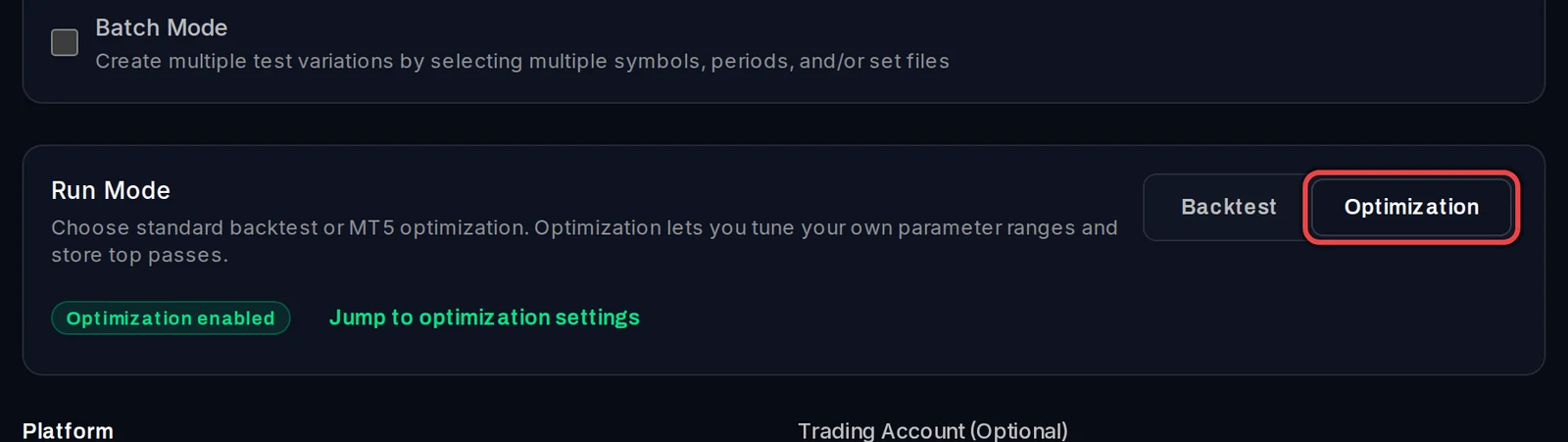
- Under Run Mode, click Optimization.
Choose the optimization settings
- Scroll to Optimization Settings.
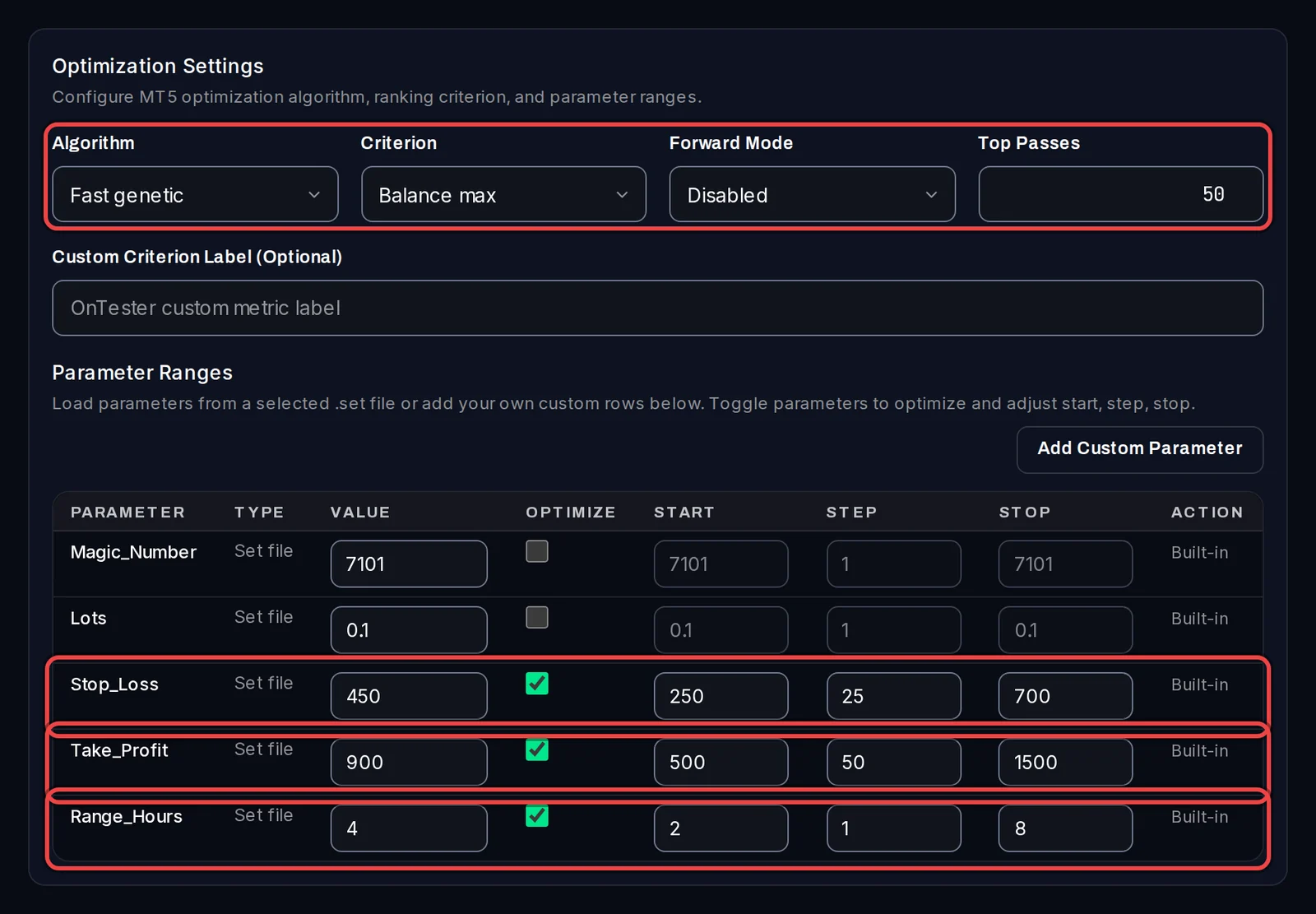
- Pick the Algorithm: Fast genetic tries a smart sample of the combinations and suits large ranges; Slow complete tries every combination; All symbols runs the EA's current inputs on every symbol in the test terminal's Market Watch.
- Pick the Criterion the passes are ranked by, for example Balance max or Balance × profit factor.
- Optionally set a Forward Mode (1/2, 1/3 or 1/4 of the period, or Custom forward from a date): the end of the period is kept out of the tuning, to check the passes on unseen data.
- Top Passes (50 by default) is how many of the best passes the run keeps as its top list. All passes stay viewable.
- Under Parameter Ranges, tick Optimize for each input to vary and set its Start, Step and Stop. Inputs you leave unticked keep their Value. Add Custom Parameter adds an input the set file does not list.
Add it to the queue
- Click the button at the bottom. It counts the combinations, for example Add 1 optimization (up to 2,793 passes).
- The app opens Backtests › Queue, where the optimization waits for a free test terminal.

When it finishes, it appears under Optimizations.
Good to know
- Optimizations run one at a time on your PC, on every plan; backtests keep running beside them on your other test terminals.
- The parameter table is read from the set file. If it says No optimization parameters loaded yet, open the set file list, click the arrow beside your set file to show its versions and pick it again, or add the file under Upload New.
- On Free, Batch Mode with several symbols, timeframes or accounts would make several optimizations: the app shows a Pro notice with Get Pro and the button stays off. Pick one of each.
- When this month's free optimizations are used up, the optimization is marked failed in the queue, with a message saying when the allowance resets. An optimization that ends without any passes is normally not counted.