
Knowledge Base
Help Center articles
Manage the queue: pause, stop and requeue tests
The queue lists every test you added: the ones waiting, the ones running now and the finished ones. From here you pause the queue, watch a test run, change or cancel a waiting test, and send a failed test back to run again.
Plan: every plan.
Open the queue
- Click Backtests › Queue. Running tests are listed first.
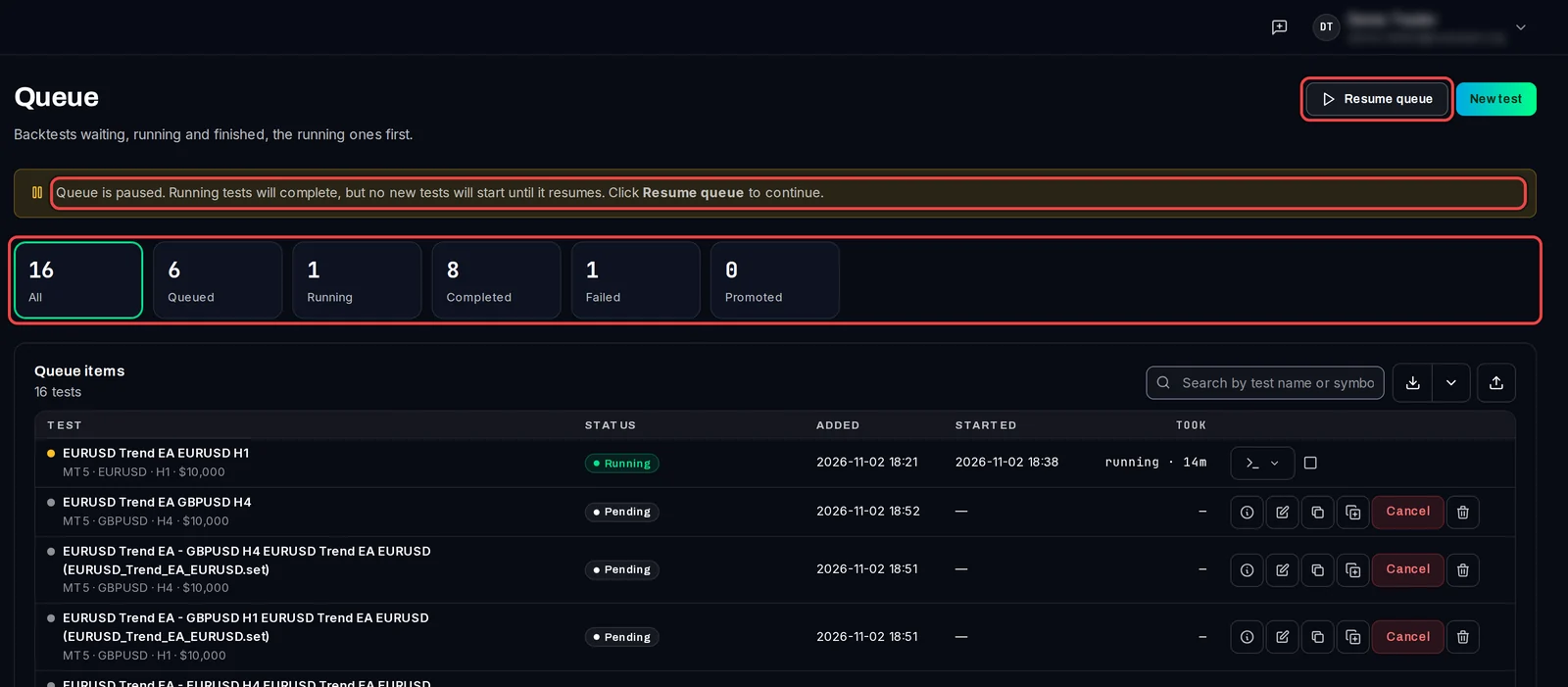
- Click a tile to see only those tests: Queued (waiting), Running, Completed, Failed or Promoted (backtests made from an optimization pass). All shows everything again.
- To find one test, type in Search by test name or symbol.
Pause and resume the queue
- Click Pause queue at the top right. Tests that are running finish; no new test starts.
- Click Resume queue to carry on. If nothing is running, the button says Start queue.
Watch or stop a running test
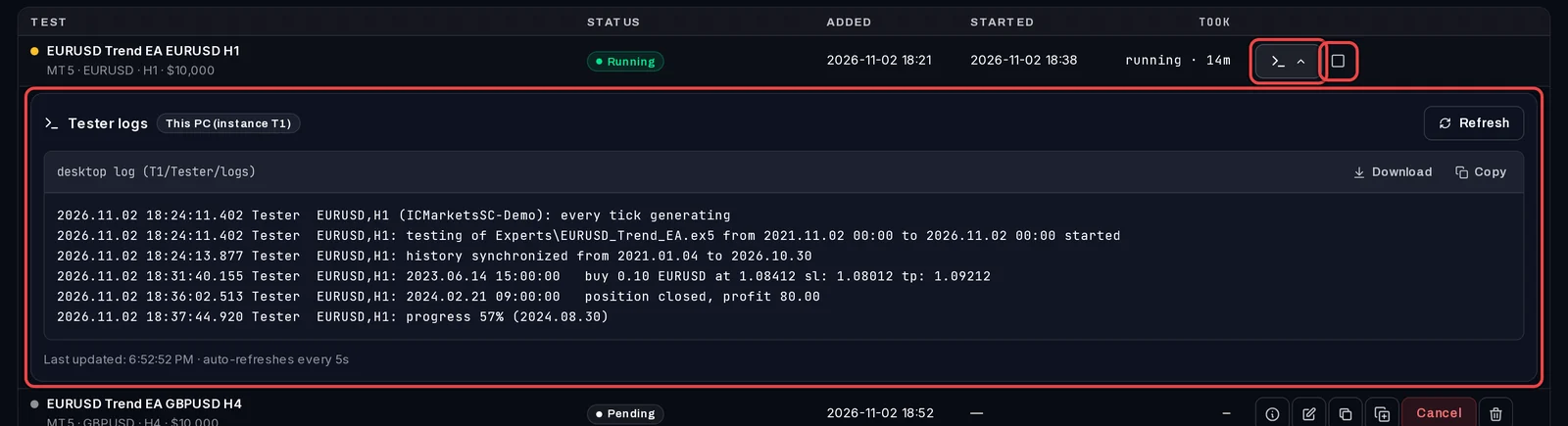
- On a Running row, click the terminal button (View Tester Logs). MT5's own tester log opens under the row and refreshes every 5 seconds.
- To stop the test, click the square button next to it, then Stop test. Its result is discarded and the test is marked Cancelled. Click Keep running if you changed your mind.
Change a waiting test
A Pending test has these buttons, from left to right:
- View Details: its EA, set file, dates and settings.
- Edit: change its name, symbol, timeframe, modelling, delay, dates, deposit, leverage or trading account.
- Duplicate with changes: opens New test filled in from it, to add a variant.
- Add again as is: adds an identical copy.
- Cancel: it will not run; it stays in the list as Cancelled.
- Delete: removes it from the list.

Requeue a failed test
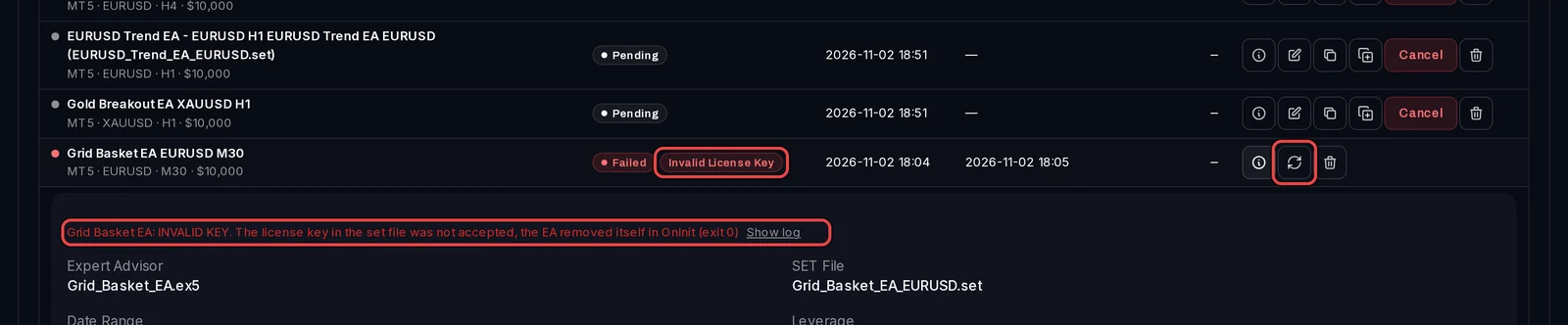
- A Failed row shows the reason next to its status, for example Invalid License Key or No History Data. Point at it for a hint.
- Click View Details to read the error. Show log shows the lines from MT5 that explain it.
- Fix the cause, then click Requeue test (the circular arrows). The test goes back to the queue.
Good to know
- Click a Completed test's name to open its result. Delete on a completed row deletes the test and its result too, and cannot be undone.
- Closing the app window while tests run or wait keeps the app in the Windows tray, so the queue carries on.
- The buttons beside the search box export the queue as a CSV file and import tests from one.