
Knowledge Base
Help Center articles
Add licence keys for your EAs
Some EAs only run with a licence key typed into one of their inputs. Store the key once in the app under a nickname, and put {{nickname}} in the set file instead of the key. When a test runs, the app puts the real key in its place, so your set files never hold the key itself.
Plan: every plan.
Store the key
- Click Settings at the foot of the left rail, then License Keys.
- Click Add Key.
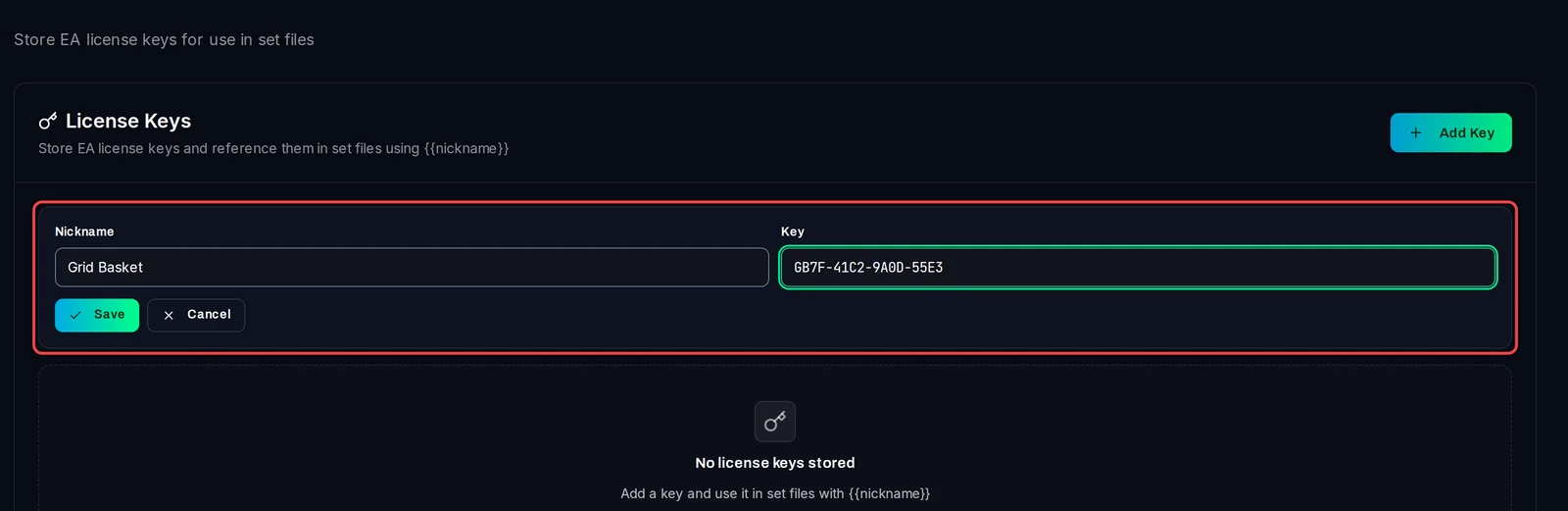
- Type a Nickname you will recognise, for example the EA's name.
- Paste the licence key from your EA vendor into Key.
- Click Save.
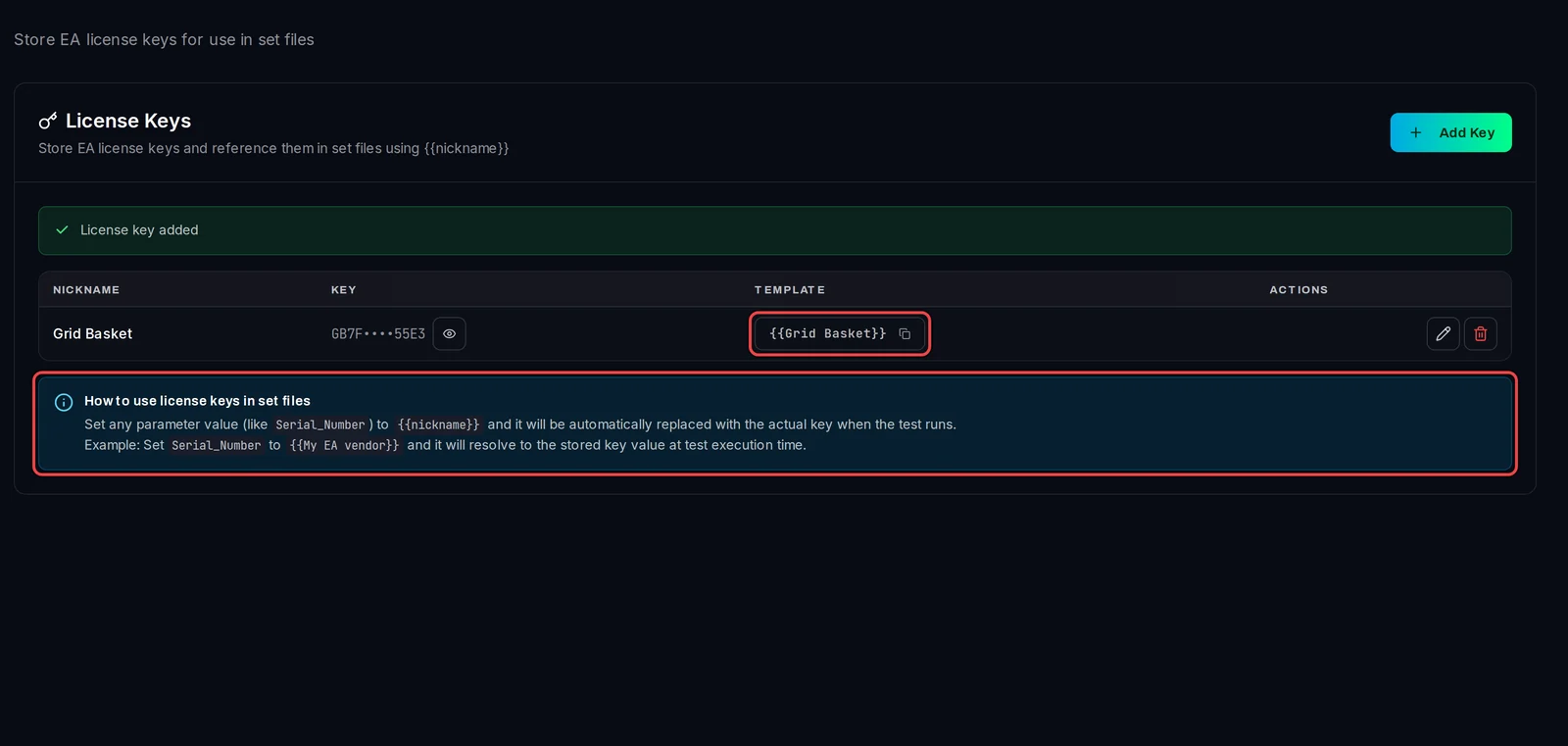
The key is listed with its Template, for example {{Grid Basket}}. Click the template to copy it. The key itself is hidden; the eye button shows it.
Put the nickname in the set file
- Click Library › Files.
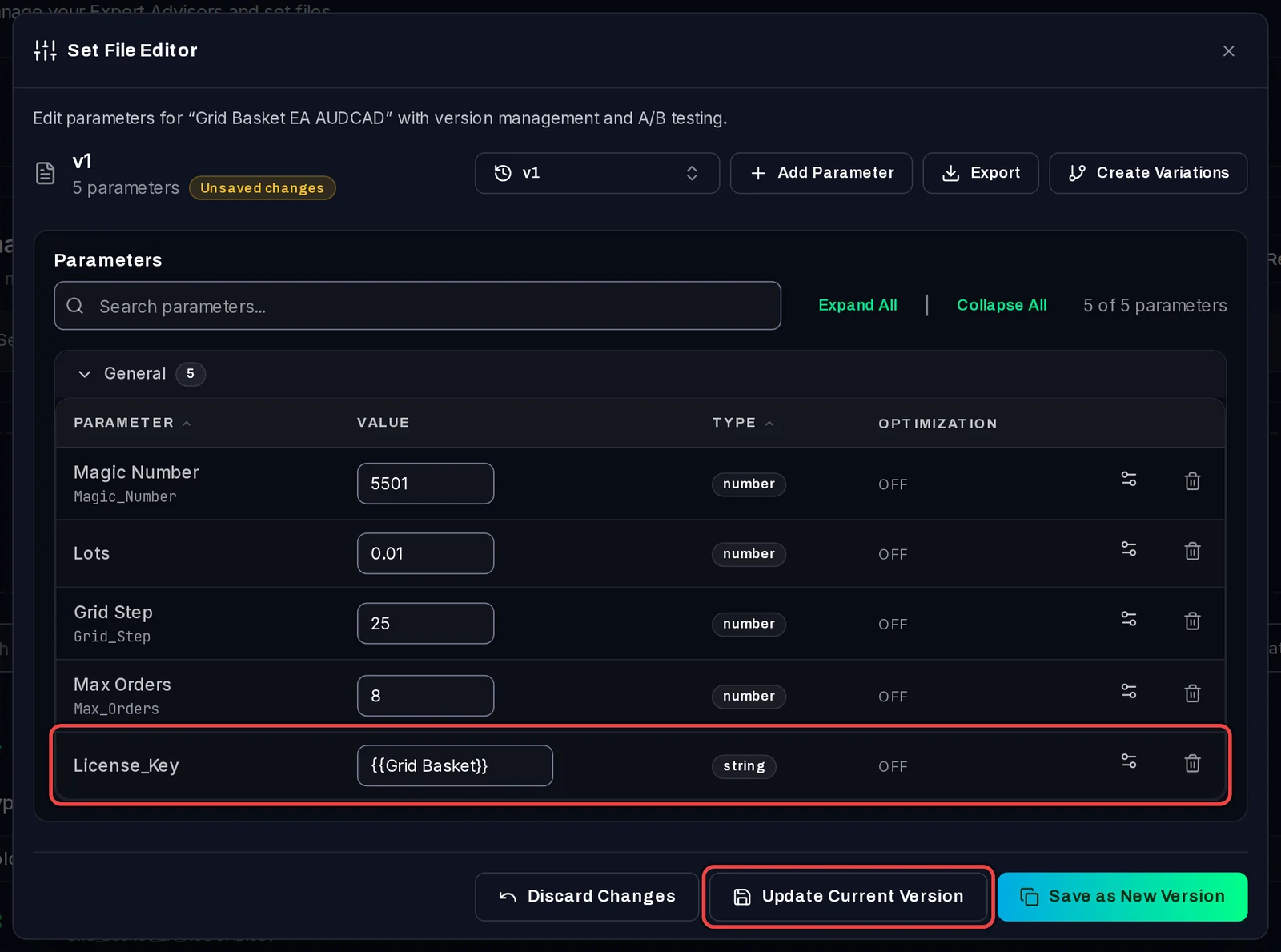
- On the EA's set file, click Edit Parameters (the sliders button).

- Find the EA's licence input. Its name comes from the EA, for example
Serial_NumberorLicense_Key. - Type the template as its value, for example
{{Grid Basket}}. - If the set file has no line for it, click Add Parameter, enter the input's exact name, pick String and type the template as the Initial Value.
- Click Update Current Version.
You can also type the template into the input in MetaTrader, save the set file there and upload it to the app.
Good to know
- The key is filled in only in the copy of the set file that goes to MT5 for the test. The set file in your library keeps
{{Grid Basket}}, so you can share it safely. - Upper and lower case in the nickname do not matter. A nickname with no stored key is left as it is, and the EA will usually refuse to start: the queue then shows the test as failed, for example with Invalid License Key.
- Keys are kept on this PC only. On another PC, add them there too.