
Knowledge Base
Help Center articles
Manage your EAs and set files
Library › Files holds the EAs (your compiled .ex5 files) and set files the app tests. A set file (.set) is a saved list of an EA's input values, such as its lot size or stop loss. Upload them here once and pick them on New test.
Plan: every plan.
Open your files
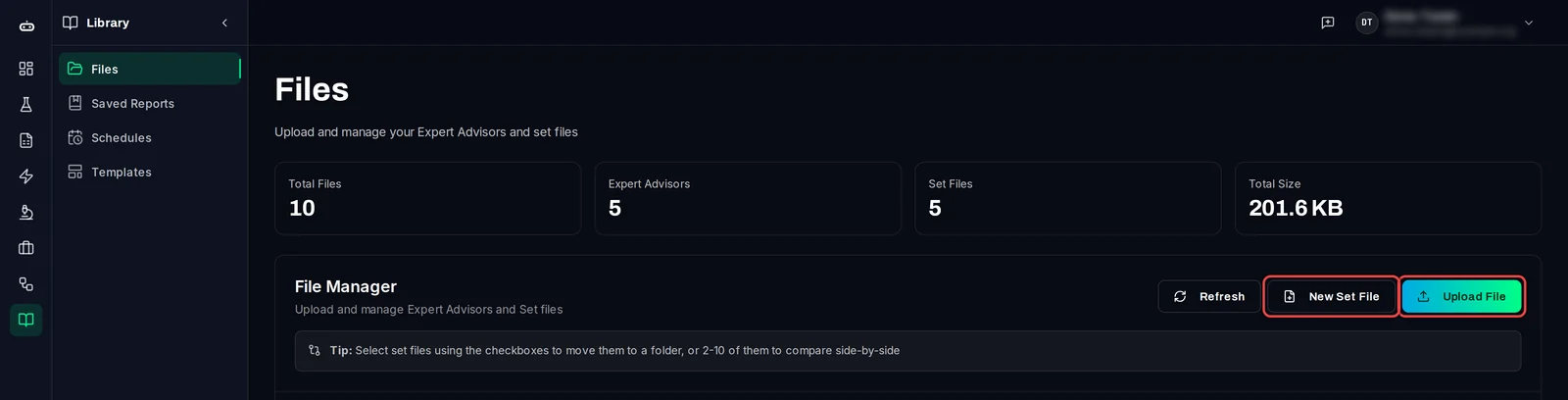
- Click Library in the left rail, then Files. The user menu at the top right has the same page as File Manager.
- The tiles at the top count your files. The tabs above the list show All Files, EAs, Sets and Unlinked Sets (set files that belong to no EA yet).
Upload an EA or a set file
- Click Upload File, or drag the files onto the page.
- Leave Platform on MetaTrader 5. The app tests MT5 EAs only.
- Choose one or more
.ex5or.setfiles, up to 50 MB each. - Optional: add a Description, Tags or a Folder. Type
/in the folder name for a folder inside a folder, for exampleGold/Breakout. For set files, pick the EA under Link Set Files to Expert Advisor. - Click Upload.
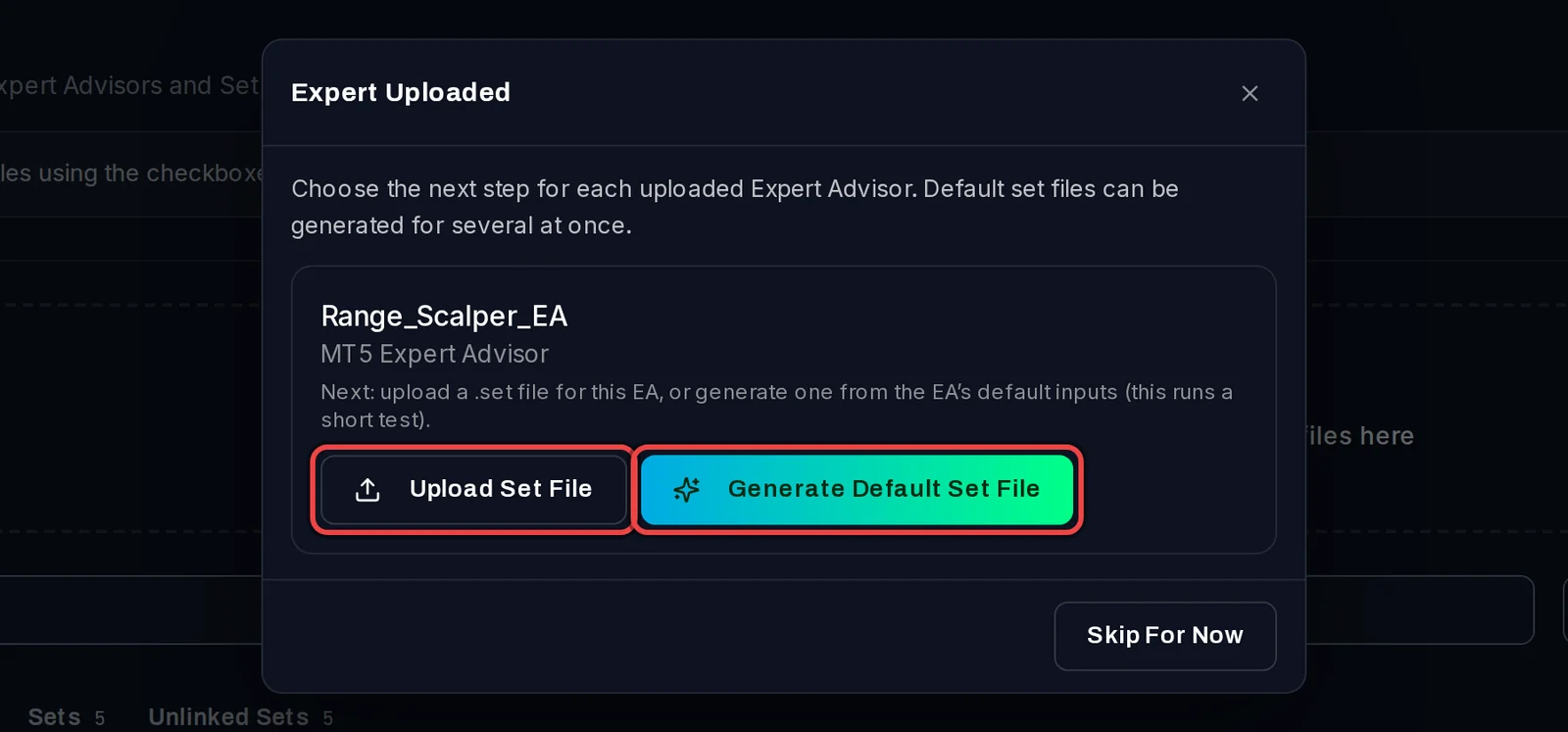
After an EA, the app asks for its set file: click Upload Set File, or Generate Default Set File to make one from the EA's own default inputs. Skip For Now leaves it for later.
Generate a set file for an EA
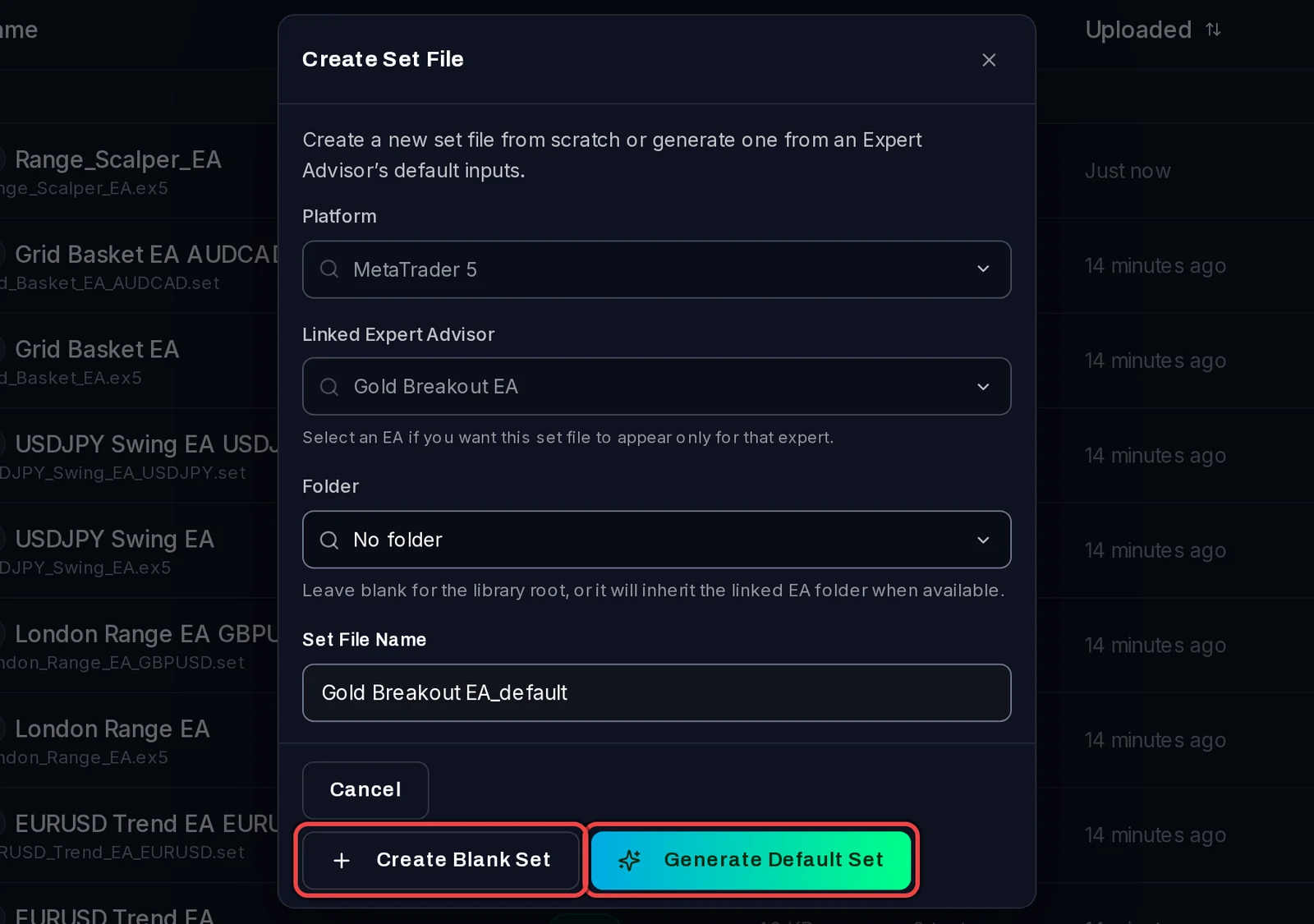
- On the EA's row, click the Create or generate set file icon.
- Click Generate Default Set to read the EA's default inputs, or Create Blank Set to fill them in yourself.

Edit a set file
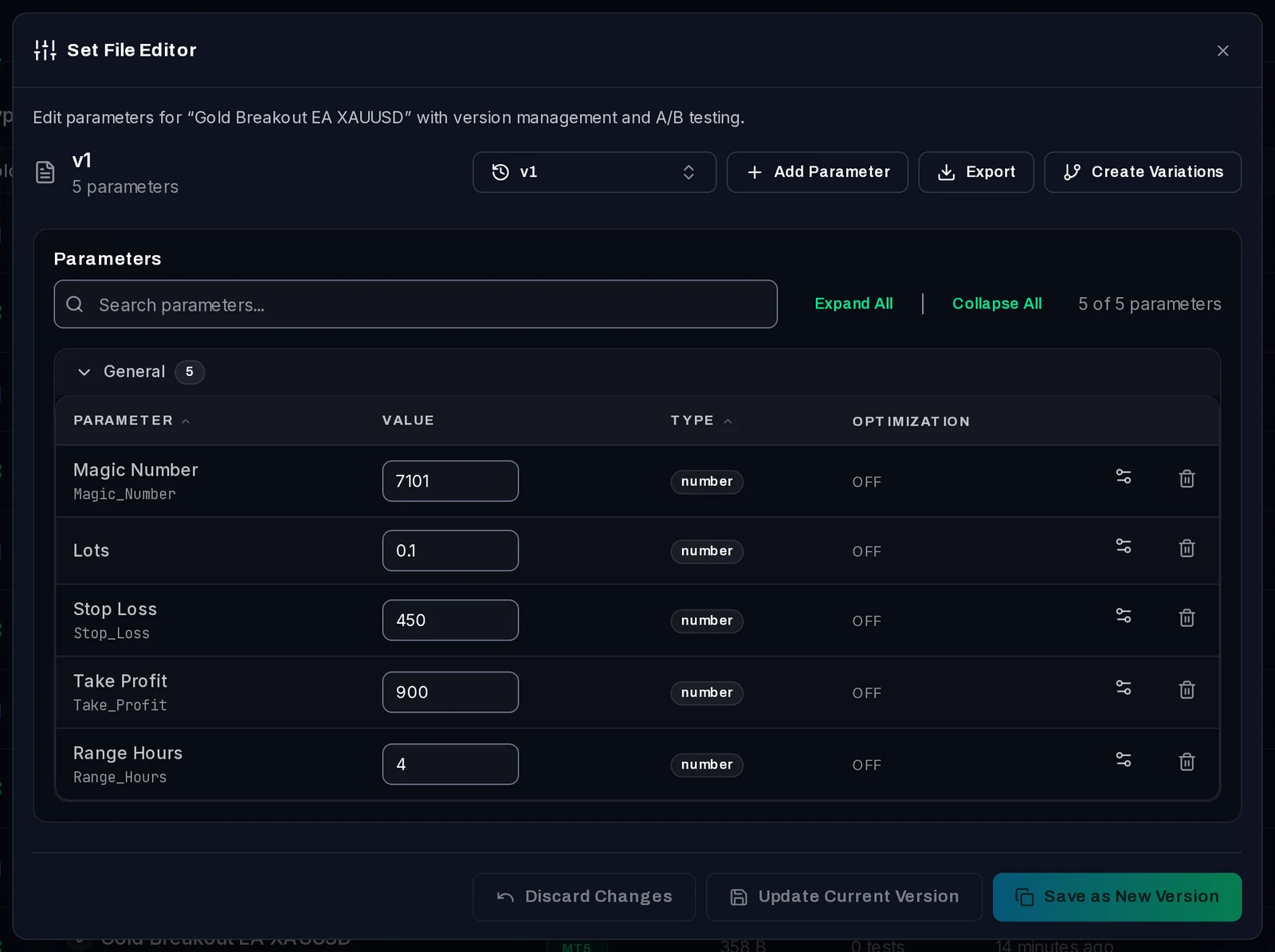
- On the set file's row, click the Edit Parameters icon.
- In the Set File Editor, change the values.
- Click Update Current Version to overwrite the file, or Save as New Version to keep the old values as well.
Good to know
- Generating a default set file runs a short test (about 1–2 minutes) on one of your test terminals, so the terminal must be closed.
- To put set files in a folder, tick them and click Move … to folder…. Tick 2 to 10 set files and click Compare … Files to see their values side by side.
- The other row icons: Create Test, Download, Replace with new version (a newer build of the same EA), Edit (name, tags, folder, linked EA) and Delete. A file your tests use can't be deleted.
- Your files stay on this PC. The app never copies them into your own MT5.