
Knowledge Base
Help Center articles
Backtest Manager troubleshooting
Fixes for the problems people ask us about most. If yours is not here, send us feedback from the app (the speech-bubble icon at the top right) with the test's name and what the queue shows.
Plan: every plan.
A test stays waiting in the queue
- Open Backtests › Queue. If it says "Queue is paused", click Resume queue.
- Close any test terminal you opened by hand (in MetaTrader, File › Exit). Tests never run on an open terminal; the waiting test starts on it once it is closed.
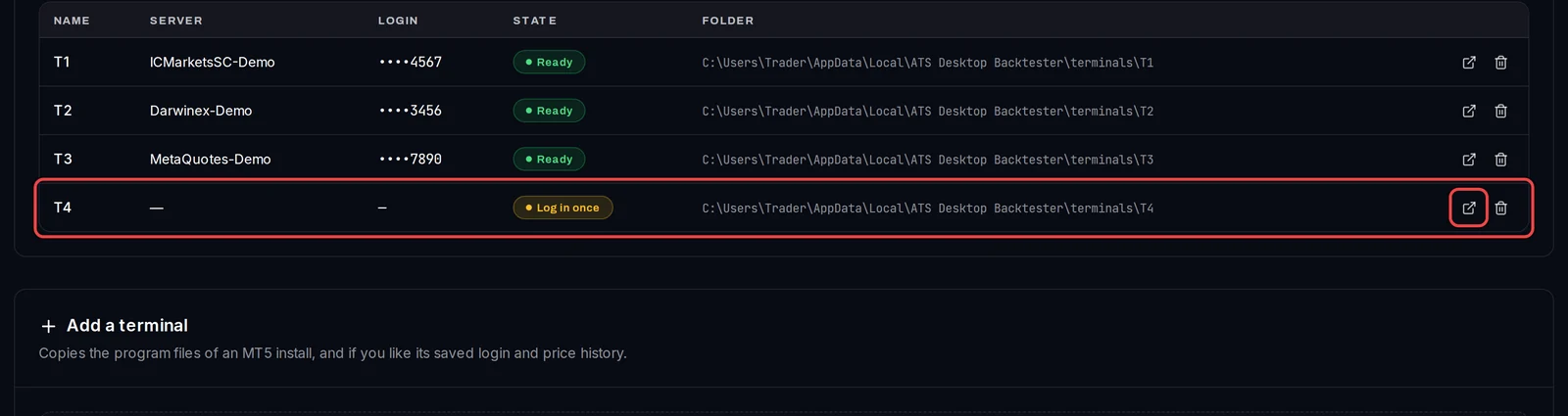
- Open Settings › Terminals and check the State column. A terminal must read Ready.
- Still waiting? Your terminals may all be busy. Every plan runs tests side by side, one per test terminal; the rest wait their turn. Optimizations run one at a time per PC.
A terminal shows "Log in once"
- In Settings › Terminals, click the open icon on its row.
- Log in to your broker's demo or live account in the MetaTrader window, and let it load.
- Close MetaTrader with File › Exit. The state changes to Ready within a few seconds.
A test failed
- In the queue, the failed test shows a red label. Click View Details on its row to read the full message.
- EA Failed To Load: MT5 rejected the
.ex5. The app tests MT5 EAs only; get an.ex5built for the current MT5 and upload it with Replace with new version in Library › Files. - Invalid License Key: the EA needs its key. Add it in Settings › License Keys and put its nickname in the set file, as Add licence keys for your EAs shows.
- No History Data or No Data Generated: the terminal had no prices for those dates yet, often because the history was still downloading. Click Requeue to run it again, or choose later dates.
- "MT5 wrote no report": MT5 only writes reports while you are signed in to Windows. Run the app while you are signed in to Windows.
"Not enough free disk space for this copy"
- This appears when you add a test terminal. The app checks the drive first and keeps 2 GB free for the tester.
- Copy the history of fewer symbols, or free some space on that drive, then click Add terminal again.
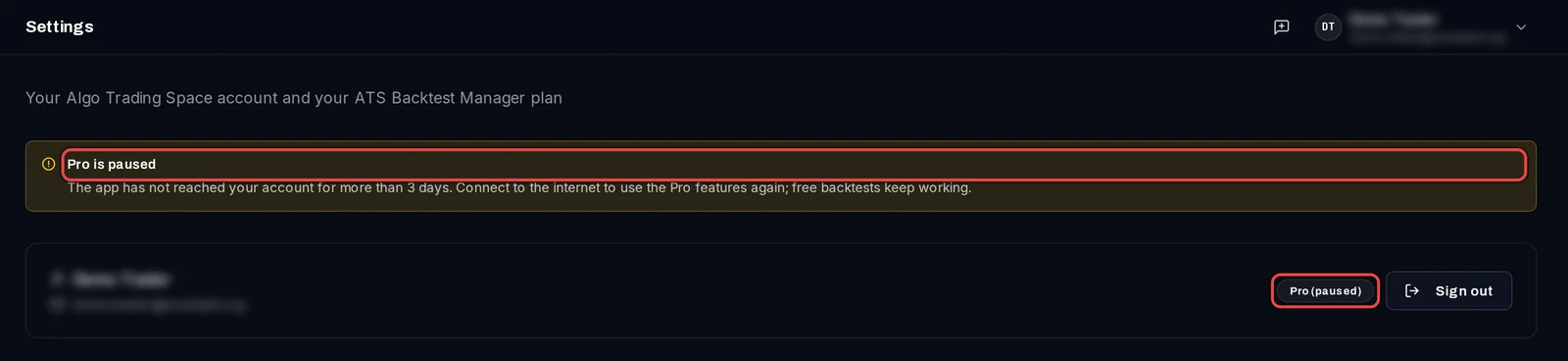
"Pro is paused" or "Pro is in use on your other PCs"
- Pro is paused: the app has not reached your account for more than 3 days. Connect the PC to the internet. Pro comes back once the app reaches your account; it checks when it starts and every few hours. Free backtests keep working meanwhile.
- Pro is in use on your other PCs: Pro covers 2 PCs, the ones you signed in on most recently. To move it to this PC, click Sign out in Settings › Profile and sign in again.
Good to know
- The installer version updates itself: when a banner says the new version is ready, click Restart to update. Your results and terminals stay. Only the portable ZIP is updated by hand.
- "This month's free optimizations are used up": the Free allowance is spent. It resets on the 1st of the month; Pro has no limit.
- "… needs a connection to your Algo Trading Space account": optimizations and other metered runs check your account first. Connect and start it again.
- The app never changes your own MetaTrader. It runs tests on its own copies, the test terminals.