
Knowledge Base
Help Center articles
Send feedback or a diagnostics file
Found something broken, have a question or an idea? Send it to our support team from inside the app. If support asks for more detail, save a diagnostics file and attach it to your request.
Plan: every plan.
Send feedback
- Open the page the feedback is about.
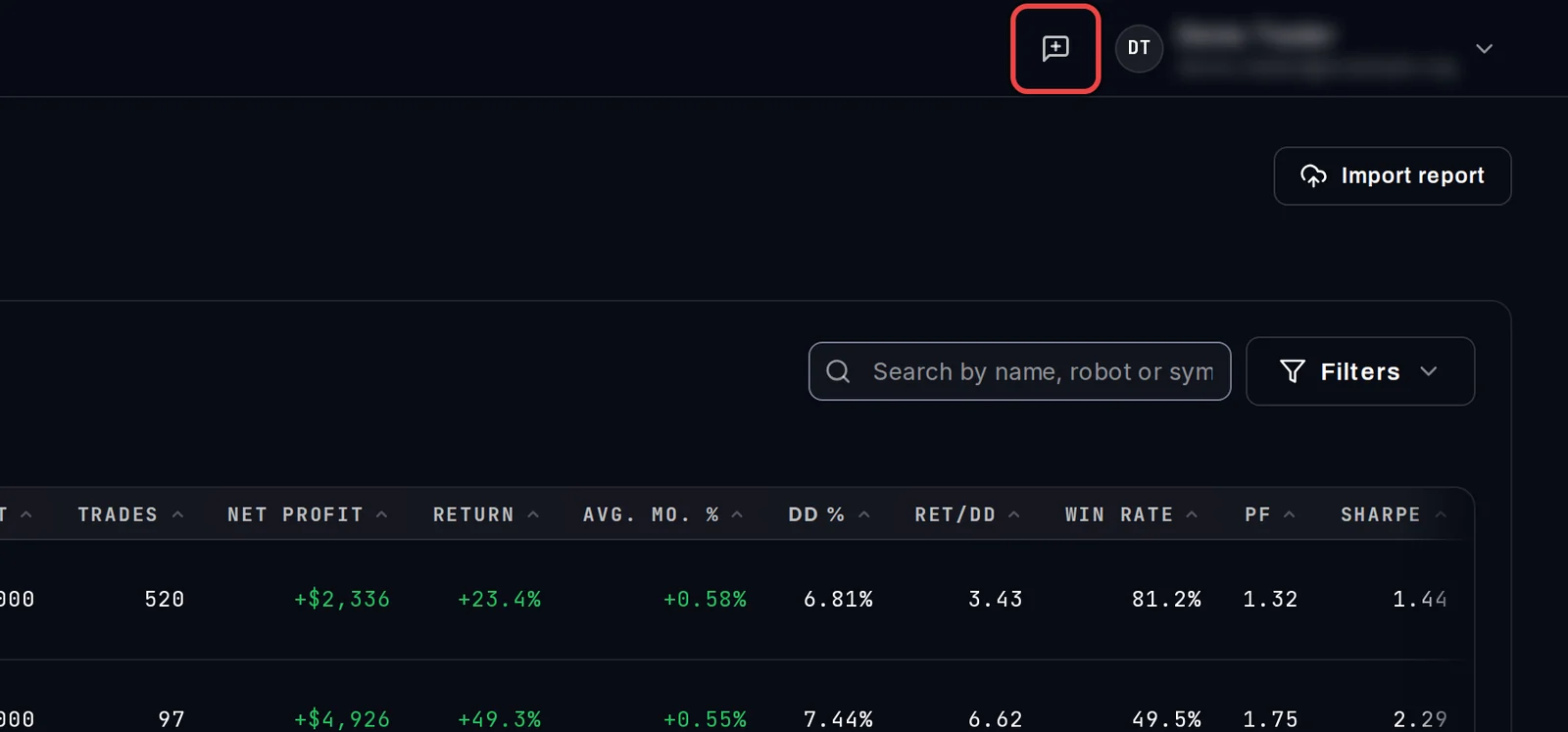
- Click the speech-bubble icon at the top right (Send feedback). You can also use Help › Send feedback… in the window's menu bar.
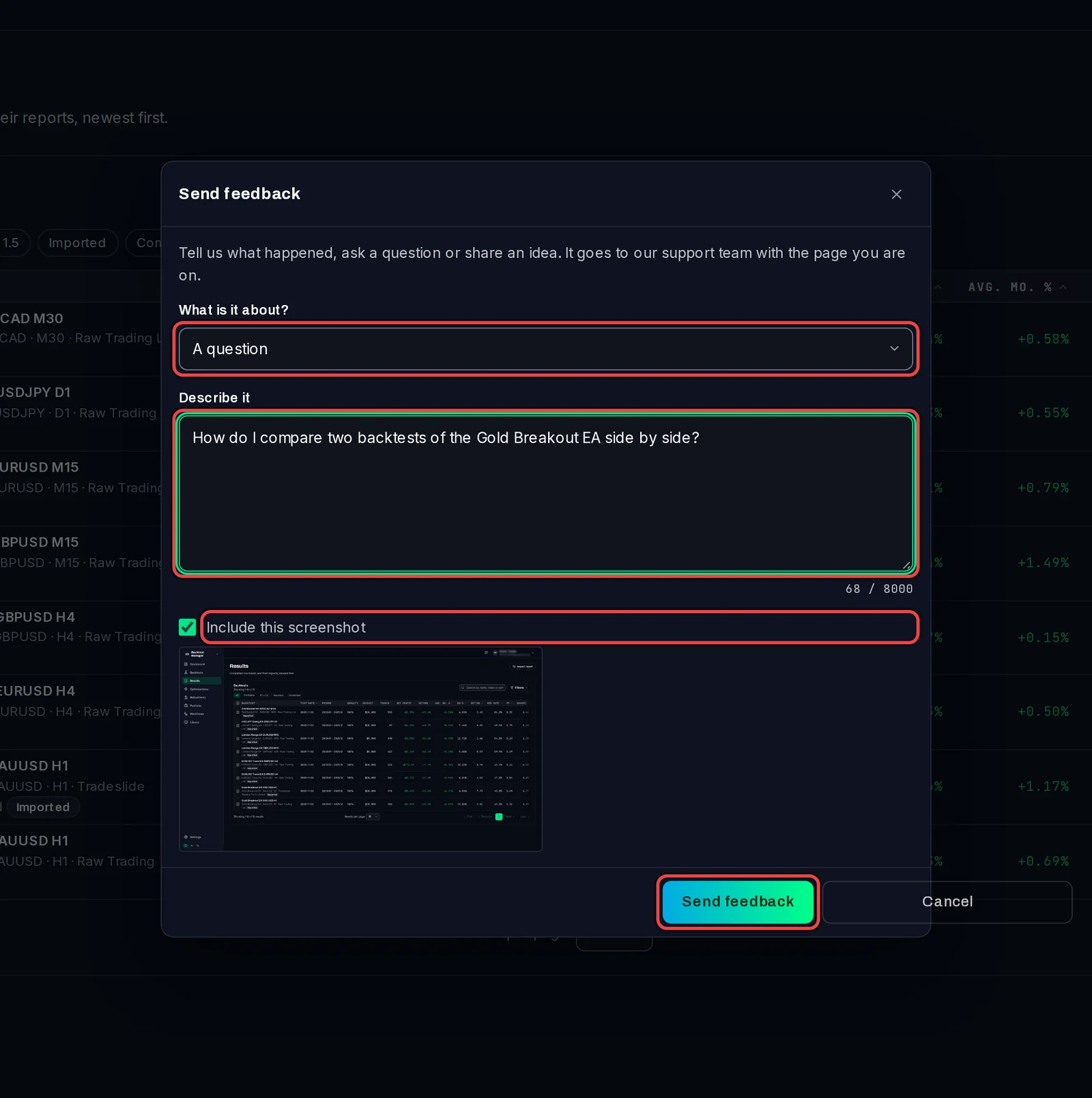
- In What is it about?, choose Something is broken, A question or An idea.
- Under Describe it, write what you did, what you expected and what happened.
- A screenshot of the page goes with it. Untick Include this screenshot to leave it out.
- Click Send feedback.
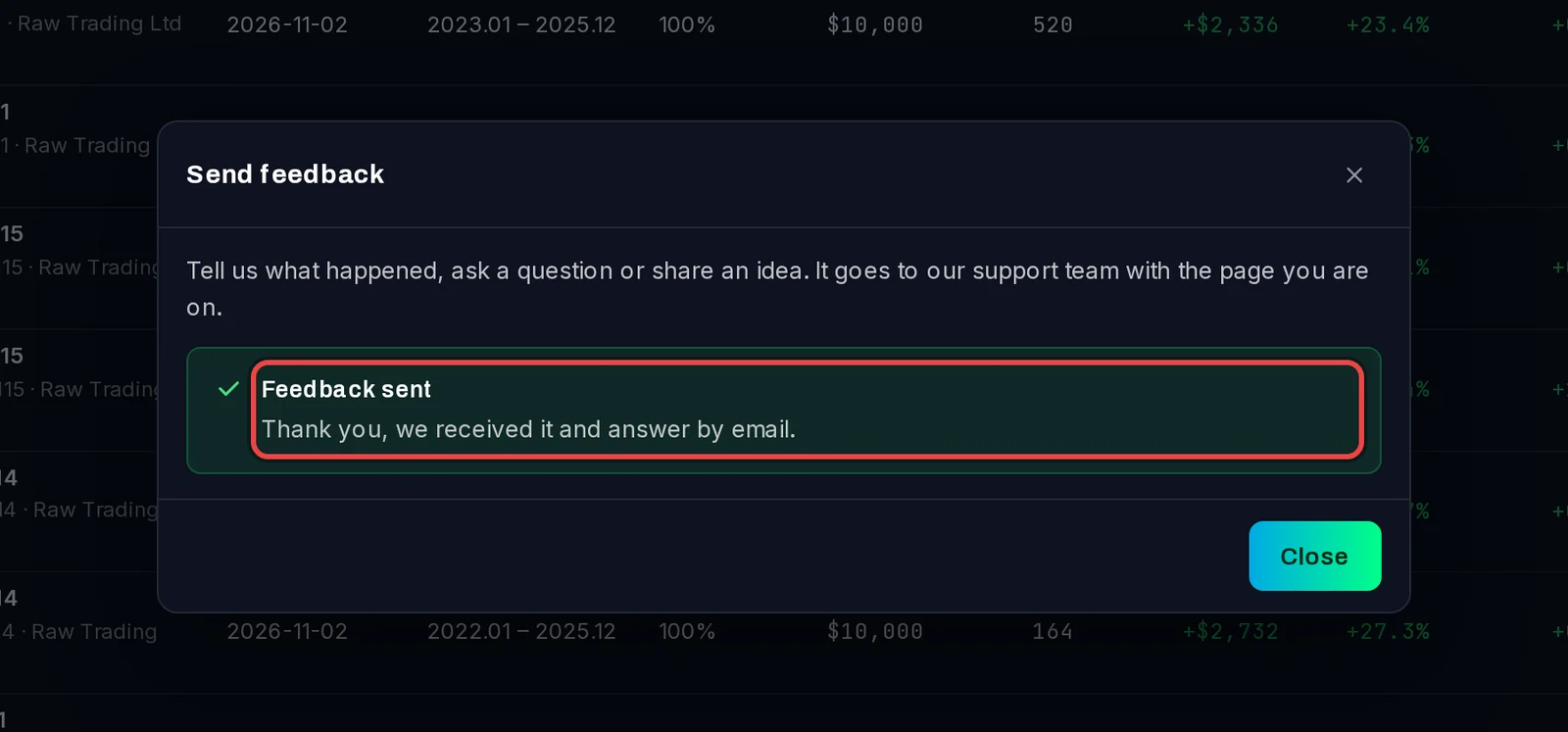
The app confirms with Feedback sent. We answer by email, to the address of your Algo Trading Space account.
Save a diagnostics file
- Open Settings › Profile and scroll to Help.
- Click Send diagnostics. You can also use Help › Save diagnostics bundle….
- Choose where to save the ZIP file. Your desktop is suggested.
- The app shows where it saved the file, opens that folder, and opens the help centre in your browser.
- Attach the file to your request in the help centre.

Good to know
- The diagnostics file holds the app's logs, your last 20 failed tests, and the app and MT5 versions. It never holds your .set contents, inputs, logins, passwords or account numbers.
- The app never uploads the diagnostics file itself. Only you send it, by attaching it.
- Feedback goes with the page you were on and this PC's app and Windows versions, so you don't need to type them.
- Sending feedback needs you to be signed in and online.