
Knowledge Base
Help Center articles
Find your way around the app
Every part of Backtest Manager is one click from the menu on the left. This guide shows where things are, and how to replay the app's own 1-minute tour.
Plan: every plan.
Start from the Dashboard
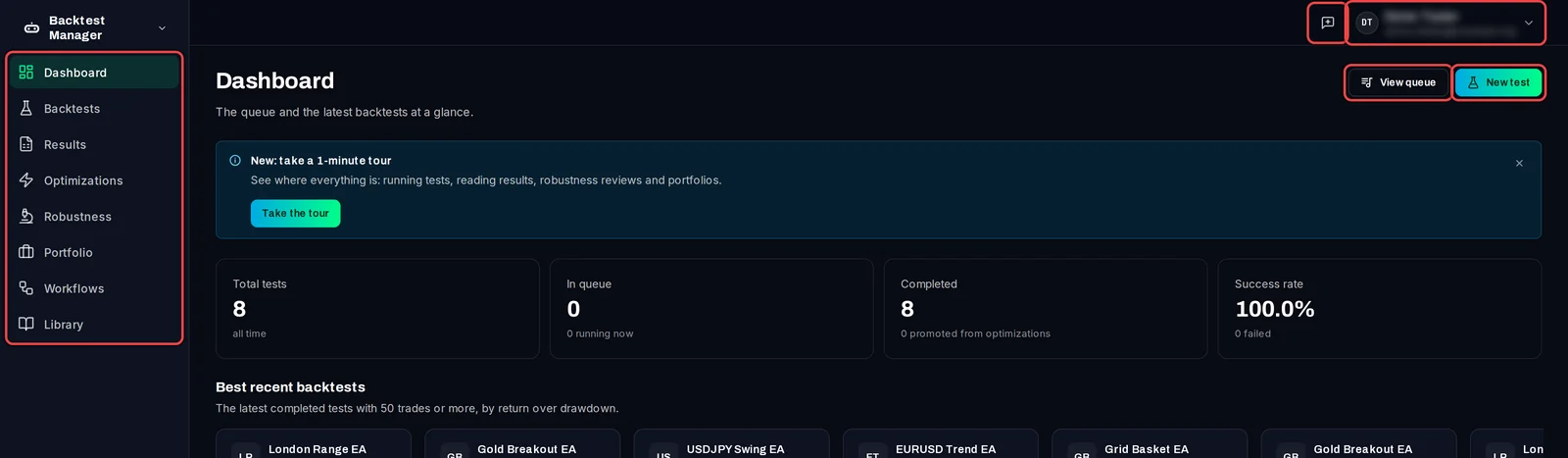
- Click Dashboard at the top of the menu. It shows your tests in total, what is in the queue, and your best recent backtests.
- Click New test to set up a backtest, or View queue to see what is running and waiting.
- At the top right, the speech-bubble icon is Send feedback, and your name opens the user menu.
Use the menu
The menu lists the parts of the app in the order you work: Dashboard, Backtests, Results, Optimizations, Robustness, Portfolio, Workflows and Library. Settings is at the bottom.
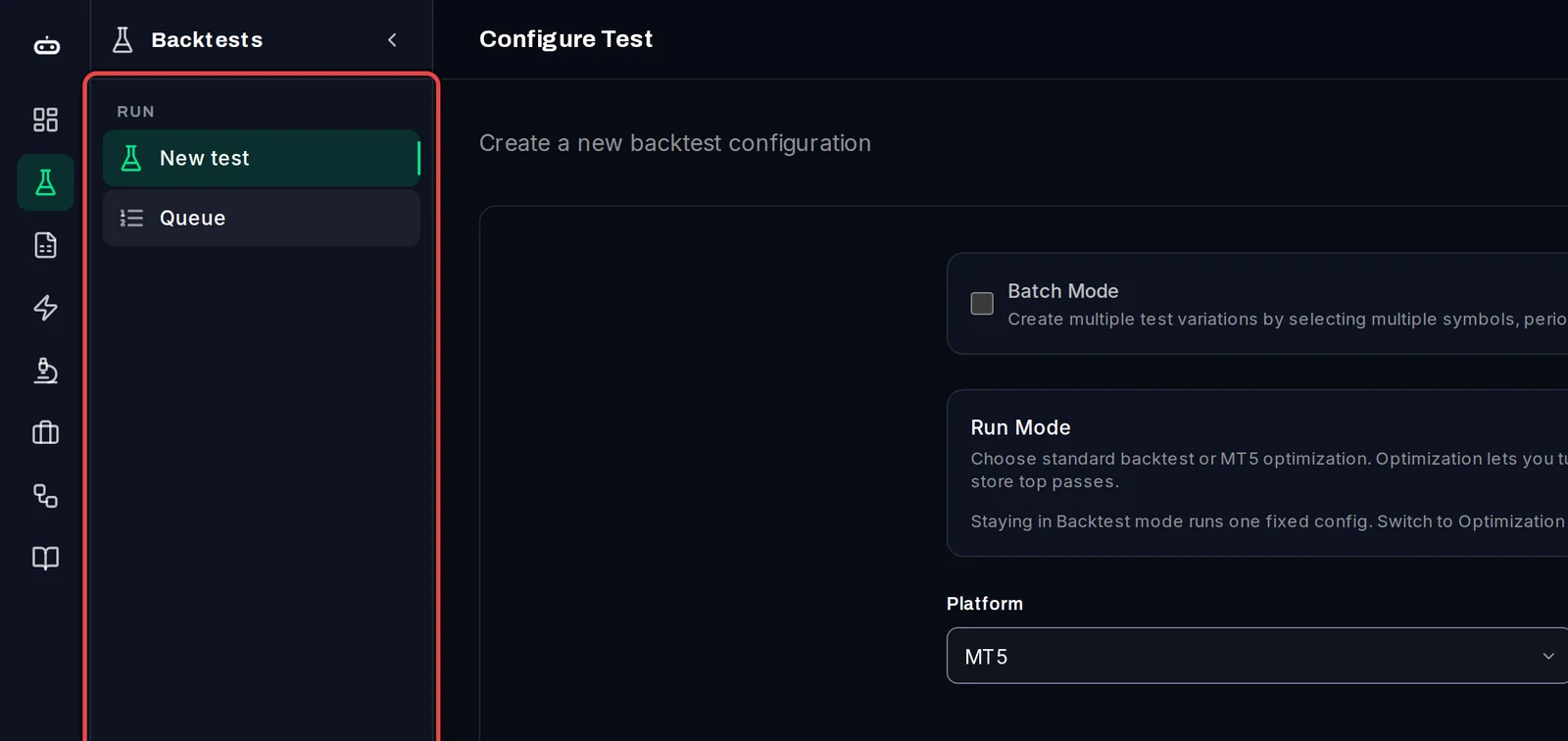
- Click a part that has pages of its own, for example Backtests.
- Its section menu opens beside the icons: New test and Queue. Click a page to open it.
- Click the arrow at the top of the section menu to fold it away.
On Free, Robustness, Portfolio and Workflows carry a Pro label. Under Settings you find Terminals (this PC's test terminals), Profile (your plan), Defaults and License Keys.
Open the user menu
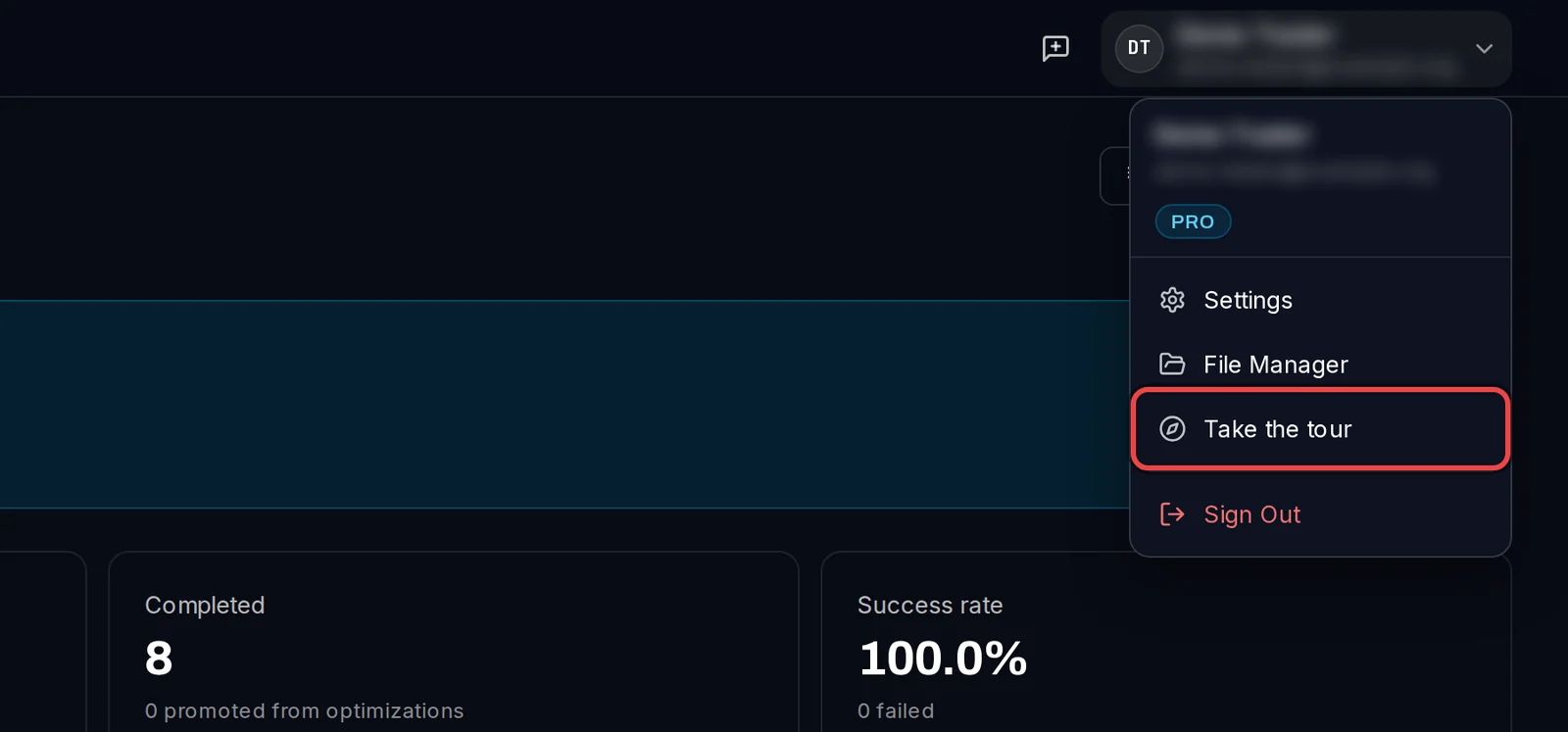
- Click your name at the top right. The menu shows your plan (PRO or FREE).
- Choose Settings, File Manager (your EAs and set files), Take the tour or Sign Out.
Take the tour
- Click Take the tour in the user menu, in the note on the Dashboard, or under Help in the window's menu bar.
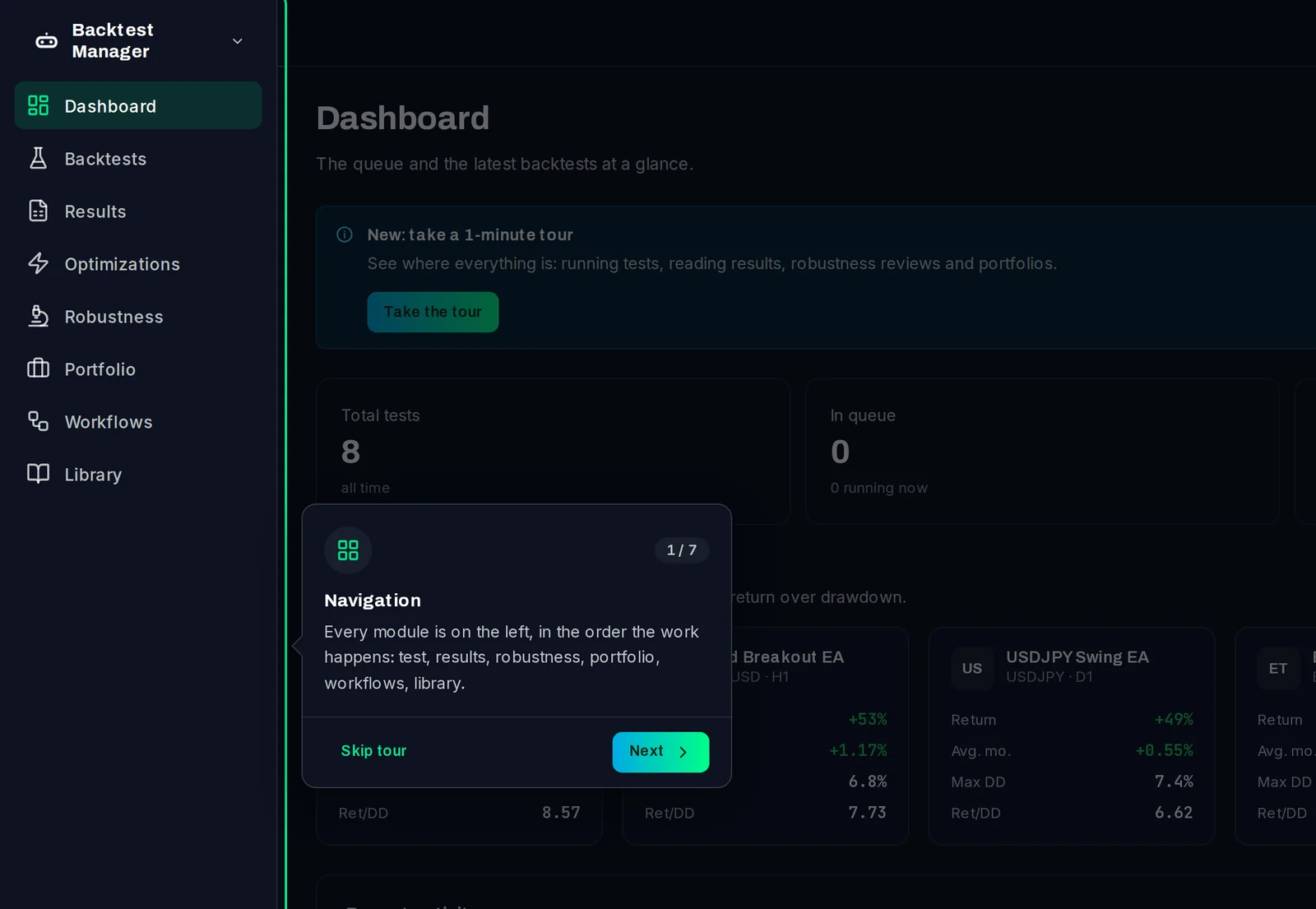
- A few welcome cards come first. Click Next, or Skip to the tour.
- The tour then points at each part of the app in turn. Click Next to go on, or Skip tour to stop.
Good to know
- The window's menu bar has shortcuts: File › New test (Ctrl+N), File › Settings (Ctrl+,) and Help › Help guide (F1), which opens this help centre.
- The three icons at the bottom of the menu switch between your Windows theme, light and dark.
- The tour opens by itself the first time you sign in. If you have no test terminal yet, it starts at adding one.