
Knowledge Base
Help Center articles
Add your MT5 test terminals
Backtest Manager never tests in the MetaTrader 5 you trade with. It runs your backtests on test terminals: copies of an MT5 install on your PC that the app starts and closes for each test. Add at least one before your first backtest.
Plan: every plan.
Add a terminal
- Close the MetaTrader 5 you want to copy. The app cannot copy a terminal that is open.
- Open Settings › Terminals. After your first sign-in the app opens this page by itself.
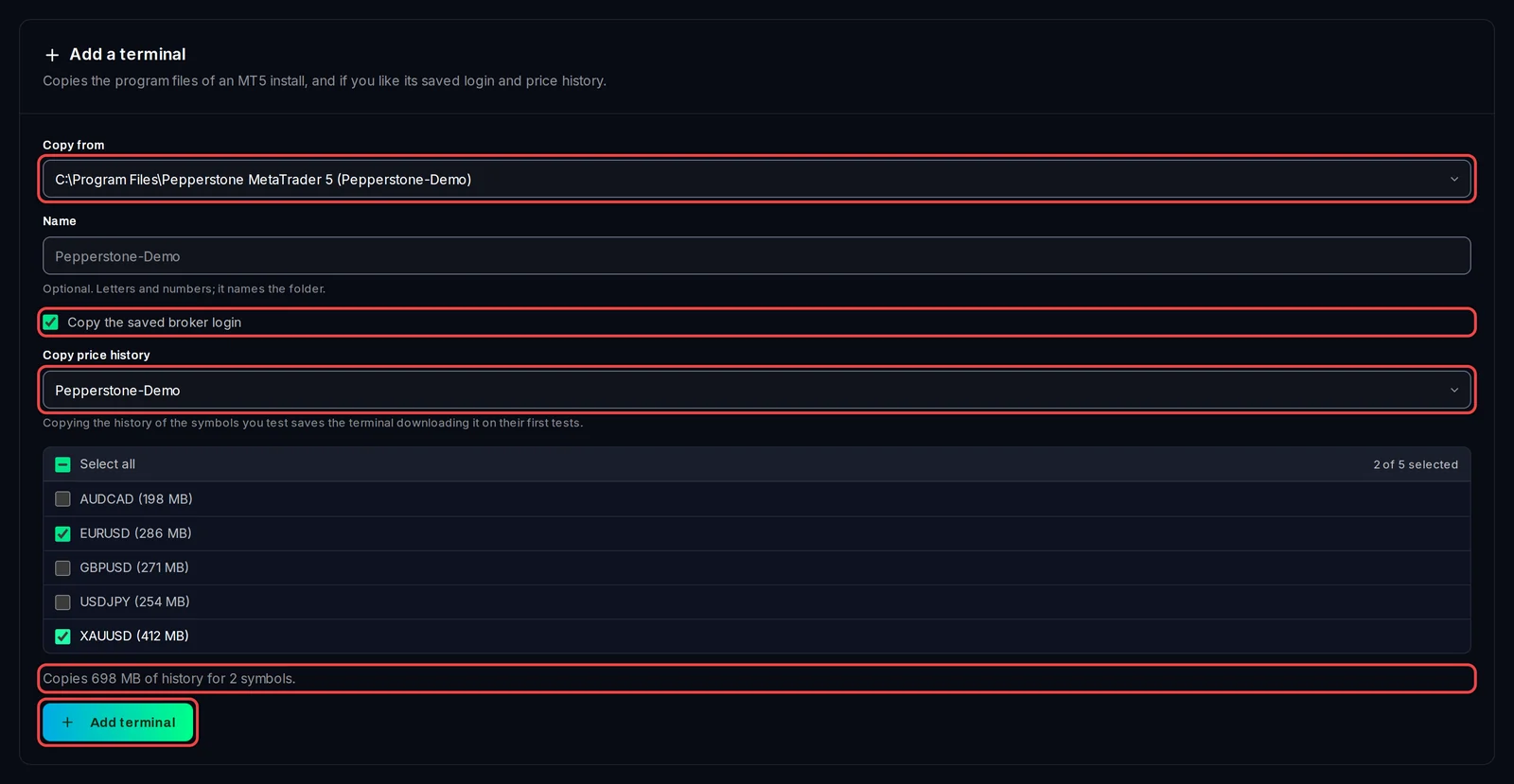
- Under Add a terminal, pick the install in Copy from. Each MT5 install on this PC is listed by its folder, with the broker servers it has history for in brackets.
- Leave Name empty, or type a short name in letters and numbers. It becomes the terminal's name and its folder name.
- Keep Copy the saved broker login ticked to take the install's login over to the copy.
- In Copy price history, pick the broker server, then tick the symbols you test. Each shows its size, and the line under the list adds them up. Copying the history means your first tests don't wait for the terminal to download it. To skip this, choose No, the terminal downloads it.
- Click Add terminal. The copy runs in the background. A large history takes a few minutes.
If the card says No MT5 install found, install MetaTrader 5 from your broker, log in once, then come back to this page.
Log in once
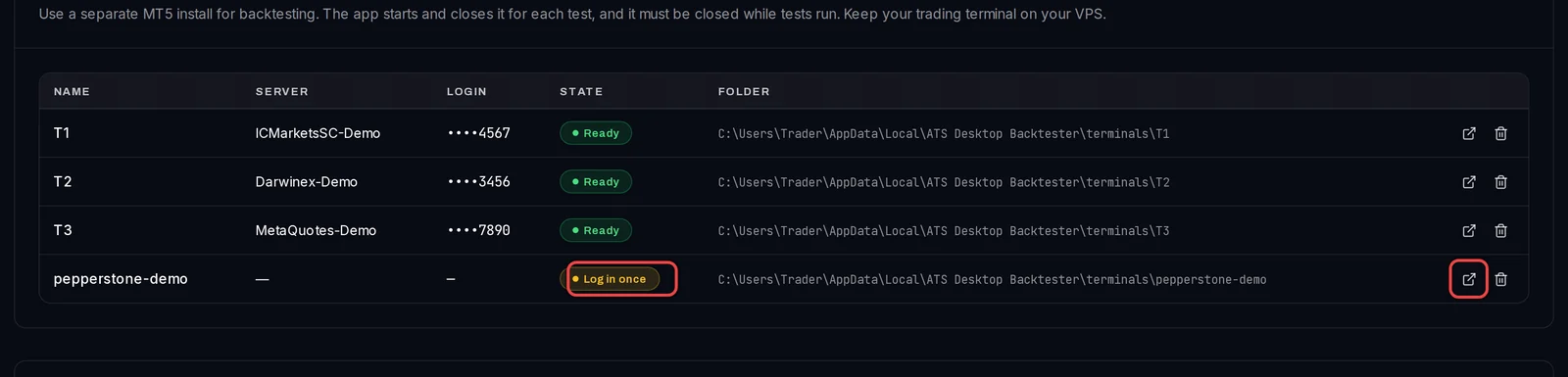
The new terminal appears under Your terminals. A terminal needs one broker login before it can download history.
- If its state is Log in once, click the open button at the end of its row (Open … to log in).
- MetaTrader opens. Log in to your broker account. A demo account is fine for backtesting.
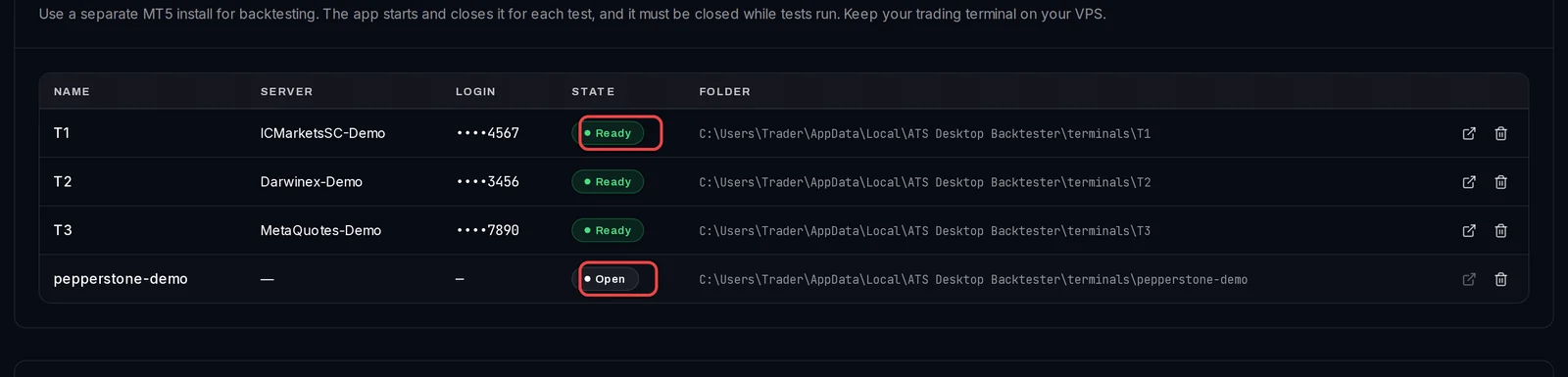
- Close MetaTrader. The state turns to Ready.
Read the states
- Ready: the terminal can run tests.
- Log in once: no broker server is saved in it yet. Open it, log in, close it.
- Open: its MetaTrader window is open. Tests skip it until you close it.
Add a MetaQuotes-Demo terminal for cross-data checks
A cross-data check re-runs a backtest on another price feed. On this PC it uses the terminals logged in to a MetaQuotes server.
- Add another terminal as above.
- Open it, then in MetaTrader choose File › Open an Account, pick MetaQuotes Ltd. and open a demo account.
- Close MetaTrader. The terminal's server reads MetaQuotes-Demo.
Remove a terminal
- Close its MetaTrader window if it is open.
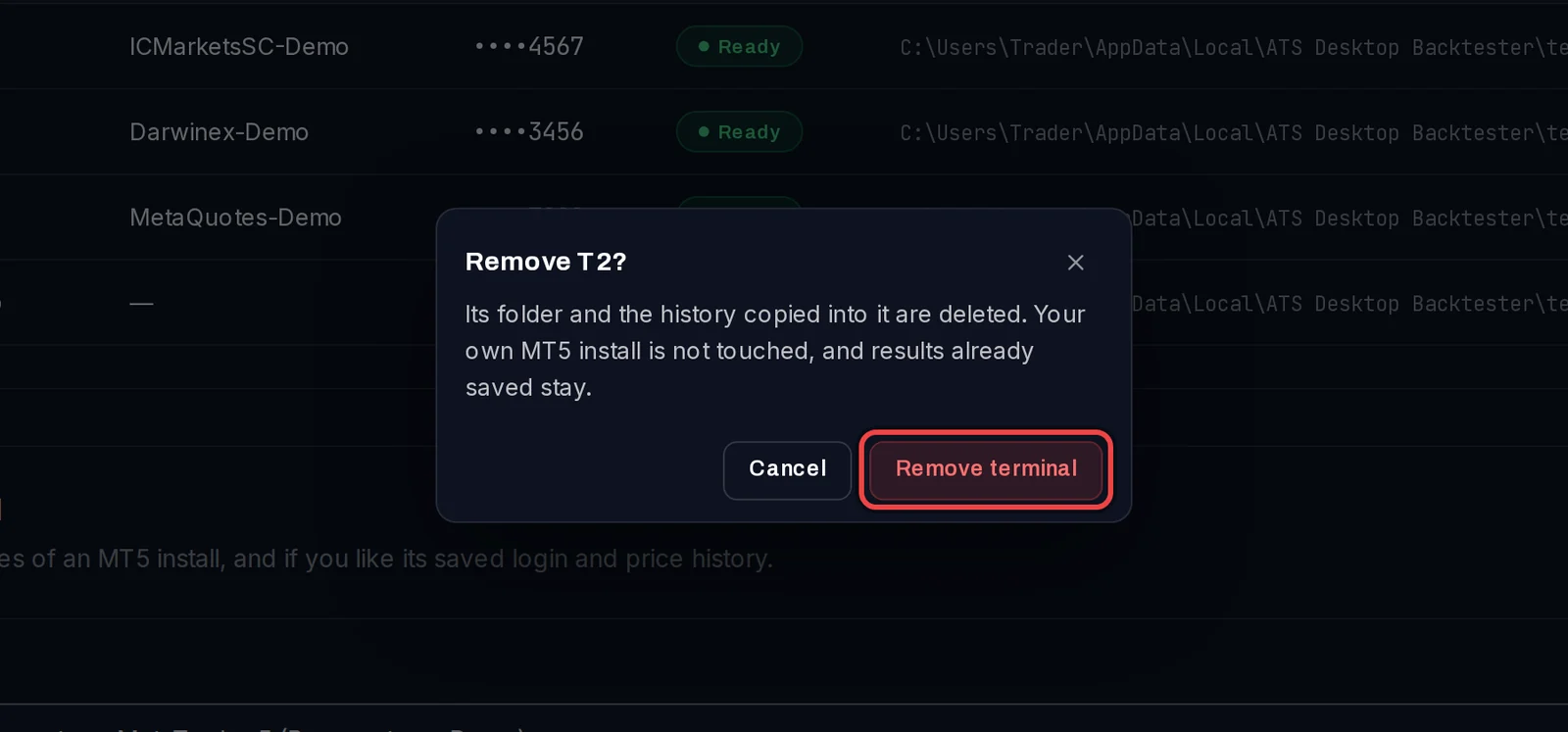
- Click the bin icon at the end of its row.
- Click Remove terminal.
Good to know
- Use a separate MT5 install for backtesting and keep trading on your VPS. Your own MT5 is only read, never changed.
- Each terminal runs one test at a time. With several terminals, tests run side by side on every plan, as many as your PC's processor and memory allow. Optimizations run one at a time.
- Each terminal needs disk space for the MT5 program files and the history you copy. The app refuses a copy the drive cannot hold and says how much it needs.
- Removing a terminal keeps your results. A test still in the queue for that terminal fails; run it again on another one.