
Knowledge Base
Help Center articles
Update the app
The installed app looks for a new version by itself, downloads it in the background and asks you to restart when it is ready. Your results, settings and test terminals stay. Only the portable ZIP is updated by hand.
Plan: every plan.
Update the installed app
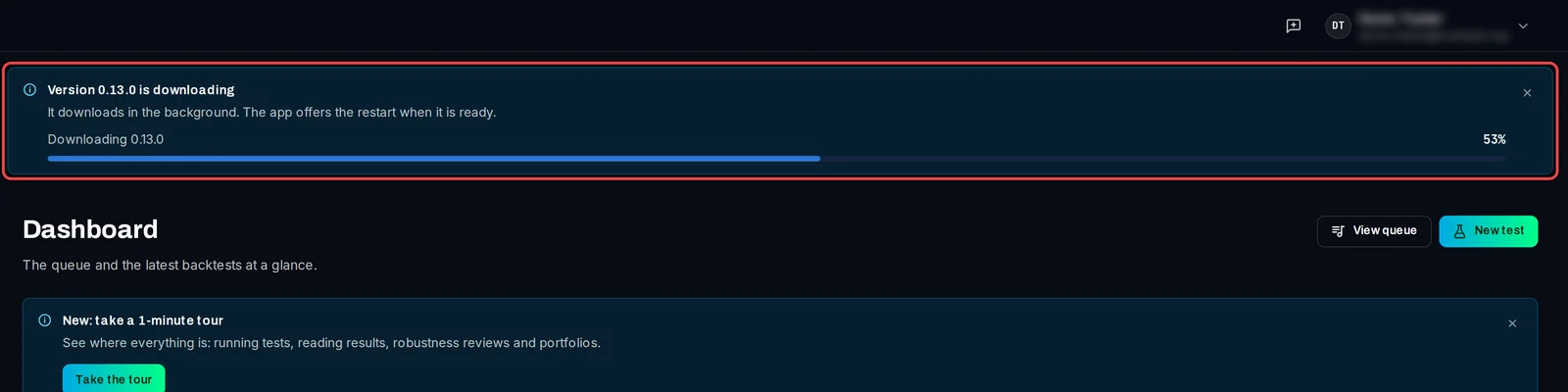
- When a new version is out, a banner at the top of the app shows Version … is downloading with its progress. Keep working: the download runs in the background.
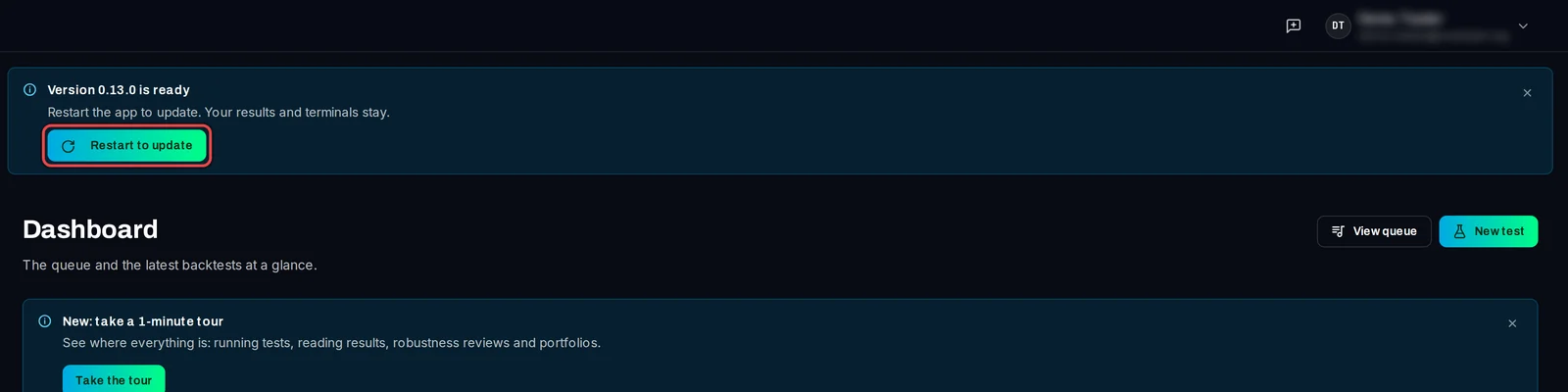
- When it is done, the banner reads Version … is ready. Click Restart to update.
- The app closes, installs the update and opens again.
Update while tests are running
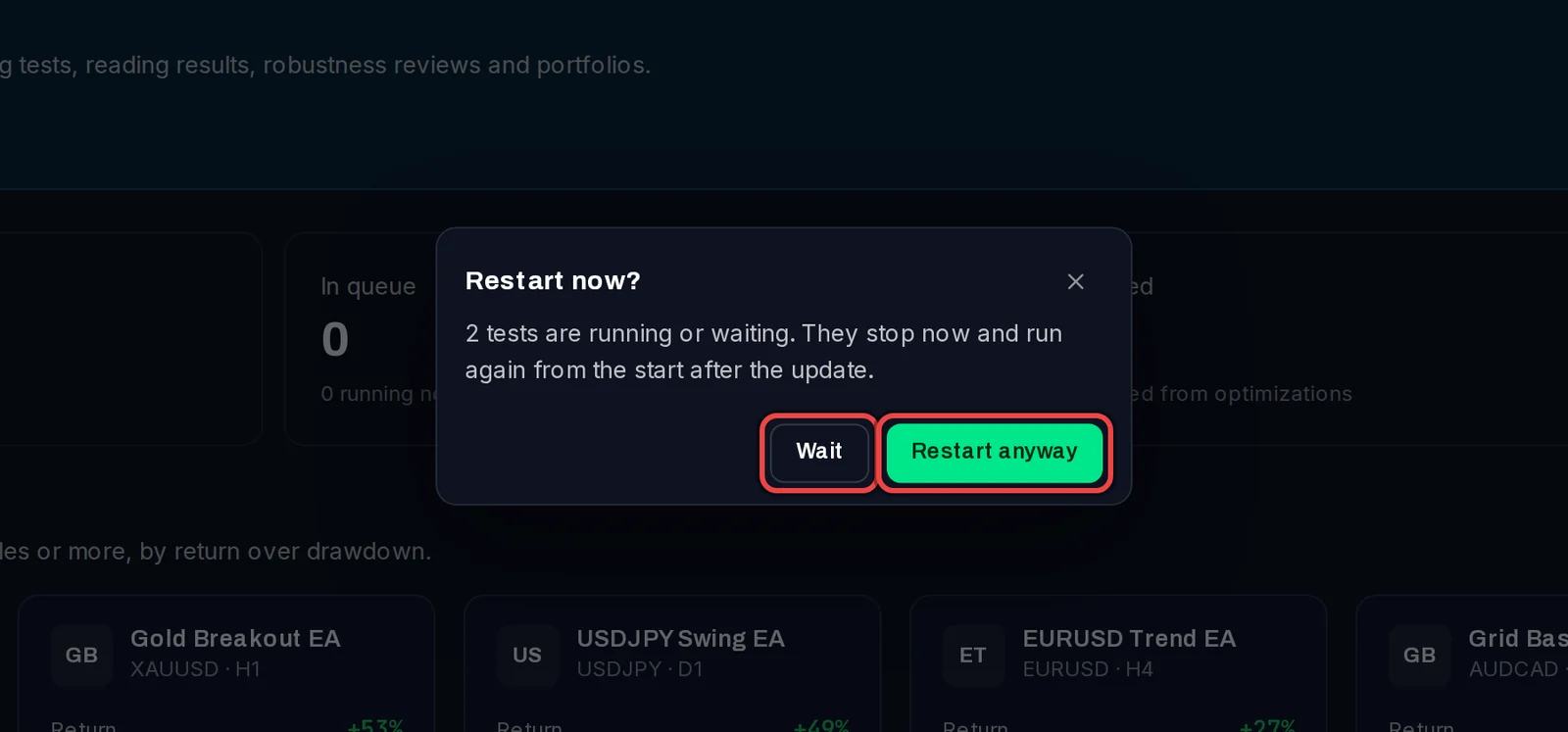
- Click Restart to update. The app asks Restart now? and says how many tests are running or waiting.
- Click Wait to restart later, when the queue is done.
- Or click Restart anyway. The tests stop now and run again from the start after the update.
Update the portable ZIP
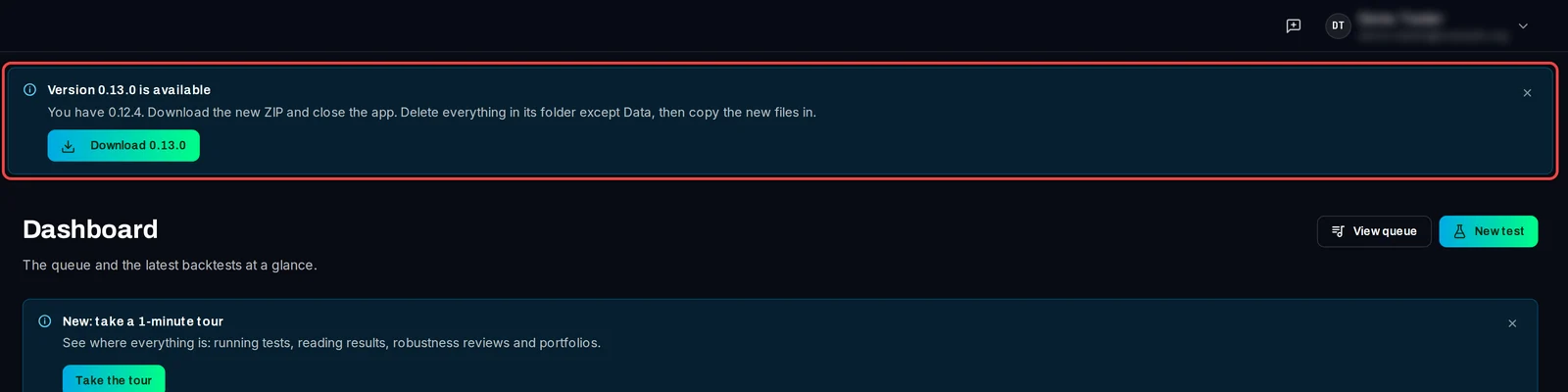
- The banner reads Version … is available. Click Download …. Your browser opens My Account › Downloads on the Algo Trading Space platform: download the new ZIP.
- Close the app.
- In the app's folder, delete everything except the
Datafolder. - Copy the new files from the ZIP into that folder, then start the app.
Good to know
- The app checks when it starts, every hour, and when you come back to its window. Help › Check for updates checks now.
- Close the banner with its X (Later) to hide it. If you quit the app while an update is ready, the update installs as it closes.
- If the banner shows Sign in to update, click it and sign in in your browser: the download then continues by itself.
- Sometimes a version must be updated before it can run tests. Then Update required covers the app until you update. Your results and terminals are kept.