
Knowledge Base
Help Center articles
Install Backtest Manager: installer or portable ZIP
Backtest Manager comes in two forms: a Windows installer, and a portable ZIP you can run from any folder. Most people should use the installer, because it updates itself.
Plan: every plan.
Download the app
- Get the plan you want on the Backtest Manager page. The Free plan goes through checkout at no cost.
- Open My Account › Downloads. You see two files:
ATS-Backtest-Manager-Setup-…exe(the installer) andATS-Backtest-Manager-…-portable.zip(the portable ZIP).
Install with the installer
- Run
ATS-Backtest-Manager-Setup-…exe. - If Windows shows Windows protected your PC, click More info, then Run anyway. Windows shows this for new programs it has not seen often.
- Follow the installer. It installs for your Windows user only, needs no administrator rights, and adds a desktop and a Start menu shortcut.
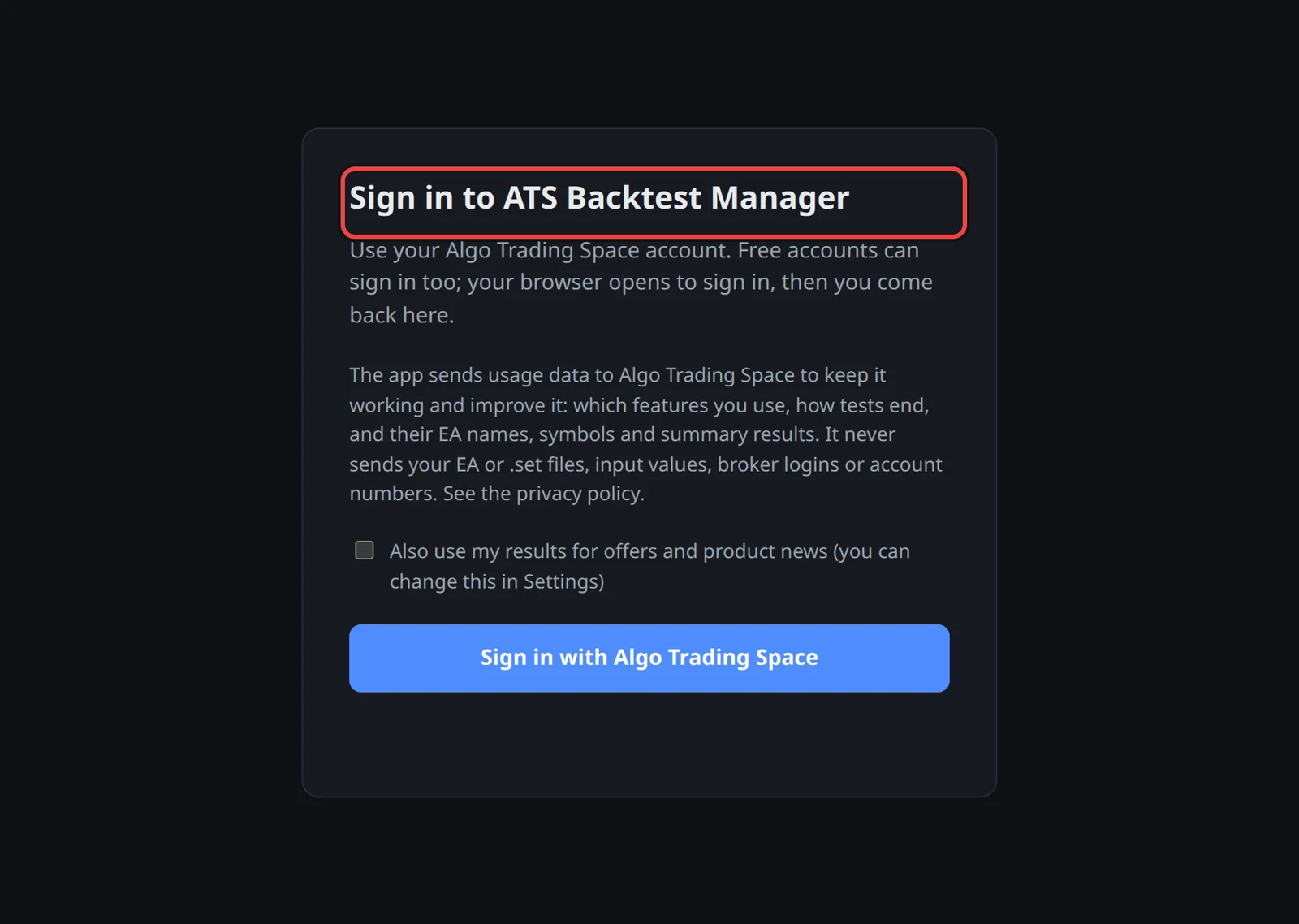
- Start ATS Backtest Manager. The first screen asks you to sign in.
Or use the portable ZIP
- Unzip it into a folder you own, for example on a second drive. Avoid Program Files and folders that OneDrive or Dropbox sync.
- Run
ATS Backtest Manager.exein that folder, and sign in.
The portable app keeps everything (settings, results, test terminals, logs) in a Data folder next to the .exe, so you can move the whole folder to another drive or PC. After a move, turn Start with Windows on again in Settings › Profile.

Good to know
- You need Windows 10 or 11, 64-bit, and MetaTrader 5. MT4, macOS and Linux are not supported.
- The installed app keeps its data in
%APPDATA%\ATS Desktop Backtesterand its test terminals in%LOCALAPPDATA%\ATS Desktop Backtester\terminals. File › Open data folder opens it. - Moving the portable folder to another PC or Windows user asks you to sign in again: the sign-in is kept encrypted for one Windows user.
- Uninstalling asks whether to also remove your results, settings, sign-in and test terminals. The answer is No unless you choose Yes, so a reinstall finds everything again.
- The installed app updates itself. The portable ZIP is updated by hand: see Update the app.