
Knowledge Base
Help Center articles
Download a PDF, the MT5 report or the set file
Download a result to keep it, print it or send it to someone: as a PDF, as MetaTrader's own report, or the set file the test ran with. You can also download the reports of several results at once.
Plan: every plan.
Download one result
- Open the result: Results, then click the backtest's name.
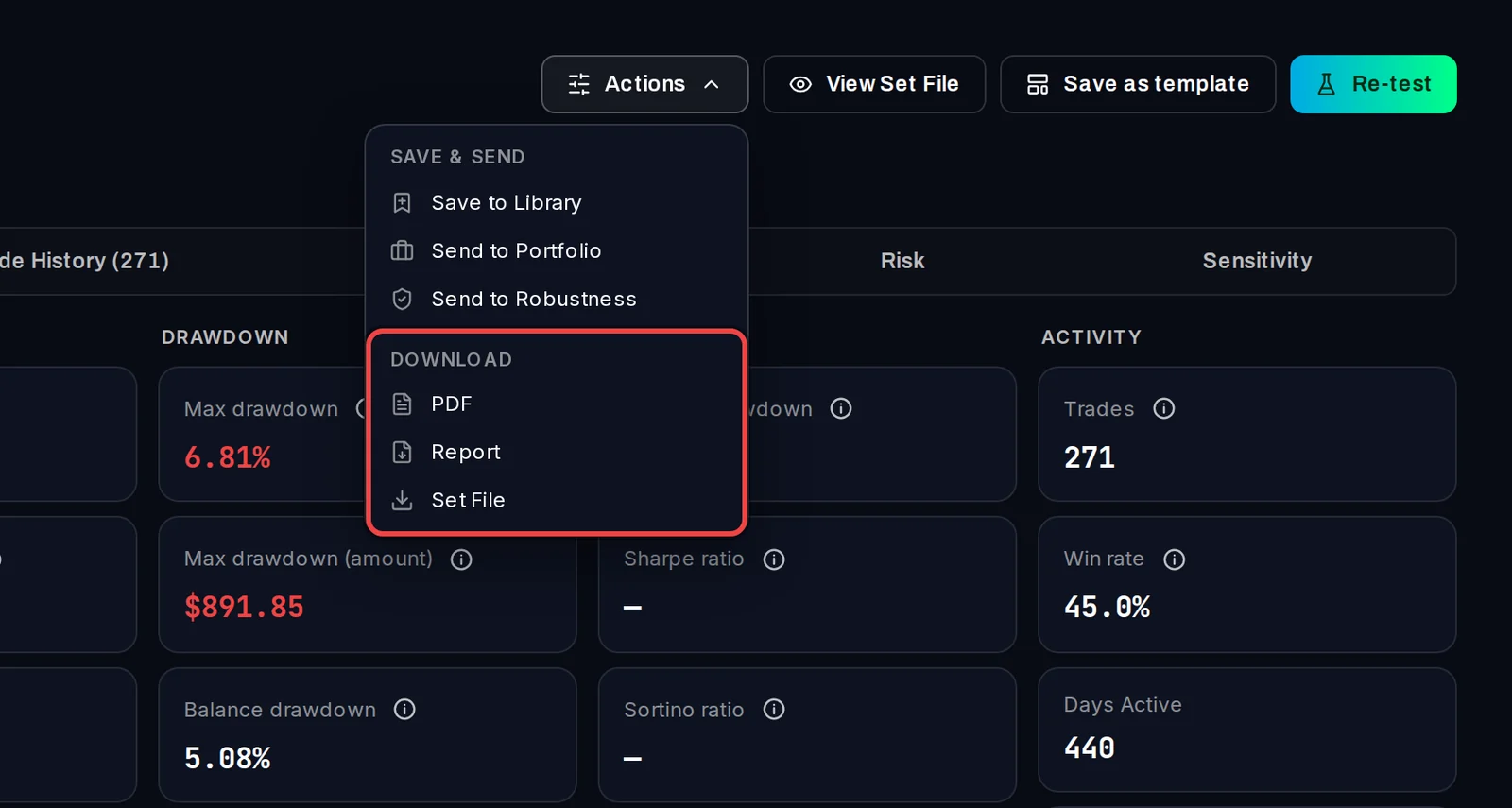
- Click Actions at the top right.
- Under Download, click what you need:
- PDF: the result page as an A4 report, on a light background.
- Report: the original MT5 Strategy Tester report, an .htm file that opens in any web browser.
- Set File: the .set file with the input values the test ran with, to load in MetaTrader or use in a new test. It is listed only when the test has one.
- Windows asks where to save the file. Choose a folder and click Save.
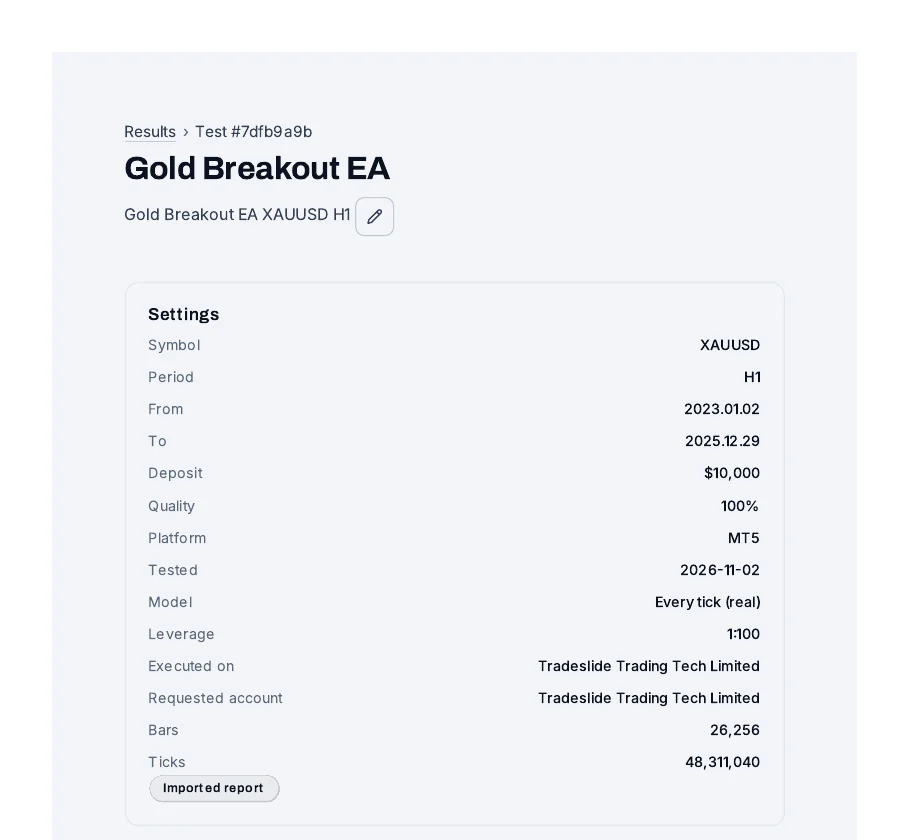
What the PDF holds
The PDF has the test's name, its Settings, all the figures of the Overview tab, the balance and equity chart, the profit breakdowns and the monthly table, over several pages. Making it takes a few seconds; when it is saved, the app shows Saved and the file's location.
Download several reports at once
- On the Results page, tick the box in front of each result.
- Open Bulk Actions and choose Download Report.
- Click Apply. You get one .zip file with the MT5 report of each result.

Good to know
- The PDF shows the Overview only. The other tabs (Deals, Trade Analysis, Risk and so on) are not in it.
- The report file is named report_ followed by the test's code. Rename it after saving if you keep several.
- For an imported result, Report gives you back the report you imported.
- To see the set file's values without downloading it, click View Set File on the result page.