
Knowledge Base
Help Center articles
Save a test as a template and reuse it
A template keeps a set of tester settings you like (modelling, execution delay, deposit, currency, leverage and how the dates are picked) under a name. Later you apply it to a new test, or run it straight away with any EA, so every test of a series uses the same settings.
Plan: every plan.
Save a test's settings as a template
- Click Results and open a backtest whose settings you want to keep.
- Click Save as template at the top right, next to Re-test.

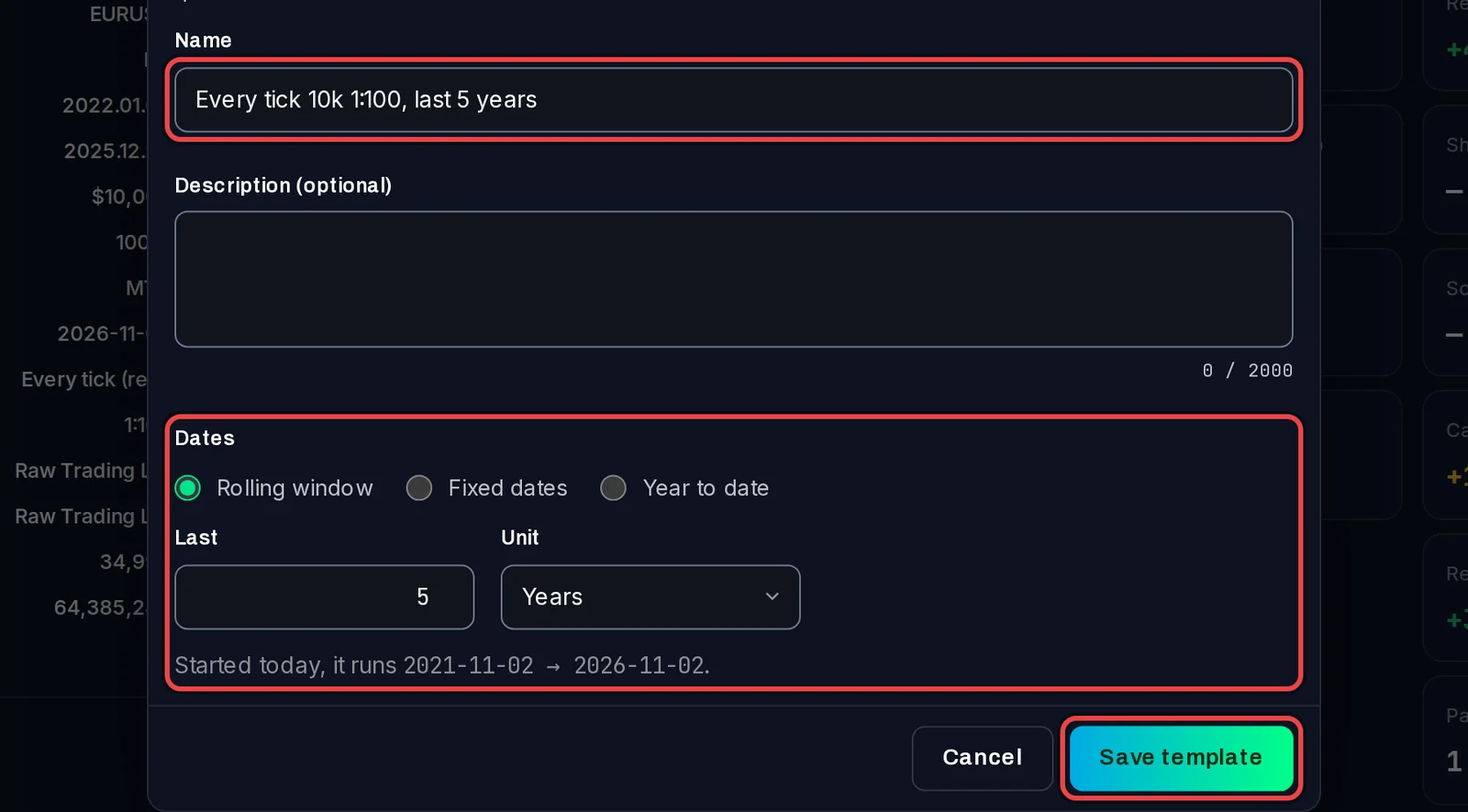
- Give it a Name that says what it holds, for example "Every tick 10k 1:100, last 5 years". A Description (optional) helps later.
- Under Dates, choose how a test from this template picks its period: Rolling window (the last few years or months, ending on the day you run it), Fixed dates (always the same From and To) or Year to date.
- Click Save template.
Use a template
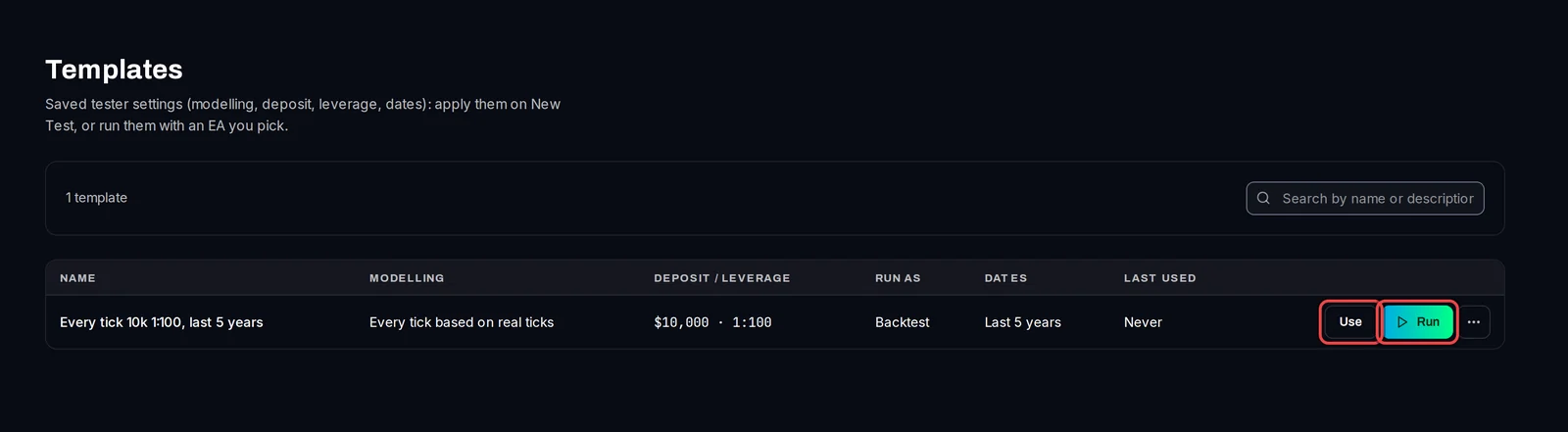
- Click Library › Templates. Each template shows its modelling, deposit and leverage, and its dates.
- Click Use to open Backtests › New test with the template's settings filled in (the page says Loaded from template). Pick the EA, set file, symbol and timeframe, and add the test as usual.
Run a template in one step
- On Library › Templates, click Run next to the template.
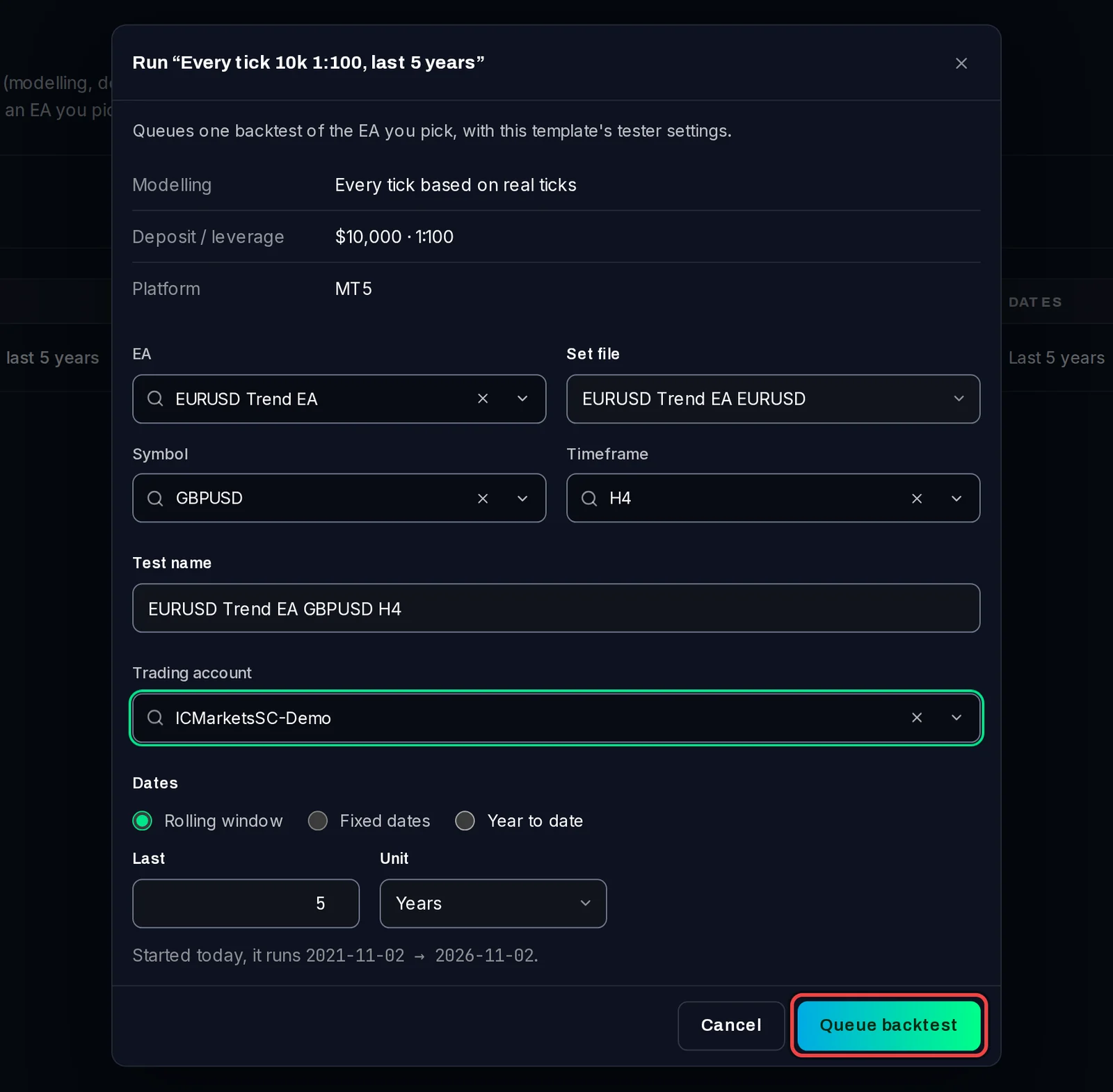
- Pick the EA, its Set file, the Symbol and the Timeframe.
- Check the Test name and pick the Trading account (the test terminal to run it on).
- Click Queue backtest. The test goes to Backtests › Queue.
Good to know
- A template does not keep the EA, set file, symbol or timeframe: you pick those each time you use it.
- The … button on a template has Edit, Duplicate and Delete.
- Templates and Settings › Defaults work together: Defaults fill every new test, a template fills the ones you start from it.