
Knowledge Base
Help Center articles
Save a test to the Library and re-run it
Save a backtest you want to keep an eye on to the Library. Later you can run the same test again on newer price data and see whether the EA still holds up.
Plan: saving works on every plan. Running a saved test again needs Pro (€29 a month). New accounts get 14 days of Pro when they first sign in to the app.
Save a result
- Open the result from Results.
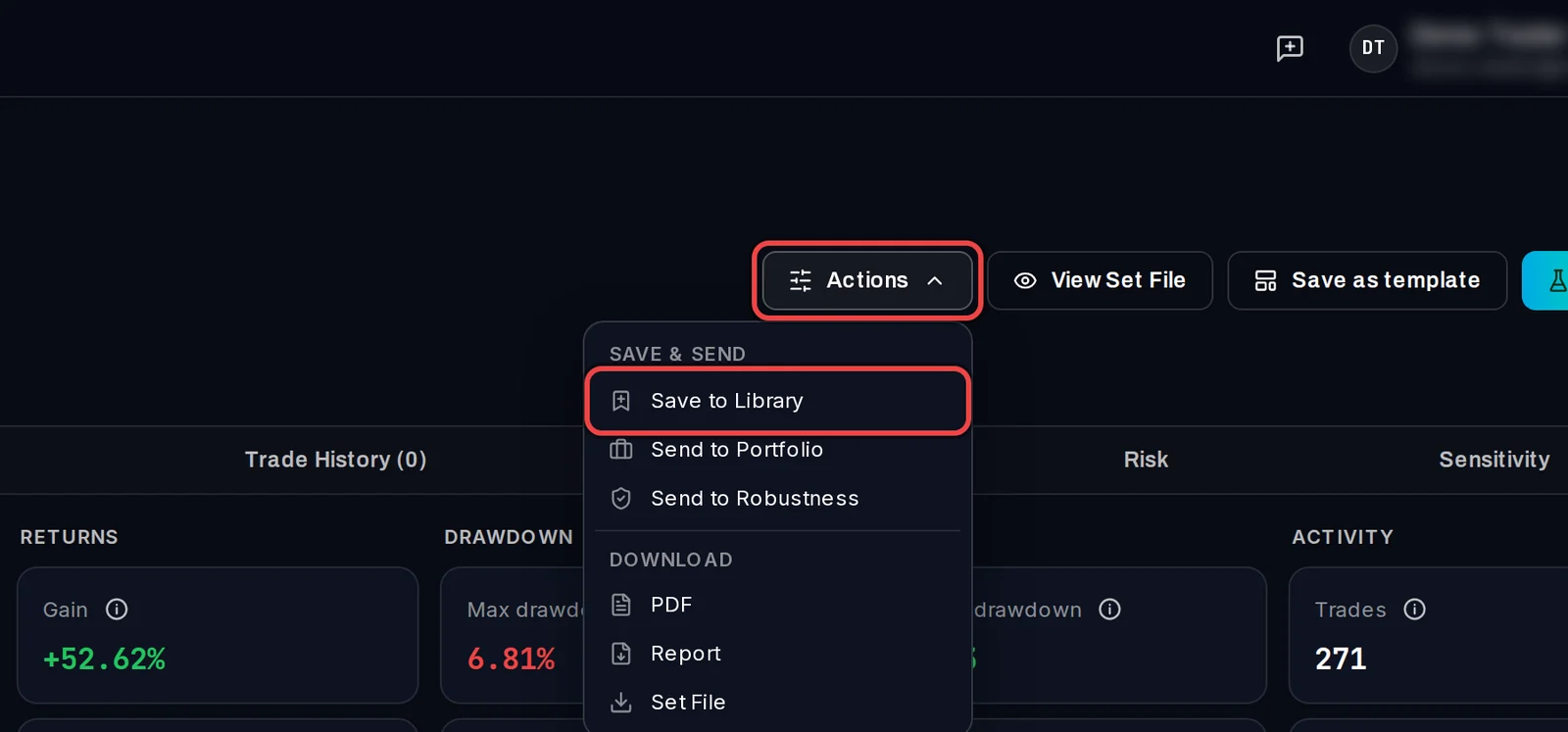
- Click Actions, then Save to Library.
Fill in the details
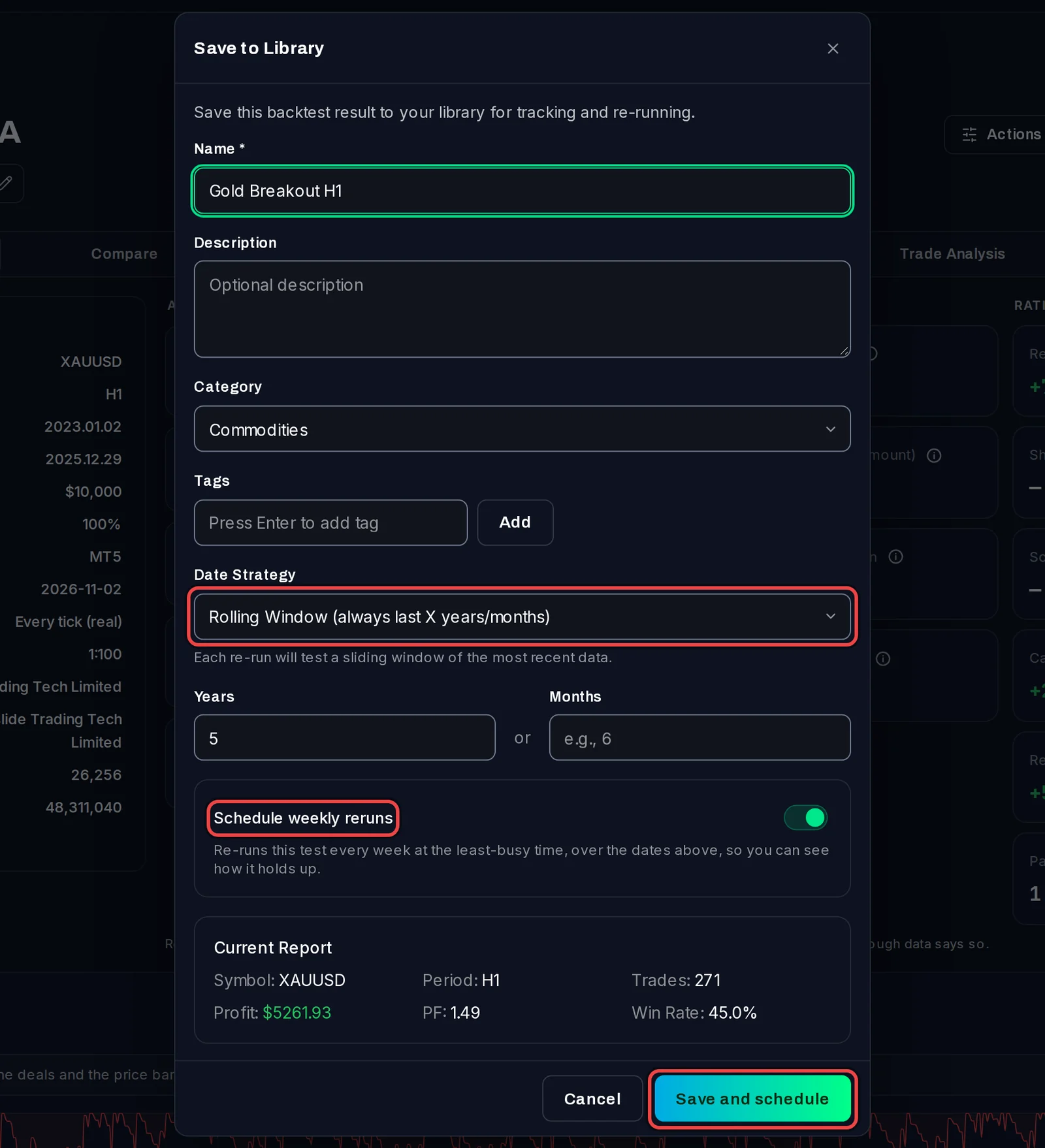
- Type a Name. Description, Category and Tags are optional and help you find it later.
- Choose the Date Strategy: the dates each re-run tests. Rolling Window always tests the last few years or months. Incremental keeps the start date and moves the end to today. Year to Date tests from 1 January. Fixed never changes the dates.
- Leave Schedule weekly reruns on to re-run it every week by itself (Pro), or switch it off.
- Click Save and schedule (or Save to Library with the switch off).
Re-run it now
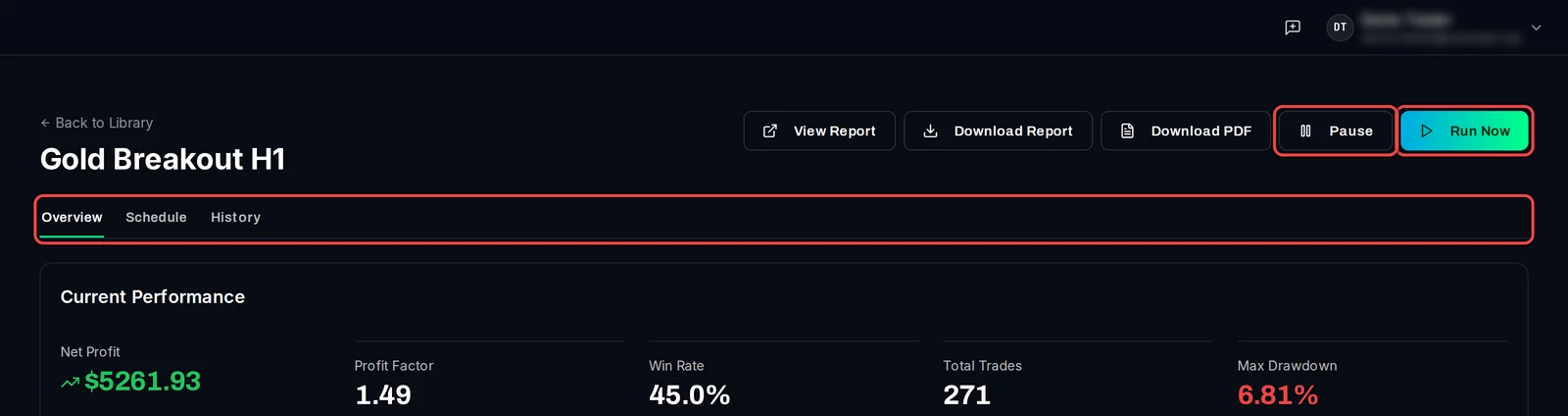
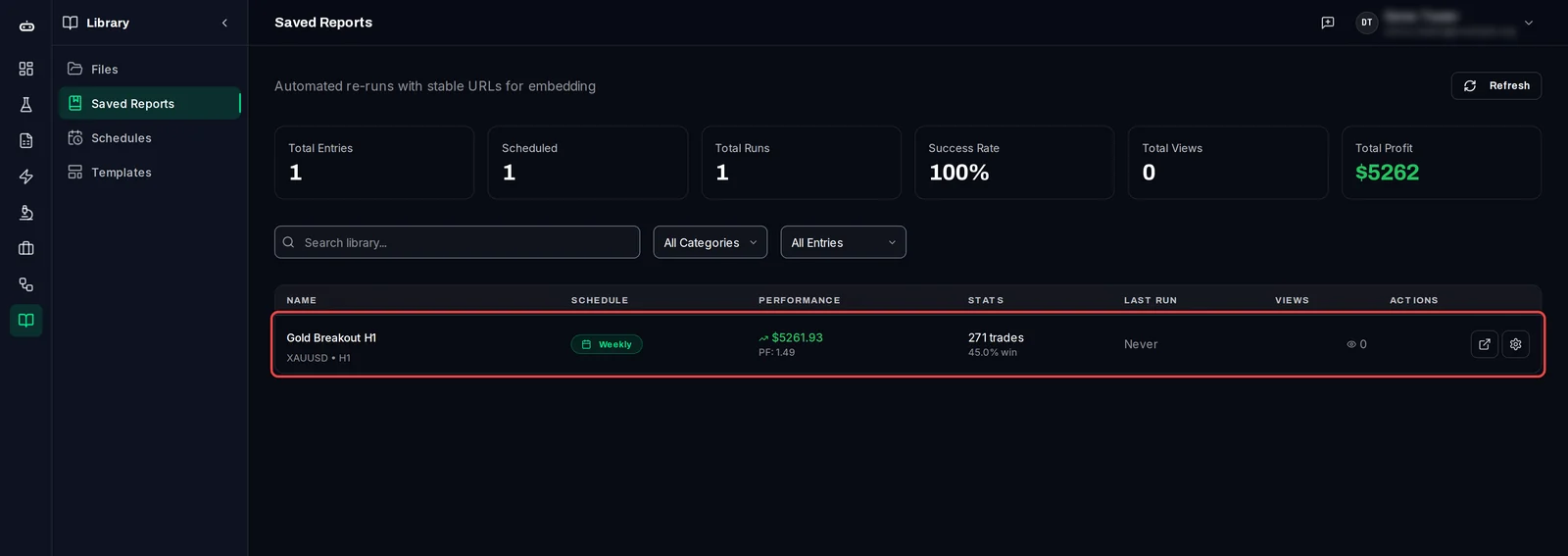
- After saving, the app opens the Library entry. Later you find it under Library › Saved Reports.
- Click Run Now (Pro; on Free the re-run does not start). The re-run joins the queue within a few seconds and runs on your test terminals like any other test.
- When it finishes, the entry shows the new result. The History tab lists every run.
Good to know
- Only tests the app ran itself can be re-run. A report you imported from MT5 can be saved, but it has no EA to run, so the app refuses to re-run or schedule it.
- Each result can be saved once. Saving it again shows "This backtest is already in the Library." with a link to open it.
- To save several results at once, tick them on Results and choose Bulk Actions › Save to Library. They are saved without a schedule and re-run the last 5 years.
- Whether saving schedules reruns by default is set in Settings › Defaults under When saving to the Library.
- To remove an entry, open its Overview tab and click Delete Entry. This removes the entry and its run history; the result stays in Results.