
Knowledge Base
Help Center articles
Re-run library tests on a schedule
A schedule re-runs a saved Library test by itself, for example every week on the latest price data, so you notice when an EA stops working. You set it on the test's Library entry and manage all of them on the Schedules page.
Plan: Pro (€29 a month). New accounts get 14 days of Pro when they first sign in to the app. On Free you can still pause a schedule or remove it.
Schedule a saved test
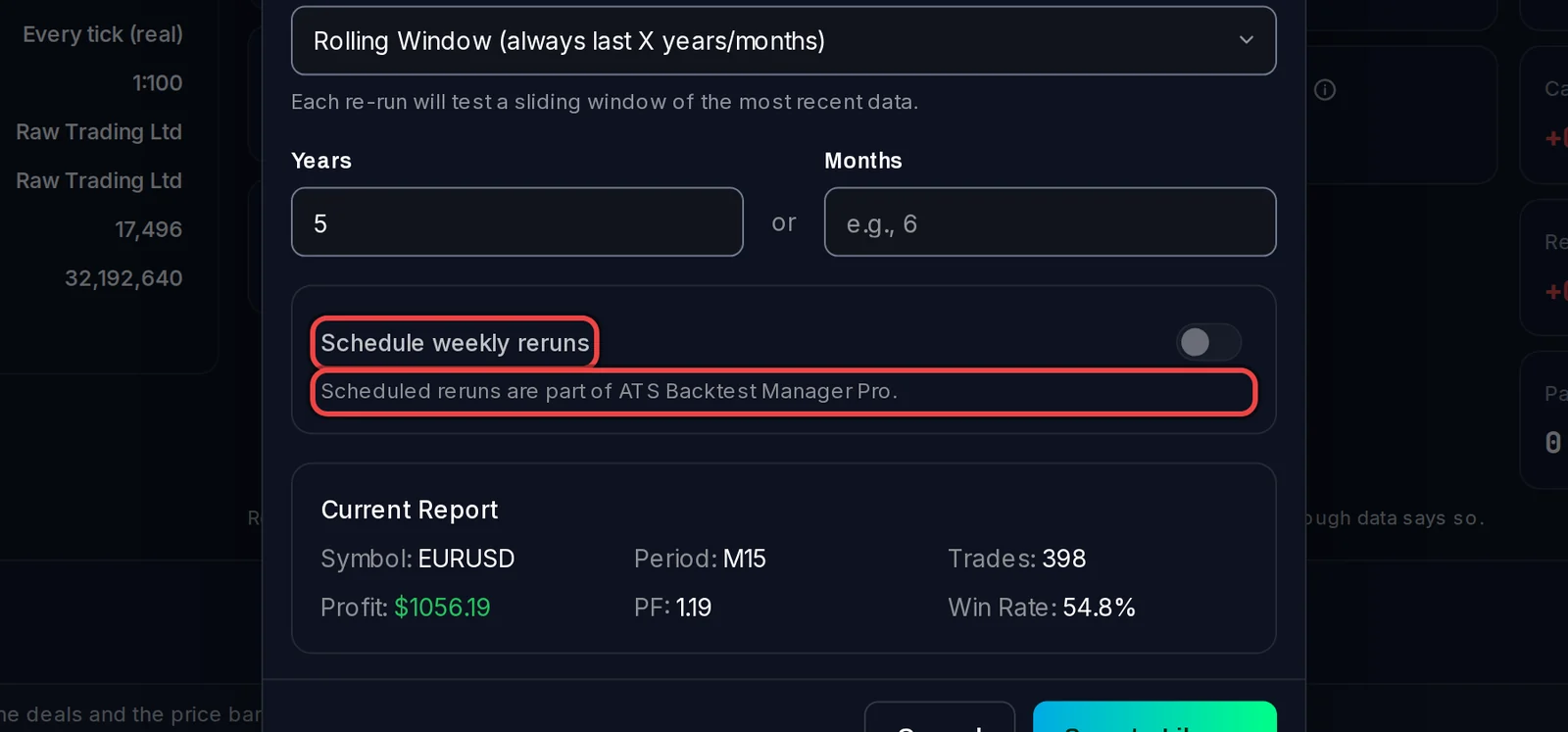
- Save the result with Schedule weekly reruns switched on, or open it later under Library › Saved Reports.
- On the entry, click the Schedule tab.
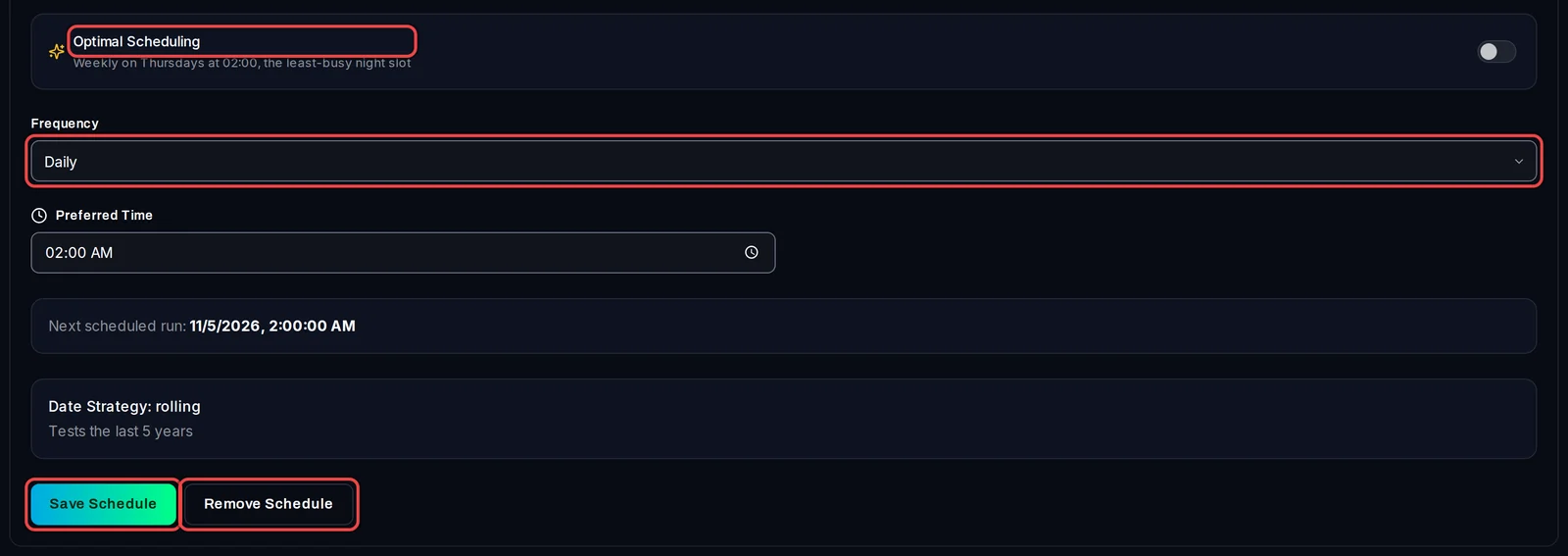
- Leave Optimal Scheduling on to re-run it weekly at the least-busy night time (between 01:00 and 05:00). Or switch it off and choose a Frequency: Daily, Weekly, Monthly or Quarterly, with the time and day.
- Click Save Schedule. Remove Schedule turns the re-runs off again.
On Free the switch in the save dialog stays off, with "Scheduled reruns are part of ATS Backtest Manager Pro."
See all your schedules
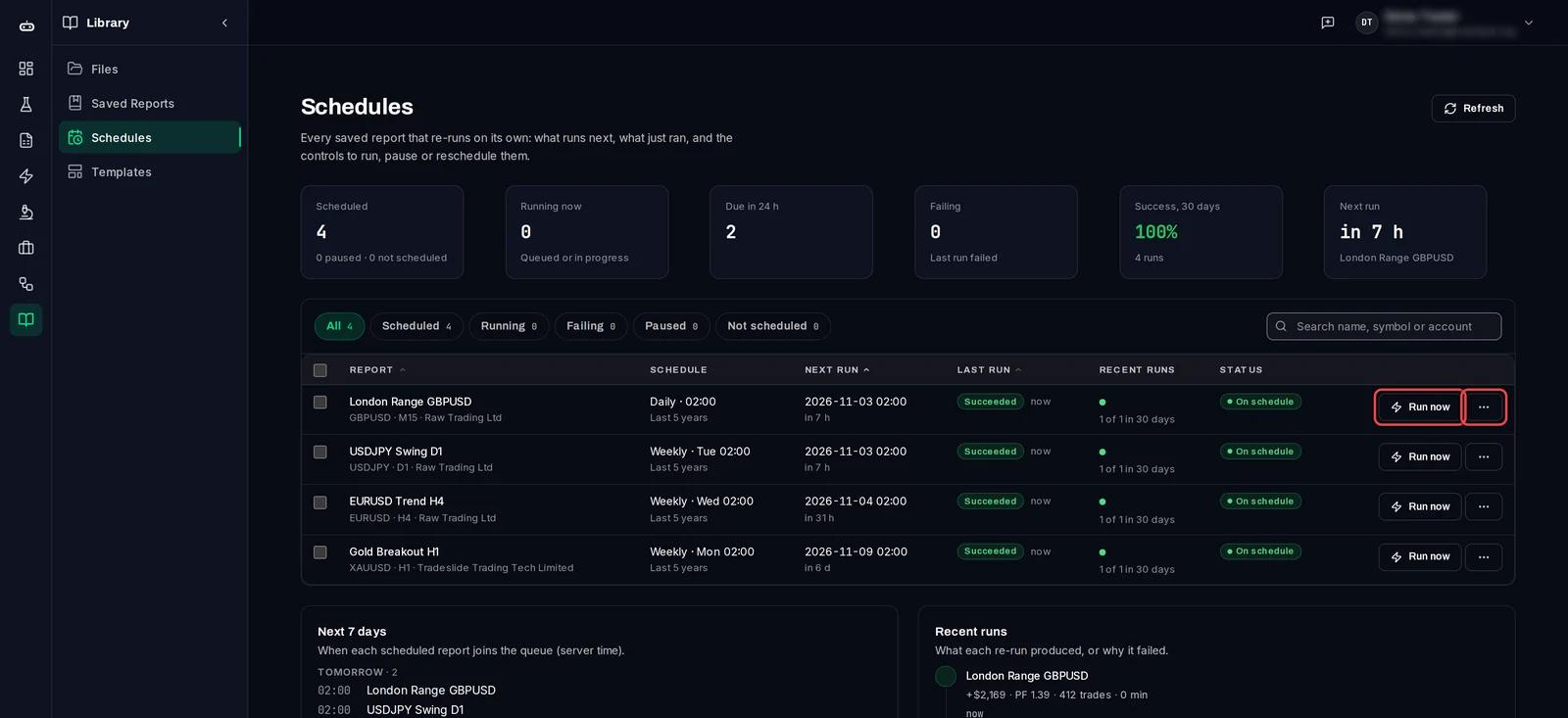
- Click Library, then Schedules.
- The tiles show how many tests are scheduled, running now, due in the next 24 hours and failing, the success rate of the last 30 days and the next run.
- Use the tabs (Scheduled, Running, Failing, Paused, Not scheduled) to narrow the list.
- Click Run now on a row to re-run it at once.
Pause, change or remove a schedule
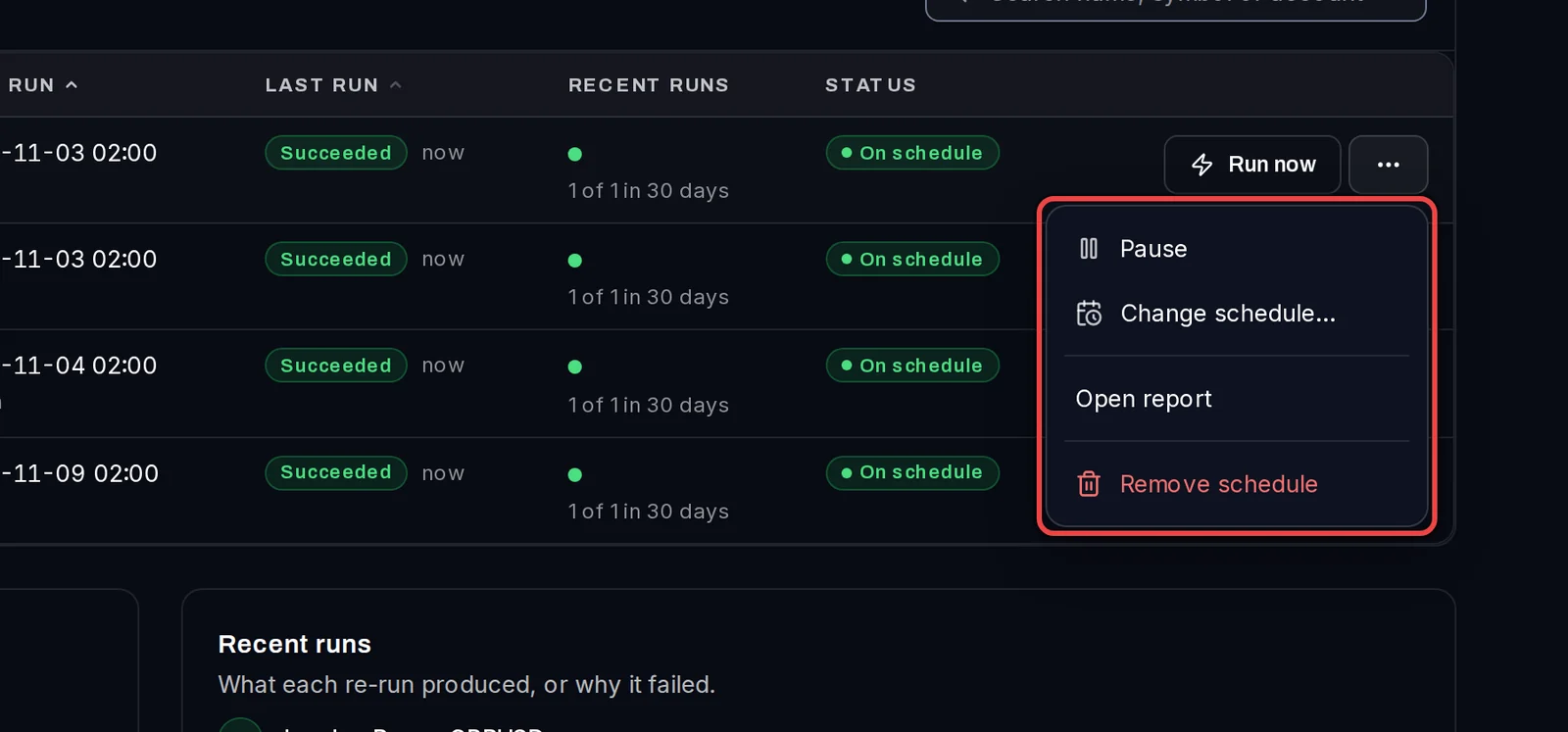
- Click the … button at the end of the row.
- Choose Pause (later Resume), Change schedule…, Open report or Remove schedule.
To change several at once, tick their rows and use the bar that appears: Run now, Pause, Resume, Set schedule… or Spread start times…, which starts each a few minutes after the one before so they don't all queue at once.
Good to know
- Re-runs happen on this PC, so the app must be running. Turn on Start with Windows in Settings › Profile: the app then opens in the tray when you sign in to Windows. A re-run missed while the PC was off starts the next time the app is open.
- A re-run is an ordinary test: it waits in the queue for a free test terminal.
- When a re-run fails, the entry keeps its last good result and shows under Failing.
- Only Library entries can be scheduled. Workflows can't.