
Knowledge Base
Help Center articles
Run a batch of tests
Batch Mode turns one New test form into many backtests: one for every mix of the symbols, timeframes, set files and trading accounts you pick. Use it to test an EA on several pairs or timeframes in one go.
Plan: every plan. Batches of backtests are unlimited.
Switch on Batch Mode
- Click Backtests › New test.
- Tick Batch Mode at the top of the form. From now on, the form shows how many tests it will add, for example 4 tests.
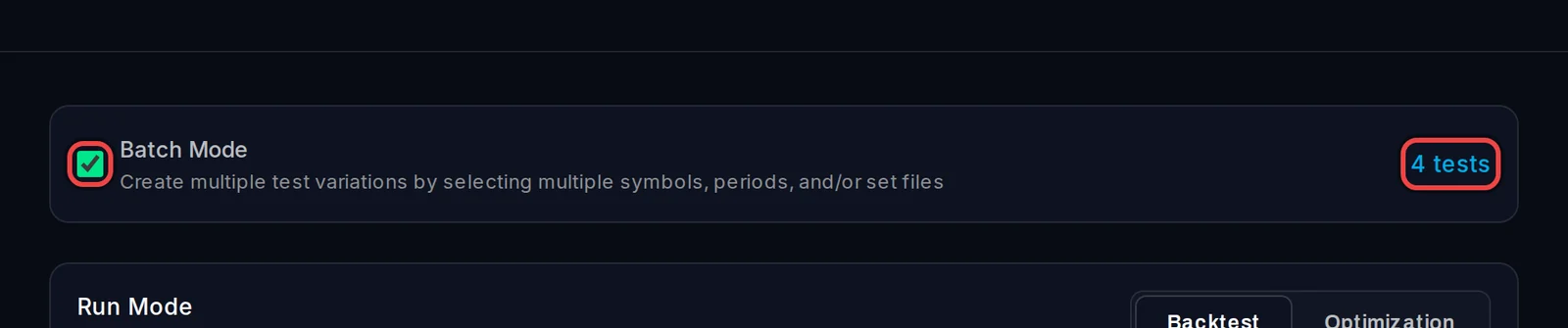
Pick what to combine
- Type a Test Name and pick the Expert Advisor (EA), as for a single backtest.
- Under Expert Parameters (Optional), tick one or more set files (the files that hold the EA's input settings).
- Under Symbols, pick each symbol you want. Select All Forex Majors and the other quick picks add a whole group.
- Under Timeframes, pick each timeframe, or use Select All Minutes, Select All Hours or Select All Days & Higher.
- Optional: under Trading Accounts (Optional), pick several test terminals to run the same tests on several brokers' price data.
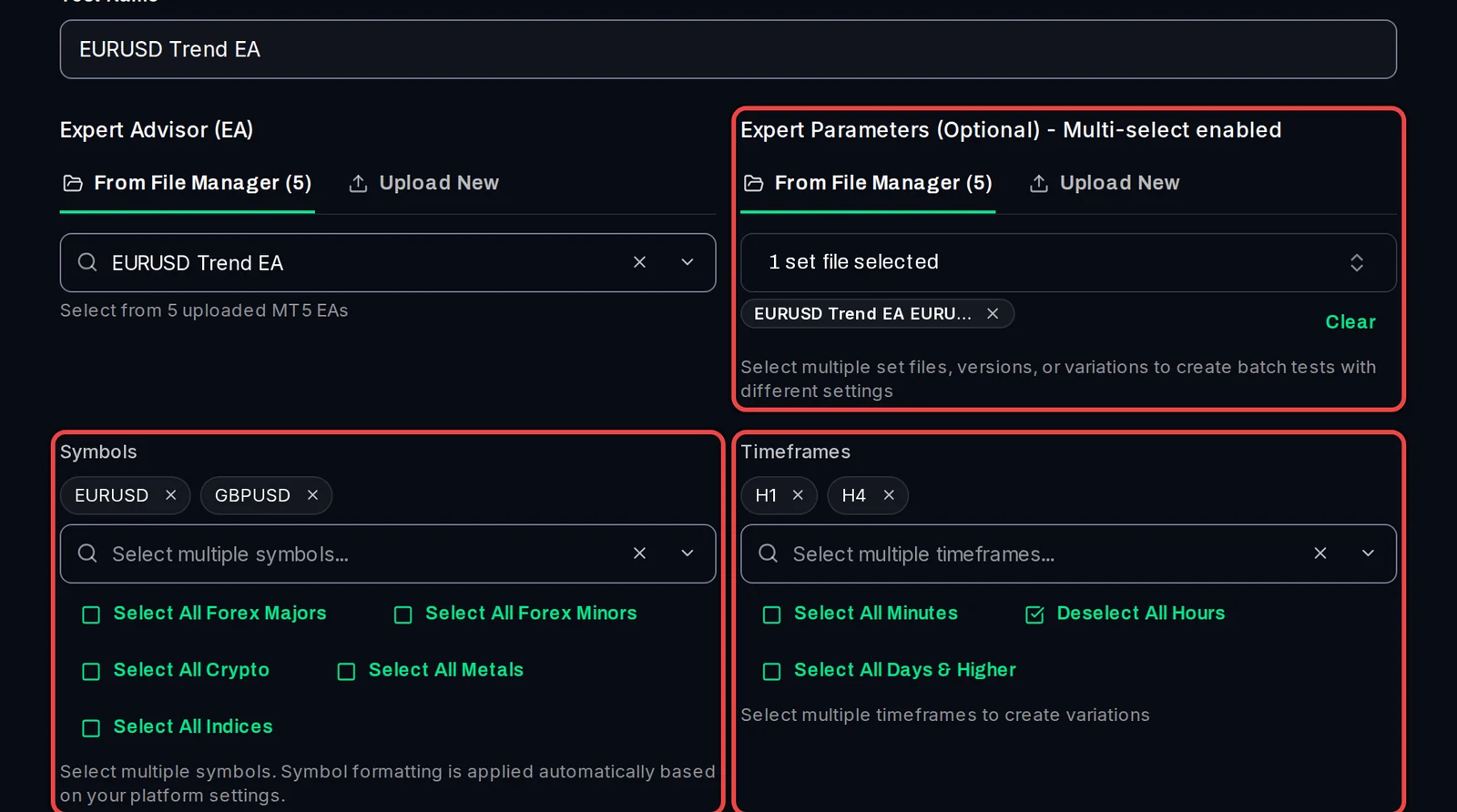
The count multiplies: 2 symbols × 2 timeframes × 1 set file = 4 tests. Two trading accounts would make it 8.
Add the batch to the queue
- Set the modelling, delay, period, deposit and leverage once. They apply to every test of the batch.
- Click Add 4 Tests to Queue (the number follows your picks).
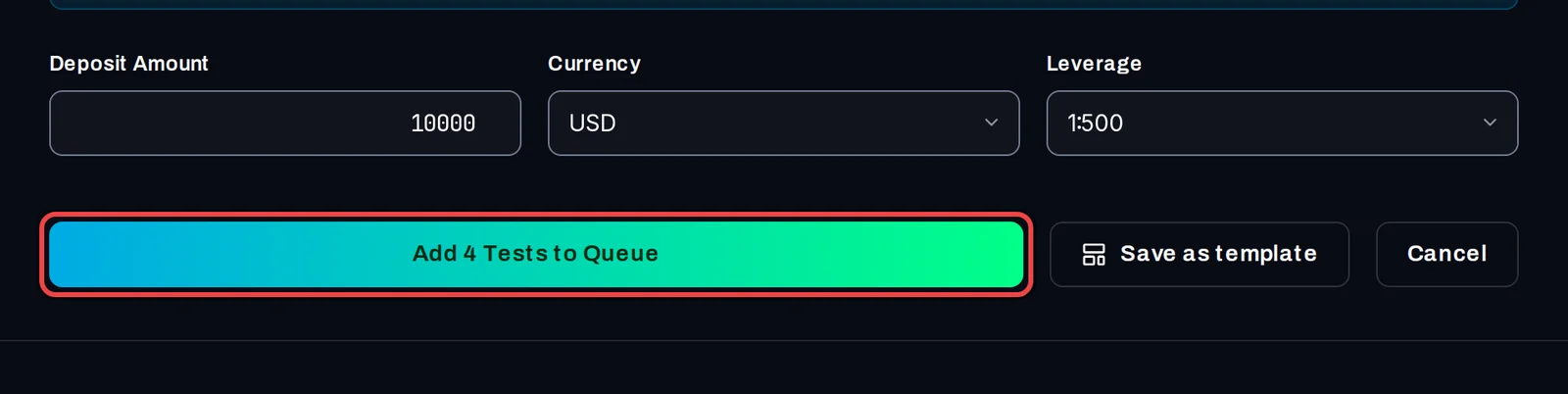
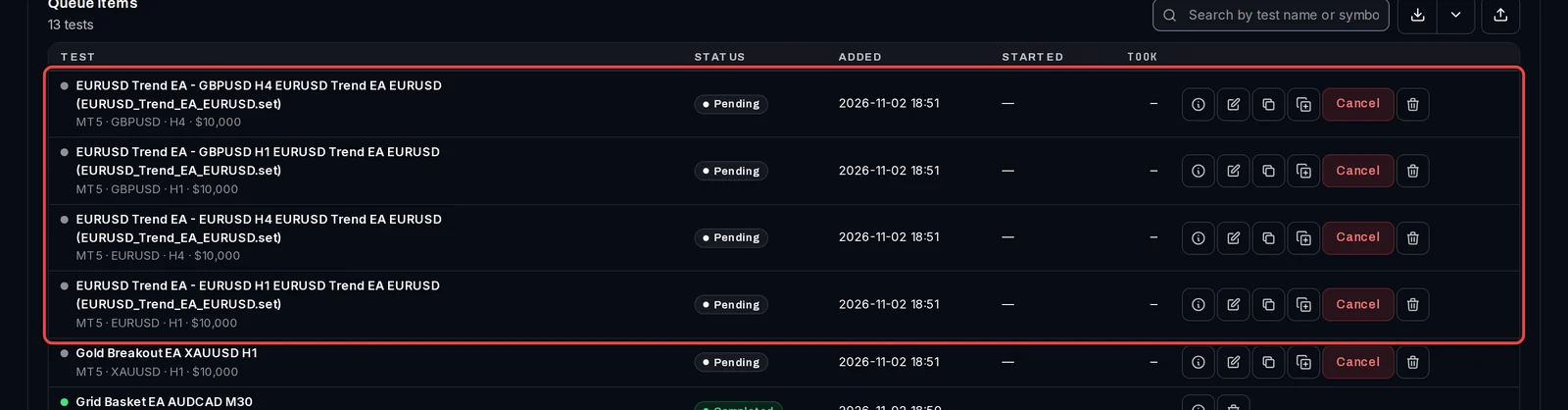
The app opens Backtests › Queue with one row per test. Each test is named after your test name, its symbol and timeframe, and its set file.
Good to know
- On every plan, tests run side by side, one per test terminal, as many at a time as your PC can hold. More terminals finish a batch sooner.
- Each result is its own backtest under Results, so you can compare them afterwards.
- Batch Mode also works with Run Mode › Optimization. Several optimizations from one form need Pro (€29 a month); optimizations run one at a time.