
Knowledge Base
Help Center articles
Combine backtests into one
Running several EAs on one account? Combine their backtests to see them as one: the trades of 2 to 10 results are replayed together on one timeline, and every figure is measured again for the combined account, including the drawdown when they lose at the same time.
Plan: Pro (€29 a month). New accounts get 14 days of Pro when they first sign in to the app.
Choose the backtests
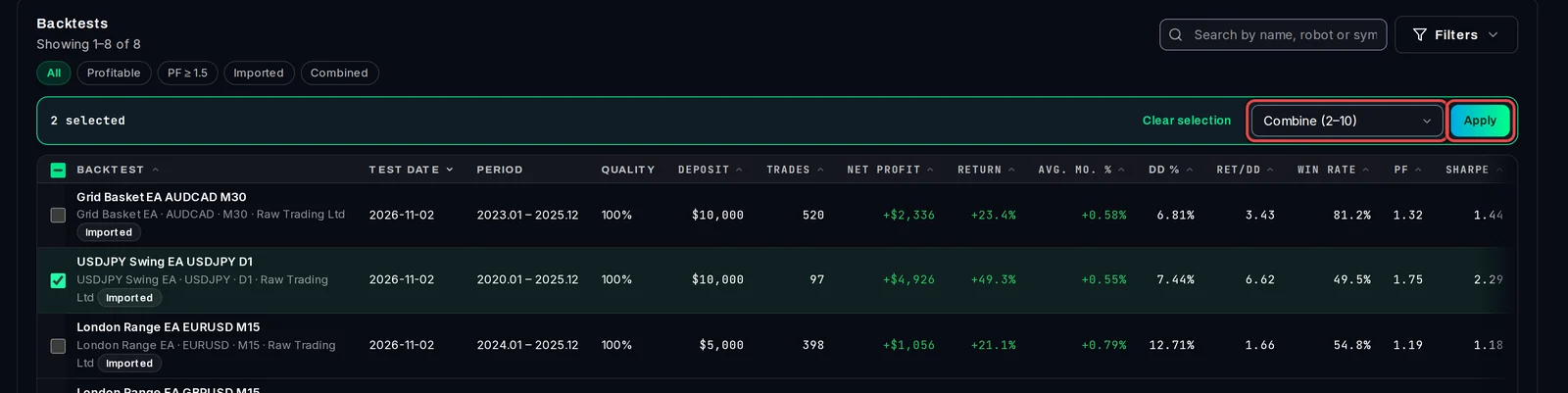
- Click Results in the menu on the left.
- Tick the box in front of each result you want to combine, 2 to 10 of them.
- Open Bulk Actions and choose Combine (2–10).
- Click Apply.
Set the account and combine
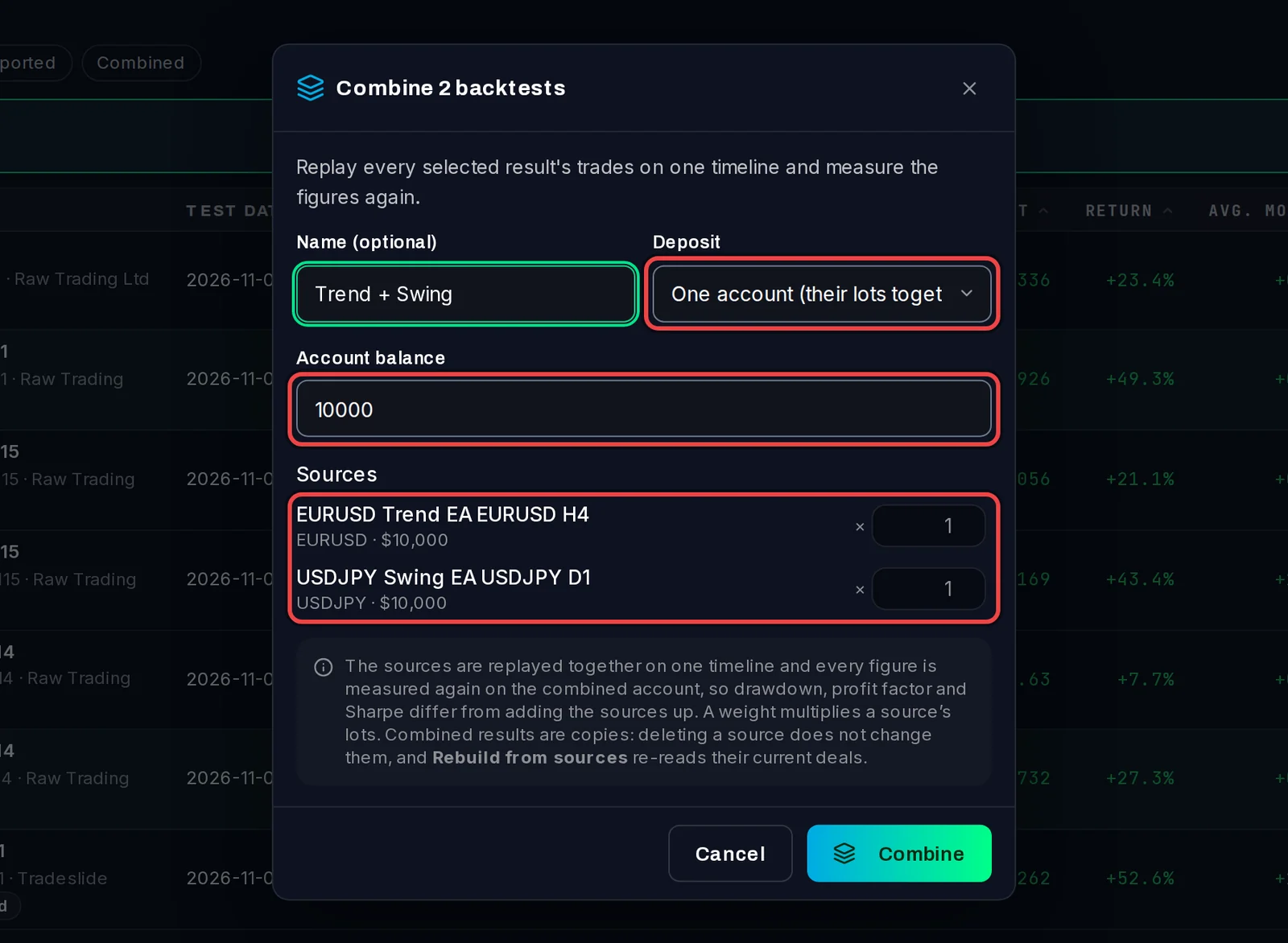
- Type a name under Name (optional) if you want one.
- Under Deposit, choose how the account is funded:
- One account (their lots together): all trades run on one account. Type its Account balance.
- As tested (sum of deposits): the account starts with the deposits of all the sources added up.
- Under Sources, set a weight for each backtest if you like. The weight multiplies that backtest's lot sizes: 2 trades it twice as big, 0.5 half as big.
- Click Combine. The new result opens.
Read and change the combined result
The combined backtest is a result like the others, marked Combined, with the same Overview, chart and tabs. Settings lists its Sources and their weights.
- Edit combination: change the deposit or the weights, add or remove sources, then rebuild.
- Rebuild from sources: measure it again from the sources' current trades, for example after you have re-run one of them.

On the Free plan
On Free, the option reads Combine (2–10) · Pro. Choosing it shows a note that combining needs ATS Backtest Manager Pro, with a Get Pro button.

Good to know
- A combined backtest is a copy: deleting or re-running a source does not change it until you click Rebuild from sources.
- Combined backtests you made with Pro are kept if your plan moves to Free. They are hidden until you have Pro again, and the Results page says how many are kept.
- Combined results have no Sensitivity tab. Find them with the Combined quick filter on the Results page.