
Knowledge Base
Help Center articles
Build and run a workflow
A workflow chains several jobs you would otherwise start one by one: for example, backtest a set of EAs, keep the profitable ones, check them on another broker's data and save the survivors to the Library. Each step keeps what passes and hands it to the next.
Plan: Pro (€29 a month) to run a workflow. New accounts get 14 days of Pro when they first sign in to the app. On Free you can build and save workflows; Run answers "Workflows need ATS Backtest Manager Pro."
Start from a ready-made workflow
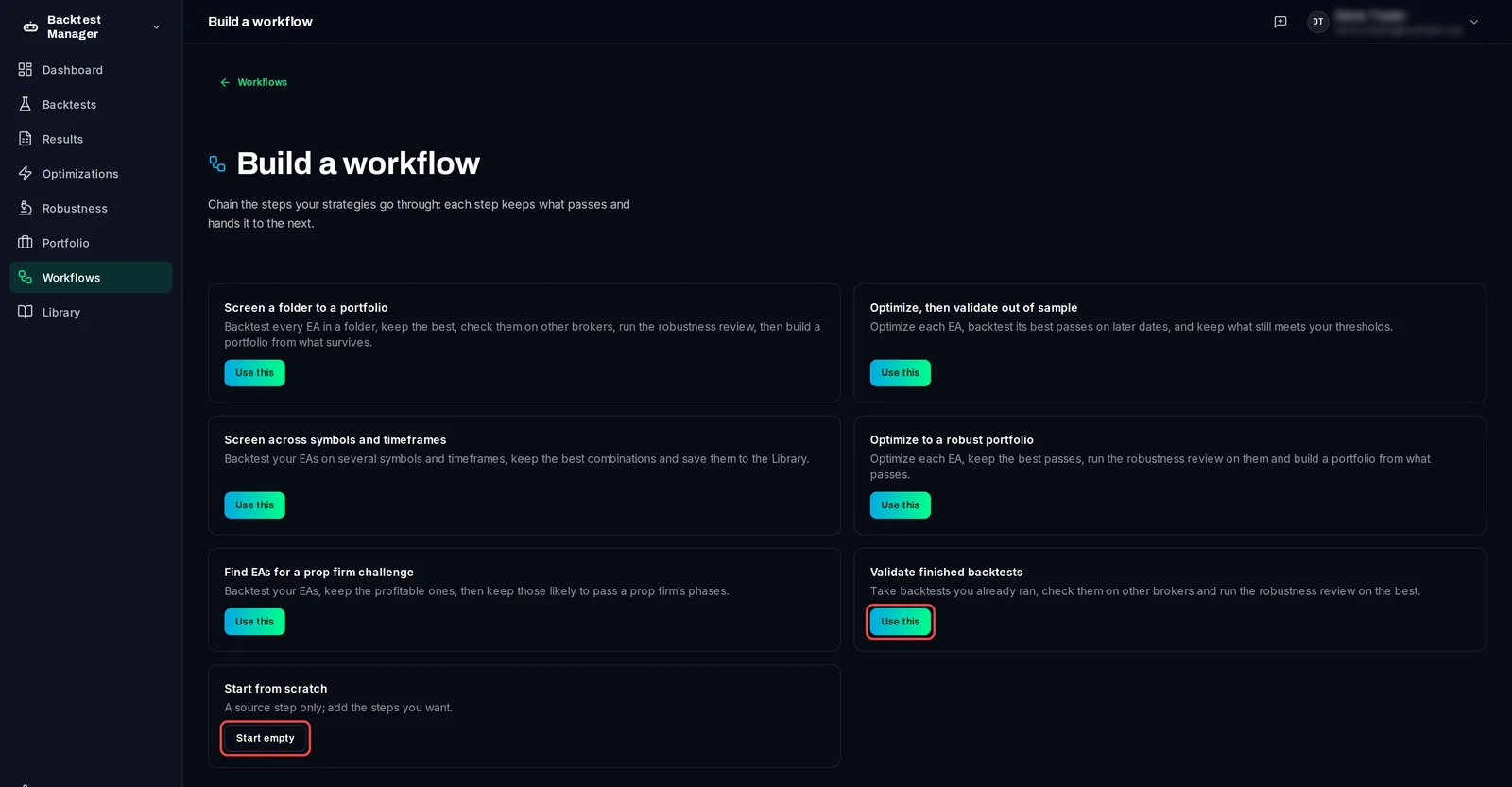
- Click Workflows in the left rail, then Build a workflow.
- Pick a starter that is close to what you want, such as Screen across symbols and timeframes or Validate finished backtests, and click Use this. Start empty gives you only the first step.
Choose the strategies
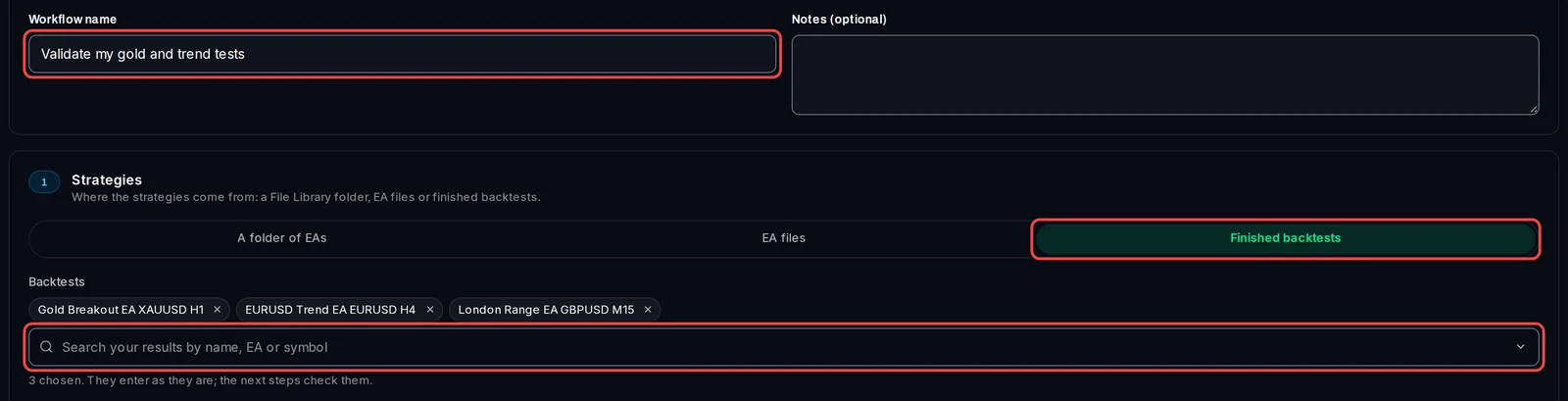
- Type a Workflow name.
- In step 1, Strategies, choose where they come from: A folder of EAs from Library › Files, single EA files, or Finished backtests you already ran.
- Pick the folder, EAs or backtests.
Add and arrange the steps
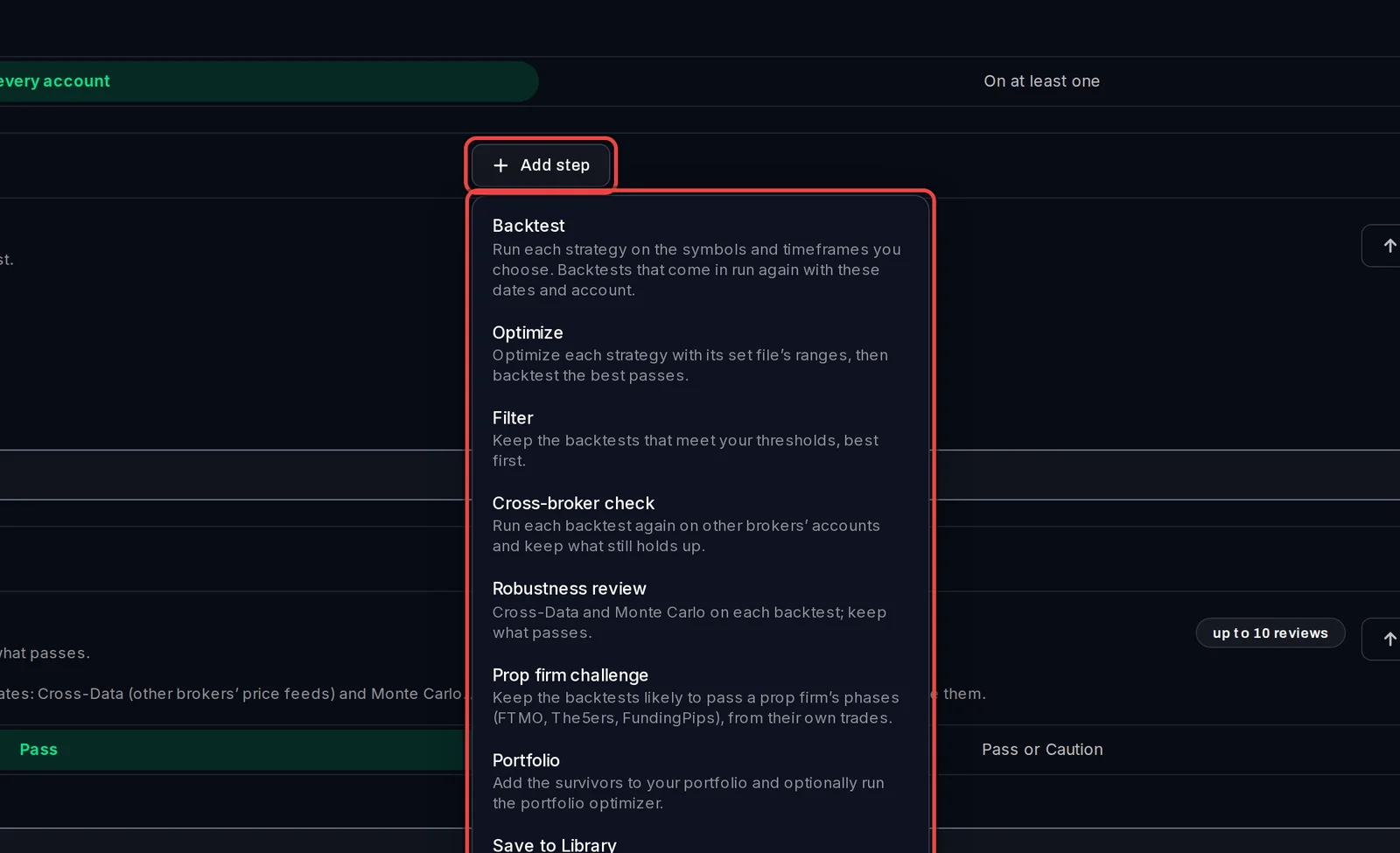
- Click Add step where the new step should go, and choose its kind: Backtest, Optimize, Filter (keep only tests that meet your limits, best first), Cross-broker check (run again on your test terminals at other brokers), Robustness review, Portfolio or Save to Library.
- Fill in each step's settings. A starter fills them with sensible values.
- Use the arrows on a step to move it up or down, and the bin to remove it. A workflow has up to 12 steps.
Save and run it
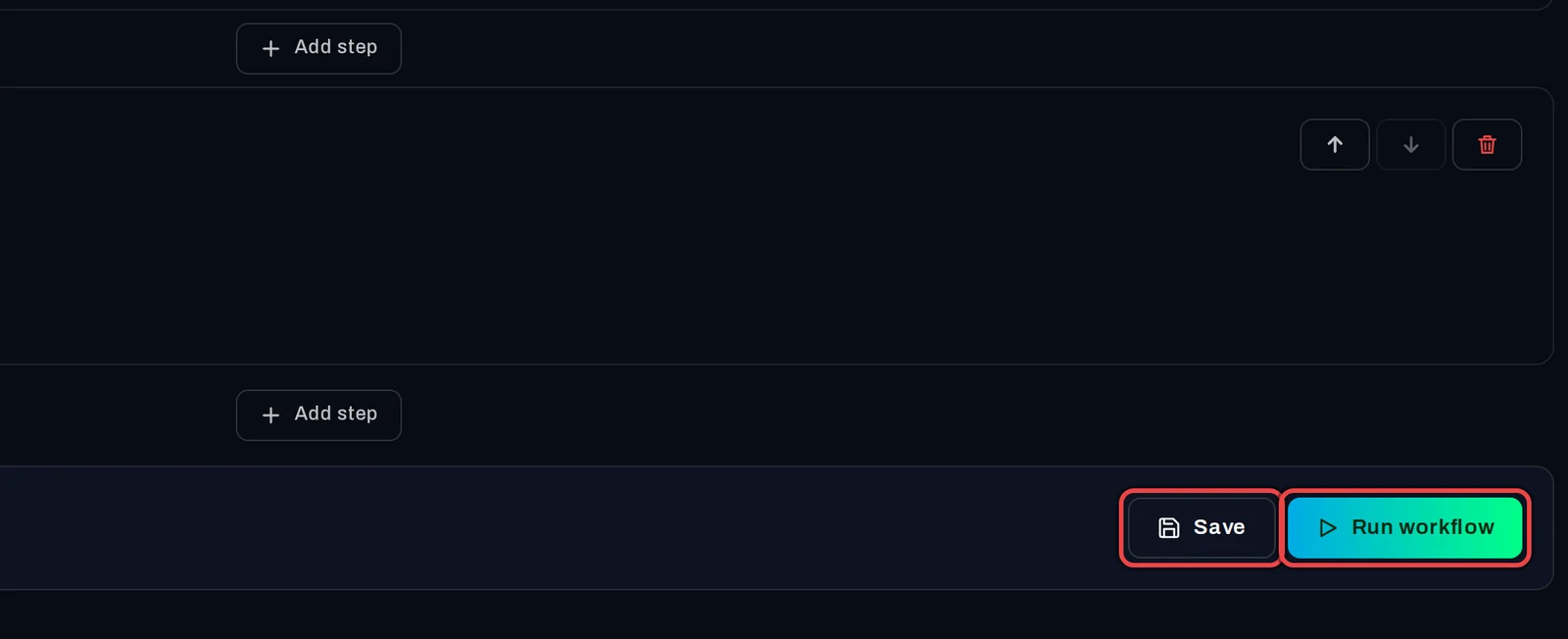
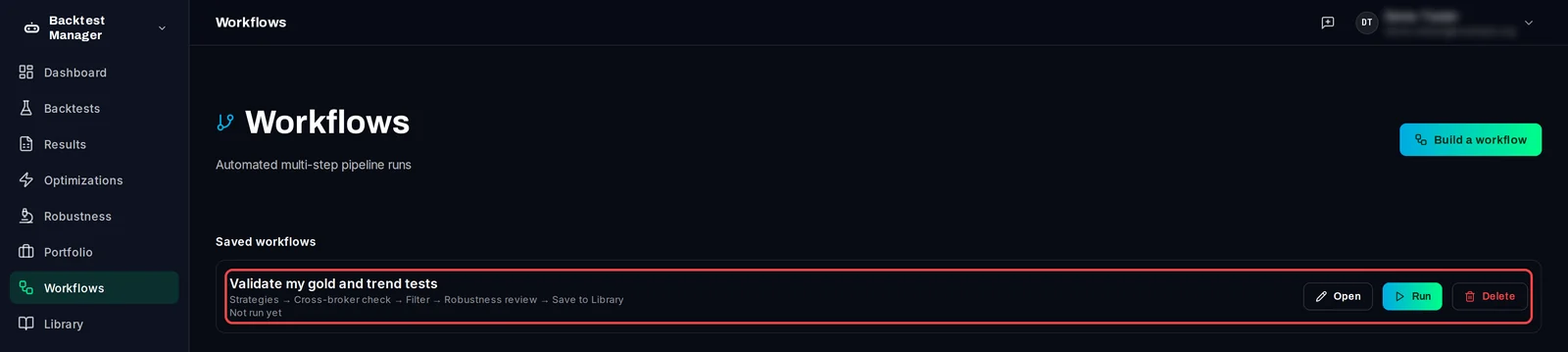
- Click Save to keep the workflow. It appears under Saved workflows on the Workflows page.
- Click Run workflow to start it. Its tests join the queue and run on your test terminals.
Later, on the Workflows page, click Run on a saved workflow to start it again, Open to change it, or Delete. Each run is listed below with its status; open it to see what each step kept and dropped, and why.
Good to know
- Below the steps the builder shows how many test runs the workflow starts with. A step that would queue more than 500 runs is refused: choose fewer symbols or timeframes, or add a Filter first.
- A Robustness review step takes at most 10 backtests, so put a Filter before it.
- A Cross-broker check needs at least one more test terminal logged in to another broker's server.
- Workflows run when you start them. They can't be scheduled; Library entries can.