
Knowledge Base
Help Center articles
This is the whole Prop Firm Robots App user guide on one page. The app shows ready-made trading robots for each symbol with their backtest results, sizes them to your account and risk, and lets you download them for MetaTrader 4 or 5 with protections that match your prop firm challenge. Each link below is a short guide with pictures of the real app. New to it? Read the guides in order.
Plan: anyone can browse the robots; downloading needs a plan that includes the Prop Firm Robots App.
1. Getting started
Open the app from your Algo Trading Space account, accept the risk disclaimer and sign in.
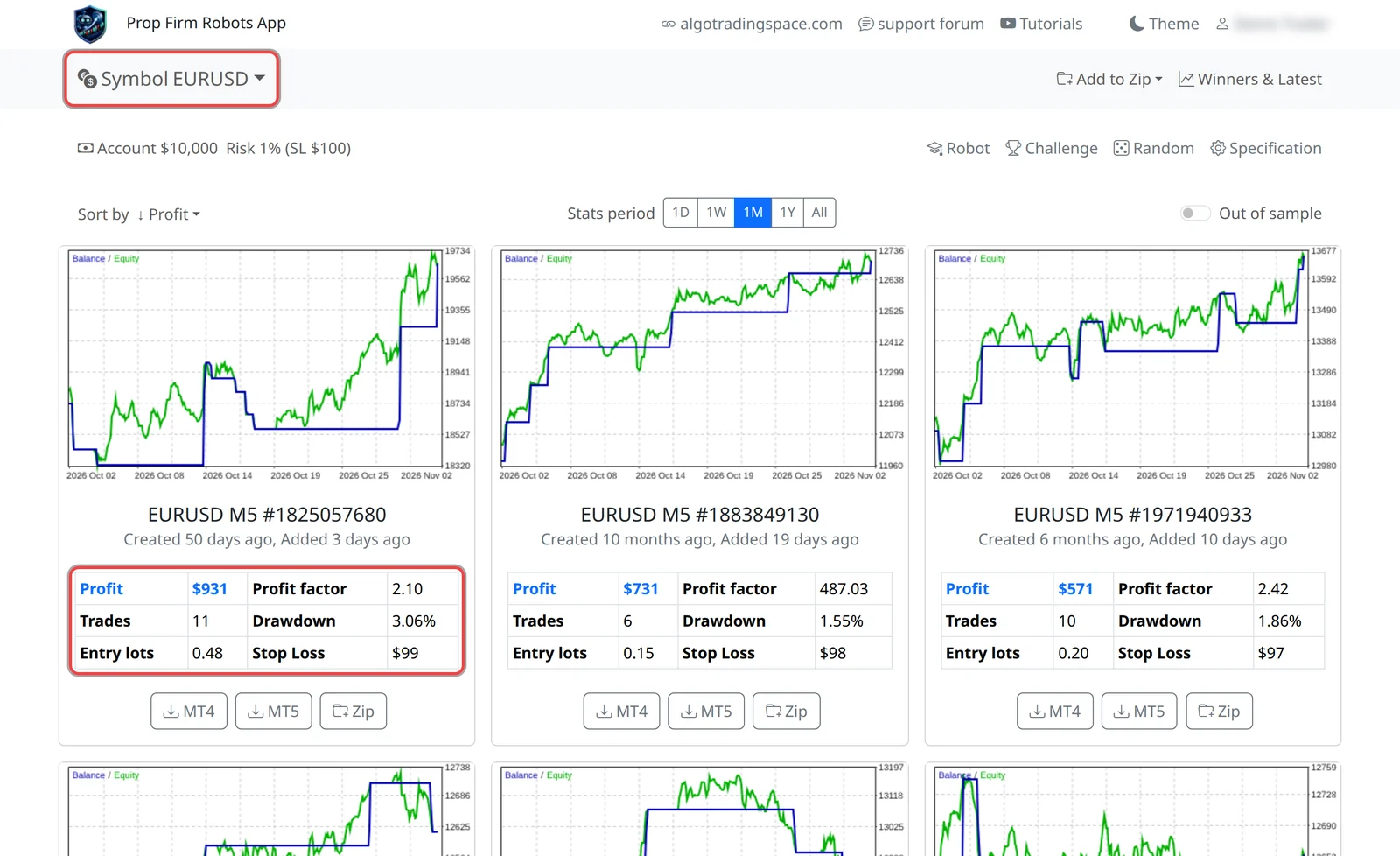
2. Choosing robots
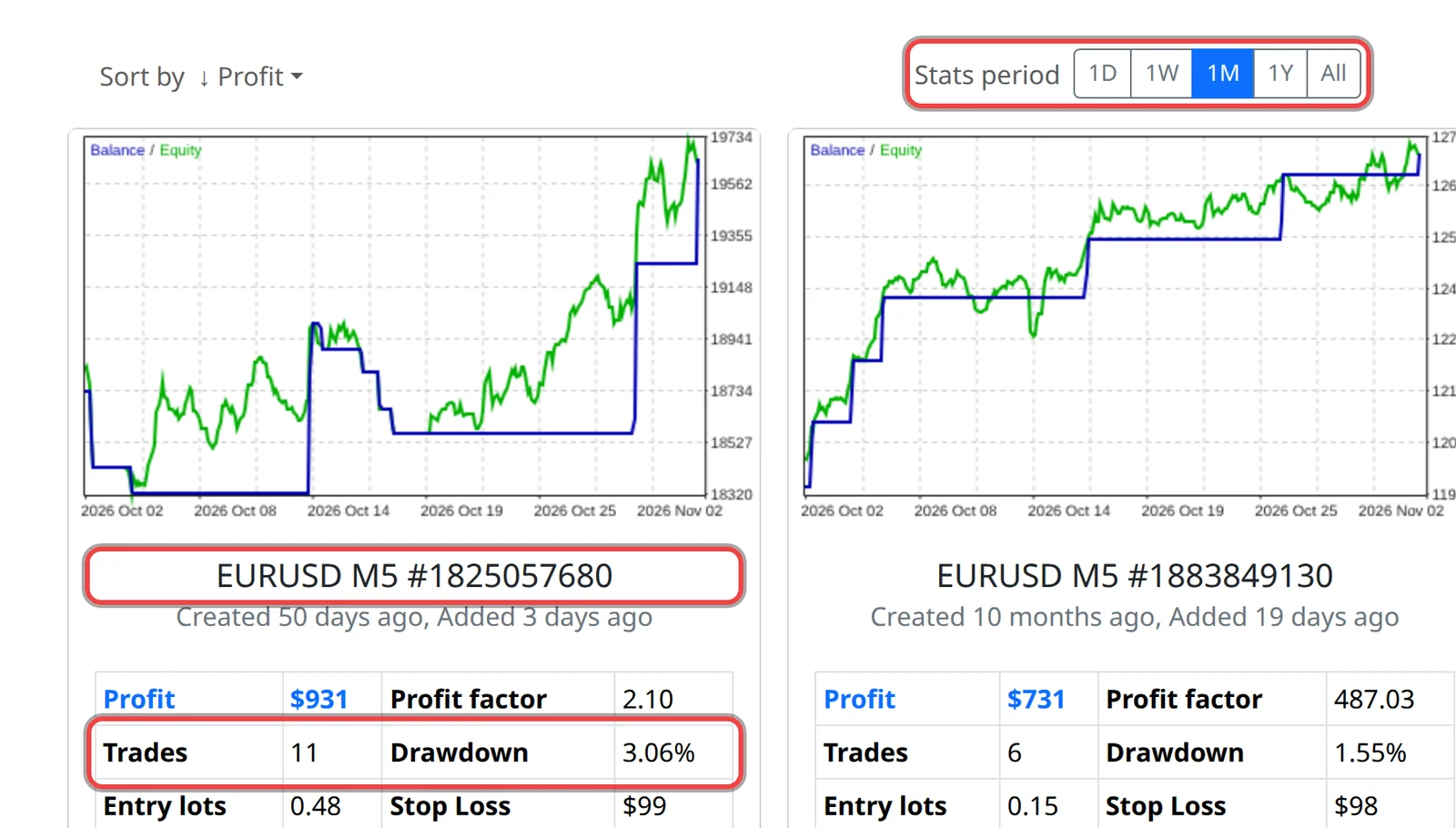
Pick a symbol, read each robot's card, sort the list and compare the robots' recent and out-of-sample results.
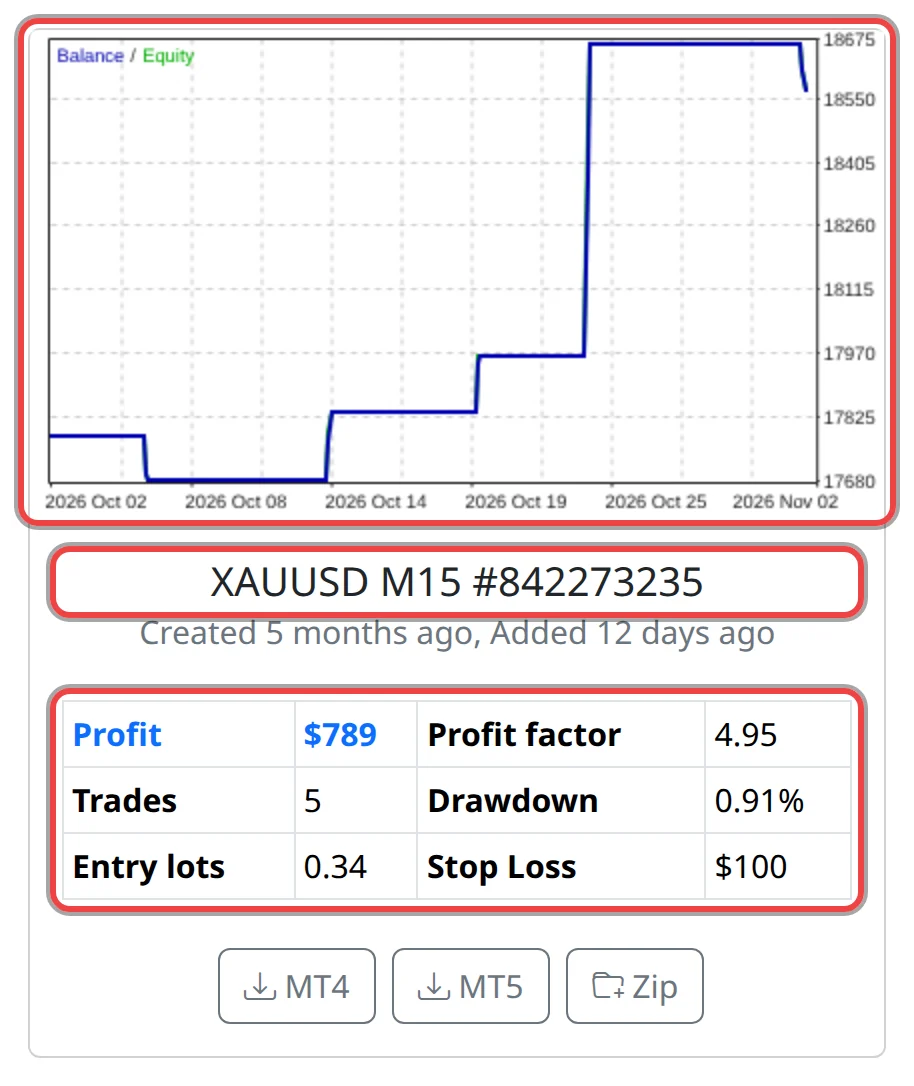
- Pick a symbol and read the robot cards
- Sort the robots and change the stats period
- Out of sample: check a robot on data it was not built on
- Winners & Latest: the best robots across symbols
3. Account, risk and challenge
Tell the app your account size and how much to risk per trade, and enter your challenge's loss limits and profit target so the robots respect them.
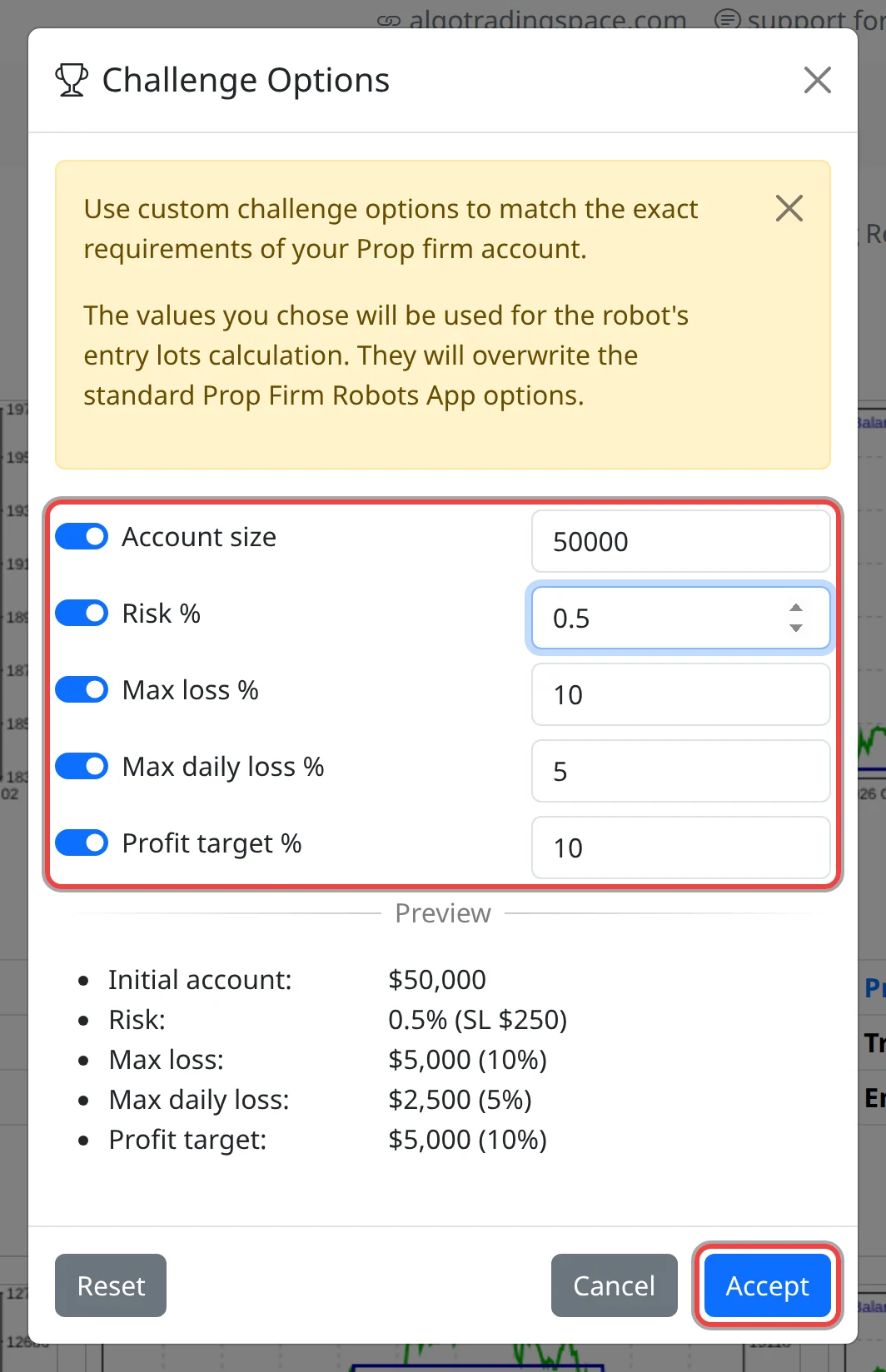
4. Exporting robots
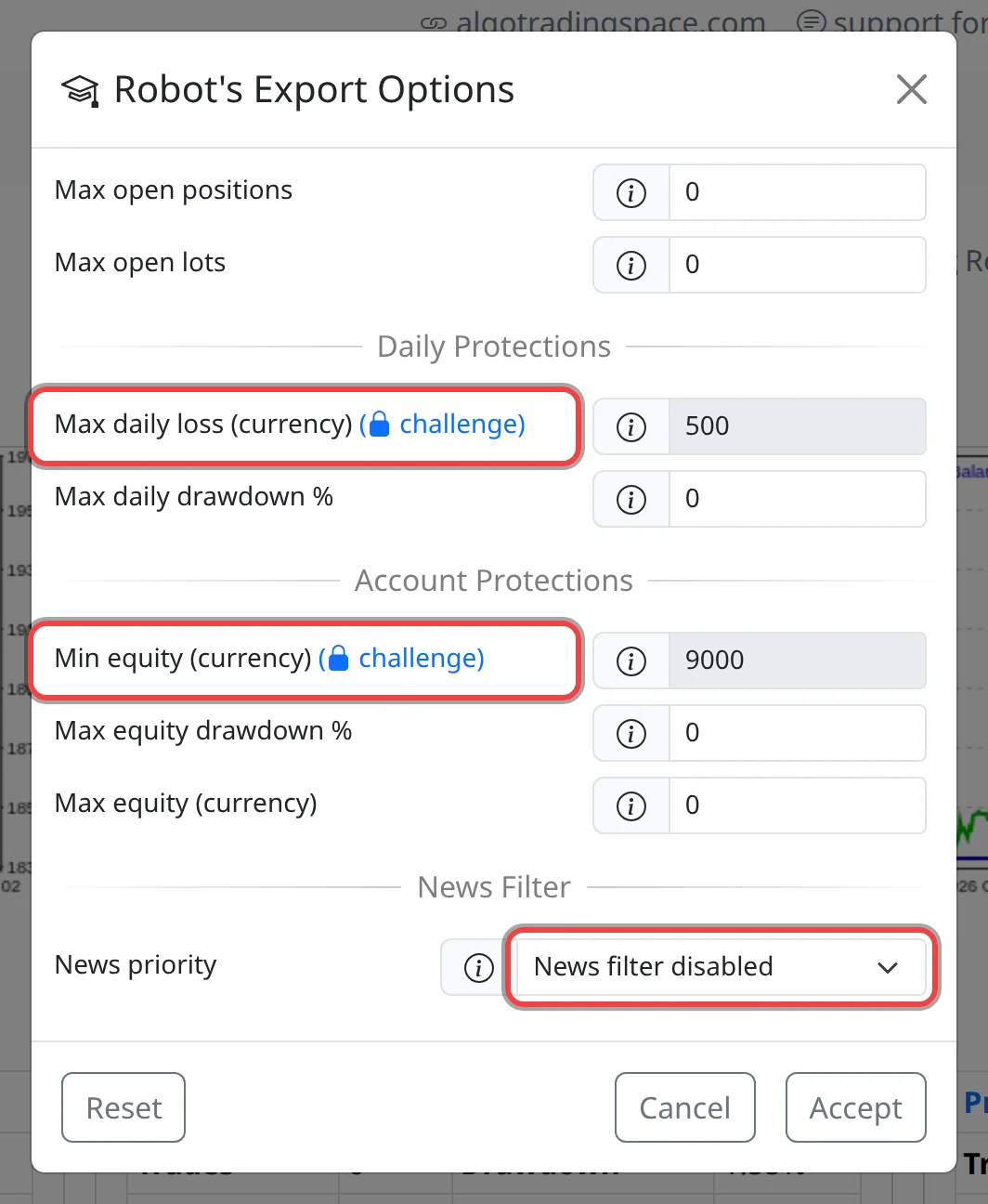
Download one robot or several in a ZIP, make each copy unique, match your broker's symbol and set trading hours, a news filter and account protections.
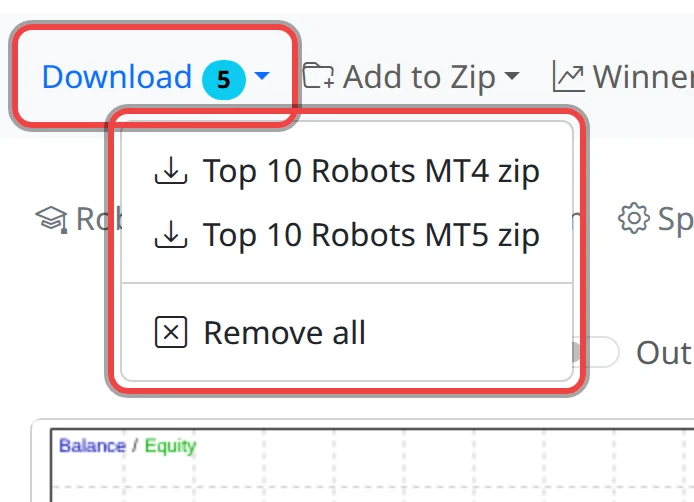
- Download a robot for MT4 or MT5
- Download several robots in one ZIP
- Make your robots unique (Random)
- Match your broker’s symbol specification
- Set trading hours, news filter and account protections
5. Using the robots in MetaTrader
Put the files into MetaTrader, backtest them there first, and check the usual reasons when a robot doesn't trade.
- Install the robots in MetaTrader
- Backtest a robot in MetaTrader before you trade it
- My robot isn’t opening trades: what to check
Questions
Short answers to the questions traders ask most are in the Prop Firm Robots App — FAQ.